


Lists, filters and saved views
Learn how list screens work in Superwise, including search, filters, column choice, saved views, sorting and export.
- Where to find it
- Procurements > Purchase Orders
- Who can use it
- Everyone who can View the records of a list. Create, export and approve need their own permissions.
Most Superwise screens start with a list of records, such as purchase orders, bills or deliveries. The lists work in the same way. This page uses the purchase order list as the example. The same tools appear on other lists.
Note: Some older lists look different. They show a row of boxes above the table and the button Export to CSV. The ideas are the same: search, filter and sort.
The parts of a list
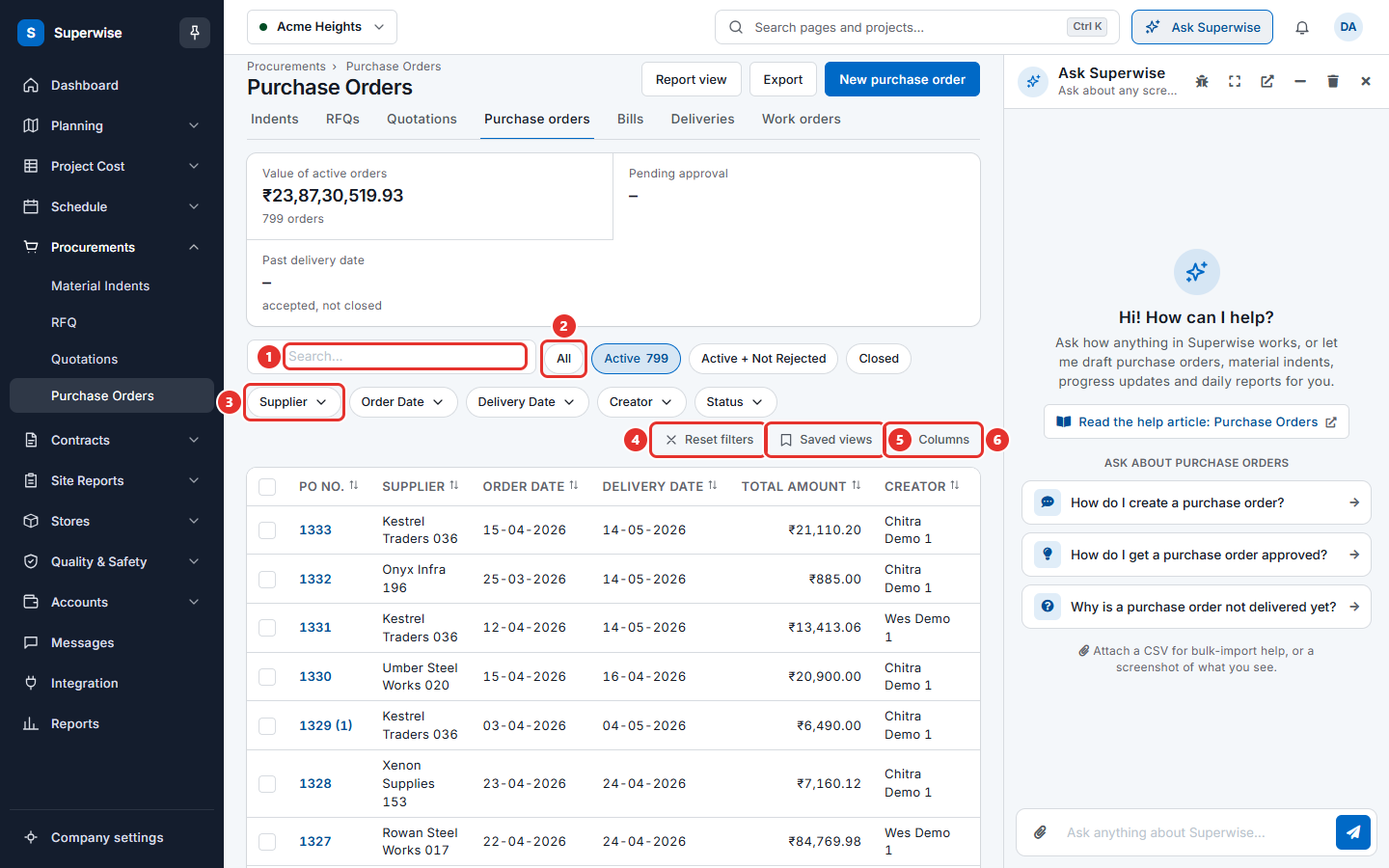
| Part | What it does |
|---|---|
| Search box (mark 1) | Finds records that contain the words you type. |
| Status buttons (mark 2 is the first one) | Show one group of records, for example All, Active or Closed. A number on a button shows how many records it holds. |
| Filter buttons (mark 3) | One button for each column that you can filter, for example Supplier, Order Date and Status. |
| Reset filters (mark 4) | Clears the search and all filters. |
| Saved views (mark 5) | Saves the current search and filters under a name. |
| Columns (mark 6) | Chooses which optional columns to show. |
Above the toolbar, some lists show tabs for the related lists. On a purchase order list the tabs are Indents, RFQs, Quotations, Purchase orders, Bills, Deliveries and Work orders. A tab is shown only if you may open that screen. The purchase order list also shows boxes with totals, such as Pending approval and Past delivery date.
How to search
- Click the search box.
- Type a word or a number, for example part of a supplier name or an order number.
- The list updates while you type.
To start again, click Reset filters.
How to filter
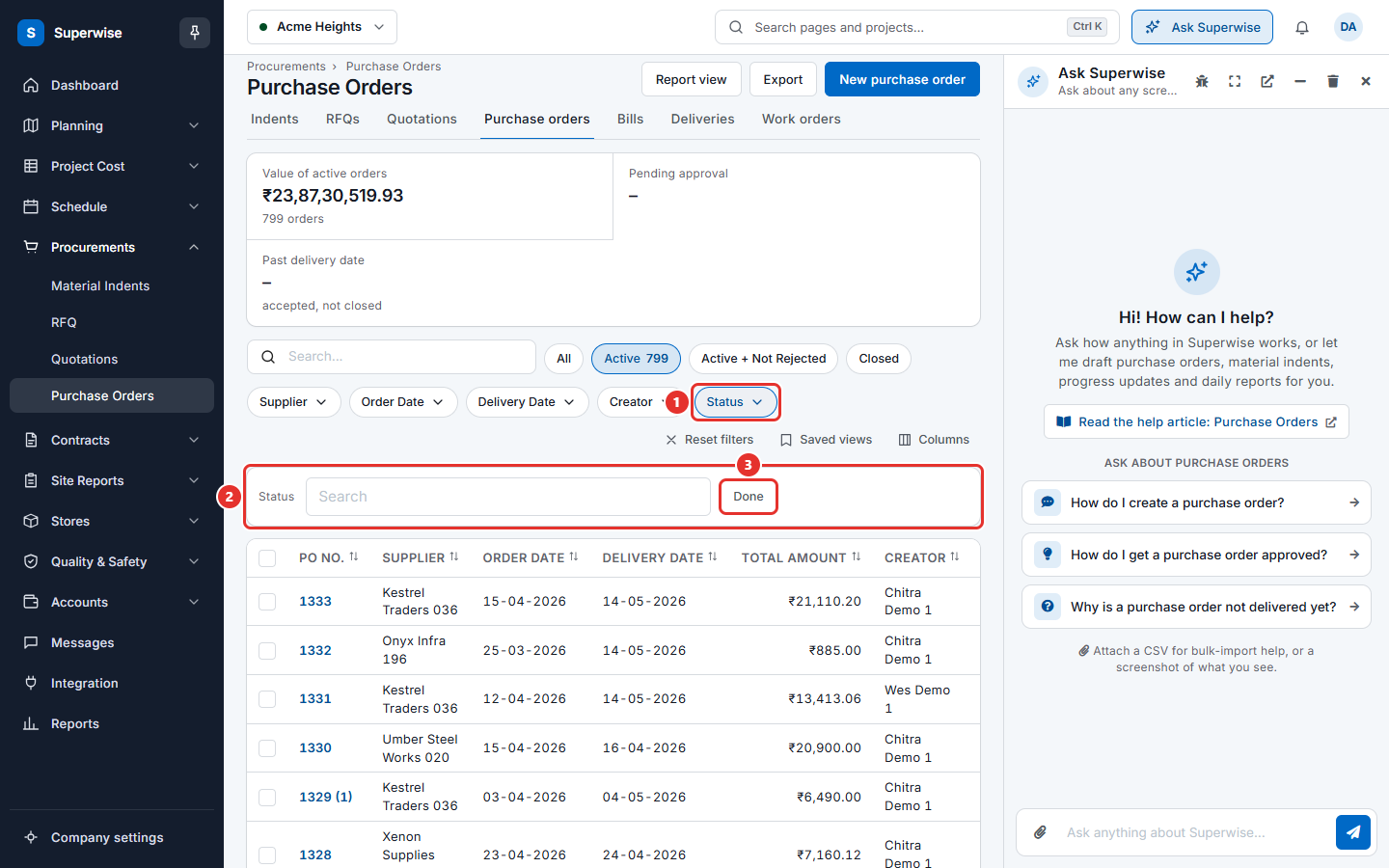
- Click a filter button, for example Status. A tray opens under the toolbar.
- Choose one or more values. For a date column, choose a date.
- Click Done.
The filter button now shows a number. The number tells how many values you chose. You can use several filters together. Only records that match all of them stay in the list. Click the button again to change a filter.
On a narrow screen the filter buttons are folded into one button, Filters. It opens a panel from the bottom with the same filters. Click Done to close it.
How to save a view
A saved view remembers your search, your filters and your column choice. Use it for a list you open often, for example "Orders waiting for delivery".
- Set the search and filters that you want.
- Click Saved views.
- Type a name in Name this view (mark 1 in the picture below).
- Click Save current view (mark 2).
To use a view later, click Saved views and click its name. To delete a view, click the cross next to its name.
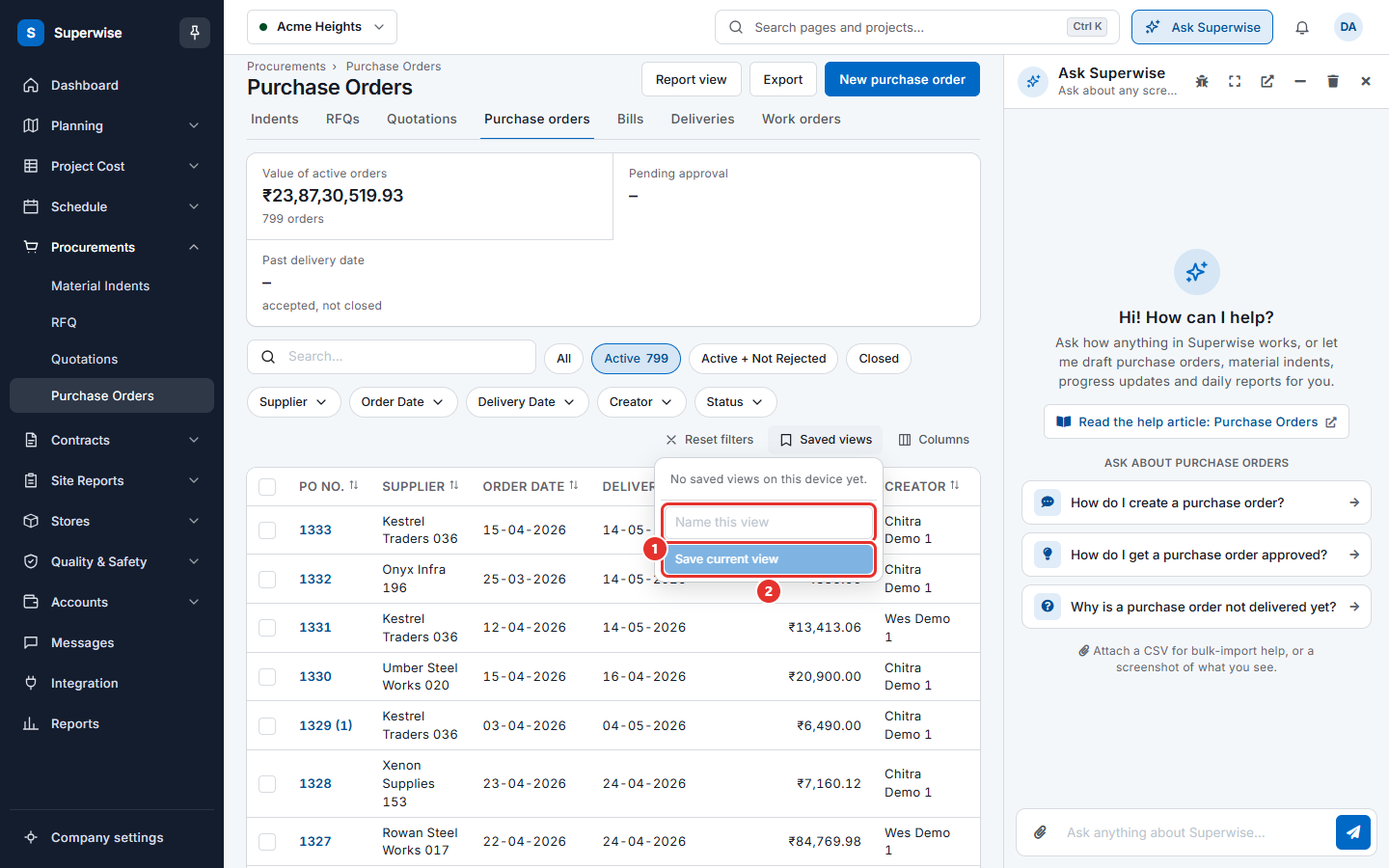
Note: A saved view is kept on the device and browser where you saved it. You will not see it on another computer. It does not save the sort order.
How to choose columns
- Click Columns.
- Tick the columns you want to see. Clear the ticks of the columns you do not need.
Only the optional columns are in this list. The main columns are always shown. Superwise remembers your choice on this device.
How to sort and move between pages
- Click a column title to sort by it. Click it again to reverse the order. Only columns with an arrow next to the title can be sorted.
- The list shows 15 records on a page. Under the table you see "Showing" and the numbers of the first and last record on the page, then the total. Use the page buttons to move.
How to open, change or approve a record
Each row has small buttons at the right. Move the pointer over the row to see them.
| Button | What it does |
|---|---|
| Details | Opens a panel with more information about the record. |
| Edit | Opens the record to change it. It is shown only when you may change it. |
| Approve or reject | Opens the record for your decision. It is shown only when you may decide. |
| More | Opens a small menu, for example Email, Download Excel and Download PDF. |
You can also click the number of a record to open its details.
How to select several records and export
- Tick the box at the start of each row you want. Tick the box in the header to choose the rows on the page.
- A bar shows how many rows are selected. Click Clear to remove the selection.
- Click Export at the top of the page to download the list as a file.
Export appears only when the list has records. Report view at the top of the page changes the list into a report table. The button then reads View data. Click it to return to the list.
Rules to know
- A list shows the records of the project that is selected at the top left. If a record is missing, check the project first.
- Filters and search narrow the list. A record that you cannot find may be hidden by a filter. Click Reset filters.
- The status buttons filter by status. On the purchase order list, Active hides closed orders. Click All to see every order.
- You see only the buttons that your permissions allow.
If something goes wrong
| What you see | What to do |
|---|---|
| The list is empty | Check the project name. Click Reset filters. Click All. |
| A record you expect is missing | Look under a different status button. Clear the date filters. |
| My saved view is gone | Saved views stay on the device and browser where you made them. Open the list on that device. |
| There is no Export button | The list is empty, or your role cannot export. |