


Work items
Set up the list of work items and their categories, add many at once, and enter the rate analysis that gives each item its rate.
- Where to find it
- Company settings > Planning > Work Items
- Who can use it
- People who have the View Work Items permission. Adding needs Add, editing needs Edit and deleting needs Delete. The Rate column and Rate Analysis need Edit.
A work item is one line of work that you measure and pay for in a bill of quantities (BOQ). Examples are Excavation in cum or Plastering in sqm. Work items belong to categories, such as Shoring & Excavation. You set up both once for the whole company. Each project BOQ then picks from this list.
The rate analysis of a work item lists the resources it needs, for example cement, sand and a mason. It adds them up to give the rate of the item.
Before you start
- If a work item needs a resource in its rate analysis, create the resource first. See Resources.
- If the item has a tax, create the tax first under Company settings > General > Taxes.
How to add a work item
- Open Company settings > Planning > Work Items.
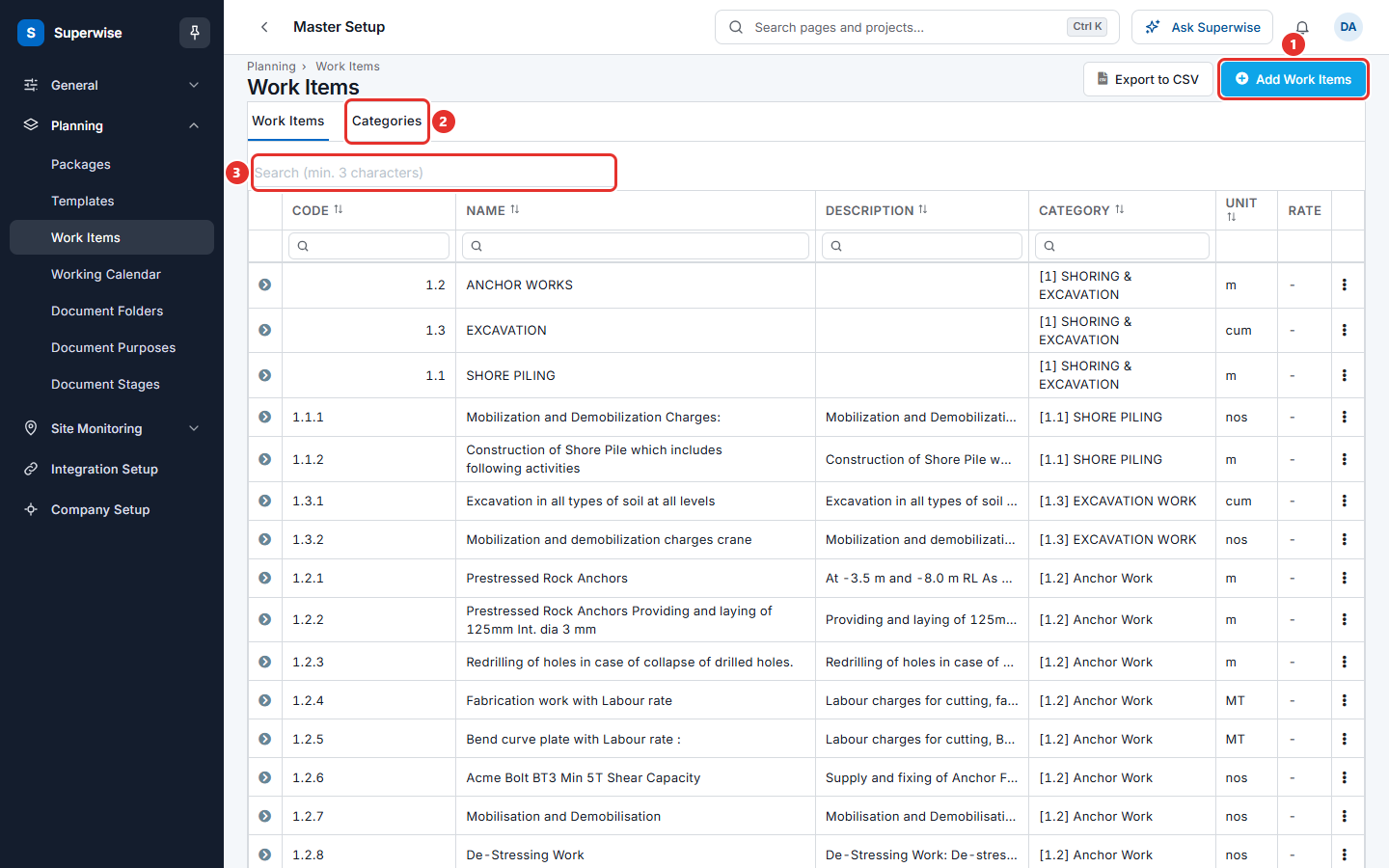
- Click Add Work Items (mark 1 in the first picture). A form opens at the side.
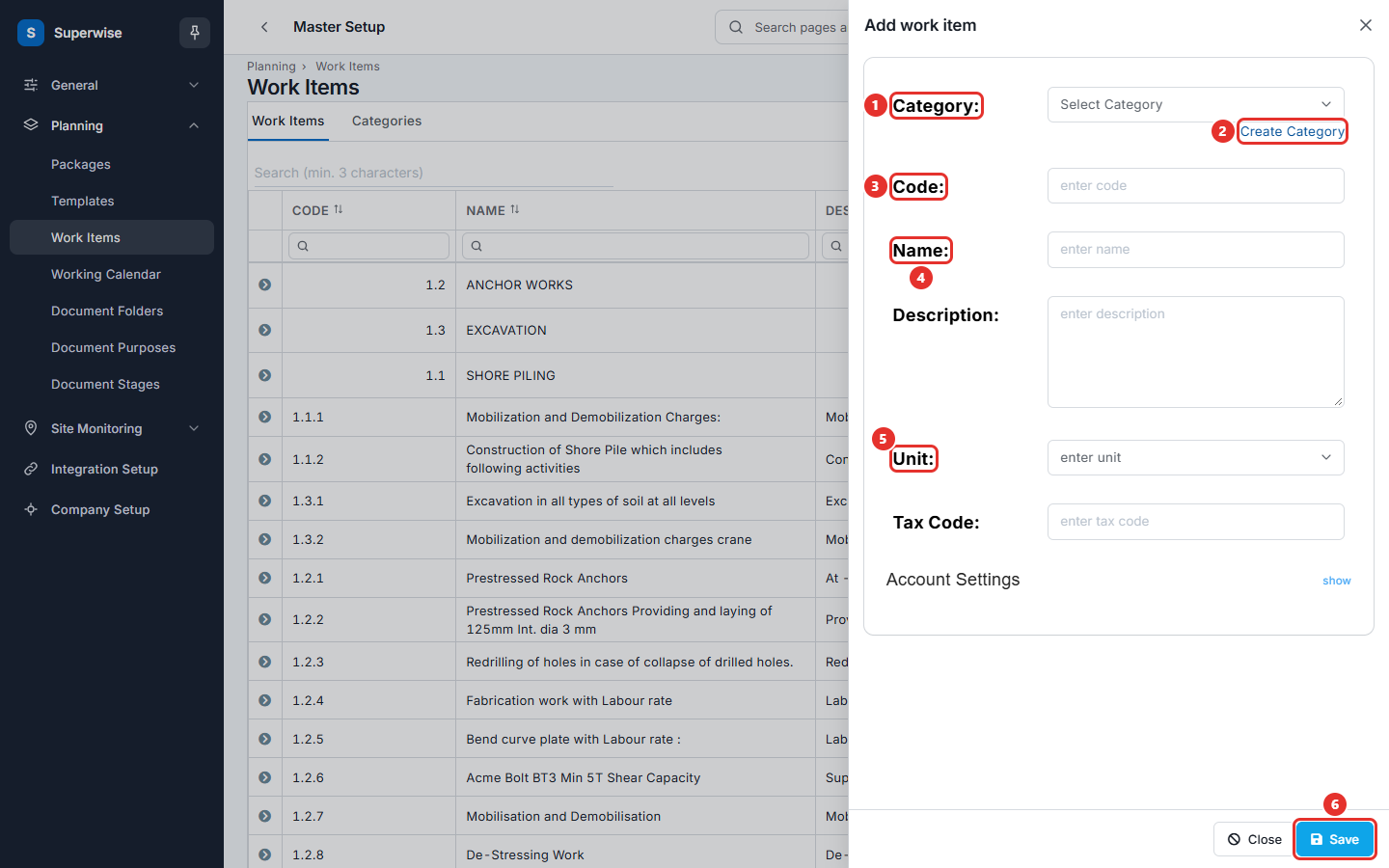
- Choose a category in Category: (mark 1 in the second picture). The Code: fills with the next free code of that category, for example
3.1.2. You can change it. - If the category does not exist, click Create Category (mark 2). Choose a Parent Category:, type a Category Code: and a Category Name:. The item is saved in the new category.
- Type the item Code: (mark 3) and Name: (mark 4). Both are required.
- Type a Description: if you want one.
- Choose the Unit: (mark 5), for example
cumorsqm. - Type a Tax Code: if the item has one. This is the code used on invoices.
- Click show next to Account Settings if you also need Income Account:, Expense Account: or Asset Account:. These links connect the item to your accounting software.
- Click Save (mark 6).
Names cannot use special characters. The form shows Special Characters not allowed.
How to edit, delete or analyse a work item
- Click the three dots at the end of the row.
- Click Edit to open the form again.
- Click Delete to remove the item. Confirm the question.
- Click Rate Analysis to open the rate analysis in a new tab.
Click the arrow at the start of a row to see the saved rate analysis lines under it. Type in the Search boxes under the column names to filter. Use Choose Columns at the bottom of the table to show or hide columns. Click Export to CSV to download the list.
How to enter a rate analysis
- Open the row menu of the work item and click Rate Analysis. The page title shows the item and its unit, for example
per cum. - In the table, choose the Category of the resource, then choose the Resource. The Unit, Rate and Tax fill in from the resource.
- Type the Quantity of the resource needed for 1 unit of the work item.
- Type Wastage (%) if some material is lost. Superwise adds this share to the quantity.
- Change the Rate if you need a different rate.
- Repeat for each resource. Use the right-click menu to add or remove rows.
- Click Save.
Amount is Rate × Quantity × (1 + wastage). Amount w/ Tax adds the tax. The RATE of the work item in the list is the total of the Amount w/ Tax values of all its lines.
Note: Superwise saves only rows that have a Category, a Resource and a Quantity. Other rows are left out without a message.
How to add and manage categories
- Click the Categories tab (mark 2 in the first picture above).
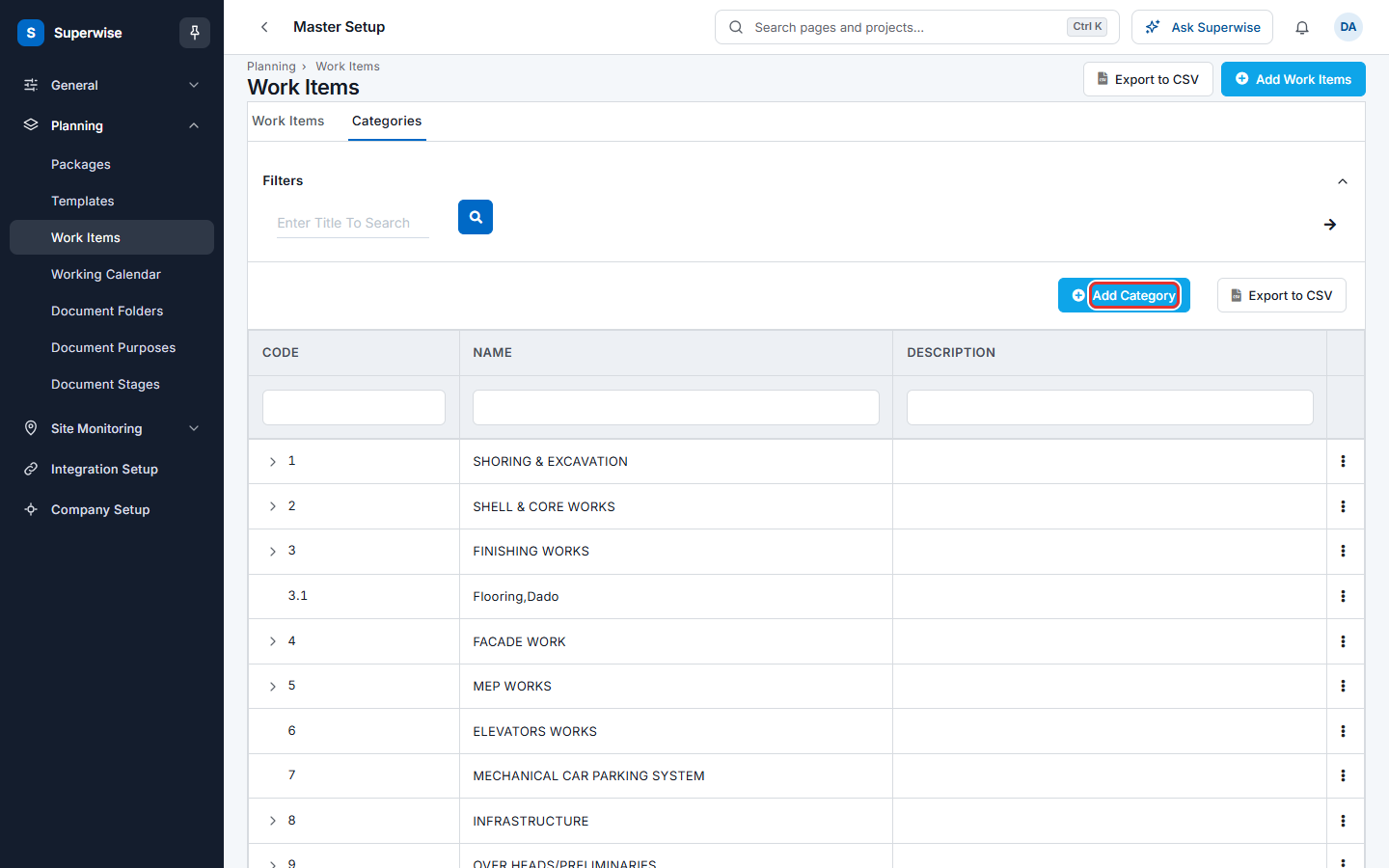
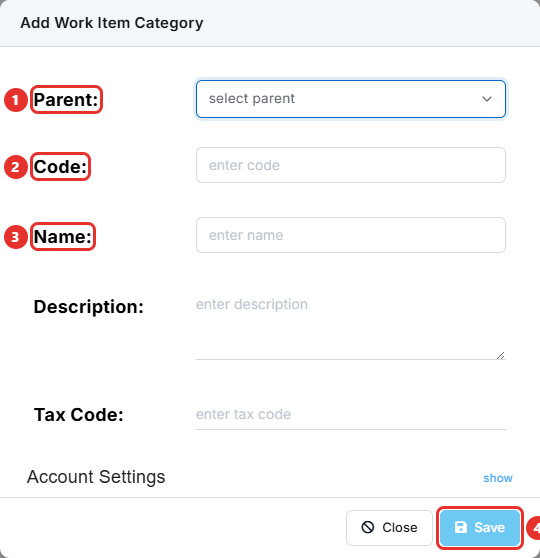
- Click Add Category (mark 1 in the picture below). In the box, choose a Parent: if the category sits inside another one. Type the Code: and the Name:. Add a Description: and Tax Code: if you want. Click Save.
- Click the three dots at the end of a row to Edit or Delete a category, or to choose View Work Items. View Work Items returns to the Work Items tab filtered to that category.
The categories show as a tree. Click the arrow at the start of a row to open its child categories. Type a title in Enter Title To Search under Filters and press Enter to find a category.
How to add many work items at once
Use this to load a whole list of categories and items from a spreadsheet.
- On the Categories tab, click the arrow next to Add Category and click Bulk Add. You need the Add permission for work items.
- A grid opens. Fill one row for each line, or paste rows from your spreadsheet.
- Click Save (the mark in the picture below).
A row with no Unit becomes a category. A row with a Unit becomes a work item. Every row needs a Code and a Name. Category Code is the code of the category the row belongs to. Use a category code that is already in Superwise or in a row of the same sheet.
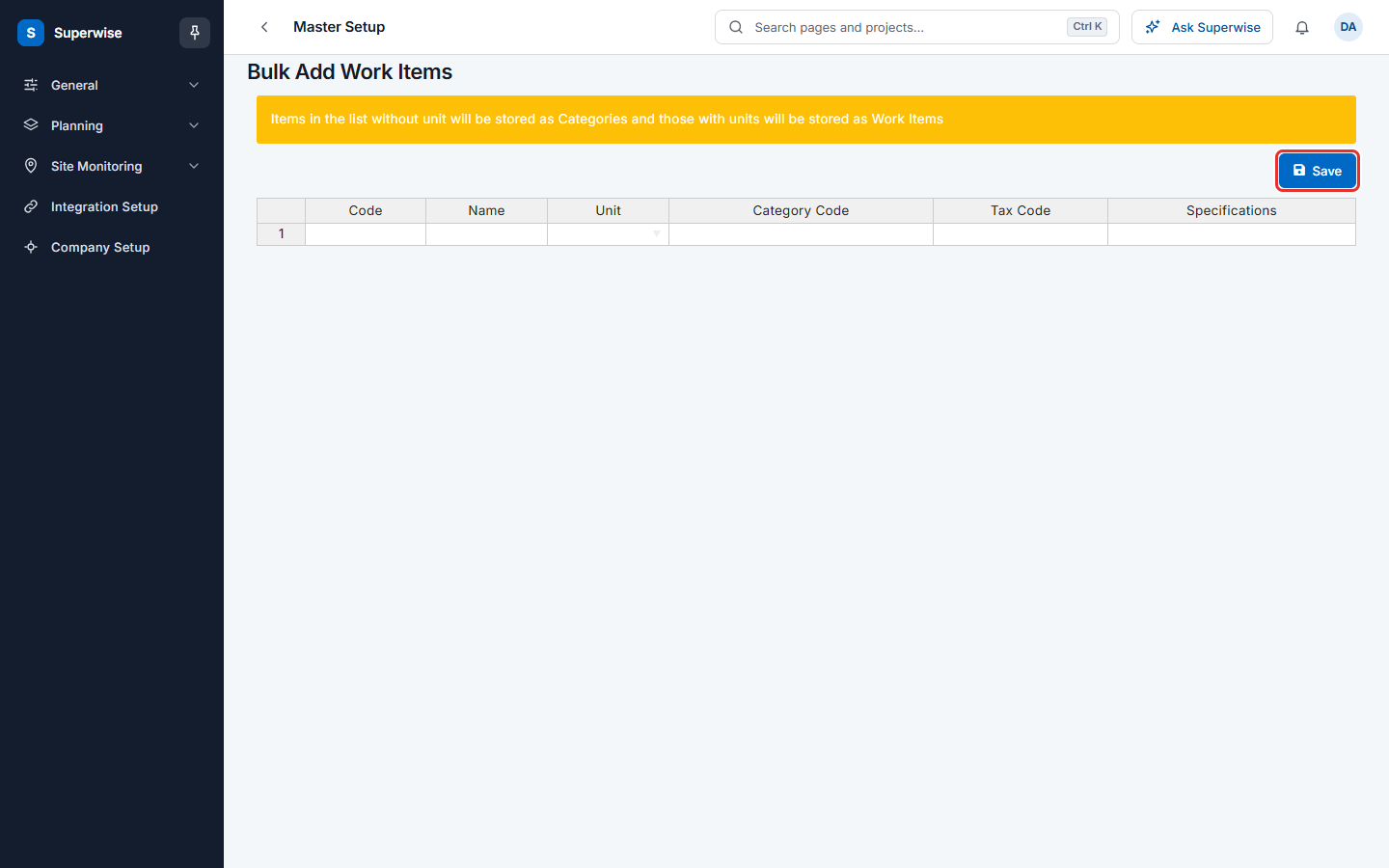
If all rows are valid, Superwise saves them and shows the Categories tab.
What the columns mean
| Name | What it means |
|---|---|
| CODE | The code of the item, such as 1.2. Codes sort items inside the BOQ. |
| NAME | The name of the item. |
| DESCRIPTION | The longer text. |
| CATEGORY | The category with its code. |
| UNIT | The unit of measure. |
| RATE | The rate for 1 unit, from the rate analysis. A dash means the rate is 0, for example when the item has no rate analysis. |
Rules to know
- A work item name and a work item code cannot repeat. A category name and a category code cannot repeat.
- A category cannot be its own parent.
- You cannot delete a work item that is in use. These uses block it: a project BOQ, a BOQ revision, an estimate, a BOQ playground, a project rate analysis or a service request. The message starts with Work item has.
- You cannot delete a category that has work items, child categories, template task BOQs, project template task BOQs or a budget. The message starts with Category has.
- In bulk add, a code that already exists, an unknown unit or a missing category stops the whole save. Nothing is saved until all rows are right.
- A rate analysis cannot use the same resource twice.
If something goes wrong
| What you see | What to do |
|---|---|
| Work Item Name is Mandatory. or Work Item Code is Mandatory. | Fill both fields. |
| Work Item Name cannot be repeated. | Search the list. Use the existing item or change the name. |
| Work Item Code cannot be repeated. | Use the next free code. |
| Category has Work Items linked to it | Move or delete the items first. |
| Rate Analysis has duplicate Resources | Keep one line for each resource. |
| Invalid Quantity. or Invalid Rate. | Use numbers that are not negative. |
| Invalid unit followed by a name, in bulk add | Use a unit from the Unit list of the grid. |
| No parent category for code in bulk add | Add the category row, or correct Category Code. |
Related pages
- Resources: the items used in a rate analysis.
- Templates: template tasks can link to work items.
- Planning masters: the order to set up the planning lists.