


Create a quotation
Enter a price you received from a supplier by phone or e-mail, copy an old quotation, or correct a quotation that is already saved.
- Where to find it
- Procurements > Quotations
- Who can use it
- People who have the Add Quotations permission. Editing needs Edit. Copying needs Add or Edit.
Use this form when a supplier gives you a price outside an RFQ. For example, Alder Steel Works sends an e-mail with a price for steel bars. You type that price here, so it can be compared and turned into a purchase order. A quotation made here has no RFQ and is saved with the status Submitted.
Before you start
- The supplier must exist in the system.
- Select the project. You cannot change the project or the supplier after you save.
- Keep the supplier's price, validity date and terms at hand.
How to create a quotation
- Open Procurements > Quotations and click Create.
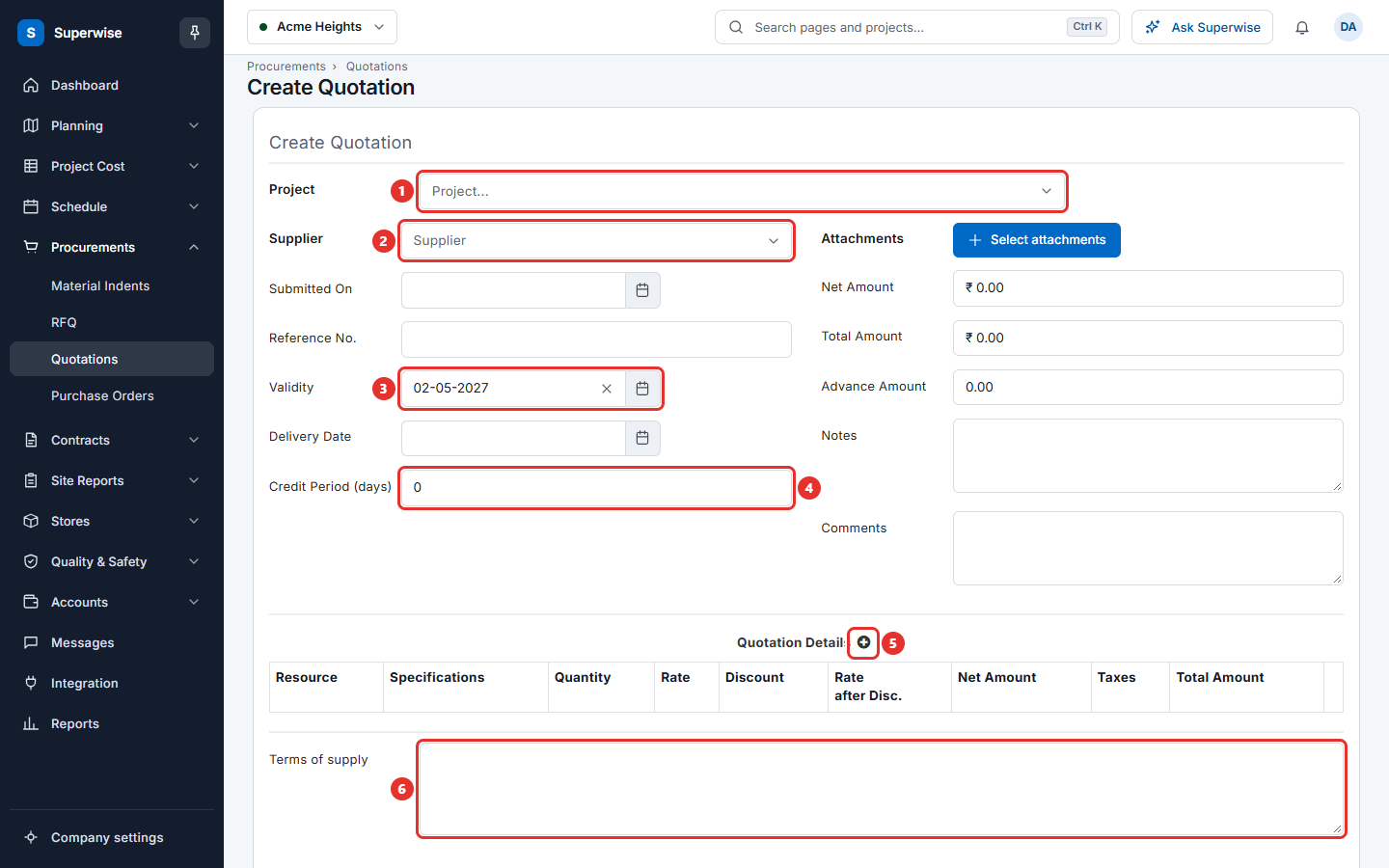
- Choose the Project (mark 1 in the picture of the form) and the Supplier (mark 2).
- Set Submitted On, the date the supplier gave the price.
- Type the supplier's Reference No. if there is one.
- Set Validity (mark 3), the last date the price holds. The form fills it with a date six months ahead. Change it if the supplier said otherwise.
- Set the Delivery Date the supplier promised.
- Type the Credit Period (days) (mark 4). It must be between 0 and 1000.
- Type the Advance Amount if the supplier asks for money in advance.
- Add the materials. See the next section.
- Write the supplier's Terms of supply (mark 6).
- Click Create.
The screen returns to the list. Net Amount and Total Amount follow the lines. You cannot type in them.
How to add the materials
- In the table Quotation Details, click the Add line item icon (mark 5 in the picture of the form).
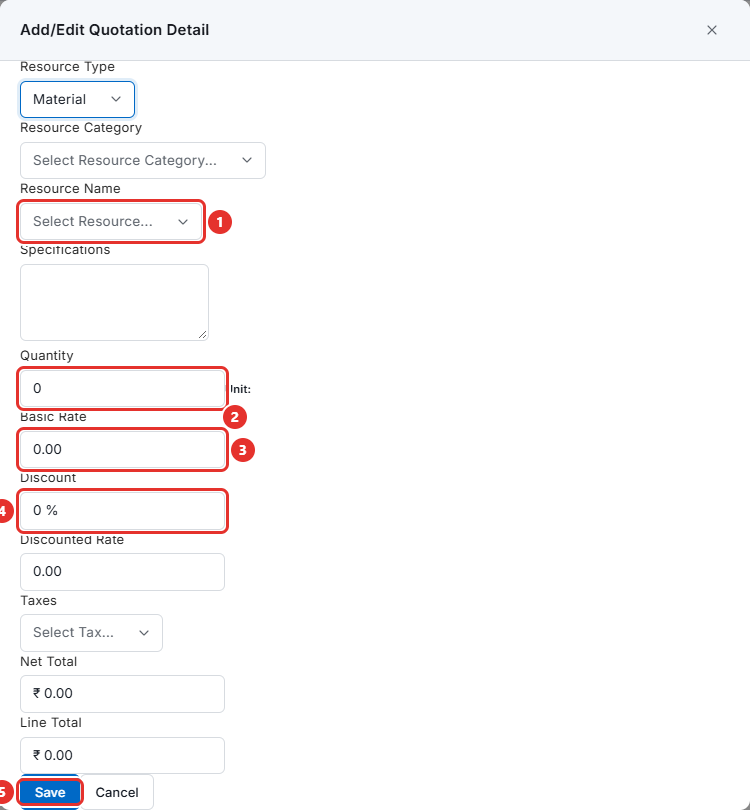
- In the window Add/Edit Quotation Detail, choose Resource Type, Resource Category and Resource Name (mark 1 in the picture below).
- Type the Specifications, such as the brand or grade.
- Type the Quantity (mark 2).
- Type the Basic Rate (mark 3), the price before discount.
- Type the Discount in percent (mark 4). The Discounted Rate is calculated. You can also type the Discounted Rate.
- Choose the Taxes that apply. Net Total and Line Total show the result.
- Click Save (mark 5).
To change a line, click its pencil icon. To remove it, click the trash icon and confirm.
The Discounted Rate is the rate used in the comparison and in the purchase order.
How to copy a quotation
- Open the details of a quotation and click Duplicate.
- The form opens with the same lines. Change the supplier, the dates and the rates.
- Click Create.
How to edit a quotation
- Open the details of the quotation and click Edit. This is offered only when the quotation has no RFQ and its status is Submitted or Negotiating.
- Change the fields. The project and the supplier show as text.
- Click Save Changes.
The system keeps the old version as a revision. The revision number in brackets after the Ref No goes up by 1. Use Compare revisions of a quotation to see what changed.
What the fields mean
| Name | What it means |
|---|---|
| Supplier | The company that gives the price. |
| Submitted On | The date the supplier gave the price. |
| Reference No. | The supplier's own number for the quotation. |
| Validity | The last date the price holds. |
| Delivery Date | The date the supplier promises to deliver. |
| Credit Period (days) | The days the supplier gives you to pay. |
| Advance Amount | Money the supplier wants before delivery. |
| Notes | Text for your own team. |
| Comments | A remark added to the history. The system writes your name before it. |
| Terms of supply | The supplier's conditions. They are copied into the purchase order. |
| Basic Rate | The price of one unit before discount. |
| Discount | The discount in percent. |
| Discounted Rate | The price of one unit after discount. |
Rules to know
- You need at least one line.
- A material can appear only once.
- Every line needs a quantity and a rate above 0.
- If you change the project while you create a quotation, the lines are cleared. A copied quotation keeps its lines.
- The system works out the tax of each line itself when you save.
If something goes wrong
| What you see | What to do |
|---|---|
| Quotation Details not added | Add at least one line. |
| Quotation Details has duplicates | Remove the repeated material. |
| Quotation Details has line items with incorrect quantity | Type a quantity above 0 on every line. |
| Quotation Details has line items with incorrect rate | Type a rate above 0 on every line. |
| Please enter a valid credit period in days | Type a number from 0 to 1000. |
| Invalid vendor | Choose the supplier again. |