


Material delivery schedule
Split the delivery of a material on a purchase order into dates and quantities, and follow how much arrived on each date.
- Where to find it
- Procurements > Purchase Orders
- Who can use it
- People who have the Edit Purchase Orders permission.
A delivery schedule says when a supplier will deliver a material and how much. For example, an order for 100 tonnes of steel bars can have 40 tonnes on 10 March 2026. It can have 60 tonnes on 24 March 2026. Each line of the schedule is one delivery date.
The schedule belongs to one purchase order. The screen shows the scheduled quantity and the quantity that was really delivered against each date.
Before you start
- The purchase order must exist and must not be a draft.
- The item must be a material. Labour, machinery and other types cannot have a schedule.
- The item must have Delivery schedule ticked on the purchase order. You tick it in the Items section when you create or edit the order. If the flag is off, edit the order and tick it. When you place an order from material indents, the screen can also tell you that an order must be edited to switch on delivery scheduling.
How to open the schedule of an order
- Open Procurements > Purchase Orders.
- Click a row, or the Details icon, to open the details of the order.
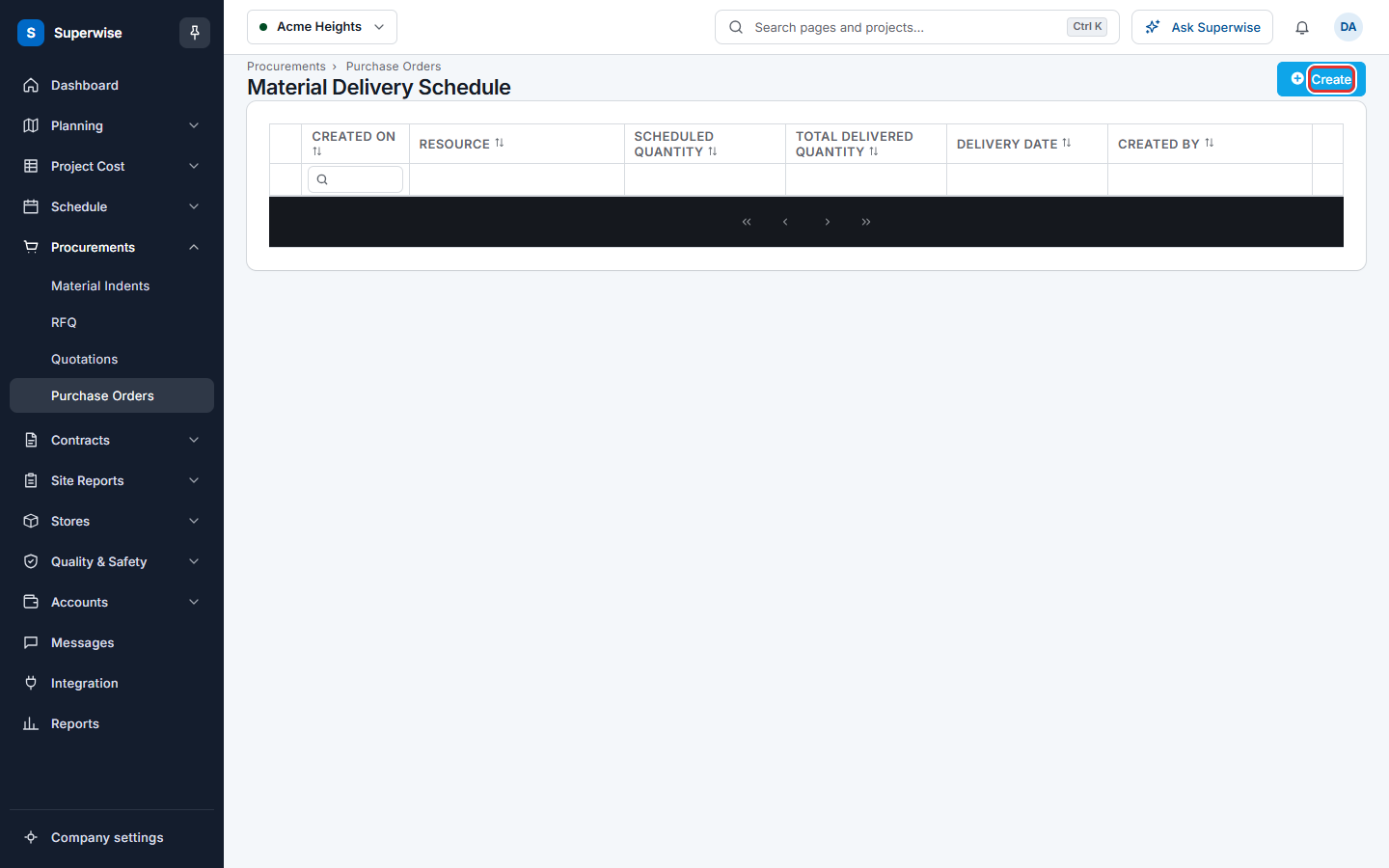
- Click Add MDS. The button is not shown for every account. The screen Material Delivery Schedule opens for this order. The heading shows "Material Delivery Schedules:" and the order number.
How to add a delivery date
- Click Create (mark 1 in the picture).
- In the window Create/Edit Delivery Schedule, choose the Material.
- Choose the Delivery Date.
- Type the Quantity. The unit of the material is shown next to it.
- Click Save. The message "Material Delivery Schedule Saved Successfully." confirms it.
How to change or delete a delivery date
- Find the row.
- Click the three dots at the end of the row.
- Choose Edit or Delete.
- For Delete, click Confirm in the window Confirm Action.
Click the arrow at the start of a row to see more details of that date.
What the columns mean
| Name | What it means |
|---|---|
| Created On | The date the schedule line was made. |
| Resource | The material, with its code. |
| Scheduled Quantity | The quantity the supplier must deliver on that date. |
| Total Delivered Quantity | The quantity that was received against that date. |
| Delivery Date | The date of the delivery. |
| Created By | The person who made the line. |
Rules to know
- The delivery date cannot be before the order date of the purchase order.
- The delivery date cannot be after the validity date of the purchase order.
- You can have only one schedule line for each material on one date.
- The quantity must be above 0. It cannot be more than the quantity of the order that is not yet scheduled.
- You cannot lower a quantity below what was already delivered against that date.
- You cannot change or delete a date after deliveries were posted against it.
If something goes wrong
| What you see | What to do |
|---|---|
| Delivery Date cannot be before Purchase Order Date. | Choose a date on or after the order date. |
| Delivery Date cannot be after Purchase Order Validity Date. | Choose a date up to the validity date, or edit the order. |
| Invalid Delivery Date. Only single Delivery Schedule allowed per unique date. | Edit the line that already has this date. |
| Quantity cannot be more than the remaining unscheduled quantity of | Type a smaller quantity. The message shows how much is left. |
| Quantity cannot be less than Total Accepted Delivered Quantity on this schedule. | Type at least the delivered quantity. |
| Material Deliveries have been posted on this schedule. | You cannot change this date. Add a new date instead. |
| Purchase Order Item is not for a Material resource. | Choose a material. |