


Request for quotation (RFQ)
Ask several suppliers for prices on the same materials, approve the request, and follow it until the bidding closes.
- Where to find it
- Procurements > RFQ
- Who can use it
- People who have the View RFQs permission. Creating needs Add, editing needs Edit, deleting needs Delete. Approving, rejecting and archiving need Approve.
A request for quotation (RFQ) asks suppliers for their price on a list of materials. You send one RFQ to several suppliers and compare their answers. Each answer is a quotation. For example, Acme asks Alder Steel Works and two other suppliers for a price on 20 tonnes of steel bars for Acme Heights.
Use an RFQ when you want to compare prices. If you already know the supplier and the rate, you can skip the RFQ and make a purchase order directly.
How the RFQ flow works
- Create the RFQ. See Create an RFQ. Save it as a draft, or save it for approval.
- A person with the Approve permission approves it.
- When the bid start time comes, the RFQ goes Live. Each supplier gets an e-mail with a link to answer.
- When the bid end time comes, the RFQ becomes Closed.
- Compare the quotations. See Compare quotations of an RFQ.
- Choose the winner. On the Quotations screen, click Mark Awarded on the best quotation. This opens a purchase order.
Before you start
- A project must exist and you must select it.
- The suppliers must exist and have an e-mail address. Suppliers without an e-mail address are not shown in the list of vendors.
- You need the resources (materials) in the system.
How to approve or reject an RFQ
- Open Procurements > RFQ.
- Find the RFQ. Its status must be Pending, Rejected or Approved.
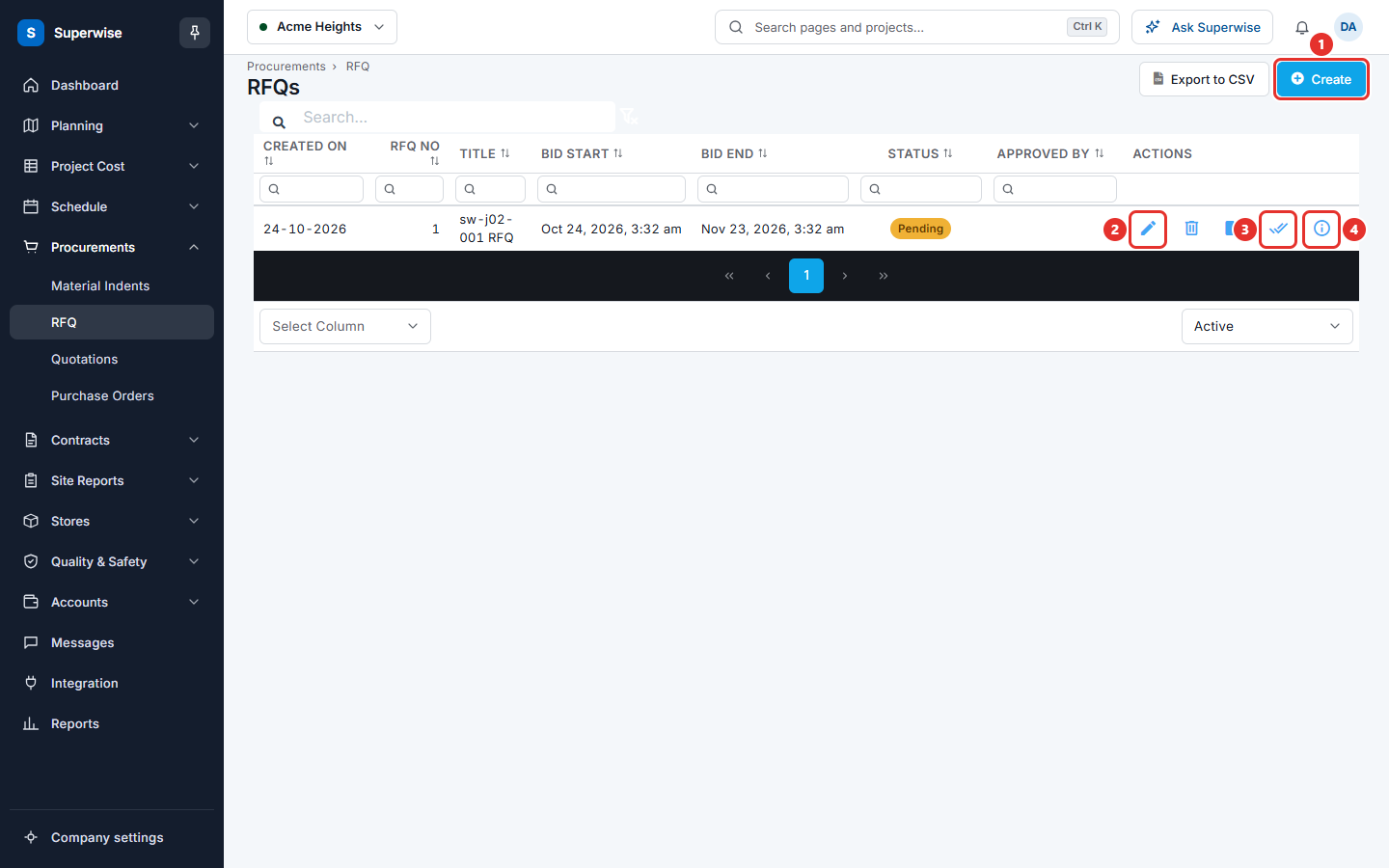
- Click the Approve / Reject icon (mark 3 in the picture of the list).
- Choose Approve or Reject in the small menu that opens.
- Click Confirm in the window Confirm Action.
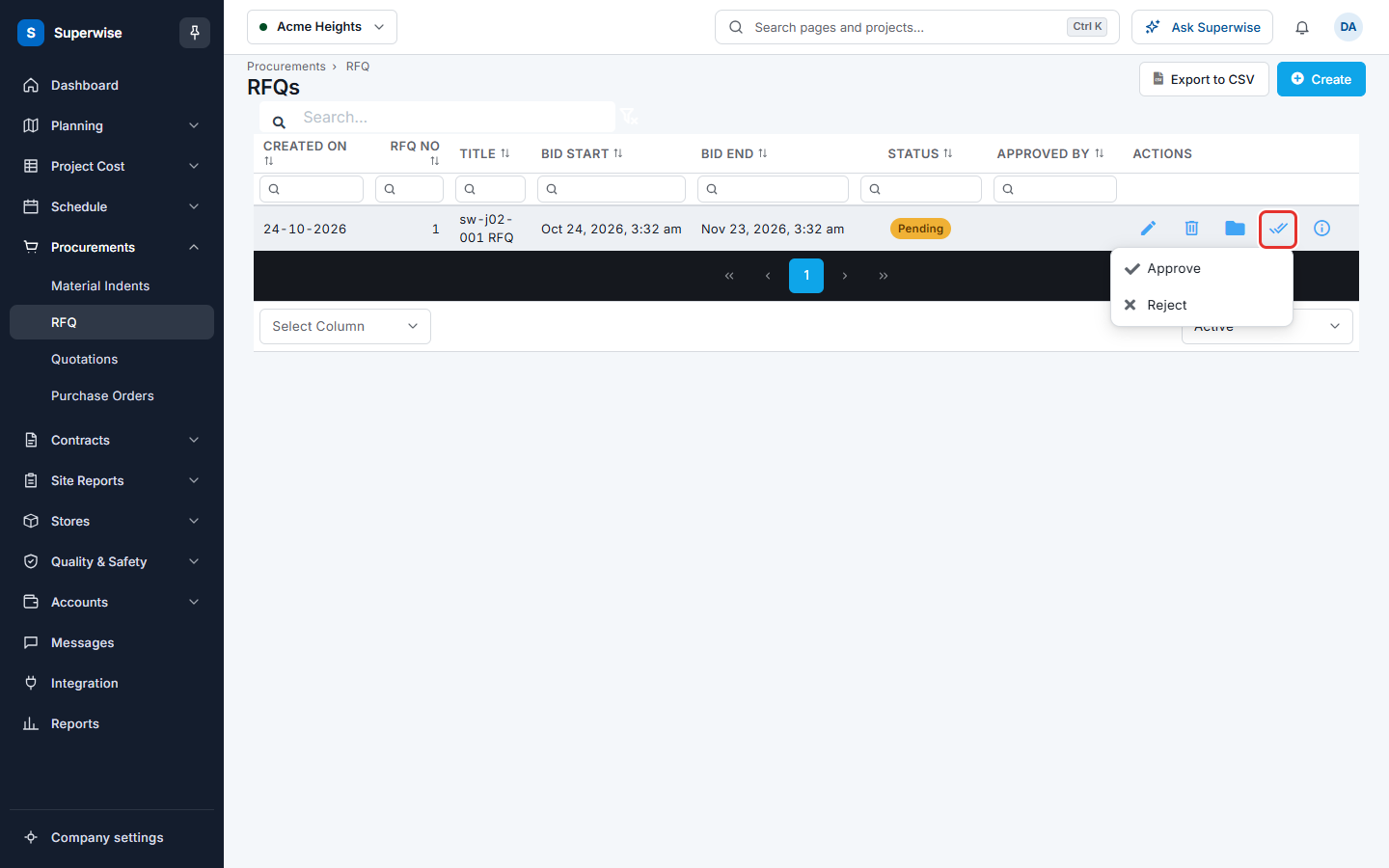
What happens next:
- Approve sets the status to Approved. If the bid start time has already passed, the RFQ goes Live at once. The suppliers get their invitation by e-mail.
- Reject sets the status to Rejected. The system marks every quotation of this RFQ as Not Submitted.
Warning: You cannot approve an RFQ after its bid end time. The screen then shows "Cannot Accept the RFQ after the End Date."
How to delete or archive an RFQ
- Click the Delete icon to remove the RFQ. Click Confirm to finish. The quotations of the RFQ stay in the system. They lose the link to the RFQ.
- Click the Archive icon to hide the RFQ from the default list. Click Confirm to finish. Archiving needs the Approve permission.
- To get an archived RFQ back, choose Archived in the filter at the bottom of the table, then click the Un-Archive icon.
The Delete icon is shown in the list while the RFQ is not yet Live. In the details panel, Delete is offered only for Draft, Pending and Rejected RFQs.
How to see the details of an RFQ
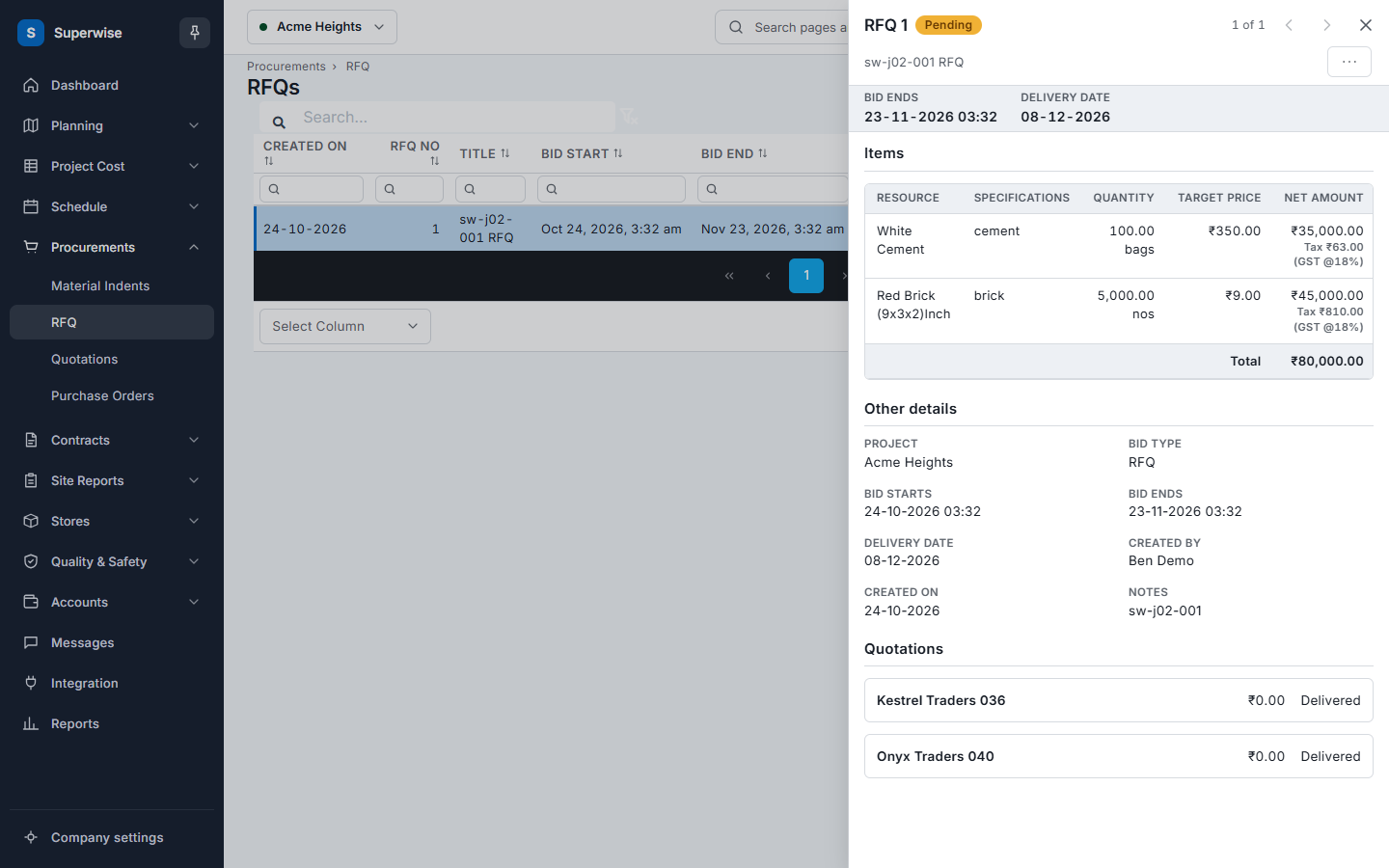
Click a row, or click the More Detail icon (mark 4 in the picture of the list). A panel opens. It has these parts:
- Items: the materials, with Quantity, Target price, Net amount and Total amount.
- Other details: project, bid type, bid start, bid end, delivery date, who created it, and notes.
- Attachments, Remarks and Bid terms.
- Quotations: one entry for each supplier, with its net amount and status. The lines of a quotation are shown only after the RFQ is closed and the supplier has submitted.
To make a new RFQ from an old one, click Duplicate in the panel. It opens the form with the data of the old RFQ.
What the columns mean
| Name | What it means |
|---|---|
| Created On | The date the RFQ was made. |
| RFQ No | The number of the RFQ. A number in brackets after it is the revision. |
| Title | The name you gave the RFQ. |
| Bid Start | When suppliers can start to answer. |
| Bid End | The last time suppliers can answer. |
| Status | Where the RFQ is in the flow. |
| Approved By | The person who last changed the status. |
| Actions | Icons for edit, delete, compare, archive, approve or reject, and details. |
The list shows Active RFQs by default. The filter below the table also offers All and Archived. The Project column is hidden by default. Show it with the column selector below the table. Export to CSV saves the list as a file.
Rules to know
| Status | What it means |
|---|---|
| Draft | You are still preparing the RFQ. Nothing is sent. |
| Pending | The RFQ waits for approval. |
| Rejected | An approver refused the RFQ. |
| Approved | The RFQ is approved. It waits for the bid start time. |
| Live | Suppliers can answer now. |
| Closed | The bid end time has passed. You can compare the quotations. |
| Awarded | A winner has been chosen. |
- The Compare Quotation icon appears when the RFQ is Closed or Awarded.
- When you edit an RFQ that is not a draft, it goes back to Pending for approval again. If it was already past Pending, its revision number goes up by 1.
- Suppliers cannot see each other's quotations. You also cannot see the prices of a quotation until the RFQ is closed and the supplier has submitted it.
- If you change the bid start or end time, the automatic change to Live or Closed that was planned is cancelled. Approve the RFQ again.
- When the bid end time comes, quotations that are still Draft, Delivered or Pending become Not Submitted.
If something goes wrong
| What you see | What to do |
|---|---|
| Cannot Accept the RFQ after the End Date. | Edit the RFQ and set a bid end time in the future. Then approve it again. |
| No Approve / Reject icon | The status is Draft, or you do not have the Approve permission. |
| A supplier is not in the vendor list | Add an e-mail address to the supplier. Suppliers without e-mail are not listed. |
| No Compare Quotation icon | The RFQ is not yet Closed or Awarded. |