


Issues
Find the problems reported on site, follow each issue from Open to Closed, and use the row menu to comment, assign, resolve, close or delete.
- Where to find it
- Quality & Safety > Issues
- Who can use it
- People who have the View permission on Issues. Reporting needs Add. Changing an issue needs Edit. Deleting needs Delete. The Issue Timeline button needs Approve.
An issue is a problem on site that someone must fix. Examples are a machine that is not available, bad weather that stops work, or soil that is not removed. Each issue has a type, a priority, a person who reports it and, often, a person who fixes it.
This screen lists the issues of the project you have selected. An issue moves through three statuses: Open, Resolved and Closed.
Before you start
- Select the project in the project selector at the top of the screen.
- Issue types must exist. An administrator sets them up. See Issue types.
- To report an issue, you need the Add permission on Issues.
How the status of an issue changes
- Someone reports the issue. The status is Open. See Report an issue.
- The person who fixes the problem resolves the issue. The status is Resolved.
- The person who reported the issue checks the fix and closes the issue. The status is Closed. If the fix is not good, the issue is re-opened and the status is Open again.
See Resolve, re-open and close an issue.
How to find an issue
- Open Quality & Safety > Issues.
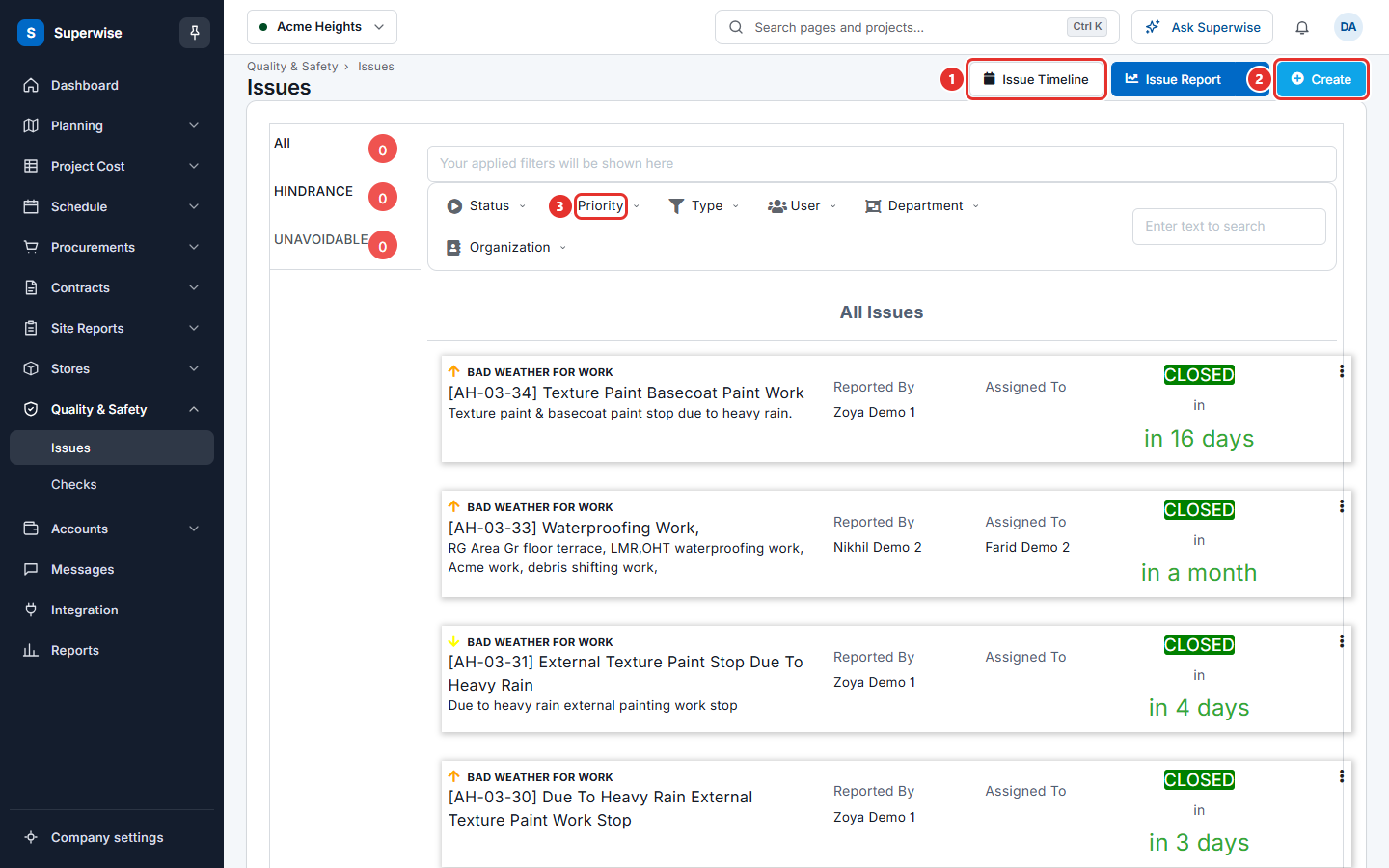
- Choose a tab on the left. Each tab is an issue category and shows how many issues it holds.
- Use the menu above the list to filter. The menu items are Status, Priority, Type, User, Department and Organization. Your filters show in the box Your applied filters will be shown here. Click the cross on a filter to remove it.
- Type a word in Enter text to search and press Enter. Labels that you add to an issue also help the search.
Each issue shows its code and title, its type, a priority arrow, Reported By, Assigned To and the status. The status shows as a coloured word with a time under it. An Open issue shows how long it has been open. A Resolved or Closed issue shows how long it took.
The priority arrows mean: Low (green, down), Moderate (yellow, down), High (orange, up) and Critical (red, up).
How to use the row menu
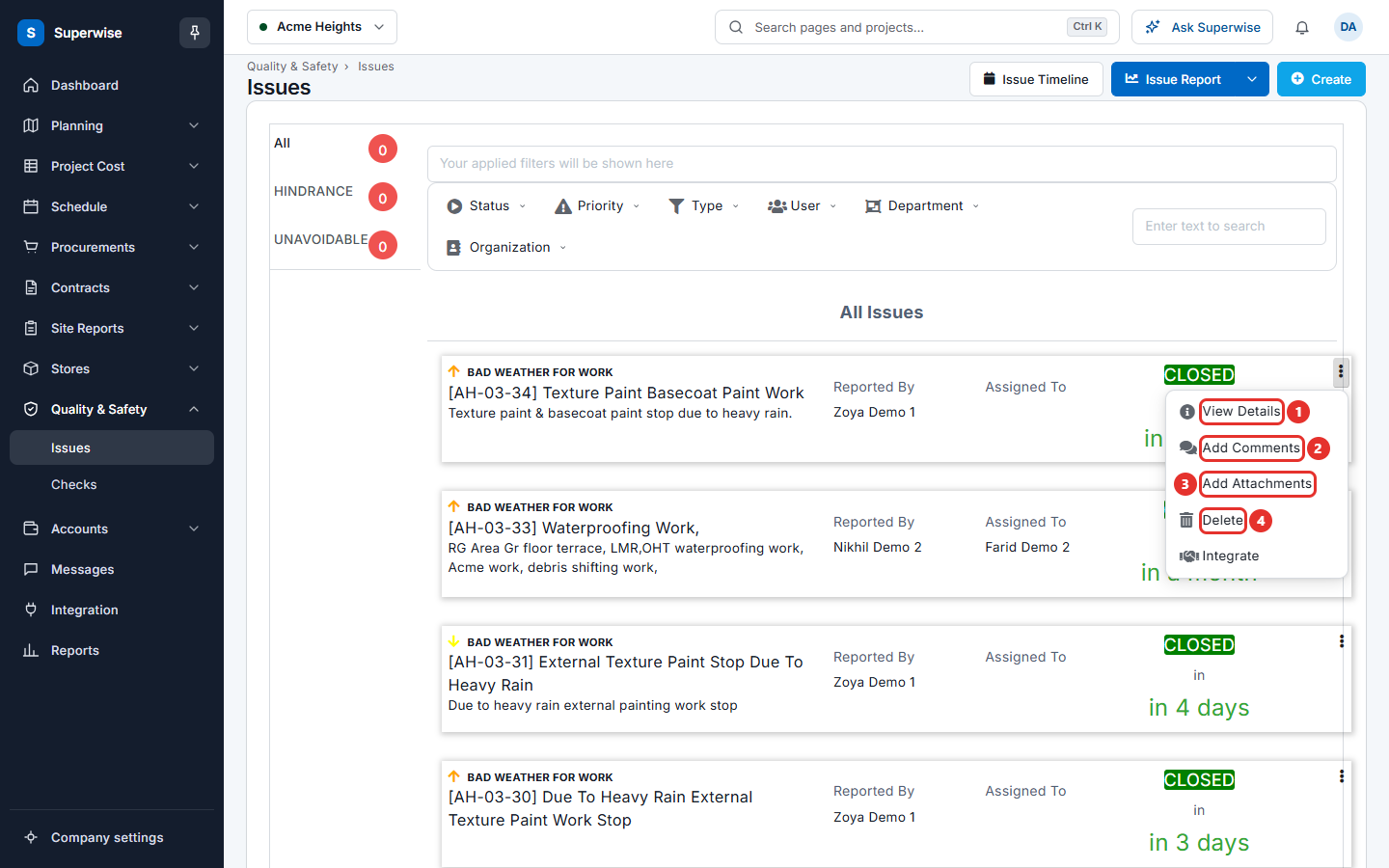
Click the three dots at the end of an issue. The menu shows only the actions that you can do for that issue.
| Menu item | What it does |
|---|---|
| View Details | Opens the full record of the issue: details, images and comments. |
| Add Comments | Adds a comment. A comment is required. |
| Add Attachments | Adds photos or files. |
| Resolve or Resolve & Close | Marks an Open issue as fixed. Resolve & Close shows when you can also close it. |
| Re-open | Sends a Resolved issue back to Open. |
| Close | Closes a Resolved issue. |
| Create Debit Note | Charges the organization of the issue. Shows only when the issue names an organization and has no debit note yet. |
| Change Assignee | Gives an Open issue to another person. Needs the Edit permission. |
| Edit | Opens the form for an Open issue. Needs the Edit permission. |
| Delete | Removes the issue. Needs the Delete permission. |
To delete, choose Delete and click Confirm in the Confirm Action box.
What the filters mean
| Name | What it means |
|---|---|
| Status | Open, Resolved or Closed. |
| Priority | How urgent the issue is. |
| Type | The kind of issue, for example Hindrance. |
| User | The person the issue is assigned to. |
| Department | The department of the assigned person. |
| Organization | The contractor or company linked to the issue. |
Rules to know
- You can edit only an Open issue. A Resolved issue must be re-opened first.
- These people can resolve an Open issue:
- the person who reported it
- a user of the organization linked to the issue
- the assignee
- a user with a role above the role of the assignee
- These people can close or re-open a Resolved issue:
- the person who reported it
- a user with a role above the role of the reporter
- A user from a contractor organization cannot edit, delete, close or re-open an issue.
If something goes wrong
| What you see | What to do |
|---|---|
| You do not have the permission to resolve this Issue | Ask the assignee or the person who reported the issue. |
| You do not have the permission to close this Issue | Ask the person who reported the issue. |
| Only Resolved Issue can be closed | Resolve the issue first. |
| Resolved Issues cannot be edited. Please re-open the issue and then edit it. | Choose Re-open, then Edit. |
| Create is missing | You need the Add permission on Issues. |
Related pages
In this section
- Report an issueReport a problem on site, choose its type and priority, assign it to a person, and link it to a task. You can also edit an open issue.
- Resolve, re-open and close an issueMark an issue as fixed, send it back if the fix is not good, close it, and add comments, attachments or a debit note.
- Issue timeline and issue reportsSee all issues of a project on a timeline, open the issue report view, and use the list of issues for one period that task summary reports link to.