


Measurement book
See the measurement sheets of a project, accept or reject them, add remarks and attachments, and know which sheets are ready for a running account (RA) bill.
- Where to find it
- Site Reports > Measurement Book
- Who can use it
- People who have the View Measurement Book permission. Creating and bulk add need Add, adding remarks needs Edit, deleting needs Delete, approving needs Approve.
A measurement sheet records the work that was done and measured at site, for one item of the bill of quantities (BOQ). For example, it can say that 3 bays of slab, each 6 m long and 12 m wide, were cast. The measurement book is the list of all measurement sheets of a project. Accepted sheets are the basis of the running account (RA) bill that you pay to a contractor.
The screen is called Acme Heights - Measurement Book. The name in front is the project that you chose.
Before you start
- The project must have a bill of quantities (BOQ). A sheet is always for one BOQ item.
- You must be a member of the project.
The flow
- A site user adds the measurement. See Add a measurement sheet and Bulk add measurement sheets. The status is Pending.
- An approver accepts it. The status is Accepted.
- An accountant adds accepted sheets to an RA bill. After the RA bill is approved, the status is Billed. If the RA bill is rejected, the sheets go back to Accepted.
How to find a measurement sheet
- Open Site Reports > Measurement Book.
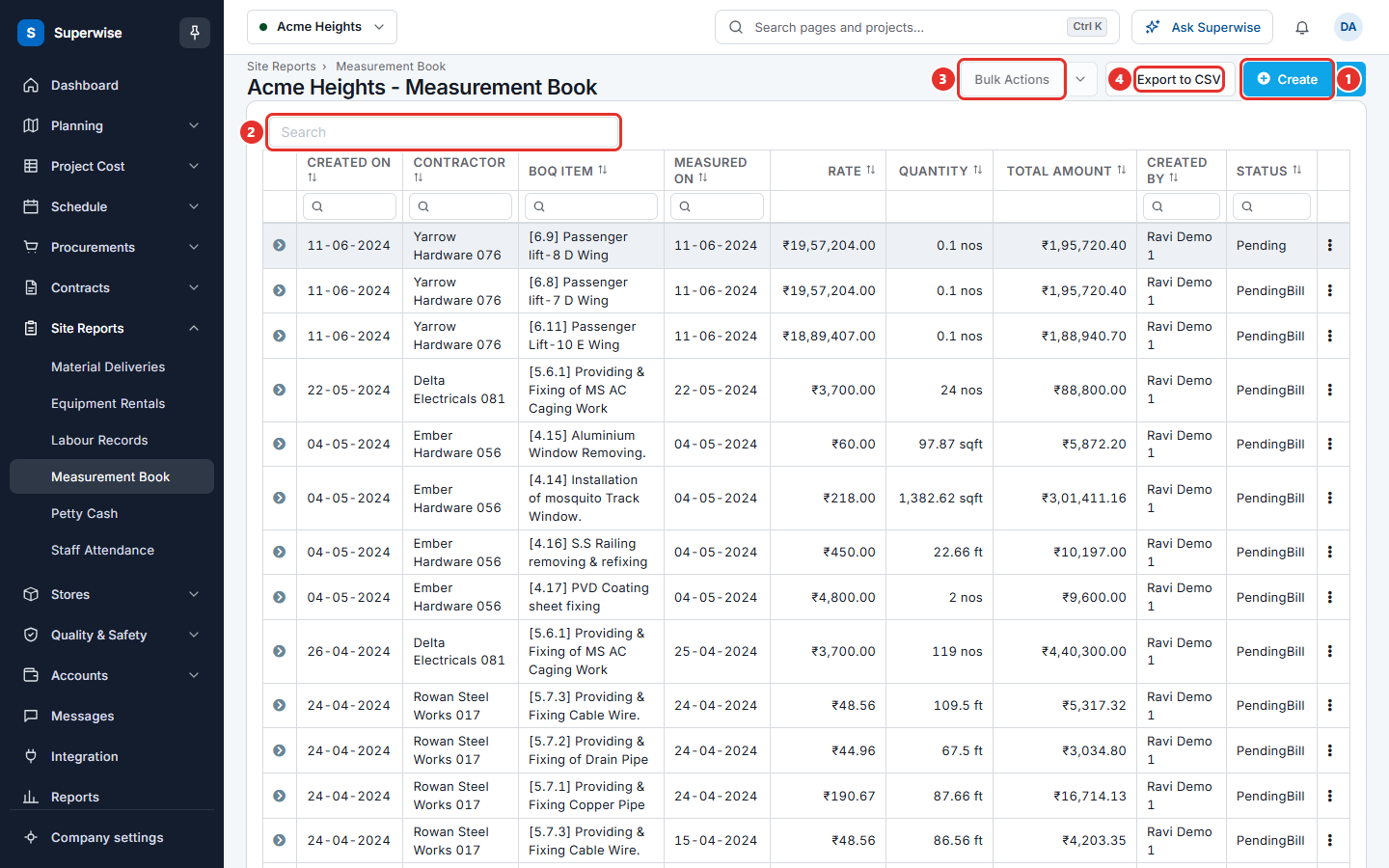
- To search, type in the search box (mark 2).
- To filter, type in the box under a column name. The columns Created On and Measured on take a date range.
- Click the arrow at the start of a row to see more. The tabs are Measurements, Attachment, Images and Remarks.
Click Export to CSV (mark 4) to download the rows that match your filters.
How to accept or reject a measurement sheet
- At the end of the row, click the three dots. A small menu opens.
- Click Approve or Reject.
- In the dialog Confirm Action, click Confirm.
- The message Measurement Sheet successfully Approved! or Measurement Sheet successfully Rejected! appears.
- You can accept a sheet that is Pending or Rejected.
- You can reject a sheet that is Pending or Accepted.
- You cannot accept or reject a sheet of a closed work order.
How to accept, reject or delete many sheets
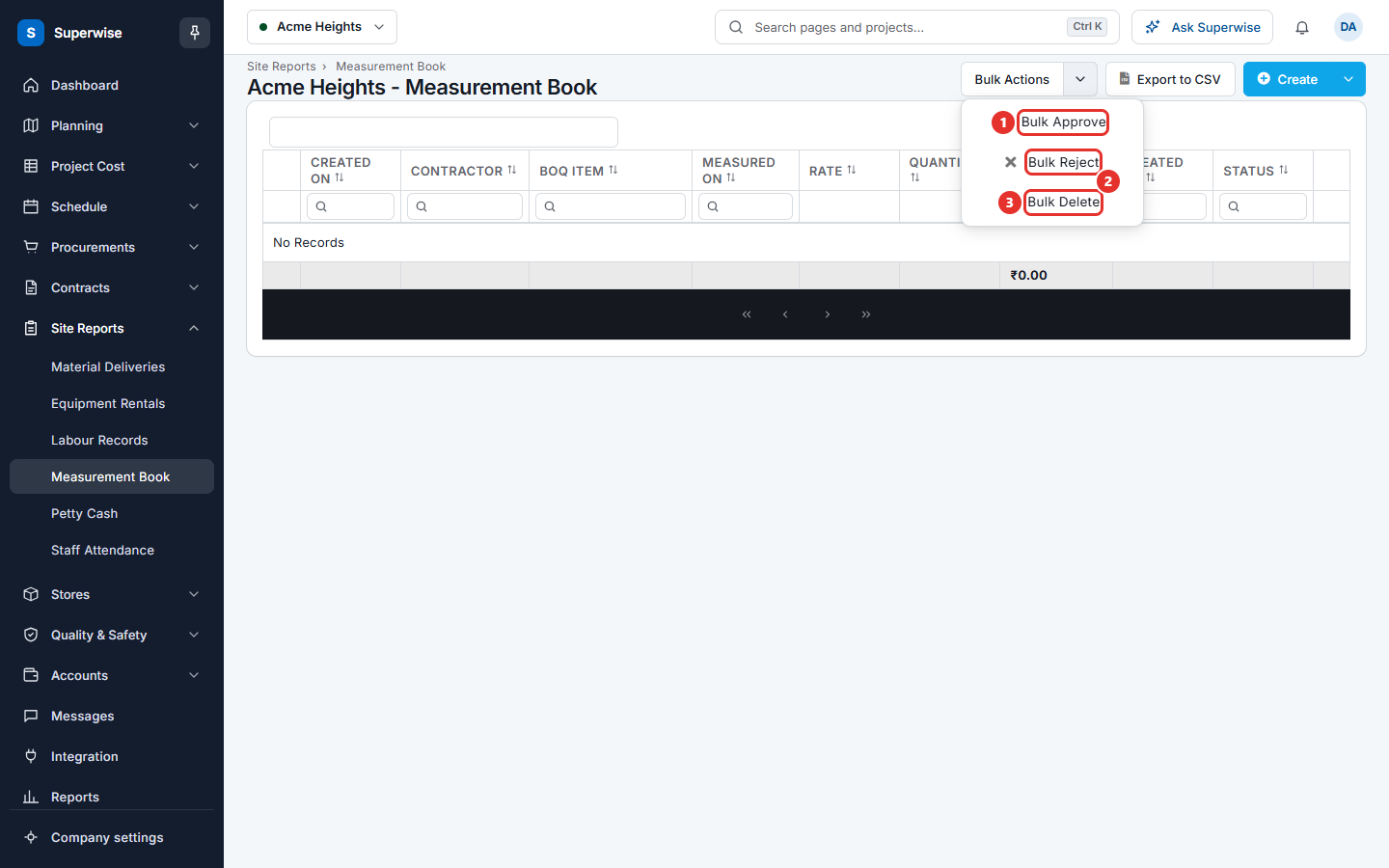
- Filter the list, or type in the search box. Bulk Actions (mark 3) works only when a filter or a search is set.
- Click Bulk Actions, then click Bulk Approve (mark 1), Bulk Reject (mark 2) or Bulk Delete (mark 3).
- Read the dialog. It says that the action affects all the sheets that match your filter. Click Confirm.
Warning: A bulk action changes every sheet in the filtered list, not only the rows on the screen.
How to add a remark or an attachment
- Click the three dots at the end of the row.
- Click Add Remark to write a remark. Superwise stores your name and the time with it.
- Click Link Attachment to attach one file. The file can be .csv, .xlsx, .xls or .pdf. A new file replaces the earlier document.
- Click Download Attachment to get the file.
What the columns mean
| Name | What it means |
|---|---|
| Created On | The date the sheet was created. |
| Contractor | The contractor who did the work. |
| BOQ Item | The item of the bill of quantities that was measured. |
| Area | The area of the project. |
| Task | The task of the schedule. |
| Measured on | The date of the measurement. |
| Rate | The price for one unit of the BOQ item. |
| Quantity | The measured quantity with its unit. |
| Total Amount | Quantity multiplied by rate. |
| Created By | The user who created the sheet. |
| Status | The state of the sheet. |
What the statuses mean
| Status | What it means |
|---|---|
| Pending | The sheet is saved and waits for a decision. |
| Accepted | An approver accepted it. It can go on an RA bill. |
| Rejected | An approver rejected it. |
| PendingBill | The sheet is on an RA bill that is not approved yet. |
| Billed | The RA bill that holds the sheet is approved. |
Rules to know
- You cannot delete a sheet that is on an RA bill.
- You cannot delete a sheet of a closed work order, unless the sheet is Rejected.
- Unless the company allows it, you cannot accept a sheet that takes the measured quantity over a limit. The limits are the estimate of its task BOQ, the quantity of its work order line, and the quantity of its project BOQ.
- A sheet that is linked to a work order can be accepted only when the work order is accepted.
If something goes wrong
| What you see | What to do |
|---|---|
| Measurement Sheet is already accepted. | The sheet is done. No action is needed. |
| Linked Work Order should not be in Pending or Rejected state. | Ask the buyer to approve the work order first. |
| Measurement Sheets in Closed Work Orders cannot be approved. | The work order is closed. Ask the buyer to open it again. |
| Corresponding Work Order Quantity need to be increased to proceed with approval of Measurement Sheet. | Ask the buyer to raise the work order quantity. |
| Measurement Sheets included in RA Bills cannot be deleted | Change the RA bill first. |
| Unsupported file format. Allowed formats- .csv,.xlsx,.xls,.pdf | Attach a file of one of these types. |