


Playground
Draw the plan of the project as boxes and links, save it as a draft, and verify it so that Superwise can work out the dates.
- Where to find it
- Planning > Schedule
- Who can use it
- People who have the Add Tasks permission can open it. The buttons that change the plan need the Edit Tasks permission. Without it you can look and copy only.
The playground is a drawing board for the schedule. Each box is a node: a template of work placed in your project, for example "4th Floor Slab". An arrow between two boxes says that the second box starts after the first box. You build the whole plan by adding boxes and linking them.
The playground changes only a draft. The live schedule does not change until the draft is saved as tasks and approved. See Revisions.
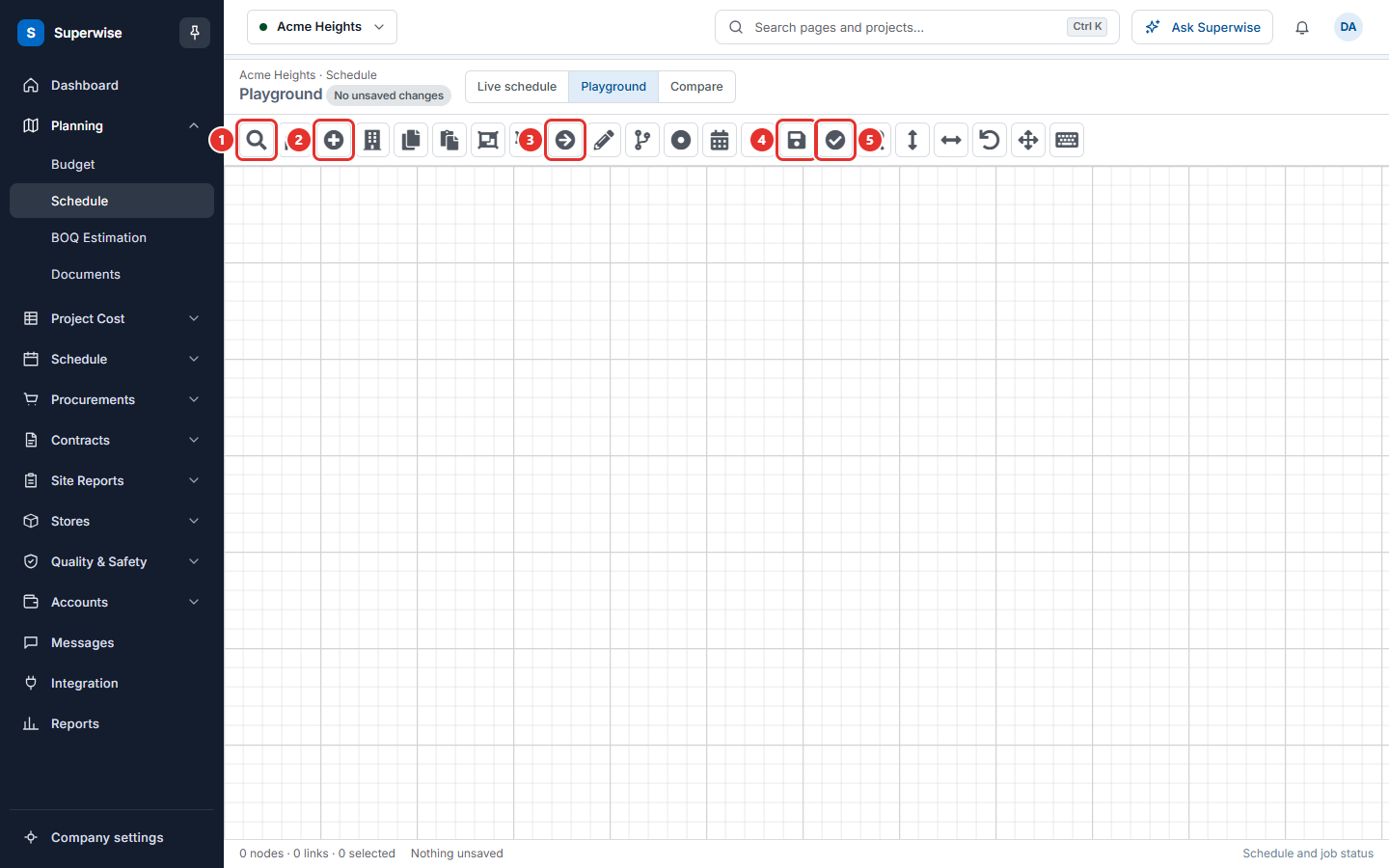
The page has three views at the top: Live schedule, Playground and Compare. The pill next to the title tells you the state of the drawing: Unsaved changes, No unsaved changes or No working copy yet.
Before you start
- The company needs templates. See Templates.
- Choose the project at the top of the page.
- You need the Edit Tasks permission to change the drawing.
How to start a new plan
- Open Planning > Schedule.
- If the project has no plan yet, the window Select Scheduling Method opens. Click Use Playground to draw the plan here. Click Use Existing File if you have a plan in another program. See Create a schedule.
- In the window Select Nodes, choose the nodes to show and click Load. A project that already has a draft opens this window by itself.
How to add a template to the plan
- Click Add Template (mark 2 in the picture above). It is the button with a plus sign.
- Choose a Category (mark 1 below). The templates of that category appear as chips.
- Click the chip of the template you need. A new box appears on the board.
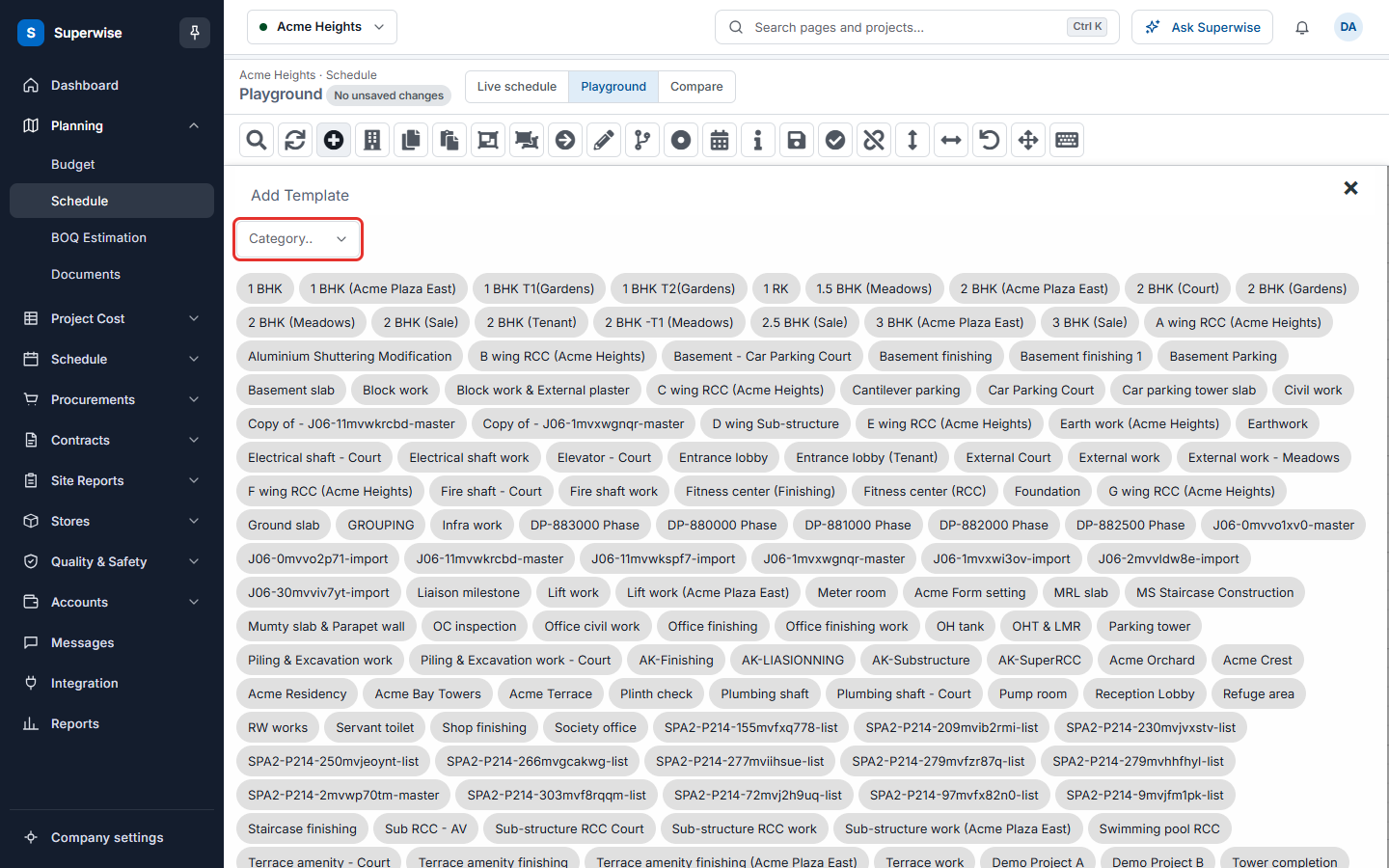
To change the template of a box, select the box and click Change Template. To use another set of tasks of the same template, select the box and click Variations.
How to link two nodes
- Click the first box. This is the predecessor: it must finish first.
- Hold the Ctrl key and click the second box.
- Click Link (mark 3 in the first picture).
- A window with a table opens when the two templates have no link rule yet. The rows say which task of the first template must finish before which task of the second template starts. Fill the table and click Save Link.
- If Superwise finds links between the same templates in other projects, it shows Similar links. Choose one and click OK to copy it.
To change the rule of a link later, click the arrow, then click Define. The table has these columns: Task ID, Task, Predecessor ID, Predecessor, Relation, Lag and Shrink.
- Relation is FS, SS, FF or SF. FS means the task starts after the predecessor finishes. SS means the task starts after the predecessor starts. FF means the task finishes after the predecessor finishes. SF means the task finishes after the predecessor starts.
- Lag is a waiting time in days between the two tasks.
- Shrink says that Superwise may shorten the lag when it needs to.
How to group nodes
- Select the nodes that belong together. Select the node that will be the group last.
- Click Mark Group. The last node you selected becomes the parent of the others.
- To undo it, select the group and click Ungroup.
How to fix a date of a node
Select one node and click Constraints. The table has the columns Task ID, Task, Constraint and Date. The constraints are Finish After, Finish Before, Must Finish On, Must Start On, Start After and Start Before. Click Save Constraints.
How to save and verify the draft
- Click Save Draft (mark 4). Superwise stores the drawing as the draft of the project. The message Saved successfully appears.
- Click Verify Draft (mark 5). Superwise asks you to confirm: "No changes made after saving the draft will be taken into account. Continue?" Save the draft again first if you changed the drawing.
- If the draft is correct, Superwise opens the Schedule page of the project. There you click Save Tasks. See Create a schedule.
- If the draft has errors, a red list appears above the board. Fix each item and verify again.
What the buttons do
The buttons at the top show their name when you move the pointer over them.
| Button | What it does |
|---|---|
| Find Node | Finds a node by name and moves to it. |
| Change Node Selection | Chooses which nodes are shown on the board. |
| Add Template | Adds a box for a template. |
| Project Templates | Opens the templates of the project in a new tab. |
| Copy, Paste | Copies selected nodes. Paste asks how many times to replicate them. You can tick Auto increment and Copy position. |
| Mark Group, Ungroup | Makes a group of nodes, or removes it. |
| Link, Define | Links two nodes, and edits the rule of a link. |
| Change Template, Variations | Changes the template of a box, or the variation of its tasks. |
| Constraints | Fixes a start or finish date of a task. |
| Node Info | Lists the predecessors and successors of the selected node. |
| Save Draft, Verify Draft | Stores the drawing and checks it. |
| Remove/Restore All Links | Hides all arrows to make the board easier to read, or shows them again. |
| Align Vertically, Align Horizontally | Puts the selected boxes in a line. |
| Reset All Positions To Zero | Puts every box at the same start position for all users. Superwise asks you to type RESET. |
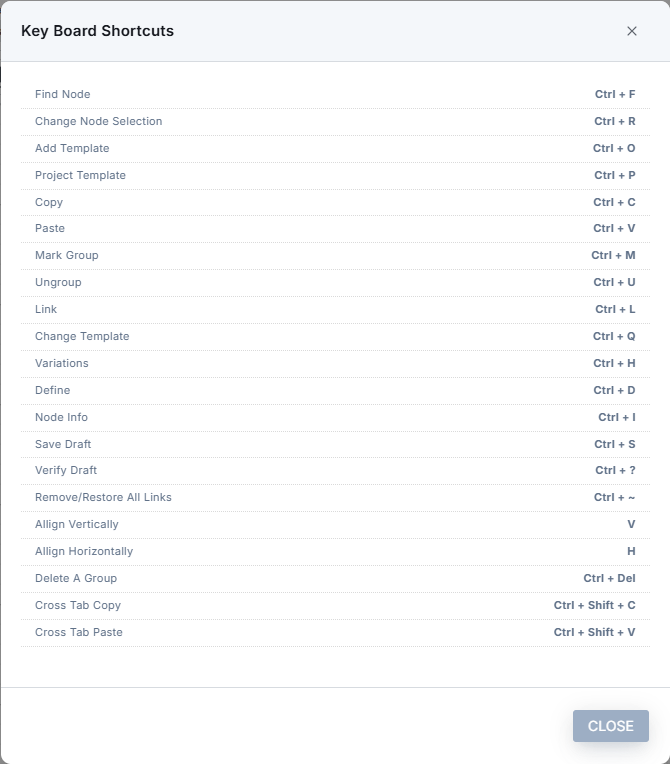
| Keyboard Shortcuts | Lists the keys. |
Rules to know
- Node names must be different. If two nodes have the same name, Save Draft shows "Node Names ... cannot be repeated".
- Every link needs a rule. If a link has none, Superwise shows "Link is undefined between" and the two names.
- A link cannot create a loop. A second link between the same two nodes is refused with "Link already exists between the selected nodes".
- The start node cannot be linked to, and the end node cannot be linked from.
- If you save an empty board, Superwise asks you to type DELETE. This removes the whole draft.
- Cut with Ctrl + X is not allowed.
Careful: Reset All Positions To Zero changes the position of the boxes for every user of the project.
If something goes wrong
| What you see | What to do |
|---|---|
| Please wait! The playground is being saved or verified | Wait until the work ends. Then try again. |
| Please select a link to define | Click one arrow, then click Define. |
| Please select node(s) to change template | Click one or more boxes first. |
| Adding this link will create a loop. | Remove or change a link so the tasks do not wait on each other in a circle. |
| The page says the playground could not be loaded | Reload the page. If it stays, ask your administrator. |