


Equipment rentals
See the rented equipment that suppliers put on site, accept or reject each rental record, and know which records are ready for a bill.
- Where to find it
- Site Reports > Equipment Rentals
- Who can use it
- People who have the View Equipment Rentals permission. Editing and bulk add need Edit, deleting needs Delete, approving needs Approve.
An equipment rental record shows that a supplier put a rented machine on site. It has the supplier, the machine, the period of use, the rate and the amount. The portal also calls it an equipment rental challan (ERC). Rental records are entered in a sheet (see Bulk add rentals). An approver then accepts or rejects each record. Only accepted records can go on a purchase bill.
The screen is called Equipment Rentals.
Before you start
- A project must exist, and you must be a member of it. The list shows the project chosen at the top of the screen.
- The supplier and the machine must exist in Superwise.
The flow
- The rental is entered. The status is Pending.
- An approver accepts it. The status is Accepted.
- An accountant adds accepted records to a purchase bill. After the bill is saved, the status is PendingBill. After the bill is approved, the status is Billed.
How to find a rental
- Open Site Reports > Equipment Rentals.
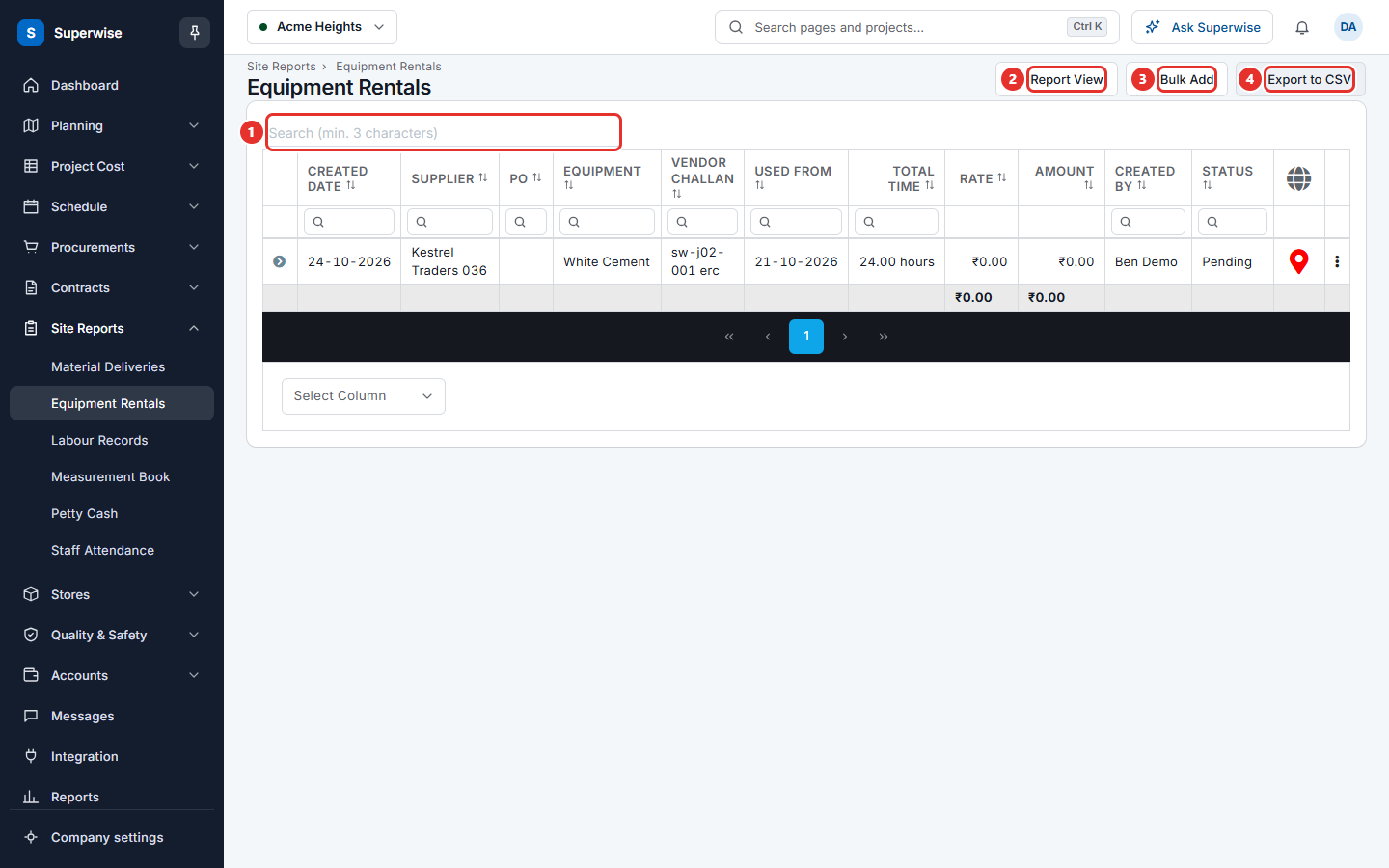
- To search, type at least 3 characters in the search box (mark 1).
- To filter, type in the box under a column name. The columns Created Date and Used From take a date range.
- To show or hide columns, use Select Column at the bottom of the table. The column Project is hidden at first.
- To see more of a rental, click the arrow at the start of the row. Three tabs open: Details, Breaks and Usage.
To add rentals, click Bulk Add (mark 3). See Bulk add rentals. Click Report View (mark 2) to see the rentals as a report. Click View Data to go back. Click Export to CSV (mark 4) to download the rows that match your filters.
How to accept or reject a rental
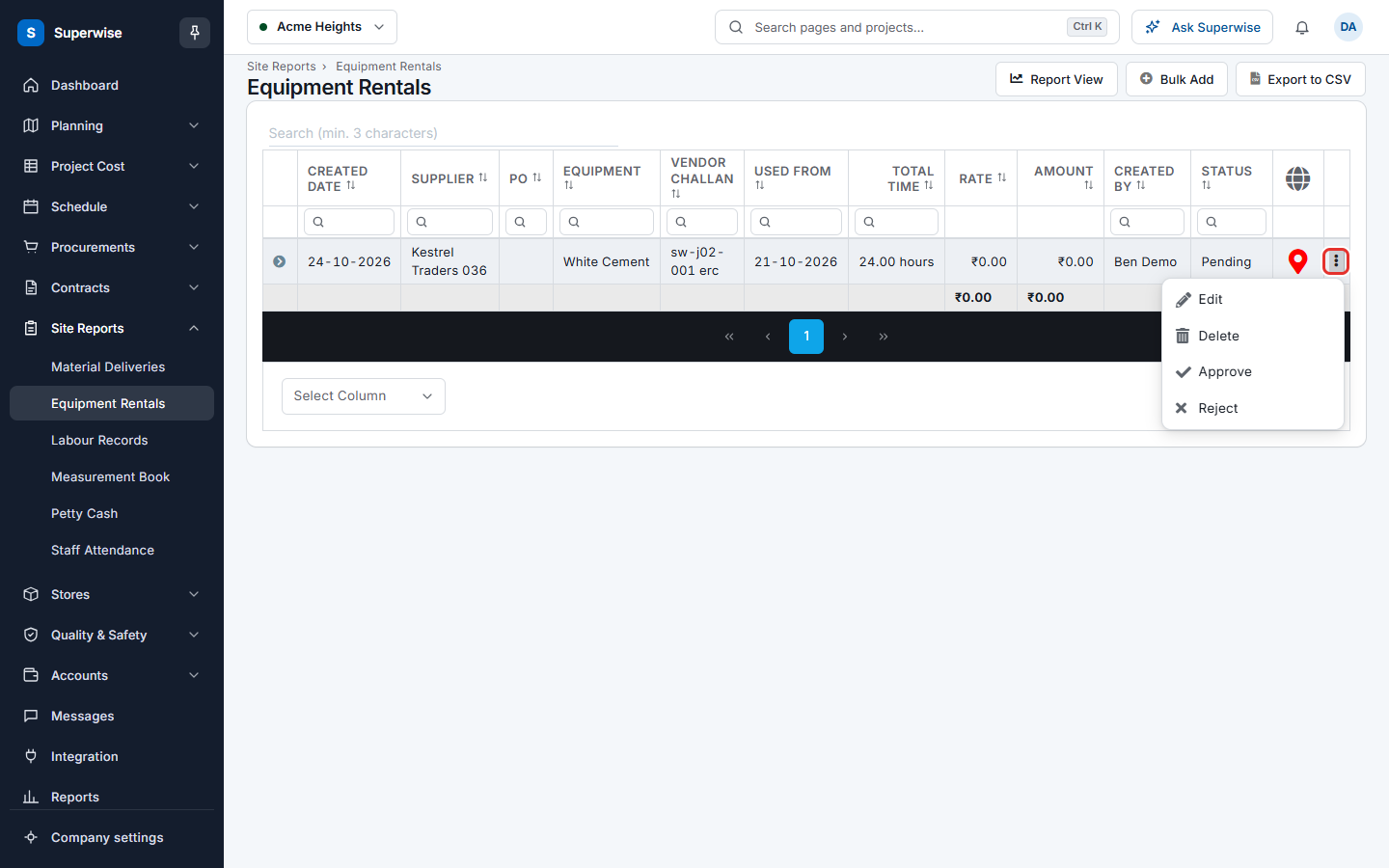
- At the end of the row, click the three dots (mark 1 in the picture below). A small menu opens.
- Click Approve or Reject.
- In the dialog Confirm Action, click Confirm.
- The message Equipment Rental Challan successfully Approved! or Equipment Rental Challan successfully Rejected! appears.
- You can accept a rental that is Pending or Rejected.
- You can reject a rental that is Pending or Accepted.
- You cannot accept or reject a rental that is linked to a closed purchase order.
The same menu has Edit and Delete. See Edit an equipment rental.
What the columns mean
| Name | What it means |
|---|---|
| Created Date | The date the record was created. |
| Supplier | The supplier of the equipment. |
| PO | The number of the purchase order, when one is linked. |
| Equipment | The machine that was rented. |
| Vendor Challan | The supplier's own challan number. |
| Used From | The date the use started. |
| Total Time | How long the equipment was used. |
| Rate | The price for one unit of time. |
| Amount | The amount to pay for the rental. |
| Created By | The user who created the record. |
| Status | The state of the record. |
The last column, with a globe icon, shows the place where the record was made. A red icon means an invalid location. Click it to see the place on a map.
What the statuses mean
| Status | What it means |
|---|---|
| Pending | The record is saved and waits for a decision. |
| Accepted | An approver accepted it. It can go on a purchase bill. |
| Rejected | An approver rejected it. |
| PendingBill | The record is on a purchase bill that is not approved yet. |
| Billed | The purchase bill that holds the record is approved. |
Rules to know
- You cannot edit a rental that is on a bill, or whose purchase order is closed.
- You cannot delete a rental after it is on a bill.
- Only Accepted rentals can be added to a new purchase bill. A bill takes records that have the same rate and the same tax.
If something goes wrong
| What you see | What to do |
|---|---|
| Record is already approved | The record is done. No action is needed. |
| Record is already rejected | The record is done. No action is needed. |
| Linked Purchase Order should not be in Pending or Rejected state | Ask the buyer to approve the purchase order first. |
| Equipment Rental Receipt linked to Closed Purchased Order item cannot be approved | The purchase order is closed. Ask the buyer to open it again. |
| Rental Receipt has already been billed. Please rectify the bill and try deleting again. | Change the bill first, then delete the record. |
Related pages
In this section
- Bulk add equipment rentalsEnter many equipment rental records at once in a sheet, or paste them from Excel, and save them in one step.
- Edit an equipment rentalChange the details of an equipment rental record, add breaks and usage entries, or delete the record.
- Machinery usage logsSee the log entries of machinery on a project, with hours, fuel and output, and edit or delete an entry.