


Drilldown reports
Open the report view of a list, read its totals in a table, click a value to go one level deeper, and export the table to CSV.
- Where to find it
- Site Reports
- Who can use it
- People who have the View permission on the list that the report belongs to.
A drilldown report is a table of totals. You start with the large totals and click a value to see what it is made of. Each click goes one level deeper. The list of levels at the top of the table, called the breadcrumb, lets you go back.
For example, the material drilldown first lists the vendors. You click a vendor to see the next level of detail.
The drilldown reports are the Report view of the site lists. They do not have their own menu item.
Before you start
- Select the project at the top of the screen.
- The list must hold data. A drilldown of an empty list shows No Records.
- You need the View permission on the list.
How to open a drilldown report
- Open the list in the left menu. See the table below.
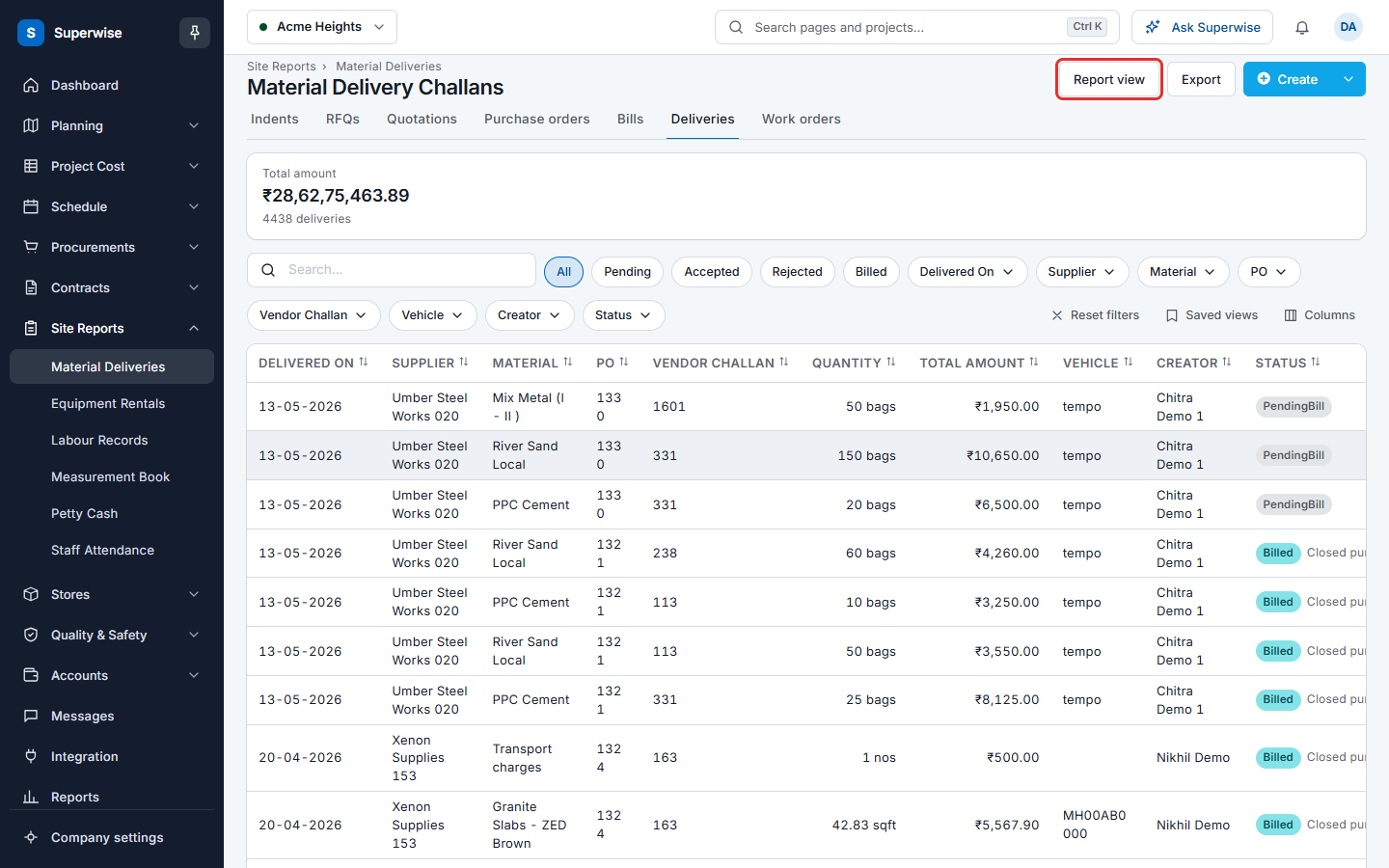
- Click Report view (mark 1). On some lists the button is Report View. On Issues it is Issue Report.
- The table of totals opens in place of the list.
- To go back to the list, click View data (on some lists View Data).
| Drilldown | Open it from |
|---|---|
| Material Drilldown | Site Reports > Material Deliveries |
| Equipment Drilldown | Site Reports > Equipment Rentals |
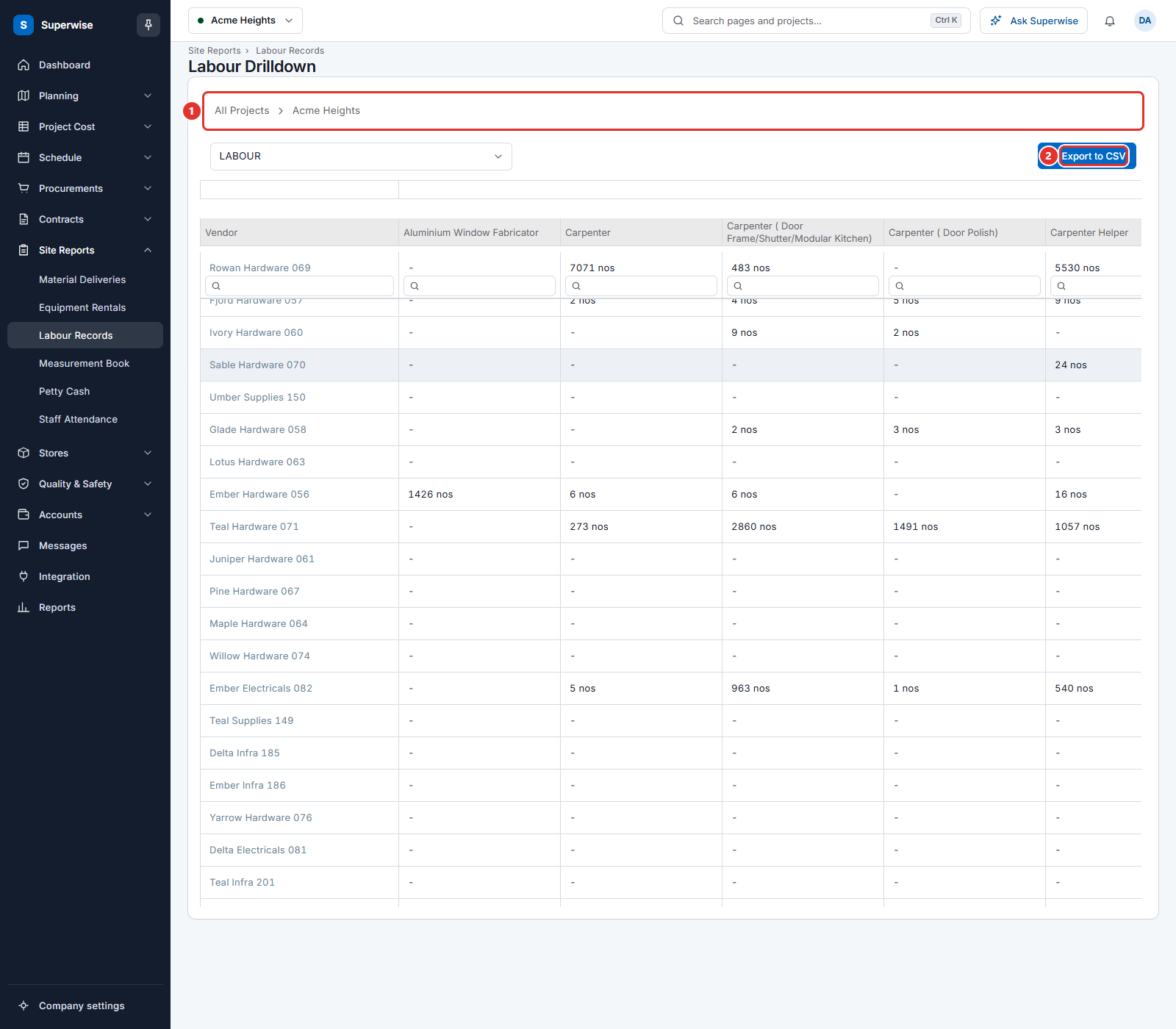
| Labour Drilldown | Site Reports > Labour Records |
| Expense Drilldown | Site Reports > Petty Cash |
| Issue Drilldown | Quality & Safety > Issues |
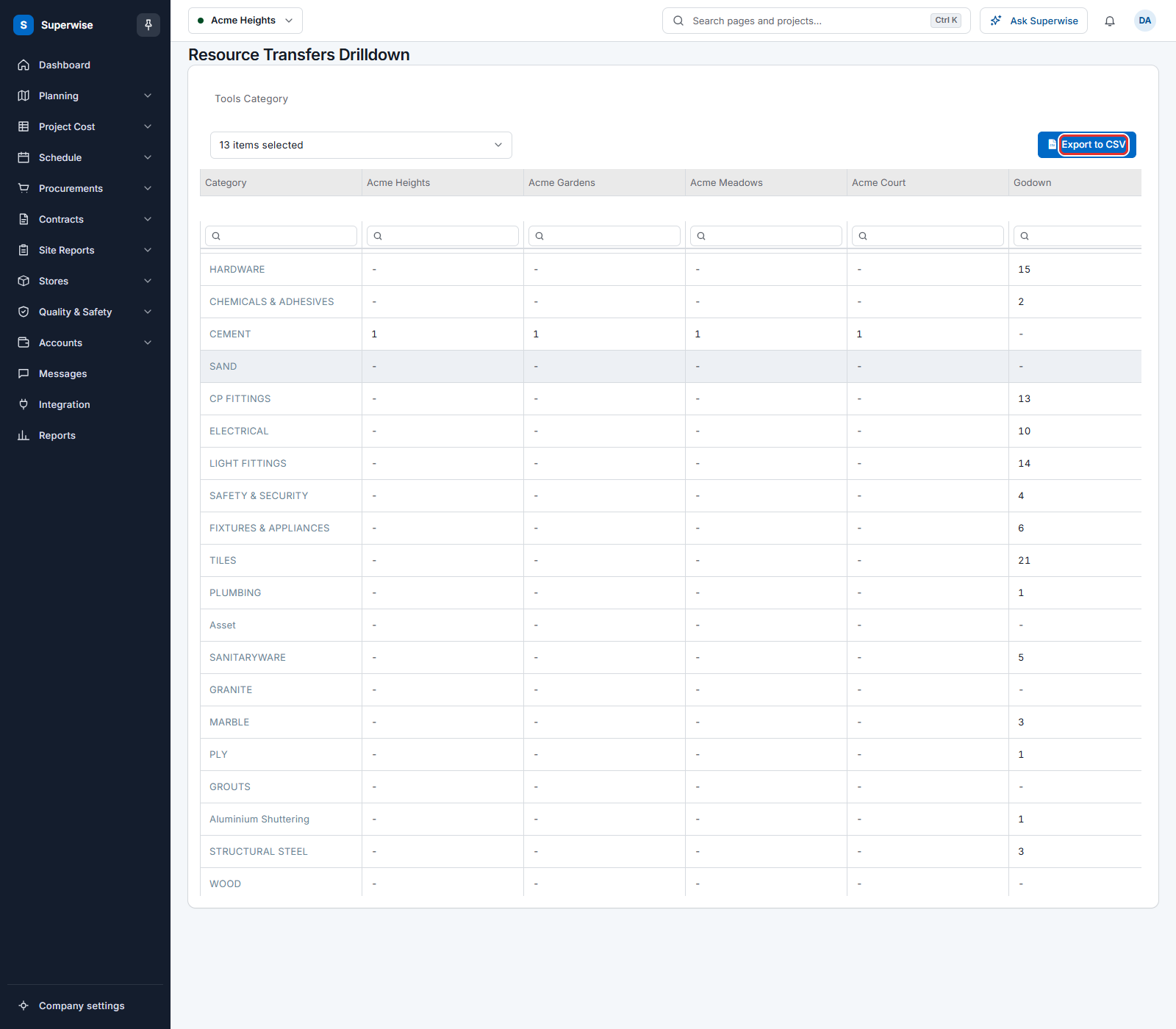
| Resource Transfers Drilldown | Stores > the tool inventory |
How to read and use the table
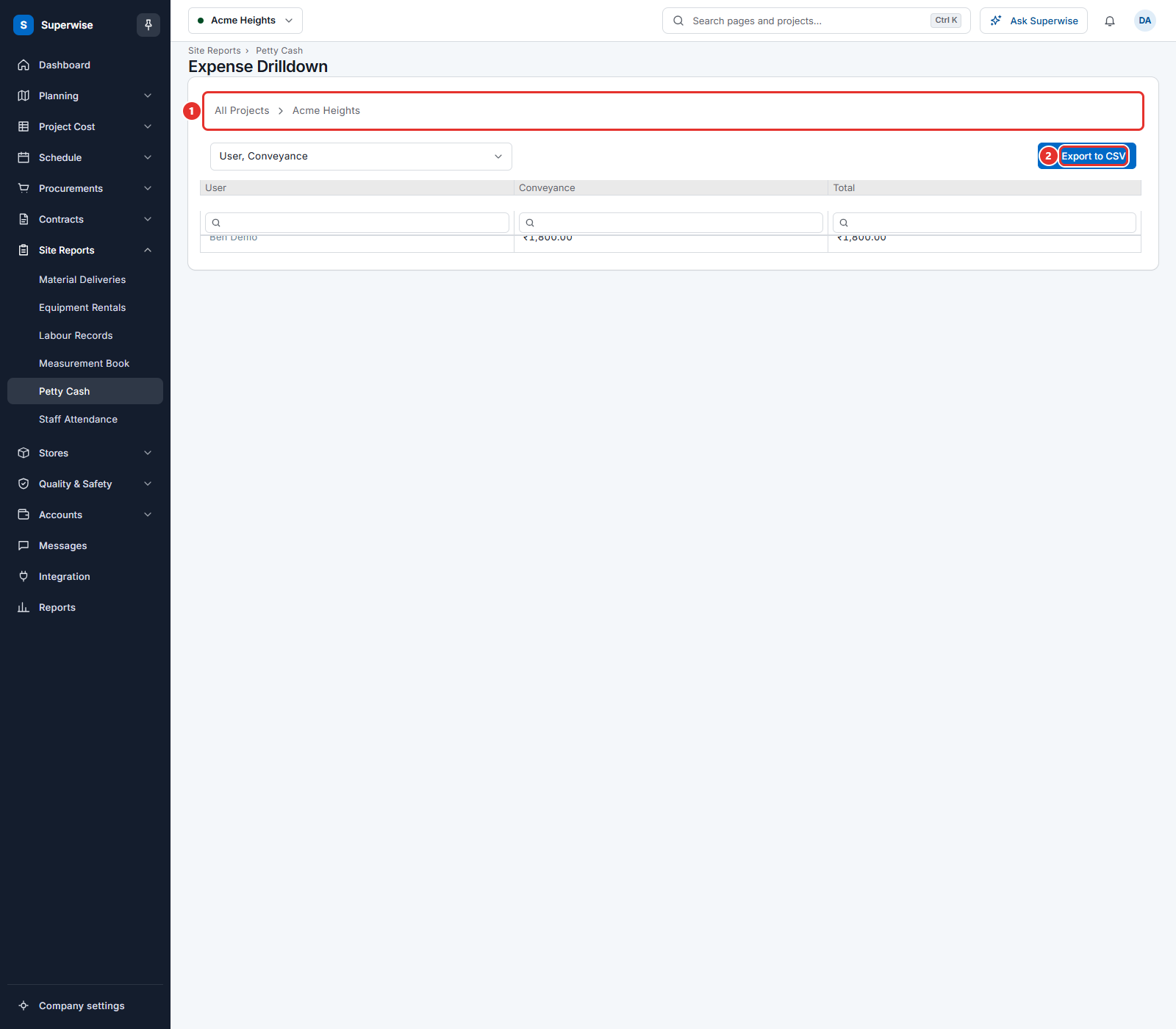
- Read the breadcrumb at the top (mark 1). For the expense drilldown it starts with All Projects, then the project.
- Look at the box under the breadcrumb. It names the columns that the table shows now, for example User, Conveyance. Click it to choose other columns in the box Choose Columns.
- Click a value that looks like a link to go one level deeper. The breadcrumb grows by one step.
- Click a step of the breadcrumb to go back to that level.
- To find a row, type in the small box under a column name. The table shows only the rows that contain your text.
- Click Export to CSV (mark 2) to download the table.
What each drilldown shows
| Drilldown | The table |
|---|---|
| Material Drilldown | Material deliveries. The first level lists vendors. |
| Labour Drilldown | One row for each vendor and one column for each kind of labour. The values are counts in nos. |
| Expense Drilldown | One row for each user and one column for each kind of expense, with a Total column. |
| Resource Transfers Drilldown | One row for each category and one column for each project. The last column is Lost Resources. |
Rules to know
- The columns that you choose with Choose Columns only change what you see. They do not change the data.
- Export to CSV saves the columns that are shown now.
- Amounts show with the currency of your company.
- Two more drilldown screens exist in the system, PackageWise Last Update Drilldown and Resource Rate Comparission. They have no menu item and no button. On the test system the first showed no table and the second showed Page not found. Do not rely on them.
If something goes wrong
| What you see | What to do |
|---|---|
| No Records | The list has no data for the project. Check the project at the top. |
| The table does not load. | Wait a few seconds, then click View data and Report view again. |
| Access denied | You do not have the View permission on the list. |