


Default settings
Choose the region, time zone, financial year, order number format, notifications and task alerts that every project in your company uses.
- Where to find it
- Company settings > Company Setup
- Who can use it
- People who have the Admin View permission. Saving a change needs Admin Edit.
The tab Default Settings on the page Company Default Settings sets how Superwise shows dates and money. It also sets how Superwise numbers purchase orders (PO) and work orders, and which notifications it sends. The settings apply to all projects.
Before you start
- Know the first month of your financial year. In India it is April.
- Decide how your order numbers should look. If you do not set a format, Superwise uses
ProjectCode/OrderType/OrderNumber. - Fill in Company details first, because the short name is part of the order number.
How to change the default settings
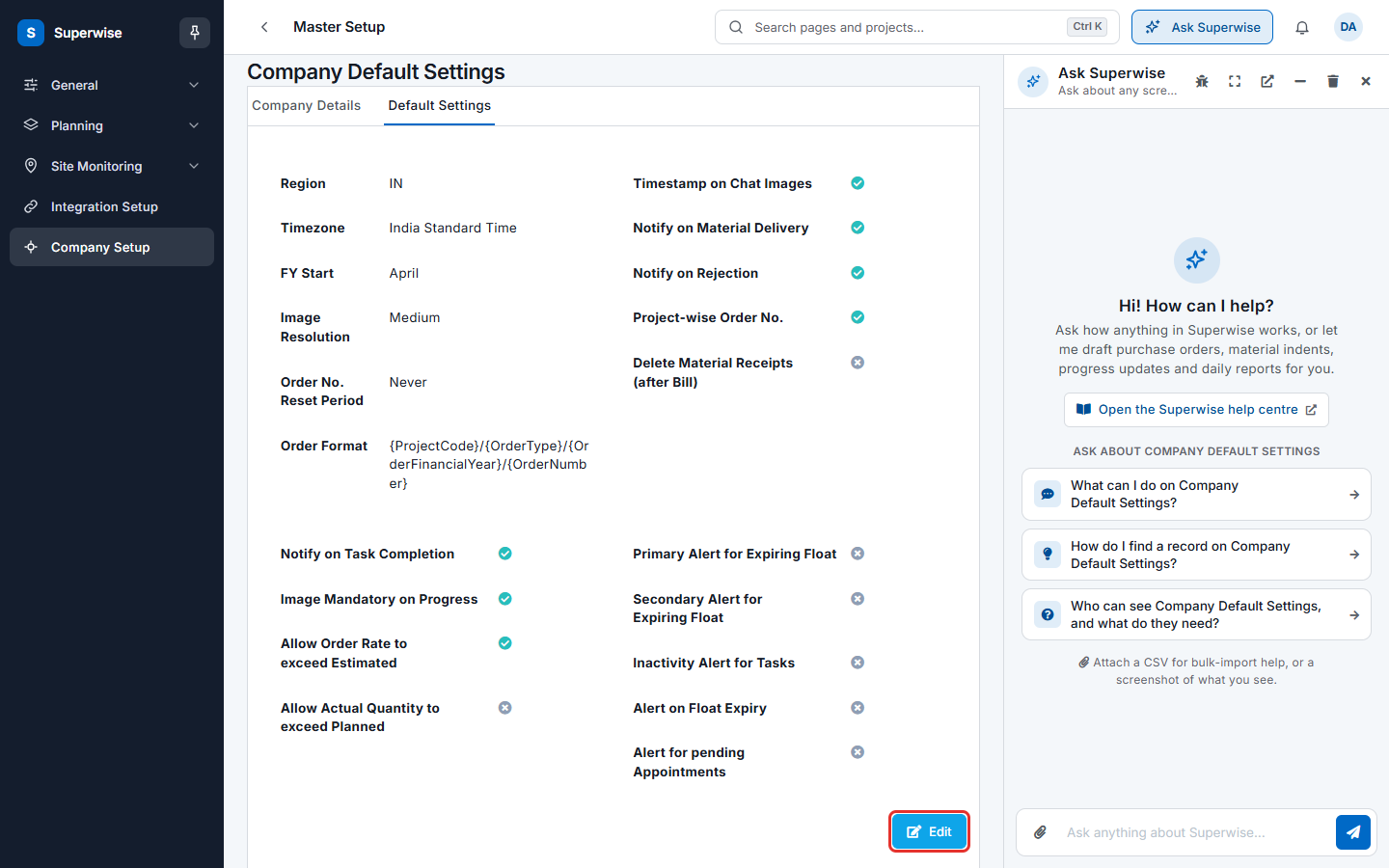
- Open Company settings in the left menu and click Company Setup.
- Click the tab Default Settings, next to Company Details. The page shows the saved values. A green tick means a switch is on. A grey cross means it is off.
- Click Edit (mark 1 in the first picture).
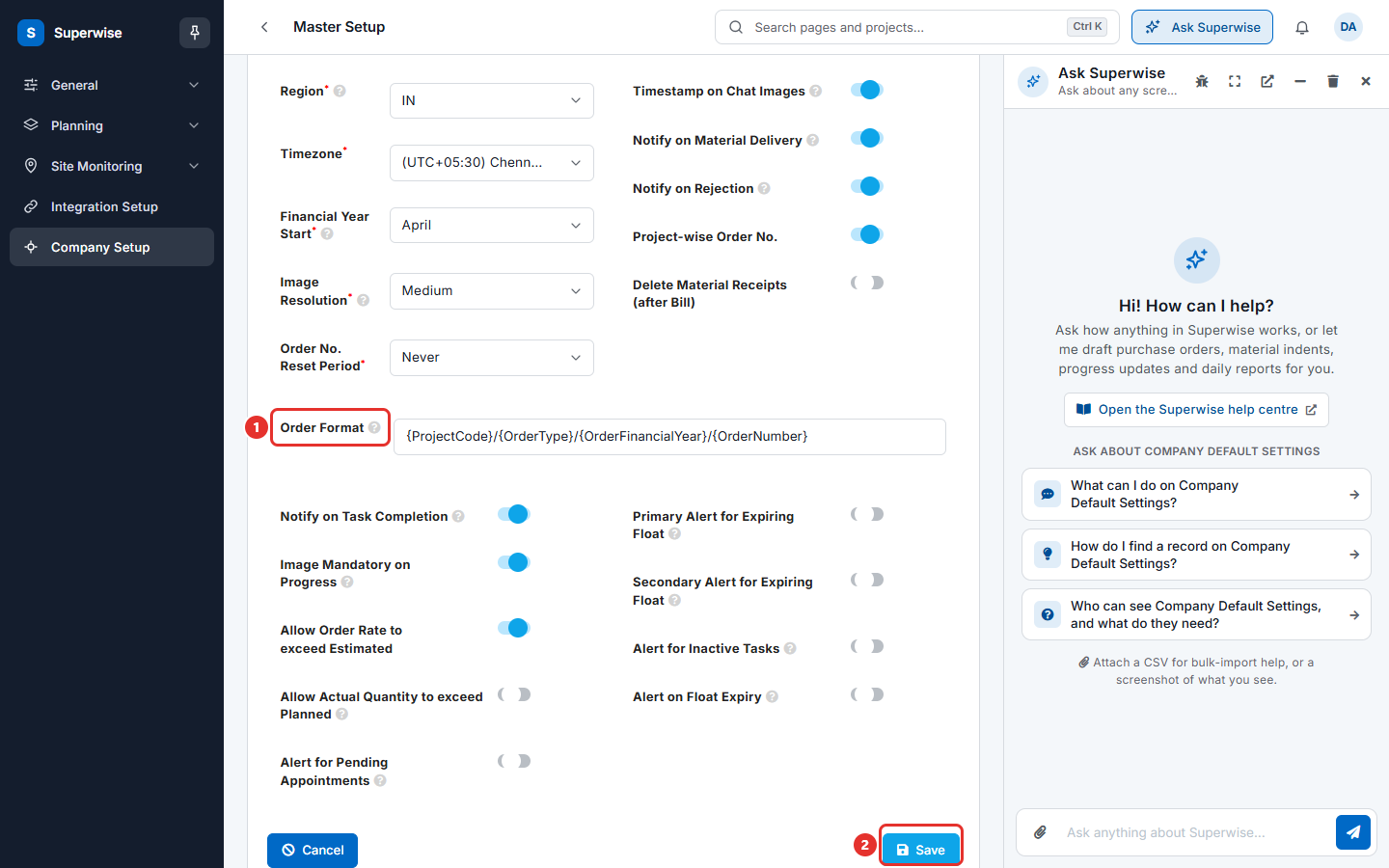
- Change the fields you need. See the tables below. In the second picture, Order Format is marked 1 and Save is marked 2.
- Click Save. A message says that the settings were updated. To leave without saving, click Cancel.
What the fields mean
| Name | What it means |
|---|---|
| Region | Decides how dates, money and numbers appear. For example the region for India shows dates as dd-MM-yyyy. Required. |
| Timezone | The time zone for times shown in the portal. It is chosen for you when you choose the region. You can change it. Required. |
| Financial Year Start | The first month of your financial year. Required. On the saved page this field is shown as FY Start. |
| Image Resolution | The size of photos taken in the mobile app: Low, Medium or High. A lower resolution gives smaller files and less detail. Required. |
| Order No. Reset Period | When the order number goes back to 1: Day, Month, Year or Never. Required. |
| Order Format | How purchase orders and work orders are named. See the next section. |
| Project-wise Order No. | On: each project counts its own order numbers. Off: the numbers run over all projects. |
| Timestamp on Chat Images | On: Superwise adds the date and time to every image posted in a chat group. |
| Notify on Material Delivery | On: the person who approves material deliveries gets a notification for every delivery. |
| Notify on Rejection | On: the person who created an entry gets a notification when the entry is rejected. |
| Delete Material Receipts (after Bill) | On: Superwise deletes the material receipts once they are billed. Keep it off unless your administrator asks for it. |
What the order format placeholders mean
Type the format in Order Format with each placeholder in curly brackets. The placeholders are:
| Placeholder | What it gives |
|---|---|
{ProjectCode} |
The code of the project. |
{OrderType} |
The type of the order. |
{OrderNumber} |
The running number of the order. |
{CompanyCode} |
The short name of the company. |
{OrderFinancialYear} |
The financial year of the order date. |
{OrderMonthYear} |
The month and year of the order date. |
{OrderDateDay} |
The day of the order date. |
{OrderDateMonth} |
The month of the order date. |
Example: The format
{ProjectCode}-{OrderType}-{OrderFinancialYear}-{OrderNumber}gives one number for each order, made of the project code, the order type, the financial year and the running number.
What the task settings mean
These fields show only when your account has the planning module with tasks. They control alerts for the schedule and for measurements.
| Name | What it means |
|---|---|
| Notify on Task Completion | On: a chat notification goes to the department when an activity is complete. |
| Image Mandatory on Progress | On: a photo is required when you post task progress from the mobile app. |
| Allow Order Rate to exceed Estimated | On: you can issue a work order at a higher rate than the estimate in the bill of quantities (BOQ). |
| Allow Actual Quantity to exceed Planned | On: the quantity of work done can be more than the planned quantity of an activity. |
| Notify when Actual Quantity exceeds Planned | Shows only when the switch above is on. On: users who can edit work orders, tasks or progress get a notification when the actual quantity is more than planned. |
| Alert for Pending Appointments | On: users who can add or edit work orders get a notification about contractors not yet appointed. |
| Primary Alert for Expiring Float | On: users who can edit tasks or progress get a notification before the float of an activity ends. Float is the spare time an activity can slip without delaying the project. |
| Primary Alert before (days/hours) | Shows when the primary alert is on. The number of days or hours before the float ends. |
| Secondary Alert for Expiring Float | A second notification of the same kind. |
| Secondary Alert before (days/hours) | Shows when the secondary alert is on. The number of days or hours before the float ends. |
| Alert for Inactive Tasks | On: users who can edit tasks or progress get a notification about an activity that started but has no progress report. |
| Inactive if no progress in (days/hours) | Shows when the inactive alert is on. The number of days or hours without progress. |
| Alert on Float Expiry | On: users who can edit tasks or progress get a notification when the critical path changes. |
Rules to know
- Only a user with Admin Edit can save these settings.
- The saved page uses some other names for the same fields: FY Start, Alert for pending Appointments and Inactivity Alert for Tasks.
- Delete Material Receipts (after Bill) removes data. Do not switch it on to save space unless you accept that the single receipts cannot be opened after billing.
If something goes wrong
| What you see | What to do |
|---|---|
| The task settings are missing. | Your account does not have the planning module with tasks. Ask your administrator. |
| A message says that settings could not be saved. | Read the message under it, fix the field it names and click Save again. |
| The time on documents is wrong. | Check Timezone and change it. |