


Revise a work order and compare revisions
Change a work order, see what changed between revisions, and undo the last change while it waits for approval.
- Where to find it
- Contracts > Work Orders
- Who can use it
- People who have the Edit Work Orders permission can revise. People who have the View Work Orders permission can compare revisions.
A work order often changes after it is approved. The scope can grow, a rate can change, or the validity can end. When you save a change to an accepted work order, the system keeps the old version and gives the work order a new revision number. You can compare the versions side by side.
The revision number shows in brackets after the Name in the list. For example "(2)" is the second revision.
Before you start
- The work order must not be closed. A closed work order has no Edit item.
- You need the Edit permission on Work Orders.
- You must write a comment. The system refuses to save a change without one.
How to revise a work order
- Open Contracts > Work Orders.
- Click the three dots at the end of the row and choose Edit (mark 1 in the picture).
- Change the dates, the BOQ items, the rates, the cost details or the terms. The form has the same five steps as Create a work order.
- Go to the step Miscellaneous. Type a text in Comments, the last field of the step. Say what you changed and why.
- On the last step, click Save.
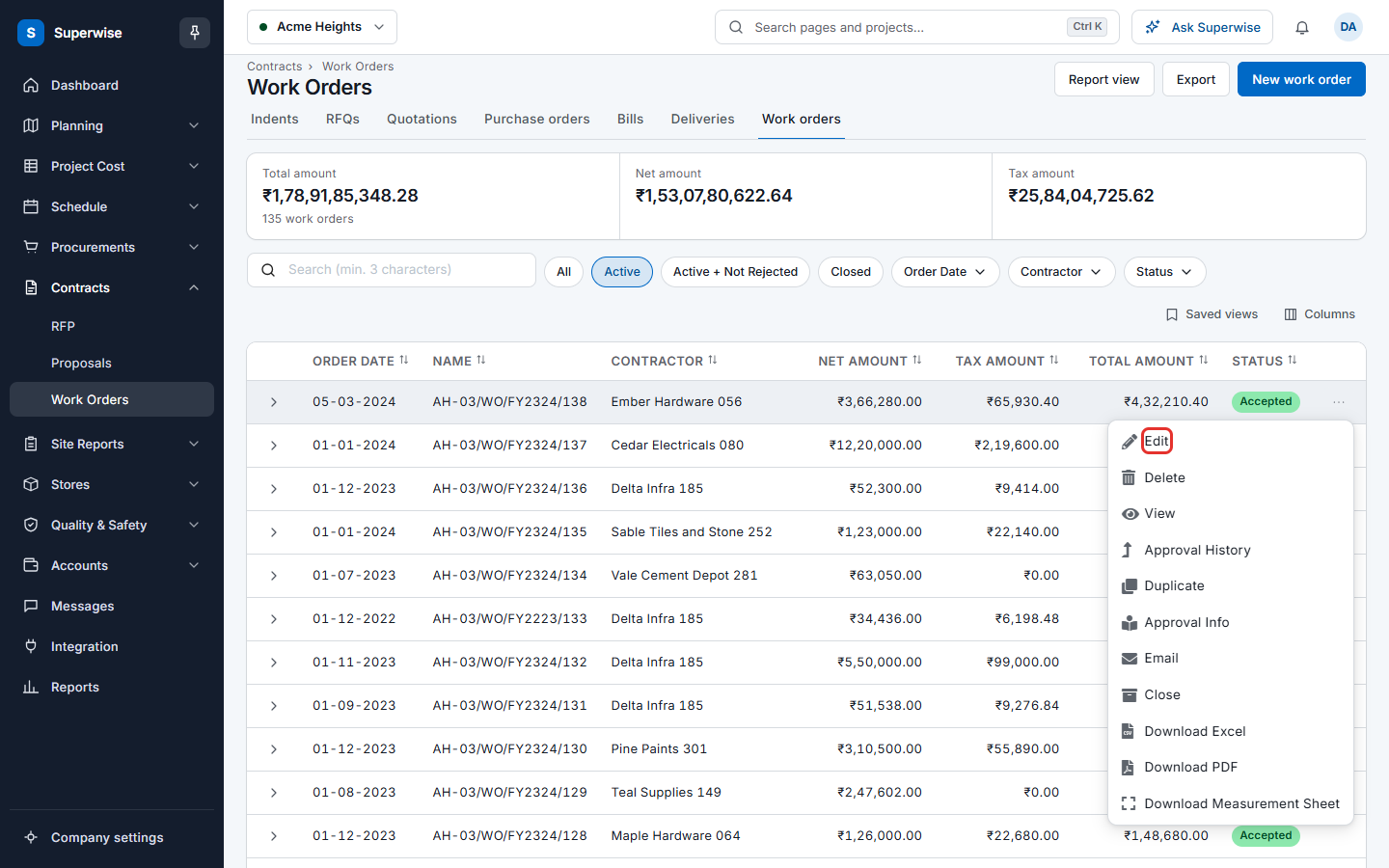
If the work order was Accepted, the revision number goes up by 1 and the old version is kept. The change goes to the approvers again. An approver then checks it on the approval screen, where the new revision is shown next to the earlier version. See Approve a work order.
Note: On a saved work order, the contractor, the SPV and the order date are usually shown as text, not as fields you can change.
How to remove or close a BOQ item
- In the edit form, go to the step BOQ Details.
- Select the row and click Delete Row.
If nothing was measured on the item, the row is removed. If work was measured, the row stays and becomes closed (also called short closed). Its quantity is set to the measured quantity and the row is shaded. The message "Selected Details have been closed. Any changes performed on them have been reverted." shows. A closed row cannot be changed.
If you close every row, the system asks "You have chosen to Close all Work Order Detail Items. On continuing, ONLY remarks will be updated and the Work Order will be closed. Continue?". Click the button to confirm.
How to compare revisions
- Find a work order that has a number in brackets after its Name.
- Click the three dots and choose Compare Revisions. The item is in the menu only for a work order that has a revision.
- Read the screen. See the next section.
How to read the comparison
The heading shows the work order number. The first column, BOQ Item, lists the BOQ items. Then there is one block of columns for each version: Original, Revision 1, Revision 2 and so on.
The top of each block shows:
- The total amount. Below it: the tax, the net amount, the Mobilization and the Retention.
- Created On for the original, or Revised On for a revision.
- Execution Start, Execution End and Validity Date.
- The eye icon View details. It opens that version of the work order.
Each block has these columns for every BOQ item:
| Name | What it means |
|---|---|
| Quantity | The quantity in this version. |
| Rate | The rate in this version. |
| Amount | The quantity times the rate. |
| The truck icon | Whether the material is included in the rate. |
| The page icon | The specifications. Click it to read them. |
| Measured Qty | The quantity measured in this version, with its amount. |
A small arrow shows how a value moved from the version before, in percent. A red arrow up means the value went up. A green arrow down means it went down. A BOQ item that was short closed has a yellow background and the words "(short closed)".
How to undo the last change
- On the comparison screen, click Undo Changes.
- If the validity date of the last revision has passed, the window asks for a new Validity Date. Choose a date in the future.
- In the window Confirm Action, click Confirm. The window asks "Confirm revert of the Work Order?".
The work order goes back to the earlier revision.
Undo Changes is shown when you have the Edit permission and the work order has more than one version. The last version must be Pending, or closed and not accepted.
Rules to know
- You can undo a change only while the work order is Pending.
- You cannot remove a BOQ item that has measurement sheets. The screen shows "Removed Work Order Details contain Measurement Sheets".
- A comment is compulsory when you edit. The screen shows "Comments are mandatory while editing."
- A work order that is Pending or Rejected and has never been approved has no earlier version, so it has nothing to compare.
If something goes wrong
| What you see | What to do |
|---|---|
| No Edit item in the menu | The work order is closed, or you do not have the Edit permission. |
| No Compare Revisions item | The work order has no revision yet. |
| Comments are mandatory while editing. | Type a Comments text on the step Miscellaneous. |
| Removed Work Order Details contain Measurement Sheets | Put the BOQ item back. Work was already measured on it. |
| Cannot undo changes as the Work Order is not in Pending State | The change was approved. Make a new revision instead. |
| Cannot undo changes as the previous version of the Work Order has deleted BOQ(s) | A BOQ item of the earlier version was deleted from the project. You cannot go back. |
| Cannot undo changes as the previous version of the Work Order has BOQ(s) which are not available for execution | A BOQ item of the earlier version cannot be used now. You cannot go back. |
| Cannot undo changes as one or all BOQs already have active Work Orders | Another work order now uses the same BOQ items. Close it first. |
| Cannot undo changes as the BOQs in the Work Order do not have sufficient available quantity after the changes | The BOQ quantity that is free is too small for the earlier version. |