


Debit and credit notes
See the debit and credit notes of a project, approve or reject them, and learn how they change the amount you pay a supplier or contractor.
- Where to find it
- Accounts > Debit / Credit Notes
- Who can use it
- People who have the View Debit / Credit Notes permission. Editing needs Edit, deleting needs Delete, approving and rejecting need Approve.
A debit note takes money off what you owe a supplier or contractor. For example, Alder Steel Works delivers 100 bars and 10 are bent. Acme raises a debit note for the 10 bars, and the amount is taken off the next bill. A credit note does the opposite. It adds an amount to what you owe.
The notes wait on this screen until an approver approves them. An approved note is then pulled into the next purchase bill or RA bill of the same supplier or contractor.
Before you start
- Select the project at the top of the screen.
- The screen has no button to create a note. Notes are created where the problem is found. For example, you create one from the Issues screen with the menu item Create Debit Note. The measurement book, material consumption and material supply screens also have a debit or credit reason. Ask your administrator which reasons are set up.
- To approve or reject a note you need the Approve permission on Debit / Credit Notes.
How to approve or reject a note
- Open Accounts in the left menu and click Debit / Credit Notes.
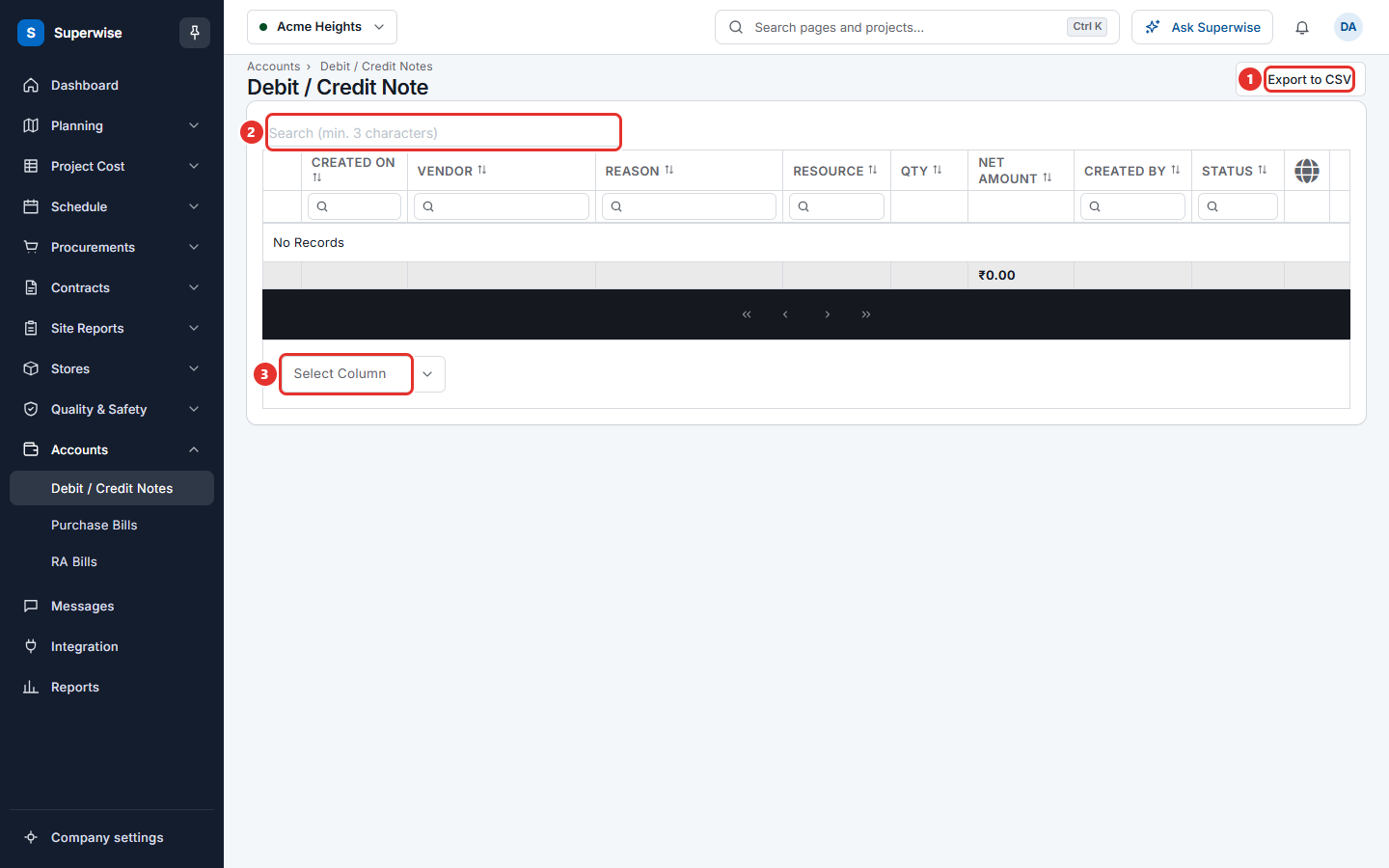
- Find the note. Use the filters under the column names, or type at least 3 letters in Search (min. 3 characters).
- Click the three dots at the end of the row.
- Click Approve or Reject.
- A box titled Confirm Action opens. Click Confirm.
The menu of a note row can list Edit, Delete, Approve and Reject. It shows only the actions that you may use for that note.
| Action | When you see it |
|---|---|
| Edit | You have the Edit permission, and the note is not on a bill yet. See Edit a debit or credit note. |
| Delete | You have the Delete permission, and the note is Pending, Rejected or Accepted. |
| Approve | You have the Approve permission, and the note is Pending or Rejected. |
| Reject | You have the Approve permission, and the note is Pending or Accepted. |
Rows that are Billed have no menu. They are on a bill and cannot change.
How to read the list
Click the arrow at the start of a row to open it. The tabs are Other Details (tax amount and total amount), Images and Remarks. Click a picture to enlarge it.
The Net Amount is red for a debit note and green for a credit note. The total at the bottom of the column adds up the rows that match your filters. To show or hide a column, use Select Column under the table. Click Export to CSV to download the list.
What the columns mean
| Name | What it means |
|---|---|
| Created On | The day the note was created. |
| Vendor | The supplier or contractor that the note is about. |
| Reason | Why the note was raised, for example damaged goods. |
| Resource | The material, labour or equipment of the note. It can be empty. |
| Qty | The quantity of that resource. |
| Net Amount | The amount before tax. |
| Created By | The person who created the note. |
| Status | Pending, Accepted, Rejected or Billed. |
The Project column is hidden at first. Add it with Select Column.
Rules to know
- Only an approved note (Accepted) can be added to a purchase bill or an RA bill. A Pending or Rejected note cannot.
- A note becomes Billed when the bill that holds it is approved.
- You cannot edit a note that is on a purchase bill or an RA bill. Superwise shows Cannot Edit. Purchase Bill is generated for this Debit Note. or Cannot Edit. RA Bill is generated for this Debit Note.
- You cannot approve a note that has no amount. Superwise shows Invalid Amount.
- A note created from an issue is one note per issue. A second note shows Debit Note already created for this Issue.
- When you reject a note, the person who created it gets a notice.
If something goes wrong
| What you see | What to do |
|---|---|
| The list is empty. | Check the project at the top. Clear the filters with the filter boxes under the column names. |
| No Approve in the menu. | The note is Billed or Accepted, or you do not have the Approve permission. |
| Invalid Amount. | Open the note with Edit and enter a net amount, or a quantity and a rate. |