


Organizations
Add suppliers, contractors, consultants, clients and other companies you work with, one by one or many at once, and mark them active or inactive.
- Where to find it
- Company settings > General > Organizations
- Who can use it
- People who have the View Organizations permission. Adding needs Add, editing needs Edit, deleting needs Delete. Marking active or inactive and Bulk Add need Approve.
An organization is a company outside your own company. It can be a supplier of materials, a contractor who does work, a consultant, a client or a special purpose vehicle (SPV). An SPV is a company set up to own one project. You pick organizations when you create purchase orders (PO), work orders and bills.
One organization can have more than one type. For example, a company can be both a Supplier and a Contractor.
Before you start
- Collect the legal name, the contact details and the tax number of the company.
- For an SPV, have its logo file ready. The logo is required for an SPV.
How to add one organization
- Open Company settings in the left menu, then General, then Organizations.
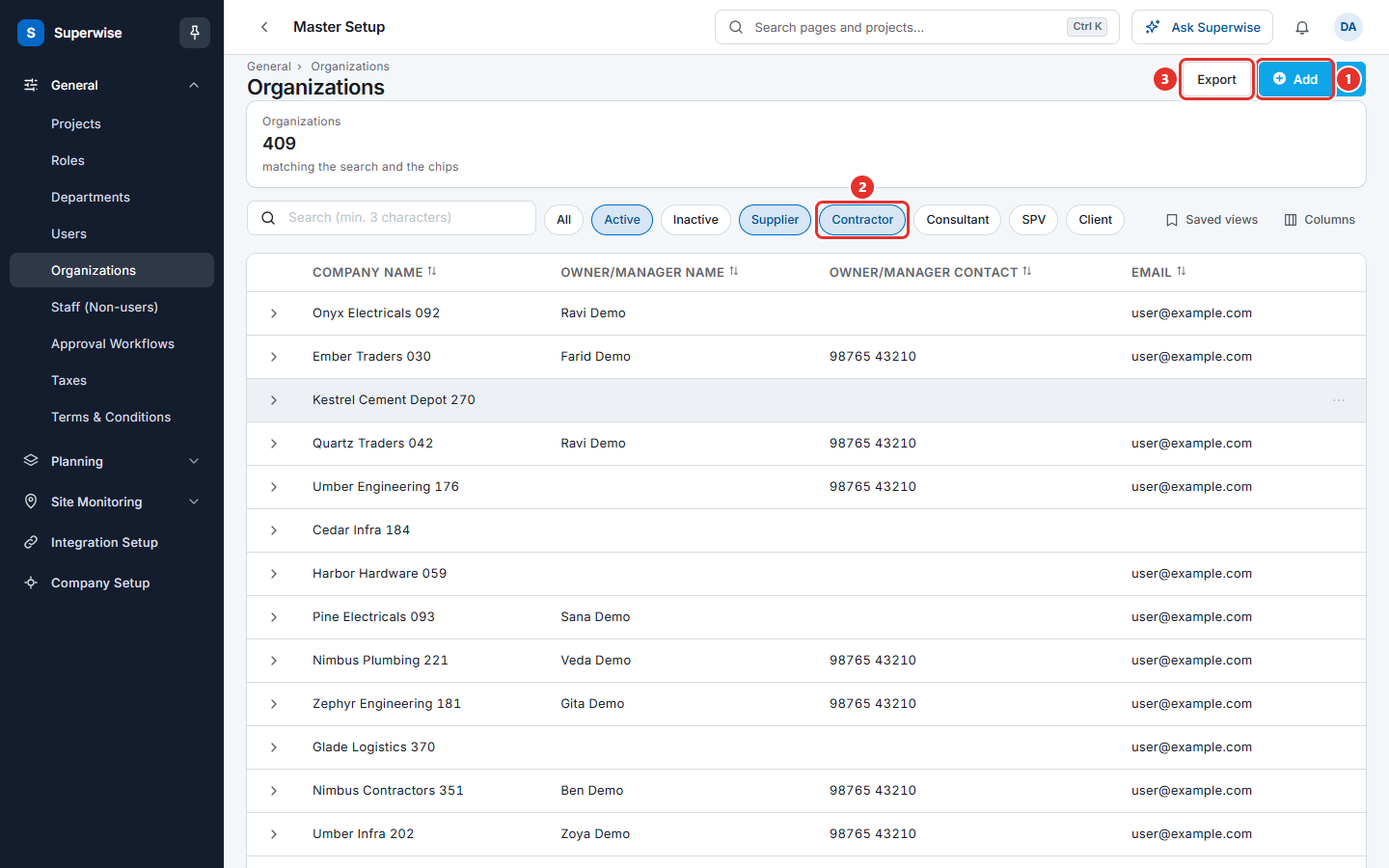
- Click Add (mark 1 in the first picture).
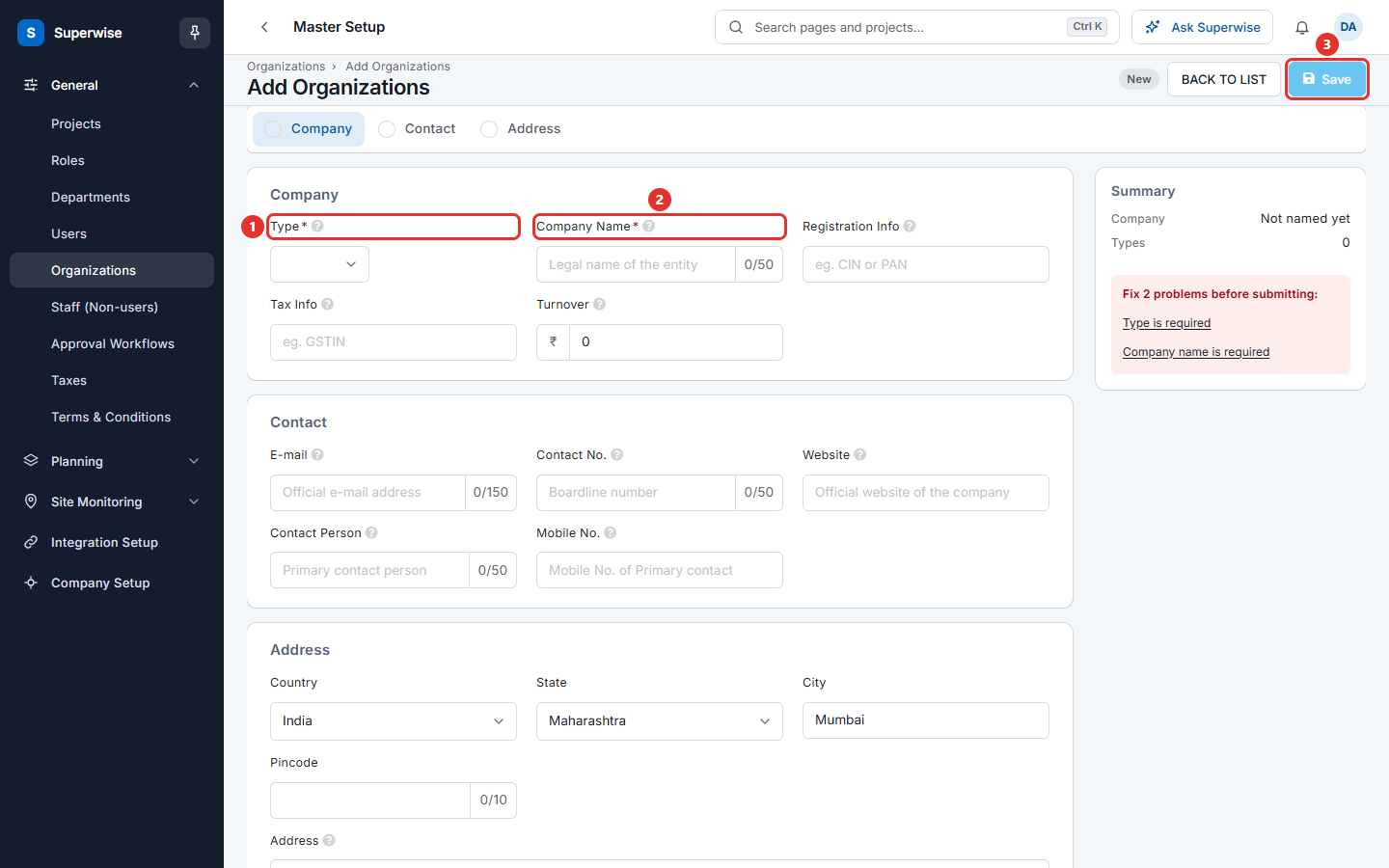
- In Type (mark 1 in the second picture), choose one or more types.
- In Company Name (mark 2), type the legal name of the company.
- Fill in the other fields you know. See the table below.
- Click Save (mark 3). A message says that the organization was saved.
How to add many organizations at once
Use Bulk Add when you have a list, for example from a spreadsheet.
- On the list of organizations, click the small arrow on the right of the button Add (mark 1 in the third picture).
- Click Bulk Add.
- Type or paste one organization in each row of the grid. The columns are Name, Type, Email, Contact, Contact Person, Registration Info, Address, Tax Info, Website and Turnover.
- In Type, choose one of Supplier, Contractor, Consultant, SPV or Client.
- Click Save (mark 2). The list of organizations opens.
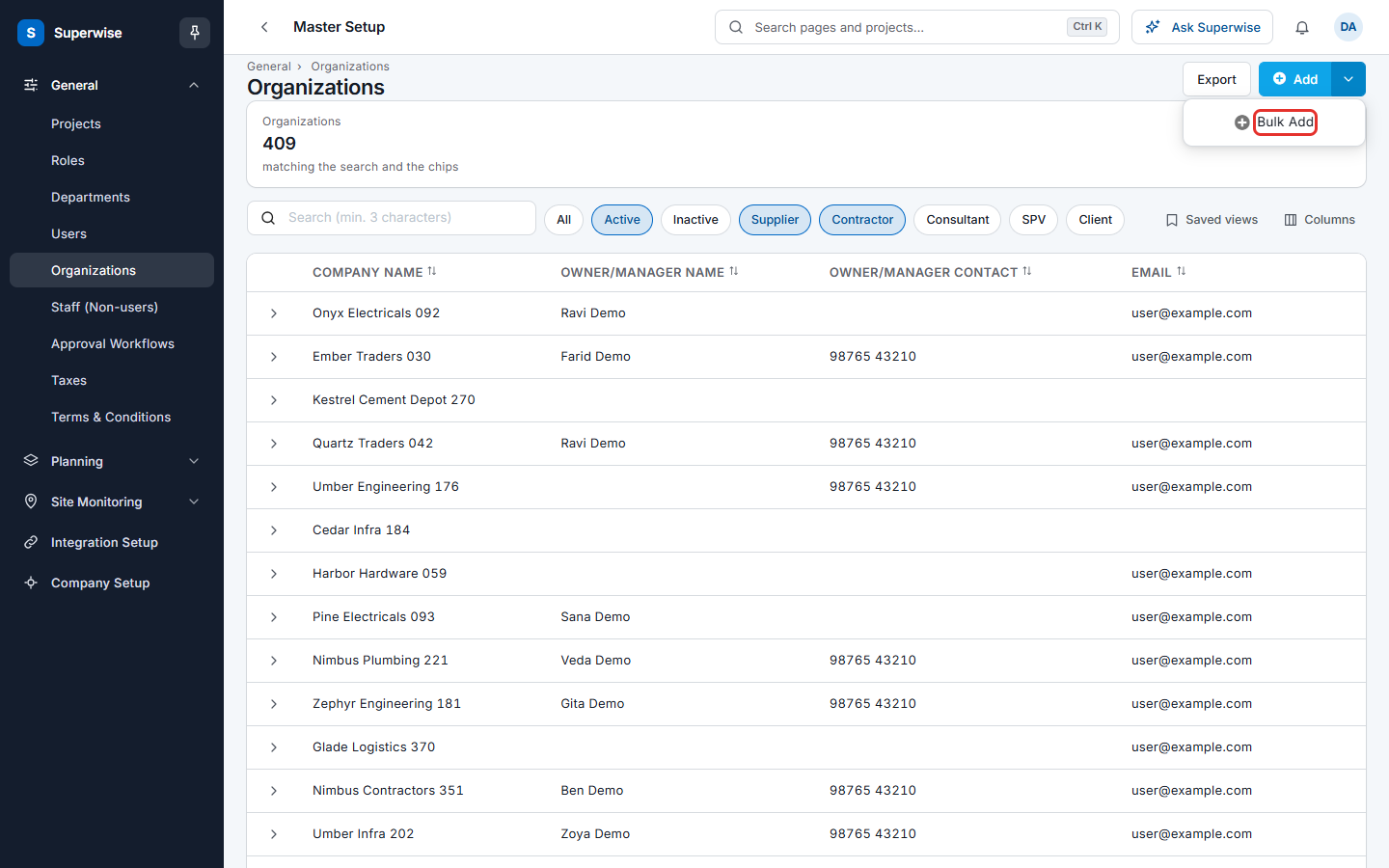
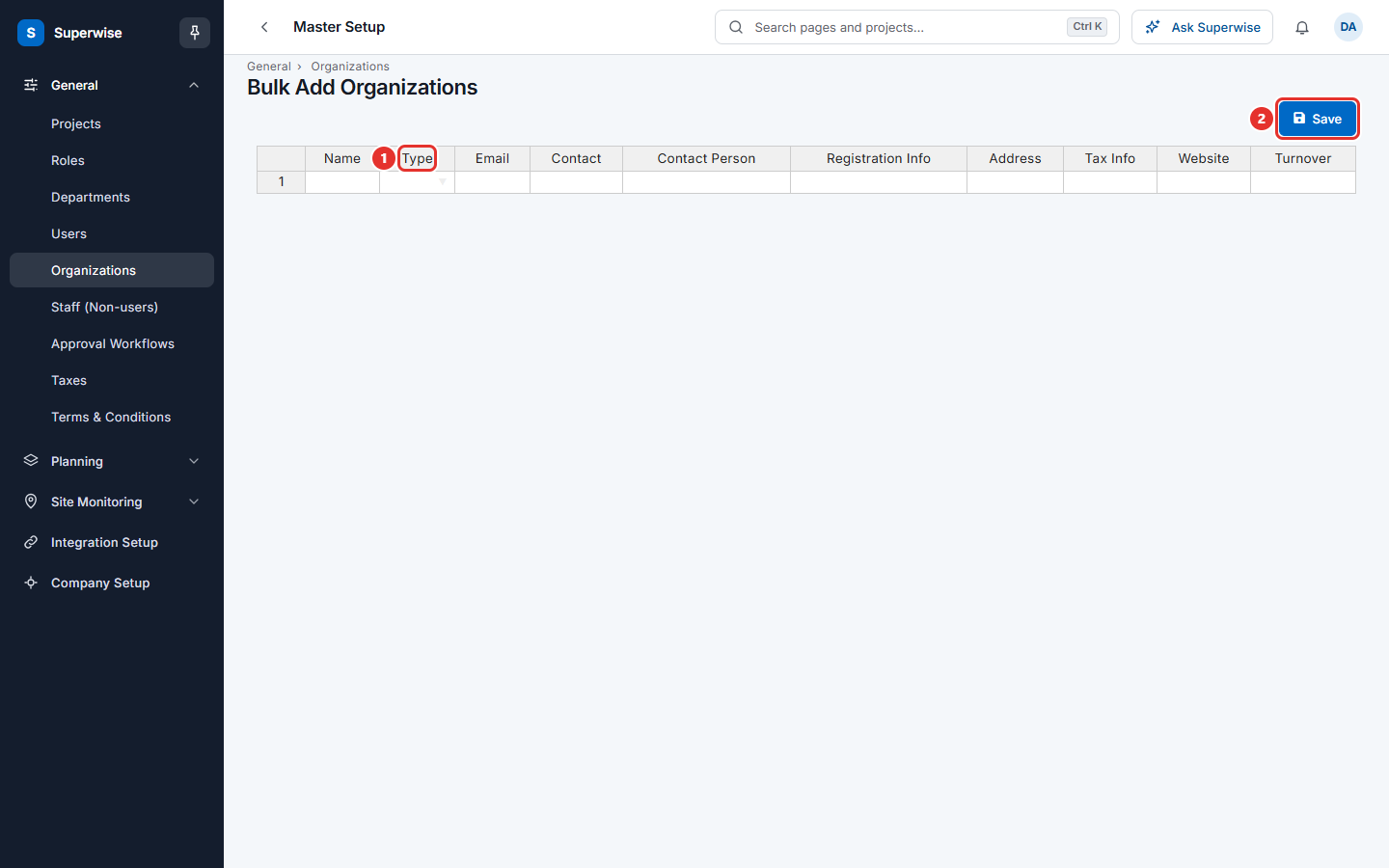
Only Name is required in each row. Bulk Add shows only to people who have the Approve permission for Organizations.
How to change an organization
- In the list, click the three dots at the end of the row. They show when you point at the row.
- Choose Edit.
- Change the fields and click Save.
To read more about an organization, click the arrow at the start of the row. The row opens with the tabs Active POs, Pending Bills, Categories and Other Details. Other Details shows the type, address, tax and registration information, turnover and bank details.
How to mark an organization inactive or delete it
- In the list, click the three dots at the end of the row.
- Choose Mark Inactive or Mark Active, or choose Delete.
- Read the question and click Confirm.
How to find an organization
- Type at least 3 characters in the box Search (min. 3 characters).
- Click All, Active or Inactive to choose which organizations show.
- Click Supplier, Contractor, Consultant, SPV or Client to show only those types. You can switch several types on together.
- Click Columns to show or hide columns, for example Website.
- Click Export to download the list.
What the fields mean
| Name | What it means |
|---|---|
| Type | What the company is to you: Supplier, Contractor, Consultant, SPV or Client. You can choose more than one. Required. |
| Company Name | The legal name of the company. Required. It must be new. |
| Registration Info | The company registration number, for example the CIN or PAN in India. |
| Tax Info | The tax number, for example the GSTIN in India. |
| Turnover | The yearly turnover of the company, in the currency of your company. |
| Resource Categories | Shows when the type includes Supplier. The groups of materials the supplier can sell. |
| Logo | Shows when the type includes SPV. Required for an SPV. The file must be smaller than 1 mb. |
| The official e-mail address. | |
| Contact No. | The main phone number of the company. Digits only. |
| Website | The web address of the company. |
| Contact Person | The name of the main contact. |
| Mobile No. | The mobile number of the main contact. |
| Country, State, City, Pincode, Address | The address. Choose the country first, then the state, then the city. |
What the columns mean
| Name | What it means |
|---|---|
| Company Name | The name of the company. |
| Owner/Manager Name | The main contact person. |
| Owner/Manager Contact | The phone number of the main contact. |
| The e-mail address. |
Rules to know
- A company name cannot be used twice. The message is "Vendor Name cannot be repeated".
- An organization with the type SPV needs a logo.
- An inactive organization stays in old records. Superwise does not offer it for new orders. Use Mark Inactive for a company you stopped working with.
- You cannot delete an organization that is used in other records, such as orders or bills. Mark it inactive instead.
- In Bulk Add, a row without a name stops the save.
- A name that is already in use stops the save.
- A type that is not in the list stops the save.
- No row is saved until all rows are correct.
If something goes wrong
| What you see | What to do |
|---|---|
| Vendor Name cannot be repeated | Use another name, or edit the organization that already exists. |
| For SPV Organizations, Logo is required | Upload a logo, or remove the type SPV. |
| Please ensure to enter Name for all records. | Fill in Name in every row of the Bulk Add grid. |
| There is no data entered. Nothing to save. | Enter at least one row before you click Save. |
| Organization with same name cannot be added | A name in the grid is already in use. Remove that row. |
| An error occurred while bulk adding Organizations. | Check the data in each row and try again. |