


Standard Terms & Conditions
Write standard terms and conditions once and reuse them on purchase orders and work orders, with placeholders for the supplier and the company.
- Where to find it
- Company settings > General > Terms & Conditions
- Who can use it
- People who have the View Other Masters permission and the View permission for Purchase Orders or Work Orders. Adding needs Add, editing needs Edit and deleting needs Delete.
Standard terms and conditions (T&C) are texts that you prepare once and attach to purchase orders (PO) and work orders. Each text has a name, for example Cement Purchase Terms.
You can put placeholders in the text. A placeholder is a short code that Superwise replaces with a real value, such as the name of the supplier, when the order is made.
Before you start
- Have the text of your terms ready. You can type it or paste it with its formatting.
- Decide which placeholders you need. See the table below.
How to add terms and conditions
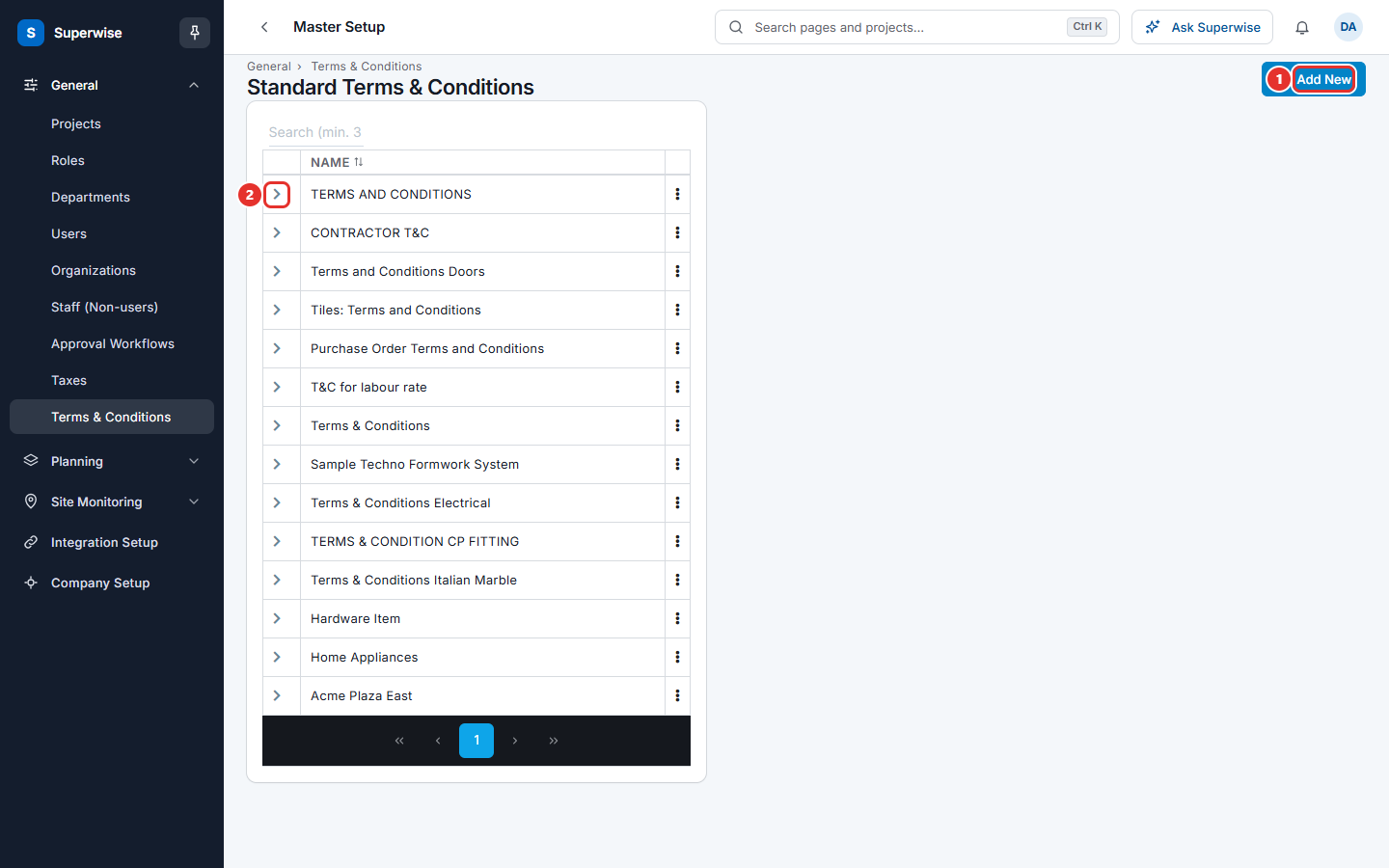
- Open Company settings in the left menu, then General, then Terms & Conditions.
- Click Add New (mark 1 in the first picture).
- In Name: (mark 1 in the second picture), type a name that is not used yet, for example Cement Purchase Terms.
- In Terms: (mark 2), type or paste the text. Use the toolbar to make words bold, to make lists and to change the font.
- To use a placeholder, type it exactly as in the table, for example
${vendor_name}. - Click Save (mark 3). A message says Terms & Conditions have been added.
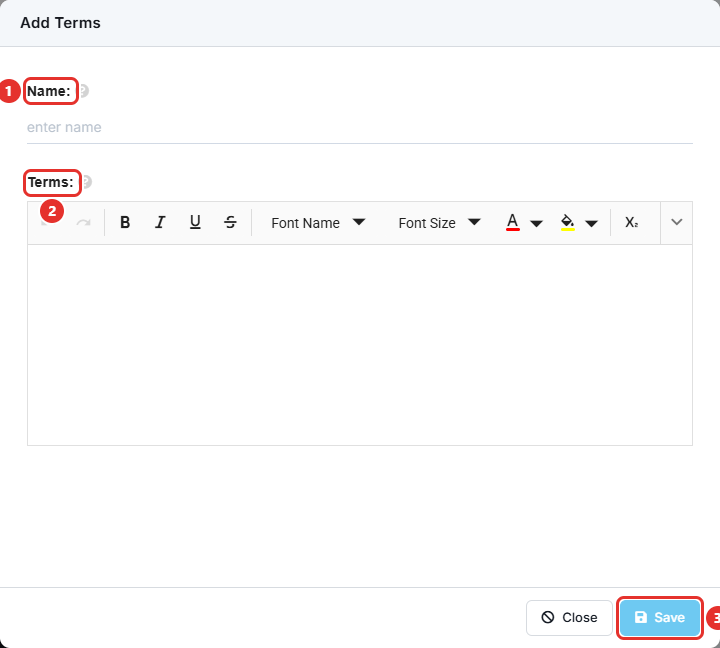
The button Save stays grey until both the name and the text have content. Click Close to leave without saving.
What the placeholders mean
| Placeholder | What Superwise puts in its place |
|---|---|
${vendor_name} |
The name of the contractor or supplier. |
${vendor_address} |
The address of the contractor or supplier. |
${vendor} |
The name, address and contact number of the contractor or supplier. |
${company_name} |
The name of your company, or of the SPV if one is chosen on the order. |
${company_address} |
The address of your company, or of the SPV if one is chosen. |
${company} |
The name, address and contact number of your company, or of the SPV if one is chosen. |
A placeholder must have one single format from its first to its last character. Do not make half of it bold. If Superwise finds a placeholder with mixed formatting, it shows Invalid Placeholder and does not save. Delete the placeholder, type it again, and format the whole word the same way.
How to read, change or delete terms
- To read a text, click the arrow at the start of its row. The row opens and shows the text.
- To change or delete, click the three dots at the end of the row.
- Choose Edit to open the box Edit Terms. Change the name or the text and click Save. A message says Terms & Conditions have been updated.
- Choose Delete and confirm the question "Are you sure that you want to delete this terms & conditions template?". A message says Terms & Conditions Deleted.
What the columns mean
| Name | What it means |
|---|---|
| Name | The name of the terms. |
Rules to know
- Each name must be different. The message is "Please provide a unique name to the terms".
- A placeholder that is formatted in more than one way is refused. See the section on placeholders.
- Use the box Search (min. 3 characters) to find a text by its name.
- The three dots show in a row only for people who have the Delete permission.
If something goes wrong
| What you see | What to do |
|---|---|
| Invalid Placeholder | Delete the placeholder named in the message, type it again, and give all of it the same format. |
| Please provide a unique name to the terms | Use another name. |
| The button Save is grey. | Fill in both Name: and Terms:. |