


Send or download a work order
E-mail an accepted work order to the contractor, or save a work order as an Excel file, a PDF file or a measurement sheet.
- Where to find it
- Contracts > Work Orders
- Who can use it
- People who have the Edit Work Orders permission can send an e-mail. Downloading the Excel and PDF files needs the Approve permission. Anyone with the View Work Orders permission can export the list.
After a work order is accepted, you give it to the contractor. You can send it by e-mail from Superwise, or save it as a file and send the file yourself. This page shows both ways.
Before you start
- The work order must be Accepted to send it by e-mail. A draft or a closed work order has no Email item.
- The contractor needs an e-mail address in the system. You can type another address in the e-mail window.
How to send a work order by e-mail
- Open Contracts > Work Orders.
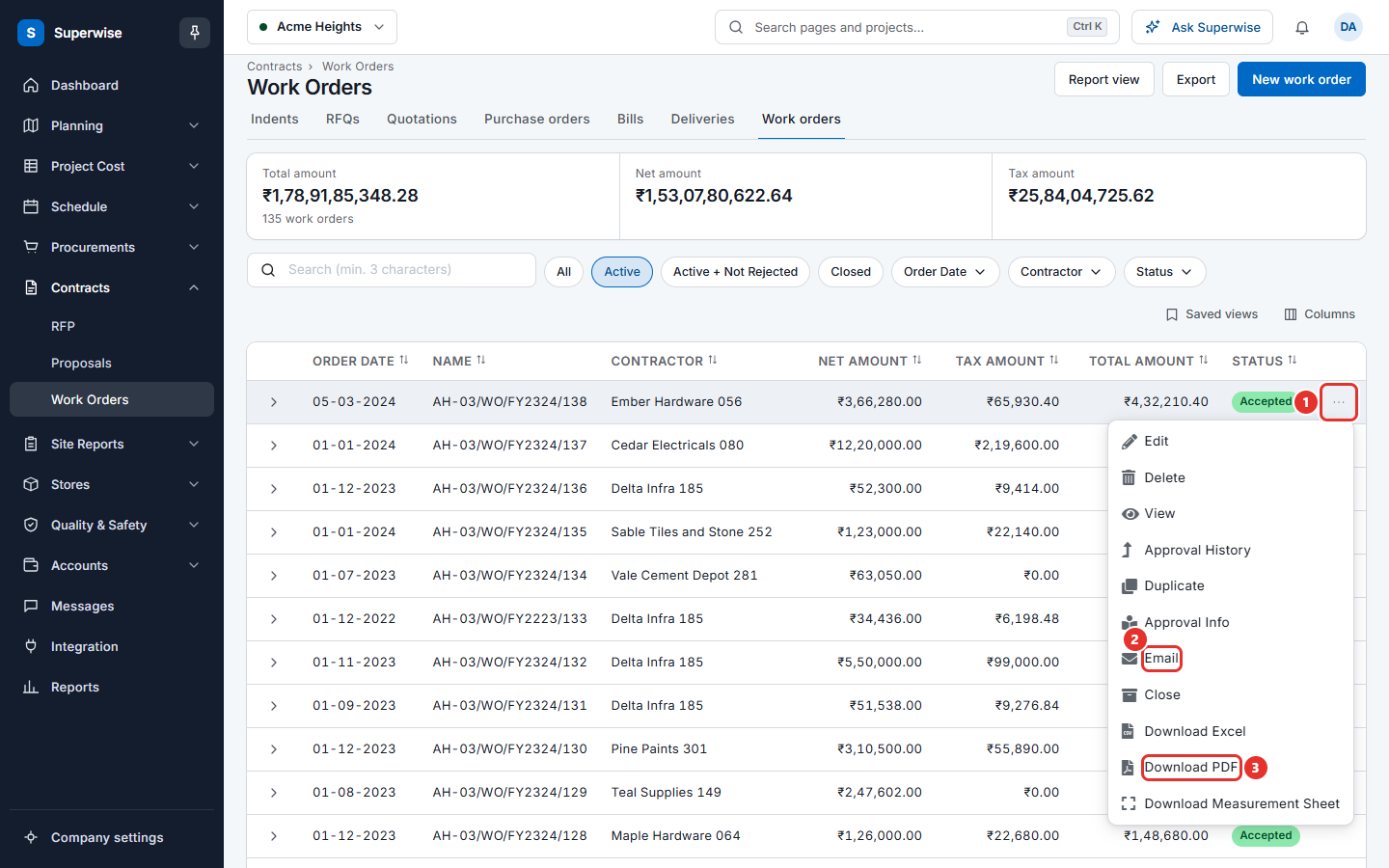
- Click the three dots at the end of the row of an Accepted work order (mark 1 in the first picture).
- Choose Email (mark 2). The window Mail Work Order opens.
- Check Mail To. Add more people in CC if you want.
- Check the Subject and the Message. Change them if you need to.
- Click Send.
The PDF of the work order is attached. Its name shows under Subject. The message "The e-mail will be sent in a minute." shows, and the window closes.
How to download a work order
- Click the three dots at the end of the row of the work order.
- Choose Download Excel or Download PDF (mark 3 in the picture of the menu).
- If you chose Download PDF and the work order was made from the schedule, the window Additional Options opens. Tick Include Group Names if you want the groups in the PDF. Click Download.
These two items are shown when the status is Pending, Rejected or Accepted, and you have the Approve permission.
How to download the measurement sheet
Choose Download Measurement Sheet in the row menu. It saves the measurement sheet of the work order as a file. It is not shown for a draft.
How to save the list
Click Export above the table. The list you see, with its filter, is saved as an Excel file.
To save one work order from its own screen, open it with View and click Export.
What the e-mail fields mean
| Name | What it means |
|---|---|
| Mail To | The address that gets the e-mail. Required. |
| CC | Other addresses that get a copy. |
| Subject | The subject line. Required. |
| Message | The text of the e-mail. Required. |
If something goes wrong
| What you see | What to do |
|---|---|
| No Email item in the menu | The work order is not Accepted, it is a draft or closed, or you do not have the Edit permission. |
| No Download Excel or Download PDF item | The status is not Pending, Rejected or Accepted, or you do not have the Approve permission. |
| The To field is required. | Type an address in Mail To. |
| The Subject field is required. | Type a Subject. |
| The Body field is required. | Type a Message. |
| The e-mail could not be sent. | Try again. If it keeps failing, contact support. |