


Submitted checklists
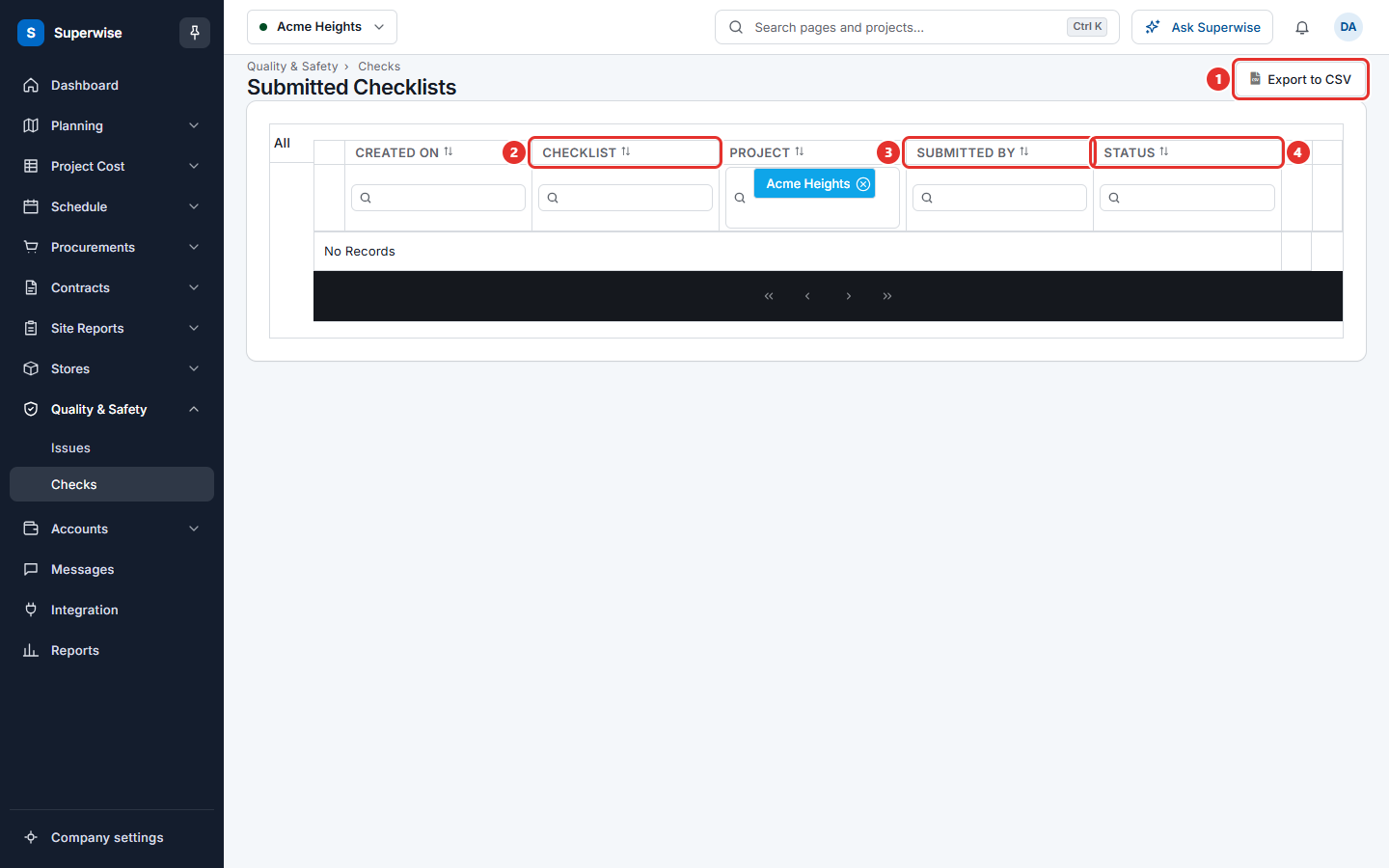
Find the checklists that site staff filled in, open each one, approve or reject it, download it as a PDF, and delete it.
- Where to find it
- Quality & Safety > Checks
- Who can use it
- People who have the View permission on Filled Checklists. Deleting needs Delete. Approving and rejecting depend on the approval steps of the checklist.
A checklist is a form that site staff fill in, for example a concrete pour check or a safety walk. A filled checklist is one completed copy of that form. The screen Submitted Checklists lists the filled checklists of the project you have selected.
To build the checklist form, see Checklists. This page covers the filled forms only.
Before you start
- Select the project in the project selector at the top of the screen.
- Site staff must have filled at least one checklist. They fill checklists in the Superwise mobile app or against a task.
How to find a filled checklist
- Open Quality & Safety > Checks.
- Choose a tab on the left. All shows every filled checklist. The other tabs are the checklist categories.
- Use the filters under the column names: Created On, Checklist, Project, Submitted By and Status.
Click Export to CSV to save the list as a file.
How to read the details of a filled checklist
Click the arrow at the start of a row. Two tabs open.
- Approval WorkFlow: a diagram of the approval steps and where the checklist is now.
- Comments: the comments written on the checklist.
To read the answers, use Details in the row menu. See Read a filled checklist.
How to use the row menu
Click the three dots at the end of a row.
| Menu item | What it does |
|---|---|
| Details | Opens the filled checklist in a new browser tab. |
| Approve | Approves the checklist. Shows when you are an approver and the checklist can be approved. |
| Reject | Rejects the checklist. Shows when you are an approver and the checklist can be rejected. |
| Approval Info | Opens the approval report. Shows only when the status is Accepted. |
| Approval History | Opens the history of the approval steps in a panel. |
| Download PDF | Makes a PDF of the filled checklist. |
| Delete | Removes the filled checklist. Needs the Delete permission. |
How to approve or reject a filled checklist
- Click the three dots at the end of the row.
- Choose Approve or Reject.
- In the Confirm Action box, type a Comment. It is optional.
- Click Confirm.
The screen shows "Filled CheckList approved successfully!" or "Filled CheckList rejected successfully!".
How to download a PDF
- Choose Download PDF in the row menu.
- In Additional Options, tick Include Images to add the photos. Tick Include Extra Blank Page to add a blank page at the end.
- Click Download.
How to delete a filled checklist
- Choose Delete in the row menu.
- Click Confirm in the Confirm Action box.
Warning: You cannot undo a delete.
What the columns mean
| Name | What it means |
|---|---|
| CREATED ON | The date the checklist was filled. |
| CHECKLIST | The name of the checklist form. |
| PROJECT | The project. |
| SUBMITTED BY | The person who filled the checklist. |
| STATUS | The approval status, for example Pending, Rejected or Accepted. |
A map pin at the end of a row shows where the checklist was filled. A red pin means the place is not valid. Click the pin to open the place on a map.
Rules to know
- Only people who are approvers in the approval steps of the checklist can approve or reject it. Others get the message "User doesn't have sufficient privilege to approve." or "User doesn't have sufficient privilege to reject."
- You cannot delete a filled checklist that is linked to a material delivery. The message is "Checklist has Material Delivery challan linked to it."
- You cannot change an approved checklist.
If something goes wrong
| What you see | What to do |
|---|---|
| User doesn't have sufficient privilege to approve. | You are not an approver at this step. Ask the approver. |
| Checklist has Material Delivery challan linked to it. | A material delivery uses this checklist. You cannot delete it. |
| No Records | Check the project selector and the filters. |
| No Approve item | The checklist was already decided, or you are not an approver. |