


Add or revise a document
Upload a new file to a project folder, or replace an existing file with a new revision.
- Where to find it
- Planning > Documents
- Who can use it
- People who have the Add Documents permission to add a file. Revising a file needs the Edit permission in that folder.
Use this form to put a file into a folder of the project. You also use it to replace a file with a new version. A replaced file becomes the newest revision. Superwise keeps the older revisions.
Before you start
- Choose the project at the top of the page.
- Make sure the folder you need exists. Folders are made by your administrator. See Document folders.
- Have the file ready. It must be smaller than 100 MB.
How to add a document
- Open Planning > Documents.
- Click Add Document.
- Type the Document Number (mark 1). The number must be unique, for example
AH-ARC-001. - Type the Document Name. The name must be unique too.
- Choose the Date (mark 2). This is the date of the drawing or letter. You cannot choose a day after today.
- Choose the Folder (mark 3). Type in the box to search. Inner folders are shown with a small indent.
- Click Select document (mark 4) and choose the file. The file name and size appear below the button. Click Remove if you chose the wrong file.
- Fill the optional fields: Tags, Stage, Purpose and Comments.
- Click Save (mark 5).
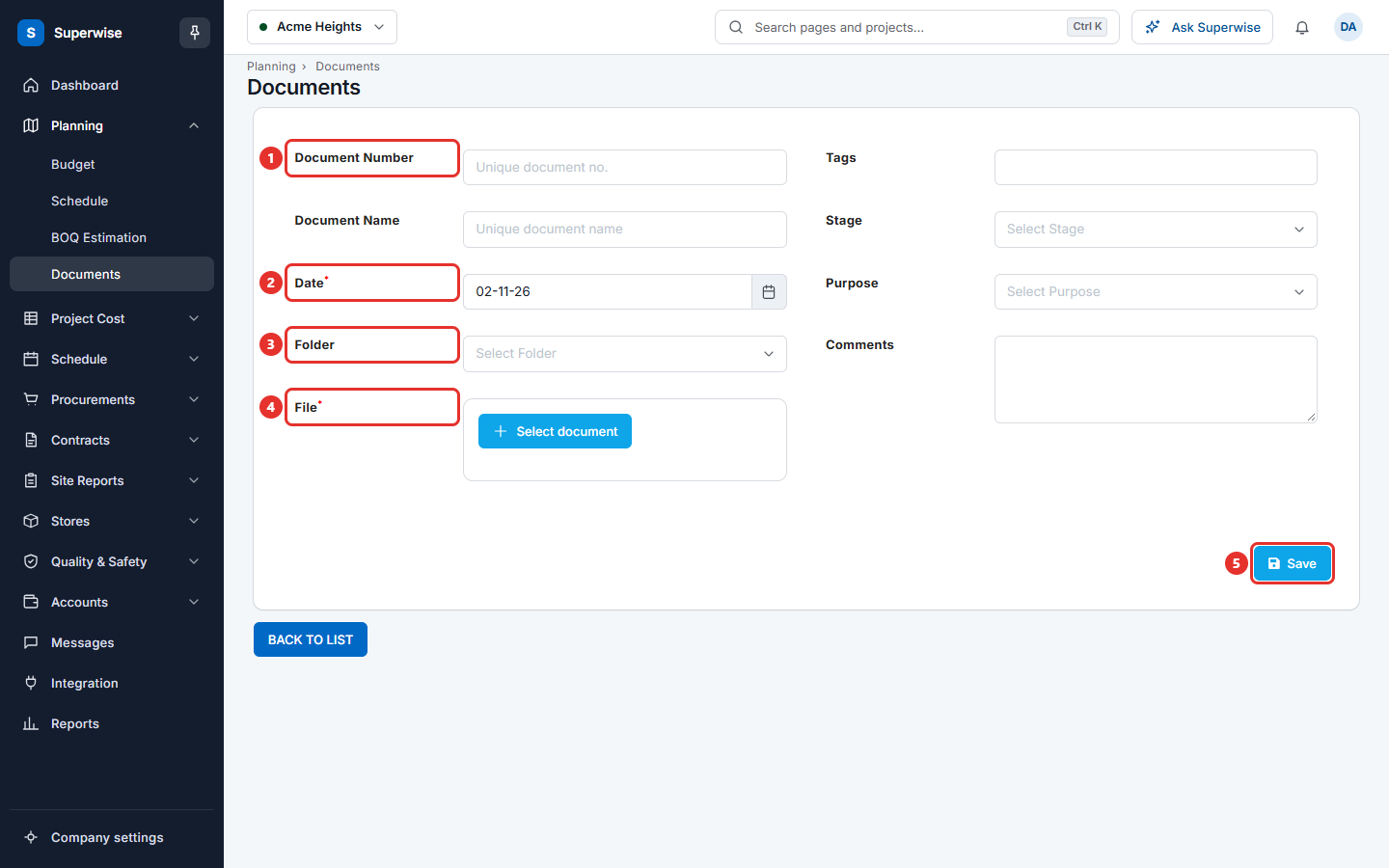
When the save works, Superwise shows Document Added and returns to the list. If you wrote Comments, they are stored as the first comment of the document.
How to revise a document
- Open Planning > Documents.
- Click the three dots at the end of the row of the document and choose Edit.
- The number, name and folder are shown as text. You cannot change them here.
- Choose the new Date.
- Click Select revised document and choose the new file.
- Click Save. Superwise shows Document Revised.
The Rev column in the list goes up by one.
What the fields mean
| Name | What it means |
|---|---|
| Document Number | Your own number for the drawing or file. Required. Must be unique. |
| Document Name | The name shown in the list. Required. Must be unique. |
| Date | The date of the document. Required. |
| Folder | The folder that holds the file. Required. |
| File | The file to upload. Required. |
| Tags | Words that help you find the file later. |
| Stage | The stage of the document, for example a design stage. The list comes from Document stages. |
| Purpose | Why the file was issued. The list comes from Document purposes. |
| Comments | A note for the readers. Saved as the first comment. |
Rules to know
- You must fill the number, name, date, folder and file. Save does nothing until all five are filled.
- The file name must have an extension, such as
.pdf. It cannot start with a dot. It cannot contain these characters:\ / : * ? " < > |. It can have at most 255 characters. - You can choose one file at a time.
- A new file is first Pending. If an approval workflow is set for the folder, the approvers are told that the file waits for them.
Tip: Use the same Document Number for all revisions of a drawing. Add the new file with Edit instead of adding a second document.
If something goes wrong
| What you see | What to do |
|---|---|
| Save does not react | A required field is empty, or no file is chosen. Check the five required fields. |
| A red message under the form | Read it. It says what is wrong, for example that the number is already used. Change the value and save again. |
| The file is refused | Check the size (under 100 MB) and the file name rules above. |