


Edit an equipment rental
Change the details of an equipment rental record, add breaks and usage entries, or delete the record.
- Where to find it
- Site Reports > Equipment Rentals
- Who can use it
- People who have the Edit Equipment Rentals permission. Deleting needs Delete.
Use the edit form to correct a rental record. You can change the period of use and the challan number. You can add the breaks when the machine did not work, and the daily usage. You cannot create a rental in this form.
Before you start
- The rental must be in the list Equipment Rentals.
- The rental must not be on a bill, and its purchase order must not be closed. Otherwise the menu has no Edit.
How to edit a rental
- Open Site Reports > Equipment Rentals.
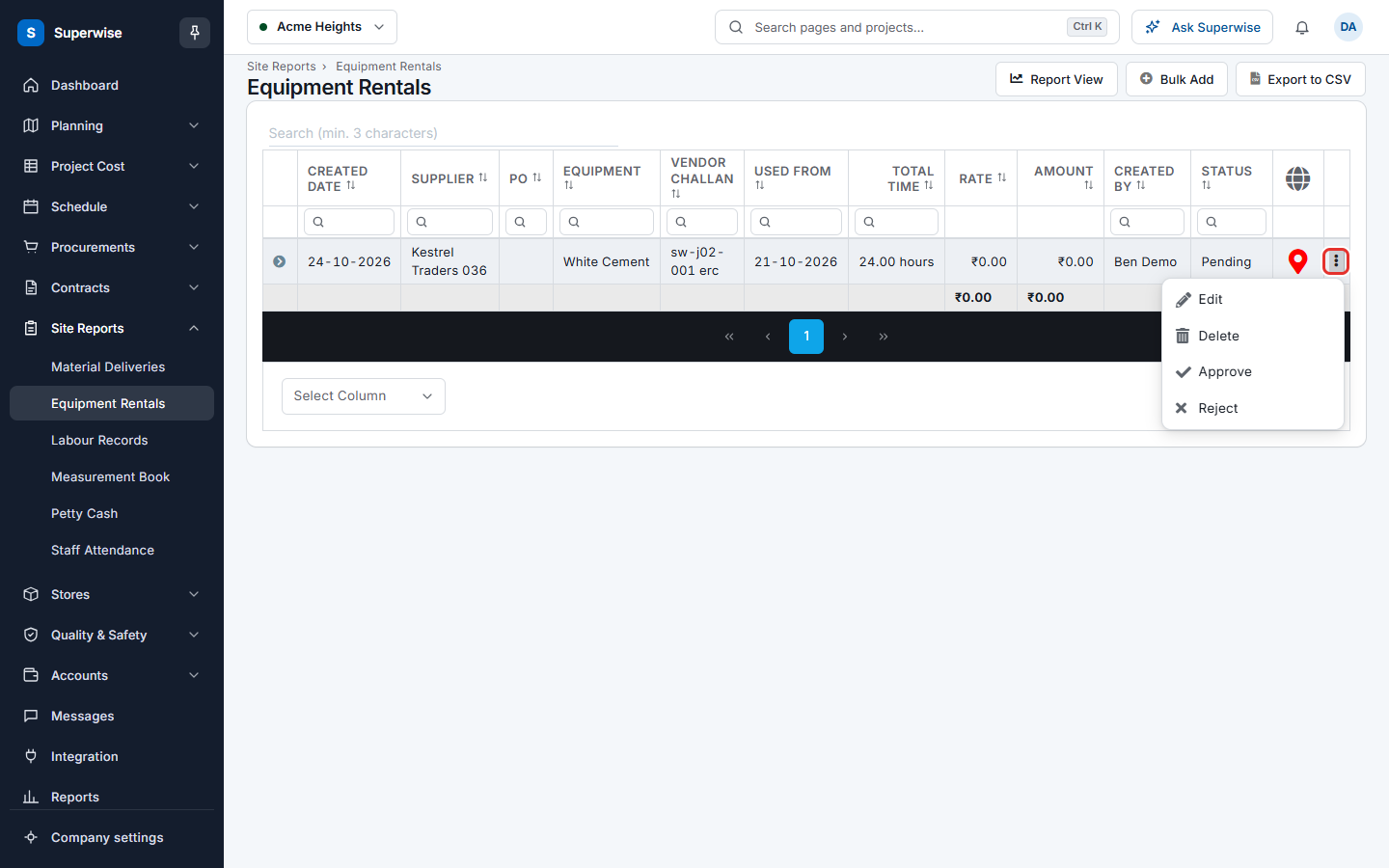
- At the end of the row, click the three dots (mark 1 in the picture below).
- Click Edit. The form Equipment Rental Challan opens.
- Change the fields you need. See the table below.
- To add a break, click Add Break and fill in Reason, From and To. To remove a break, click Remove in its row.
- To add a usage entry, click Add Usage and fill in the row. To remove an entry, click Remove in its row.
- Click Save. To leave without saving, click Back to List.
How to delete a rental
- Click the three dots at the end of the row.
- Click Delete.
- In the dialog Confirm Action, click Confirm.
The menu has Delete for Pending and Accepted rentals. It also has Delete for Rejected rentals whose purchase order is closed.
What the fields mean
| Name | What it means |
|---|---|
| Project | The project of the rental. You cannot change it. |
| CreatedOn | The date the record was created. Only administrators can change it. |
| Used From | The date and time the use started. |
| Used Till | The date and time the use ended. |
| Resource | The machine. |
| Supplier | The supplier of the machine. |
| Purchase Order | The purchase order of the rental, and its revision if it has one. |
| Challan | The supplier's challan number. Required. You can type up to 20 characters. |
| Rate | The price for one unit of time. You cannot change it here. |
| Vehicle No | The number of the vehicle that brought the machine. |
| Driver | The name of the driver. |
| Driver's Lic. | The licence number of the driver. |
| Created By | The user who created the record. |
| Status | The status of the record. |
| Equipment Images, Work Images | Pictures of the machine and of the work. Only administrators see these boxes. |
| Breaks | Times when the machine did not work. Each break has a Reason, a start and an end. |
| Equipment Usage | One row for each day of use, with Equipment Output, Meter Reading, Fuel Issued and Description. |
| Notes | A note about the rental. You can type up to 500 characters. |
| Remarks | A new comment. The earlier comments are shown under Previous Remarks:. |
Rules to know
- A rental that is on a bill cannot be edited. Change the bill first.
If something goes wrong
| What you see | What to do |
|---|---|
| Rental Receipt has already been billed. Please rectify the bill and try deleting again. | Change the bill first, then delete the record. |
| Material Deliveries present in Closed Purchase Orders cannot be deleted | The purchase order is closed. The record stays. The message names material deliveries, but it applies to the rental. |