


Material supply
See the material that your project gave to contractors, approve or reject each supply, and delete a supply.
- Where to find it
- Stores > Material Supply
- Who can use it
- People who have the View permission on Material Supply. Editing needs Edit. Approving needs Approve. Deleting needs Delete.
A material supply is a record that your project gave material from its stock to a contractor. For example, Acme Heights gives 40 bags of cement to a masonry contractor for a wall. The record names the contractor, the materials and the quantities.
A supply lowers the stock of the project. Contractors can also be charged for supplied material: see the Is Debitable column below.
This screen lists the supplies of the project you have selected. The screen has no button to add a supply. Supplies come from site staff who record them. You use this screen to check, correct, approve, reject or delete them.
Before you start
- Select the project in the project selector at the top of the screen.
- Supplies must already exist. Site staff record them.
How to find a supply
- Open Stores > Material Supply.
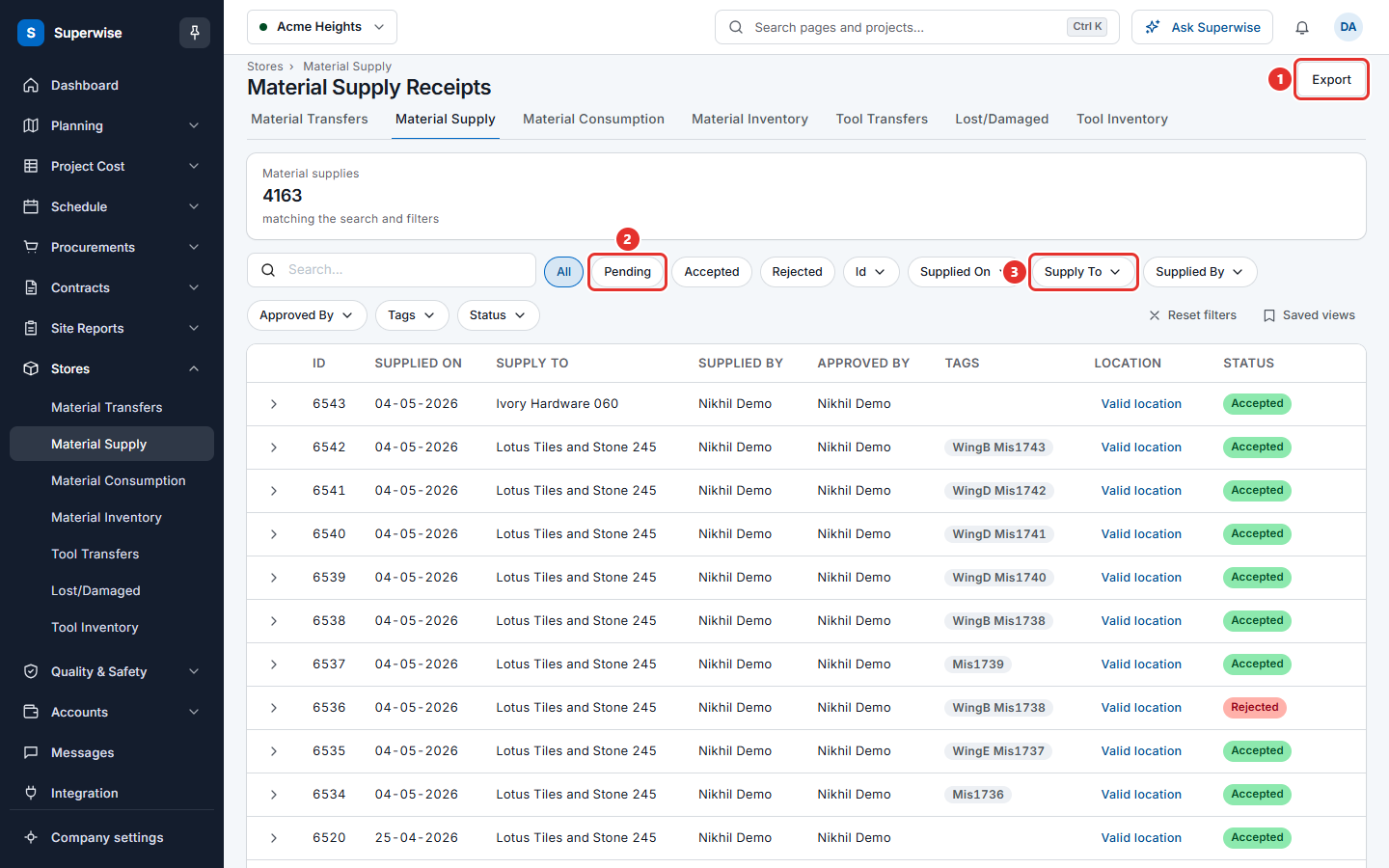
- Click All, Pending, Accepted or Rejected above the table to filter by status.
- Use the Search... box, or the filter buttons Id, Supplied On, Supply To, Supplied By, Approved By, Tags and Status.
- Click Reset filters to clear them.
Click Export to save the list as a file. The file follows the filters you set.
How to read the details of a supply
Open the details of a row with the arrow at the start of the row. The details have these tabs:
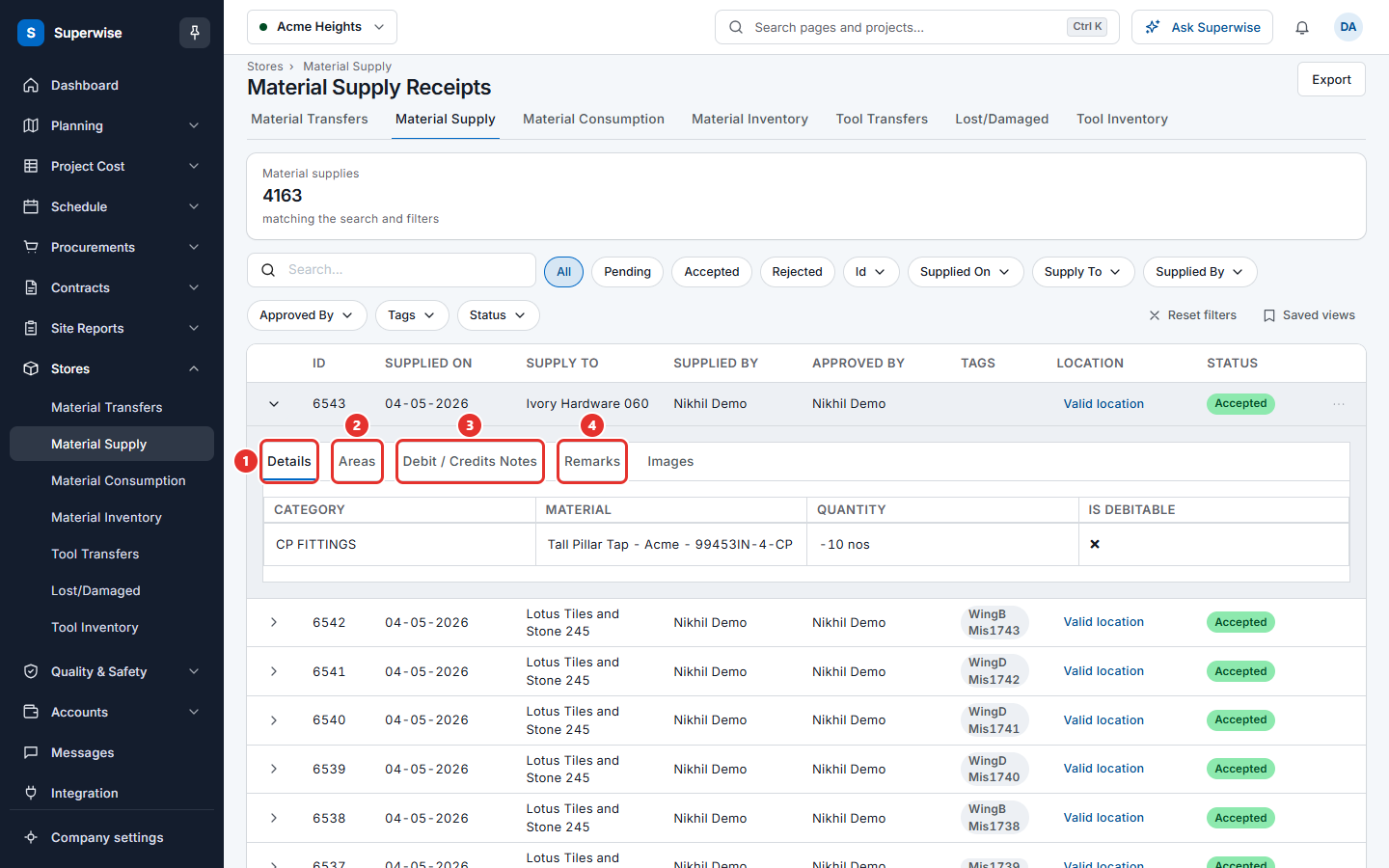
| Tab | What it shows |
|---|---|
| Details | Category, Material, Quantity and Is Debitable for each material. |
| Areas | The schedule areas the material was used in: Schedule Node Name and Schedule Node Prefix. |
| Debit / Credits Notes | The notes raised against the contractor: Material Name, Quantity, Net Amount and Tax Amount. |
| Remarks | The remarks written for the supply. |
| Images | Photos added with the supply. |
Is Debitable shows if the contractor is charged for the material. A debitable line has a debit note in the Debit / Credits Notes tab.
How to approve or reject a supply
- Click the three dots at the end of the row (see the picture below).
- Choose Approve or Reject.
- Click Confirm in the Confirm Action box.
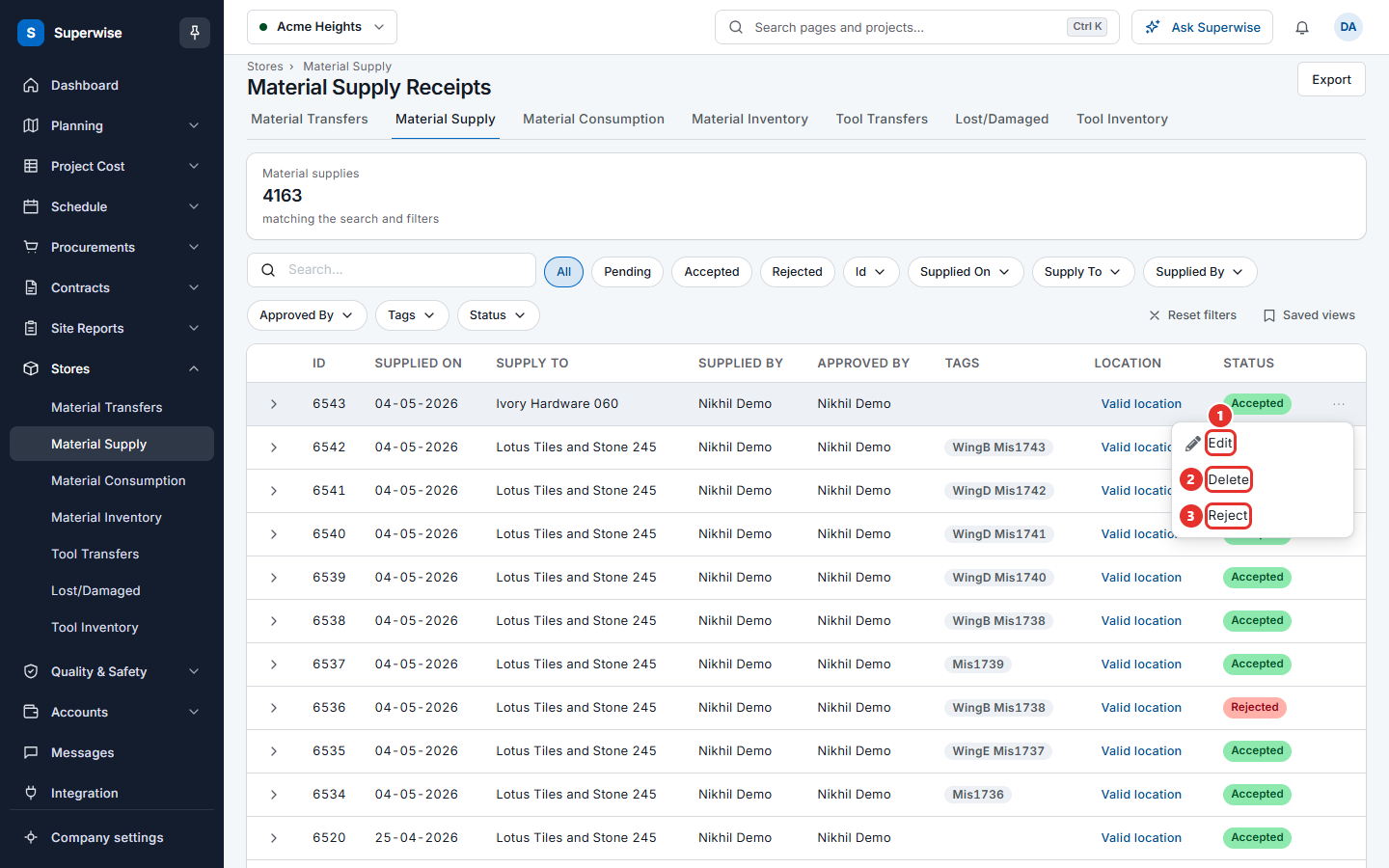
Approve is in the menu when the status is Pending or Rejected. Reject is in the menu when the status is Pending or Accepted. Both need the Approve permission.
How to delete a supply
- Click the three dots at the end of the row.
- Choose Delete.
- Click Confirm.
The system removes the supply with its lines, areas and debit notes.
Warning: You cannot undo a delete. The stock of the project goes up again by the deleted quantities.
To change a supply instead, see Edit a material supply.
What the columns mean
| Name | What it means |
|---|---|
| ID | The number of the supply. |
| SUPPLIED ON | The date and time of the supply. |
| SUPPLY TO | The contractor who got the material. |
| SUPPLIED BY | The person who recorded the supply. |
| APPROVED BY | The person who last changed the status. |
| TAGS | Labels attached to the supply. |
| LOCATION | Valid location or Invalid location. Click it to open the place on a map. |
| STATUS | Pending, Accepted, Rejected or Flagged. |
Rules to know
- You cannot approve a supply that is already accepted. You cannot reject a supply that is already rejected.
- The three-dot button appears for people who can edit or delete. Approving and rejecting are in the same menu.
If something goes wrong
| What you see | What to do |
|---|---|
| Material Supply is already accepted. | Someone approved it before you. Refresh the list. |
| Material Supply is already rejected. | Someone rejected it before you. Refresh the list. |
| There is no three-dot button | Ask your administrator for the Edit or Delete permission. |