


Tool inventory
See how many of each tool your project holds, report a lost tool, recast tools into other tools, and export the stock of all projects.
- Where to find it
- Stores > Tool Inventory
- Who can use it
- People who have the View permission on Resource Transfers. Reporting a loss needs Add or Edit.
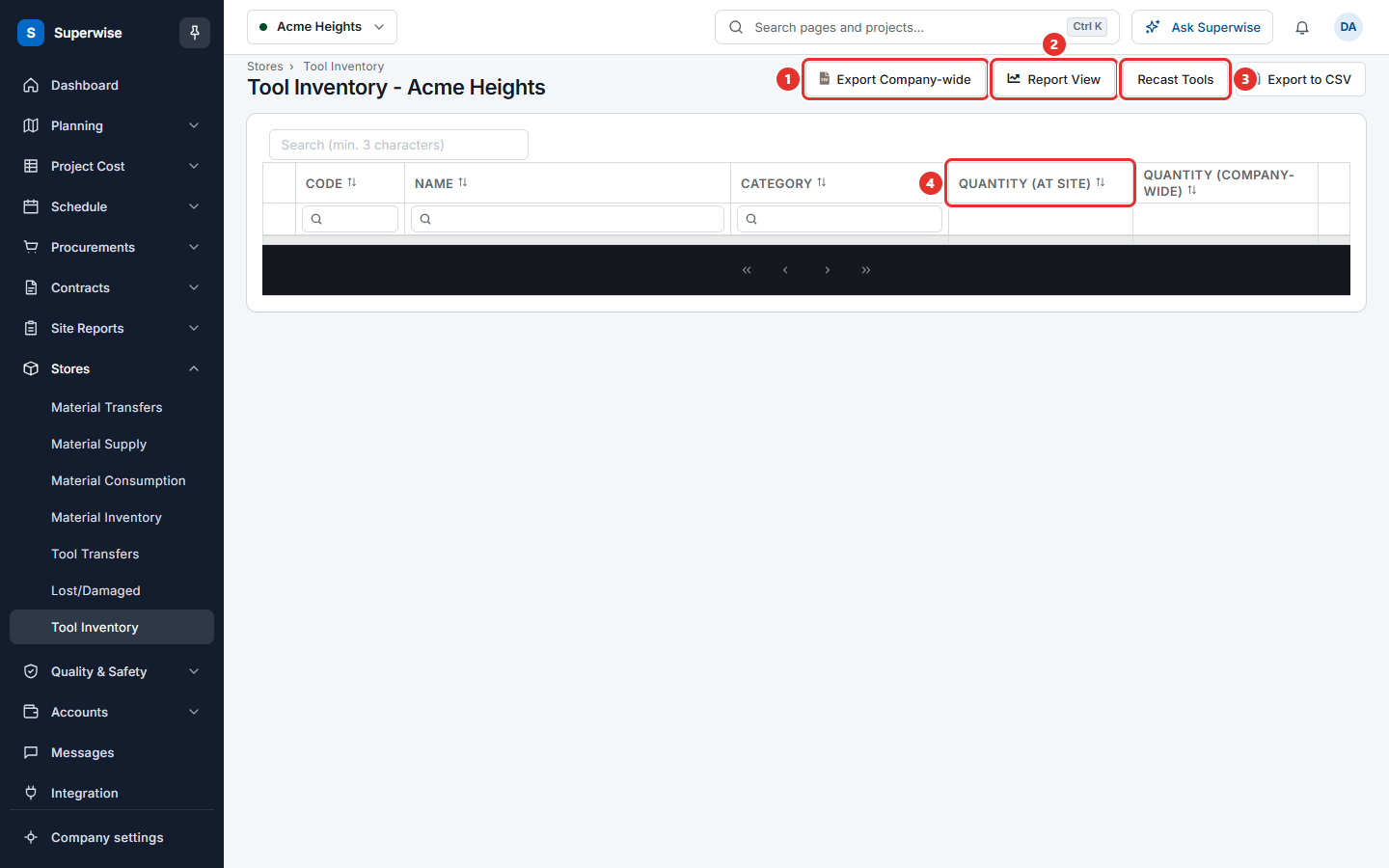
Tool inventory is the count of each tool at one project. For example, Acme Heights holds 4 drilling machines. Another project holds 2. The list shows Quantity (at site) of 4 and Quantity (company-wide) of 6 for that tool.
Before you start
- Select the project in the project selector at the top of the screen. The title shows the project, for example Tool Inventory - Acme Heights.
- To add tools to the stock, use Tool transfers or a purchase order.
How to read the list
- Open Stores > Tool Inventory.
- Use the Search (min. 3 characters) box, or the filters under CODE, NAME and CATEGORY.
- Read QUANTITY (AT SITE) and QUANTITY (COMPANY-WIDE). At the bottom of the list, the totals are shown when all tools use the same unit.
- Click the arrow at the start of a row to see the history of that tool.
The history has four tabs:
| Tab | What it shows |
|---|---|
| Transferred | The movements of the tool out of the project, with Date, Reason, Details, Quantity, Reported By and Status. |
| Received | The movements of the tool into the project. A number shows the transfers that wait to be received. |
| Lost | The tools reported lost or short on arrival. |
| Project-wise Inventory | The quantity of this tool at each project. |
Click Export to CSV to save the list. Click Export Company-wide to save the movements of tools for all projects. Click Report View to see the stock of all projects in a pivot table. Click View Data to come back to the list.
How to report a lost tool
- Click the three dots at the end of the row. The dots show only for tools that have stock, and only for people who can add or edit.
- Choose Report Loss. The box Report Lost and the tool name opens.
- In Lost Quantity, type how many tools are lost. The screen fills New Inventory for you.
- Or type New Inventory, the number that remains. The screen fills Lost Quantity.
- Type the reason in Notes.
- Click Confirm.
The screen shows "Lost Tool Reported Successfully!". The entry appears in Lost and damaged tools and material.
How to recast tools
Recast means that you turn some tools into other tools. For example, you cut 4 steel props into 8 short props. The input tools leave the stock. The output tools enter the stock.
- Click Recast Tools. The form Recast Tools opens.
- In Input Tools, add a row for each tool you use up. Choose the Category and the Name, and type the Input Quantity. Available Quantity and Unit are filled by the screen.
- In Output Tools, add a row for each new tool. Choose the Category and the Name, and type the Output Quantity.
- Type a reason in Notes:.
- Click Save.
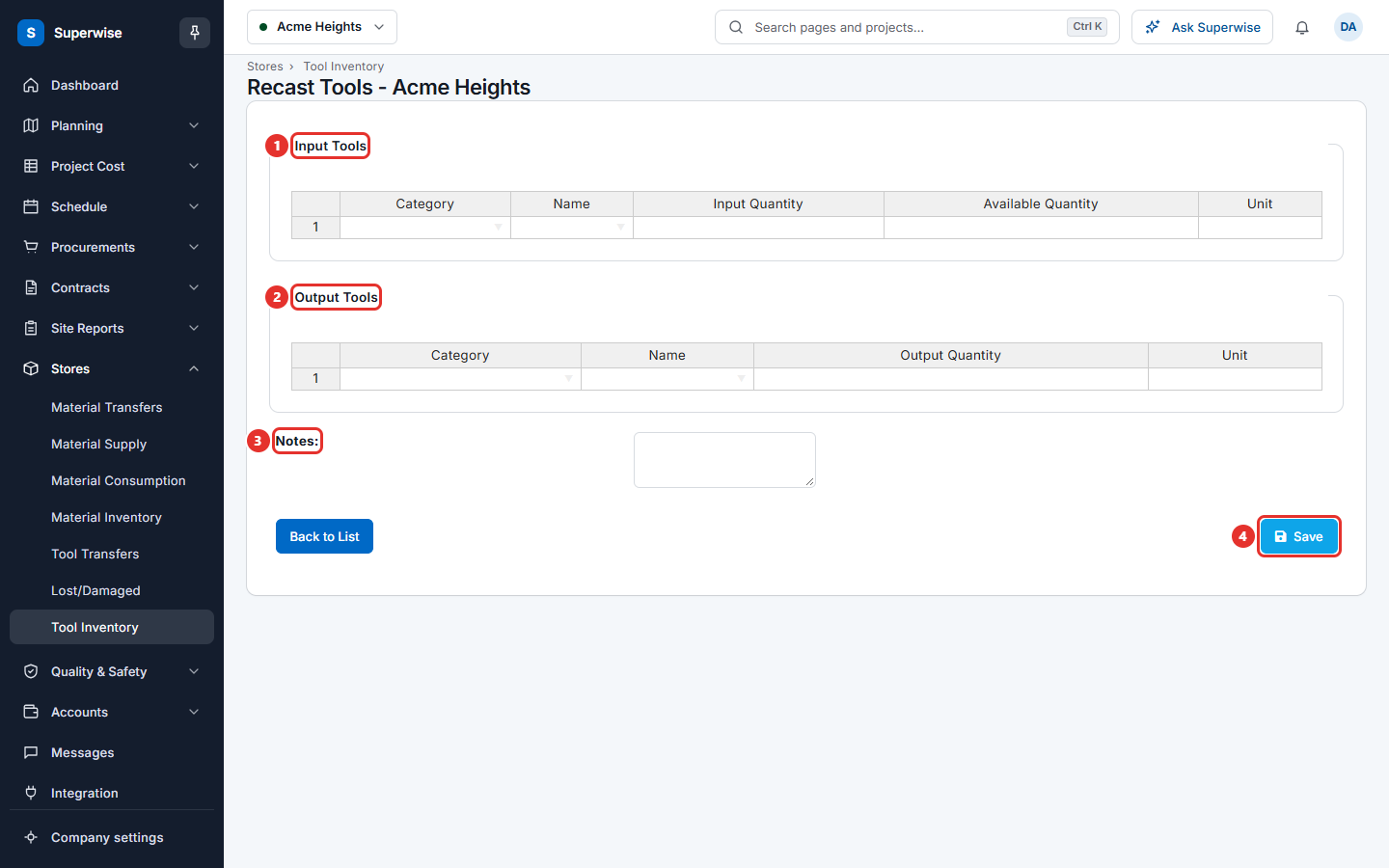
The screen shows "Tool Ledger Entry Saved Successfully." Click Back to List to leave without saving.
What the columns mean
| Name | What it means |
|---|---|
| CODE | The code of the tool. |
| NAME | The name of the tool. |
| CATEGORY | The group of the tool. |
| QUANTITY (AT SITE) | The count at the selected project. |
| QUANTITY (COMPANY-WIDE) | The count at all projects together. |
Rules to know
- Lost Quantity must be above 0 and cannot be more than the current inventory.
- New Inventory must be above 0. You cannot report that all tools are lost. The Report Lost box shows Current Inventory to help you.
- For a recast, you need at least one input tool and one output tool.
- A recast tool can be only on one side. The same tool cannot be an input and an output.
- Each tool can appear once on a side. Every quantity must be above 0.
- An input quantity cannot be more than the available quantity.
If something goes wrong
| What you see | What to do |
|---|---|
| Lost Quantity cannot be greater than the current inventory. | Type a smaller number. |
| New Inventory Quantity cannot be zero. | Keep at least 1 tool. |
| Please mention the both Input tools and Output Tools | Add a row on each side. |
| Duplicate data is not allowed in Input Tools and Output Tools | Keep one row for each tool on each side. |
| Quantity cannot be 0 (zero) for any Tool | Type a quantity above 0 in every row. |
| Input Quantity cannot be greater than Available Quantity for any Tool | Lower the input quantity. |
| Input Tools and Output Tools should not have any common Tool items | Remove the tool from one side. |