


Create a labour report
Record the workers a contractor put on site, edit the record later, or delete it.
- Where to find it
- Site Reports > Labour Records
- Who can use it
- People who have the Add Labour Records permission. Editing needs Edit and deleting needs Delete.
Use this form to record the labour that a contractor put on site. The date of the record is the day you create it. After you save, the record is Pending until an approver accepts it.
Before you start
- The contractor (the Vendor on the form) and the labour type (the Resource) must exist in Superwise.
- If the labour type must be bought on a purchase order (PO), the PO must be approved and not closed.
How to create a labour report
- Open Site Reports > Labour Records.
- Click Create. The form Create/Edit Labour Report opens for the project that is chosen at the top of the screen.
- In Vendor (mark 1 in the first picture below), choose the contractor. Contractors that are not active show the word Inactive.
- In Resource (mark 2), choose the labour type. The box is empty until you choose the vendor.
- If a field Purchase Order appears, choose the PO. When the PO has revisions, a field Purchase Order Revision also appears.
- In Quantity (mark 3), type the number of workers or units. The unit is shown next to the box.
- In Reference No. (mark 4), type the contractor's slip number. You can type up to 20 characters.
- In Notes (mark 1 in the second picture below), write what the workers did. In Comments (mark 2), write a comment for the approver. Each box takes up to 500 characters.
- In Images, click Select (mark 3) and choose a picture of the workers.
- Click Save (mark 5 in the first picture).
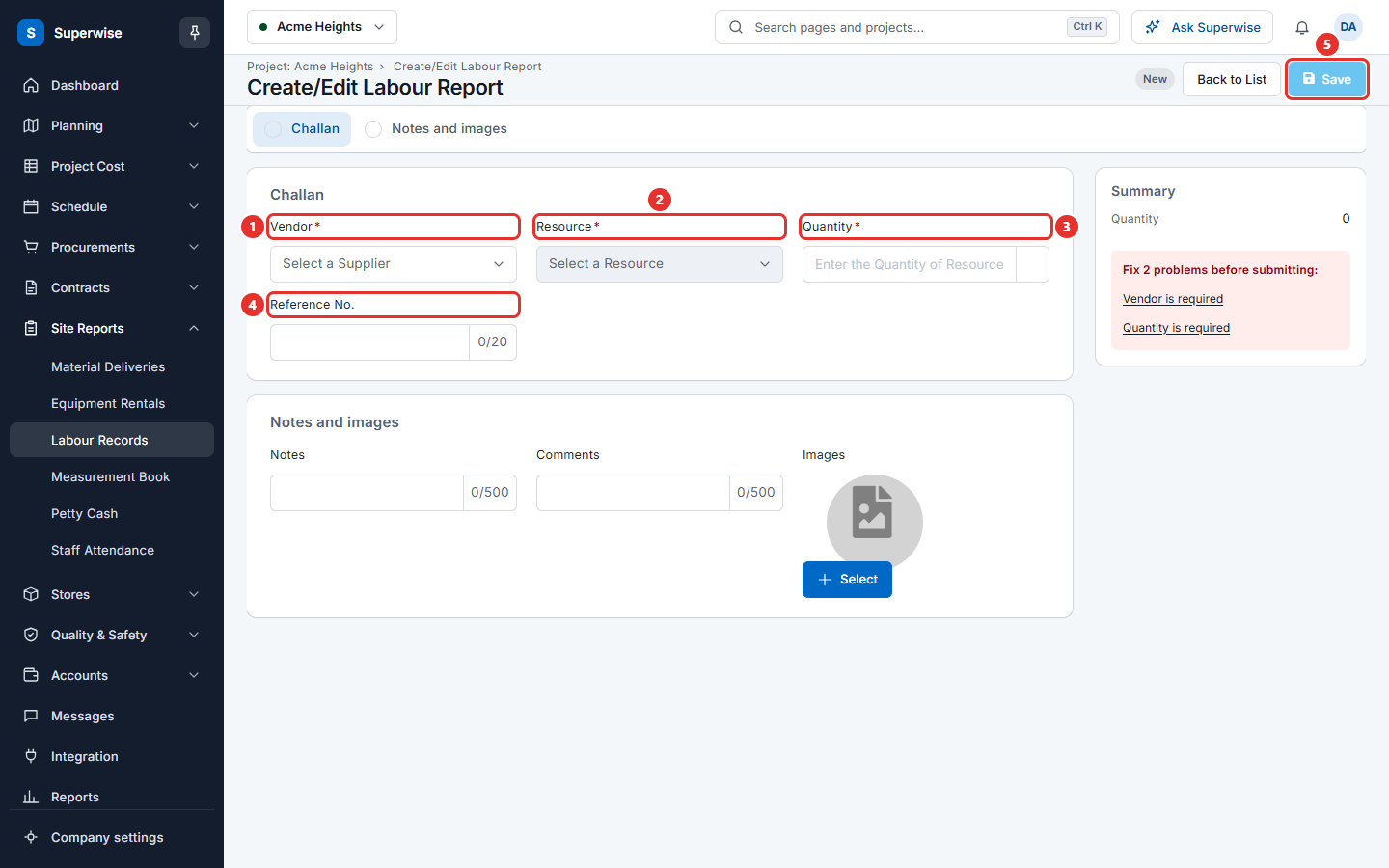
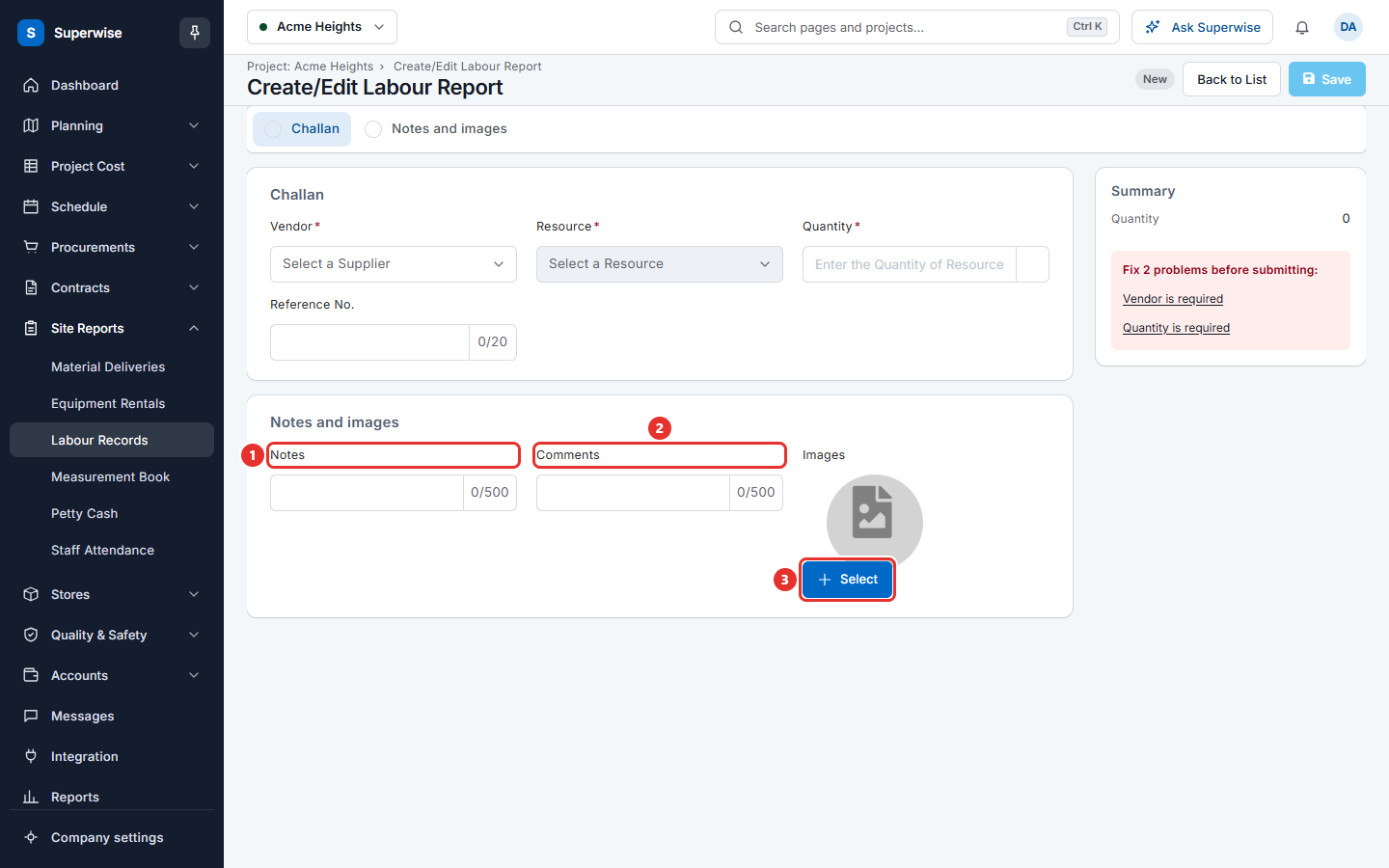
The box Summary at the right shows the quantity. If a required field is empty, the box lists the problems. Save works when no problem is left.
How to edit a labour report
- In the list, click the pencil icon at the end of the row. You can also open the details and click Edit.
- Change the fields. The vendor and the resource cannot be changed.
- Click Save.
The pencil icon is not shown when the record is on a bill, or when its purchase order is closed.
How to delete a labour report
- In the list, click the bin icon at the end of the row.
- In the dialog Confirm Action, click Confirm.
- The message Labour challan successfully deleted! appears.
The bin icon is shown for Pending and Rejected records. It is also shown for Accepted records whose purchase order is open.
What the fields mean
| Name | What it means |
|---|---|
| Vendor | The contractor who supplied the workers. You must choose one. |
| Resource | The labour type, for example mason. You must choose one. |
| Purchase Order | The PO that the record belongs to. Some labour types must have one. |
| Purchase Order Revision | The revision of the PO, when the PO was revised. |
| Quantity | The number of workers or units. It must be between 0.0001 and 100000000. |
| Rate | The price of one unit. It is shown when a PO is chosen. |
| Reference No. | The contractor's own slip number. |
| Notes | A note about the work done. |
| Previous Comments | The earlier comments on the record. They are shown after the first save. |
| Comments | Your new comment. |
| Images | A picture of the workers. Some labour types must have one. |
Rules to know
- The quantity of all records on a PO line cannot be more than the stop quantity of that line.
- A labour type can be set to need a picture. Then you cannot save without one, and a star shows next to Images.
- A labour type can be set to need a PO. Then you cannot save without one.
- You cannot edit a record that is on a bill.
If something goes wrong
| What you see | What to do |
|---|---|
| Vendor is required | Choose the contractor in Vendor. |
| Quantity is required | Type the quantity. |
| Purchase Order is Required for Resource. | Choose a PO in Purchase Order. |
| The Labour Challan Quantity you have entered exceeds the PO order quantity | Lower the quantity, or ask the buyer to change the PO. |
| Challan is Required. | Type the contractor's slip number in Reference No.. |
| Labour Challan has already been billed. Please rectify the bill and try deleting again. | Change the bill first, then delete the record. |