


Daily summary
Get the daily report of one day, and a weekly or fortnightly report, in a few steps, as PDF or Excel.
- Where to find it
- Reports
- Who can use it
- People who have the Add Reports permission.
A daily summary tells you what happened on site on one day. A weekly or fortnightly report tells you the same for 7 or 14 days. In Superwise both come from the same report type, Daily (Summary). You choose one day or a range of days.
For example, the site engineer of Acme Heights sends a report to the head office every Monday. The report covers the last 7 days: Monday to Sunday.
Before you start
- Site staff must have entered the data for the days: progress, deliveries, labour and so on.
- You need the Add permission on Reports.
How to get the report of one day
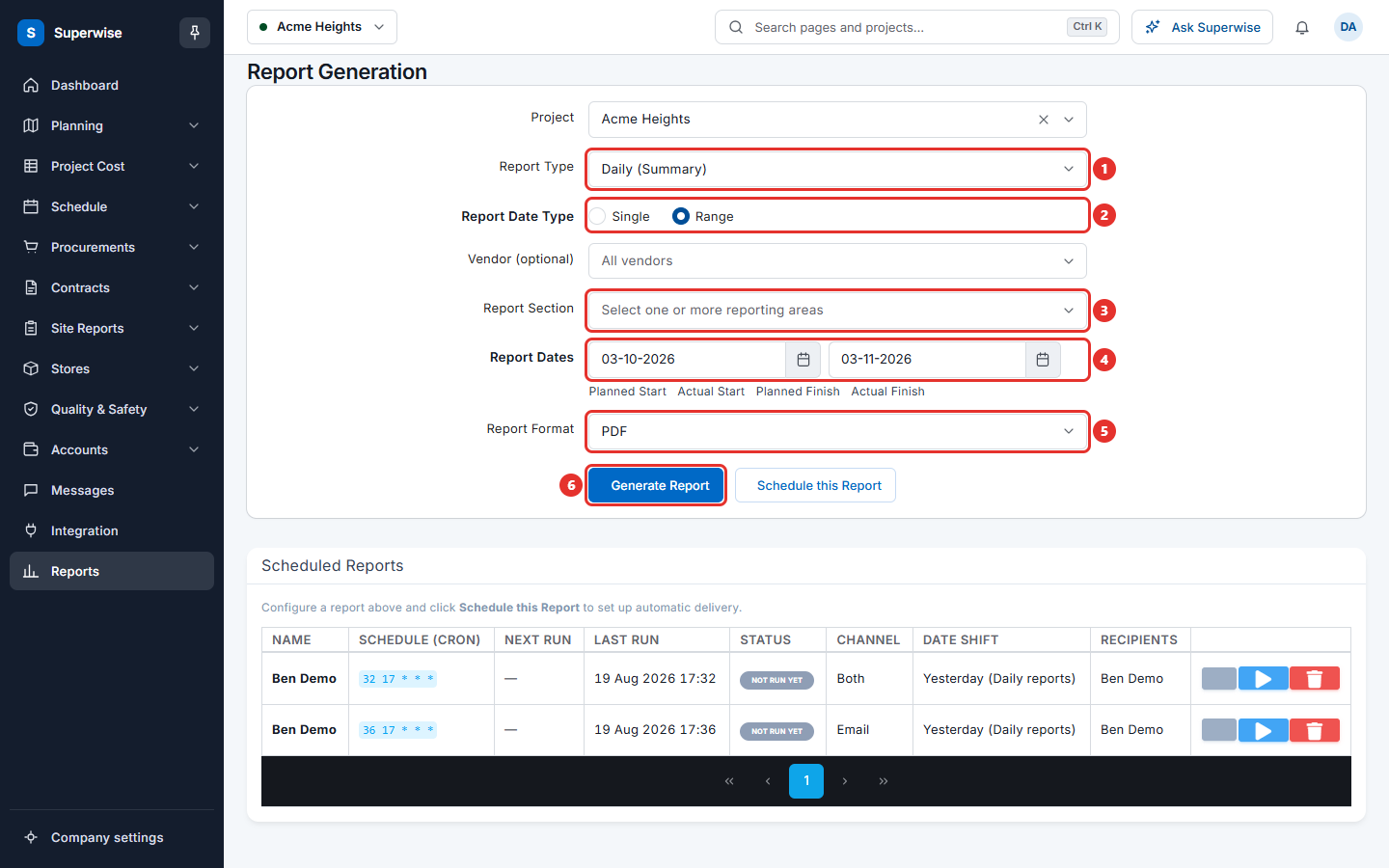
- Click Reports in the left menu.
- In Project, choose the project.
- In Report Type, choose Daily (Summary).
- In Report Date Type, choose Single.
- In Report Date, choose the day. You cannot choose a day in the future.
- In Report Section, choose the areas you want, for example Site Progress, Labour Details and Material Deliveries. Choose at least one.
- In Report Format, choose PDF or XLS.
- Click Generate Report.
How to get a weekly or fortnightly report
- Follow steps 1 to 3 above.
- In Report Date Type, choose Range.
- In Report Dates, choose the first day and the last day. For a weekly report the two dates are 7 days apart, counting both days. For a fortnightly report they are 14 days apart.
- Choose Report Section and Report Format.
- Click Generate Report.
The system has no separate weekly or fortnightly type. The length of the range decides it.
How to see the report on the screen first
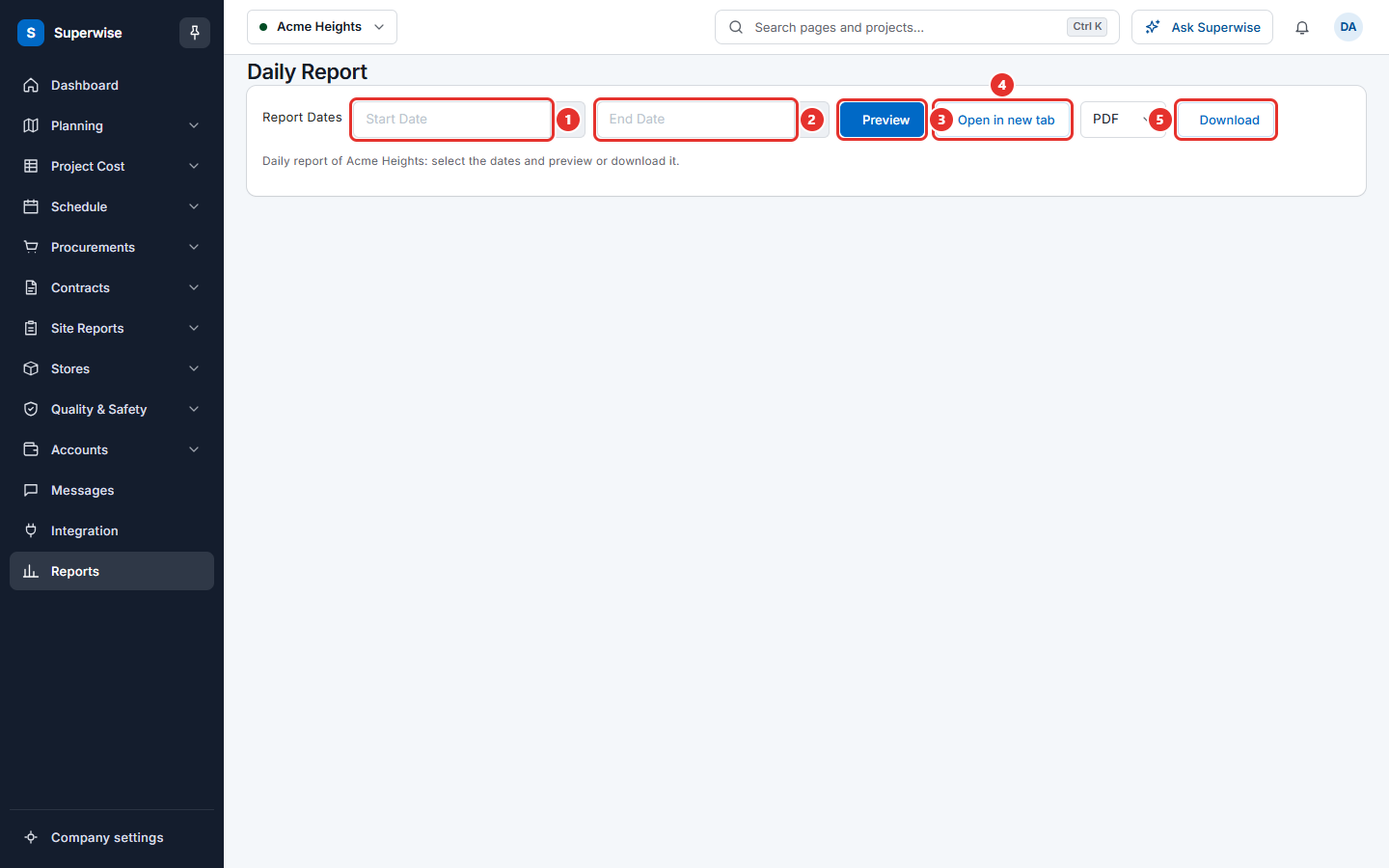
If you want to read the report on the screen, use Daily Report. See Daily report. You choose a start date and an end date and click Preview.
How to get the report every week without opening the screen
- Fill the form as above.
- Click Schedule this Report.
- In Frequency, choose Weekly and choose the Day.
- In Date Shift, choose Last 7 days (range reports).
See Schedule a report for the other fields.
What the areas mean
| Report Section | What it shows |
|---|---|
| Site Progress | The progress of tasks. |
| BOQ Measurement Sheets | The measurement sheets of the period. |
| Material Inventory | The stock of materials. |
| Material Deliveries | The deliveries received. |
| Site Issues | The issues raised on site. |
| Labour Details | The labour on site. |
| Tools Inventory | The tools on site. |
| Site Attendance | The attendance of site staff. |
| Materials Supplied | The materials sent out of the project. |
| Material Indents | The requests for material. |
| Checklists | The filled checklists. |
Rules to know
- You must choose at least one Report Section. Otherwise Superwise shows Please select at least 1 Report Section.
- Vendor (optional) limits the report to one vendor. Leave it empty for all vendors.
- If the days have no data, Superwise shows The generated Report does not contain any data.
If something goes wrong
| What you see | What to do |
|---|---|
| Please select at least 1 Report Section | Choose an area in Report Section. |
| The generated Report does not contain any data | Choose other days. |
| You cannot see Generate Report. | You do not have the Add permission on Reports. |