


Company details
Enter or change the company name, contact details, address, tax number, logo and favicon that Superwise prints on purchase orders and work orders.
- Where to find it
- Company settings > Company Setup
- Who can use it
- People who have the Admin View permission. Saving a change needs Admin Edit.
The tab Company Details on the page Company Default Settings holds the identity of your company. Superwise uses the name, logo, e-mail address and contact number on the letterhead of purchase orders (PO) and work orders.
Before you start
- Have the legal name, the registered address and the tax number of the company ready.
- Have the logo as an image file smaller than 500 kb. The ideal size is 400 pixels wide and 100 pixels high.
- For a favicon, have a square icon smaller than 10 kb. The favicon is the small icon shown in the browser tab.
How to change the company details
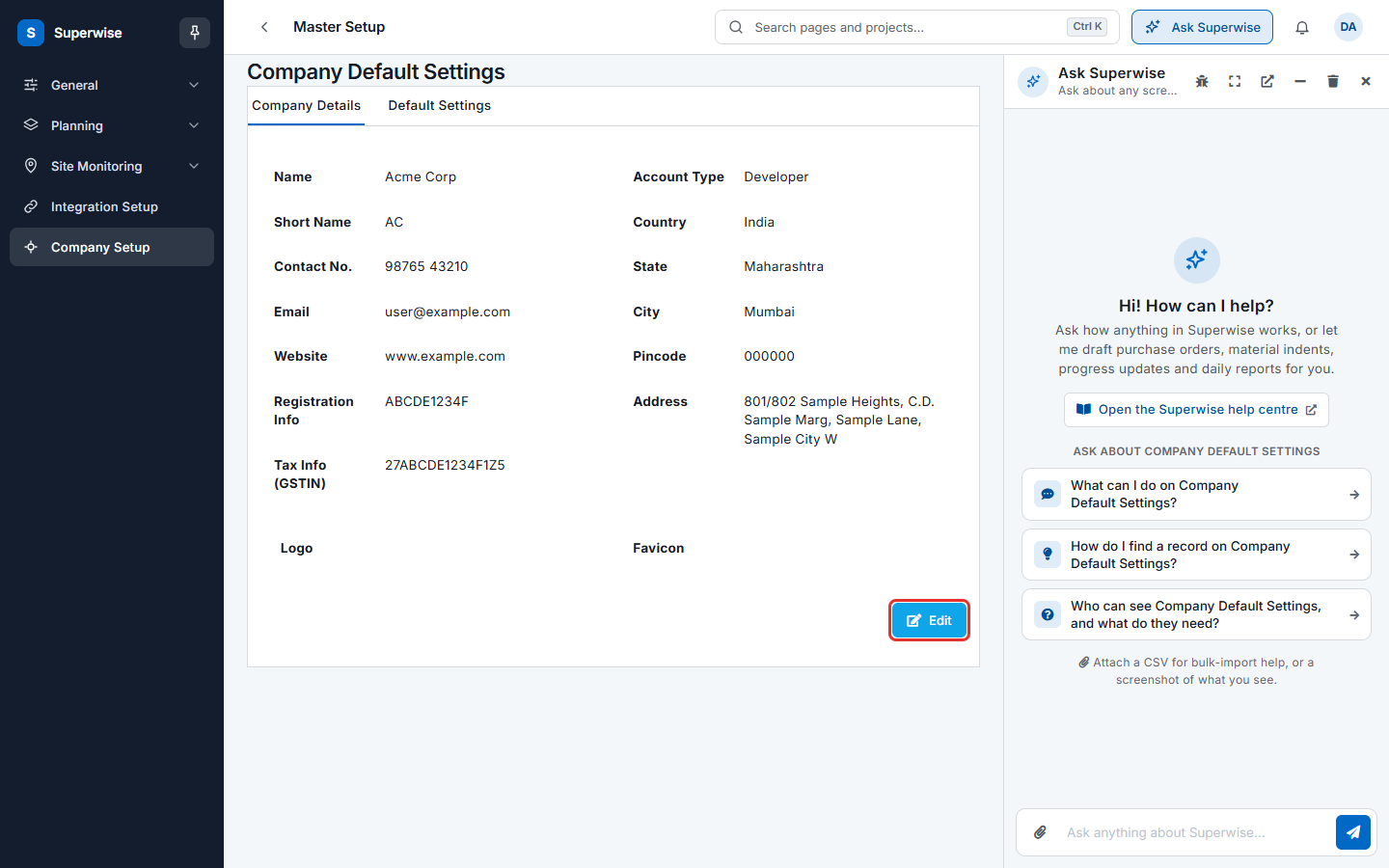
- Open Company settings in the left menu and click Company Setup.
- Stay on the tab Company Details. The page shows the saved values.
- Click Edit (mark 1 in the first picture). The values turn into fields.
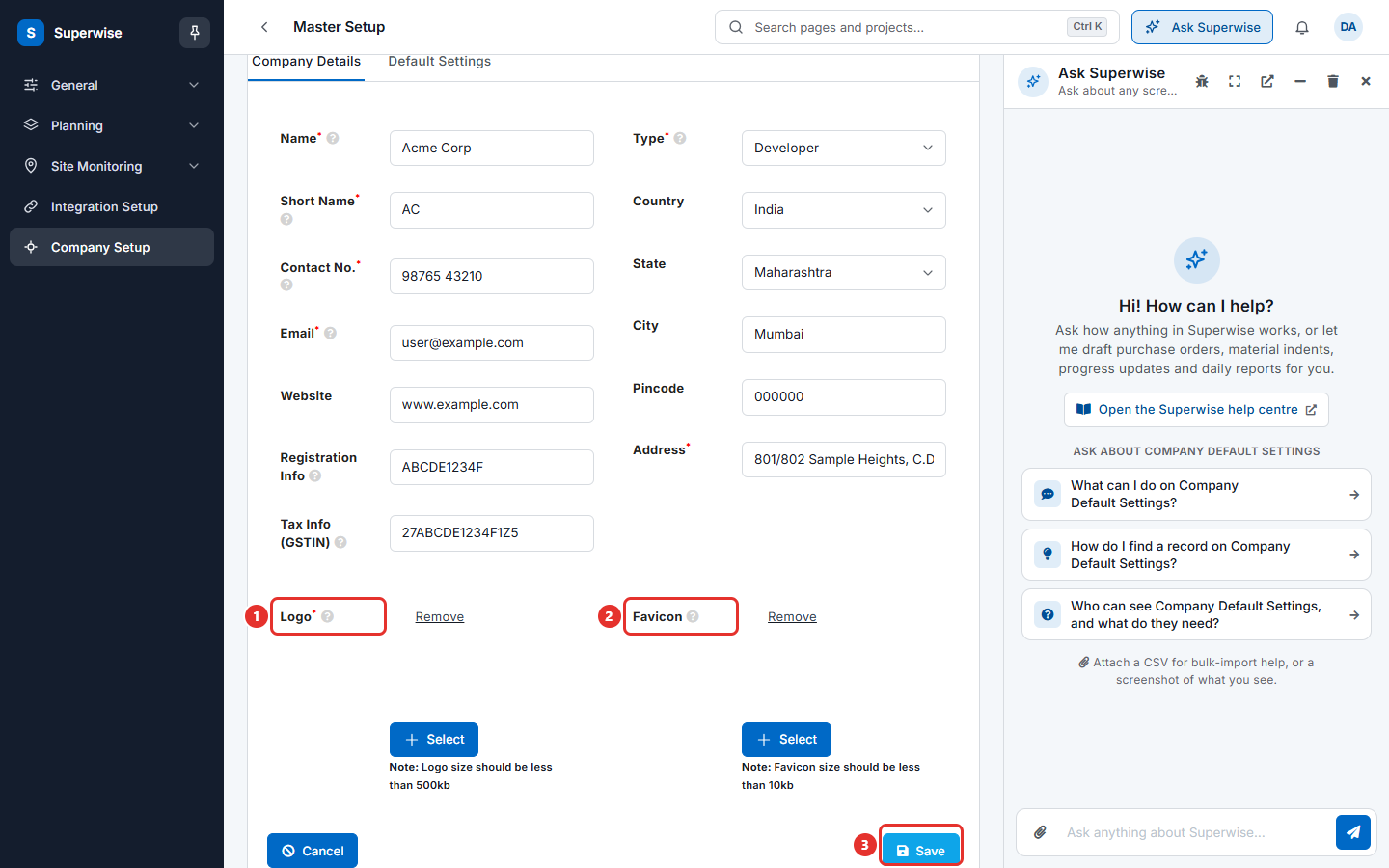
- Fill in the fields. A red star next to a field name means the field is required. See the table below.
- To change the logo, use the image box next to Logo (mark 1 in the second picture). To change the favicon, use the box next to Favicon (mark 2). Choose a file in each box.
- Click Save (mark 3). A message says that the details were updated. To leave without saving, click Cancel.
What the fields mean
| Name | What it means |
|---|---|
| Name | The legal name of the company. Superwise uses it as the default company name on work orders and purchase orders. Required. |
| Short Name | A short form of 3 or 4 letters, for example ACME. Superwise puts it before the number on receipts and orders. Required. |
| Contact No. | The main phone number of the company. It appears on the letterhead. Digits only. Required. |
| The official e-mail address of the company. It appears on the letterhead. Required. | |
| Website | The web address of the company. |
| Registration Info | The company registration number. In India this is the CIN for a company and the PAN for others. |
| Tax Info (GSTIN) | The tax number of the company. In India this is the GSTIN. |
| Type | Your default role in projects: Contractor, Consultant or Developer. Some functions are switched off depending on the role you choose. On the saved page this field is shown as Account Type. Required. |
| Country, State, City, Pincode | The place of the company. Choose the country first. State opens after you choose a country, and City opens after you choose a state. |
| Address | The street address of the company. Required. |
| Logo | The company logo. It appears on the letterhead of work orders and purchase orders. Required. |
| Favicon | The icon shown in the browser tab. |
Rules to know
- You cannot save while a required field is empty. This includes the logo.
- The logo must be smaller than 500 kb. The favicon must be smaller than 10 kb.
- Short Name is part of the order number when the order format uses the company code. See Default settings.
If something goes wrong
| What you see | What to do |
|---|---|
| The page opens but you cannot save. | Ask your administrator to give you the Admin Edit permission. |
| A message says that details could not be saved. | Read the message under it, fix the field it names and click Save again. |
| State or City is grey. | Choose the country first, then the state. |