


Payments
See every payment request of a project, follow it from request to release, and learn the nine steps and statuses a payment goes through.
- Where to find it
- Accounts > Payments > All Payments
- Who can use it
- People who have the View Payments permission. Creating a request needs Add, editing needs Edit, deleting needs Delete. The approval and release screens need the Admin permission.
A payment is a request to pay money. It can be for a supplier's bill, for a contractor's RA bill, or for cash to a person on site. Nobody pays from the screen itself. The request goes through approvers. An accountant then releases it and records how the money was paid.
For example, Alder Steel Works sends a bill of ₹1,00,000. The accountant makes a payment request for that bill. The director accepts it. The accounts head accepts it. The accountant then releases it and records that ₹1,00,000 was paid by bank transfer.
This screen, All Payments, lists the requests of the project you have selected. Each row ends with an Edit button and a Delete button, if you have those permissions. A Create New Request button and an Export to CSV button are above the table.
How a payment moves
- A person with the Add permission requests a payment. The status is Queued.
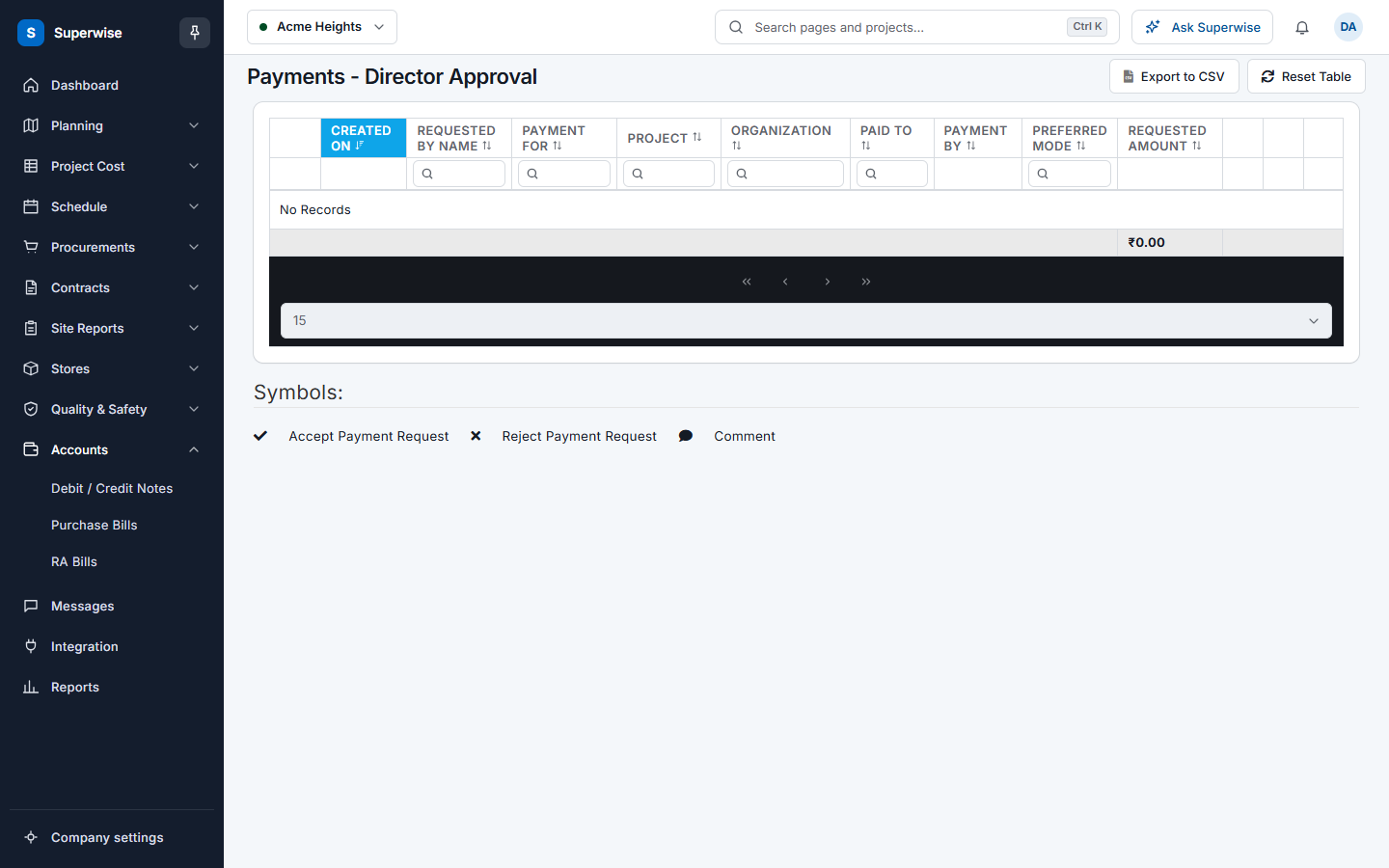
- The director opens Director Approvals and accepts or rejects it. See Approve payment requests.
- If accepted, the request moves to Accounts Approvals. The accounts person accepts or rejects it.
- If accepted, it moves to Pending Release. The accountant releases the payment and records the date, the mode and the amount. The status becomes Processed.
- If someone rejects the request, the requester can put it back in the queue with Requeue.
Before you start
- Select the project at the top of the screen.
- To pay a bill, certify the purchase bill first. To pay an RA bill, the RA bill must be Accepted.
- You need the View permission on Payments to see this list. The three approval screens need the Admin permission.
How to find a payment
- Open Accounts in the left menu, open Payments and click All Payments.
- Type in the Search box under a column name to filter by that column. Click a column name to sort.
- Click Reset Table to clear the filters and the sort.
- Click Export to CSV to download the rows you see.
- Click the arrow at the start of a row to see the details of that payment. The details include the bills, expenses, purchase order and RA bill.
What the columns mean
| Name | What it means |
|---|---|
| Created On | The day the request was made. |
| Payment For | The kind of payment: PO Advance, Bill Payment, Advance Cash, Reimburse Cash Expense, Work Order Advance, RA Bill Payment or Retention Payment. |
| Project | The project of the request. |
| Organization | The supplier or contractor to pay. |
| Paid To | The name of the person or company that gets the money. |
| Payment By | The date by which the money should be paid. |
| Preferred Mode | The mode the requester prefers: Cash, Cheque, BankTransfer or PDC (post-dated cheque). |
| Requested Amount | The amount asked for. It shows in red when less was paid. |
| Status | Where the request is. See the table below. |
| Requested By Name | The person who made the request. |
| Amount | The amount actually paid. It is empty until the payment is processed. |
What the statuses mean
| Status | What it means |
|---|---|
| Queued | The request waits for the director. |
| DirectorReject | The director rejected it. |
| DirectorAccept | The director accepted it. It waits for accounts. |
| AccountsReject | Accounts rejected it. |
| AccountsAccept | Accounts accepted it. It waits for release. |
| Processed | The money was released. |
| Request | The first status of a request. You can requeue it like a rejected one. |
Two small buttons can appear in the Status column. The Requeue button puts a rejected request back in the queue. The Payment slip button downloads the slip of a processed payment. Only the person who made the request, or a user who may view the Admin screens, sees them.
How to requeue a rejected request
- Find the request. Its status is DirectorReject or AccountsReject.
- Click the Requeue button next to the status.
- A box titled Confirm Action asks if you are sure. Click Confirm.
How to delete a payment request
- Click the Delete button at the end of the row.
- The page asks Are you sure you want to delete this? It shows the payment. Click Delete.
Deleting sets the linked expense vouchers free and removes the links to bills, purchase orders and RA bills.
Rules to know
- A request needs a project and a payment kind. The other fields depend on the kind. See Request a payment.
- A bill can have only one payment request. Superwise shows Payment requests already created for Bill No if a request exists.
- Editing a request sends it back to Queued.
- A request of the kind RA Bill Payment is recorded as processed at once, with no approval steps.
- You can delete a payment in any status. Superwise does not check the status. Delete only a request you made by mistake.
- Deleting a payment does not change the status of the bill it was for. Check the bill afterwards.
- You can release a payment from any status. See Release a payment.
If something goes wrong
| What you see | What to do |
|---|---|
| Access denied | You do not have the View permission on Payments. Ask your administrator. |
| No Create New Request button | You do not have the Add permission on Payments. |
| No Requeue button | The status is not DirectorReject or AccountsReject, or the request is not yours. |
| Payment requests already created for Bill No | The bill already has a request. Find it in the list. |
Related pages
- Request a payment
- Approve payment requests
- Release a payment
- Site cash history
- Purchase bills
- RA bills
In this section
- Request a paymentAsk for a payment for a bill, an RA bill, a purchase order advance, a work order advance, a retention or a cash advance, and change or send back a request.
- Approve payment requestsAccept, reject or comment on payment requests as the director and as accounts, before the accountant releases the money.
- Release a paymentRecord the date, the mode and the amount of a payment that both approvers accepted, and mark it as processed.
- Site cash historySee the cash paid to a person on site, the expense vouchers that person created, and the cash difference between the two.