


Create an RA bill
Build a running account (RA) bill for a contractor from approved measurements, add the mobilization and retention deductions, and save it.
- Where to find it
- Accounts > RA Bills
- Who can use it
- People who have the Add RA Bills permission. Editing a saved bill needs Edit.
You create an RA bill to bill a contractor for the work measured in one period. The form guides you in steps: work order, bill details, debit and credit notes, and a summary.
For example, a plastering contractor has a work order of ₹5,00,000. For 1 to 31 October 2026 the site measured 400 square metres at ₹250. You create a bill for that period and tick the measurement sheets. The bill amount is ₹1,00,000.
Before you start
- Select the project at the top of the screen.
- The contractor must have an approved work order. See Work orders.
- The work must be measured, and the measurement sheets must be approved. See Measurement book.
- If the work order has billing milestones, the milestone of each measured task must be complete.
How to create an RA bill
- Open Accounts in the left menu and click RA Bills.
- Click Create.
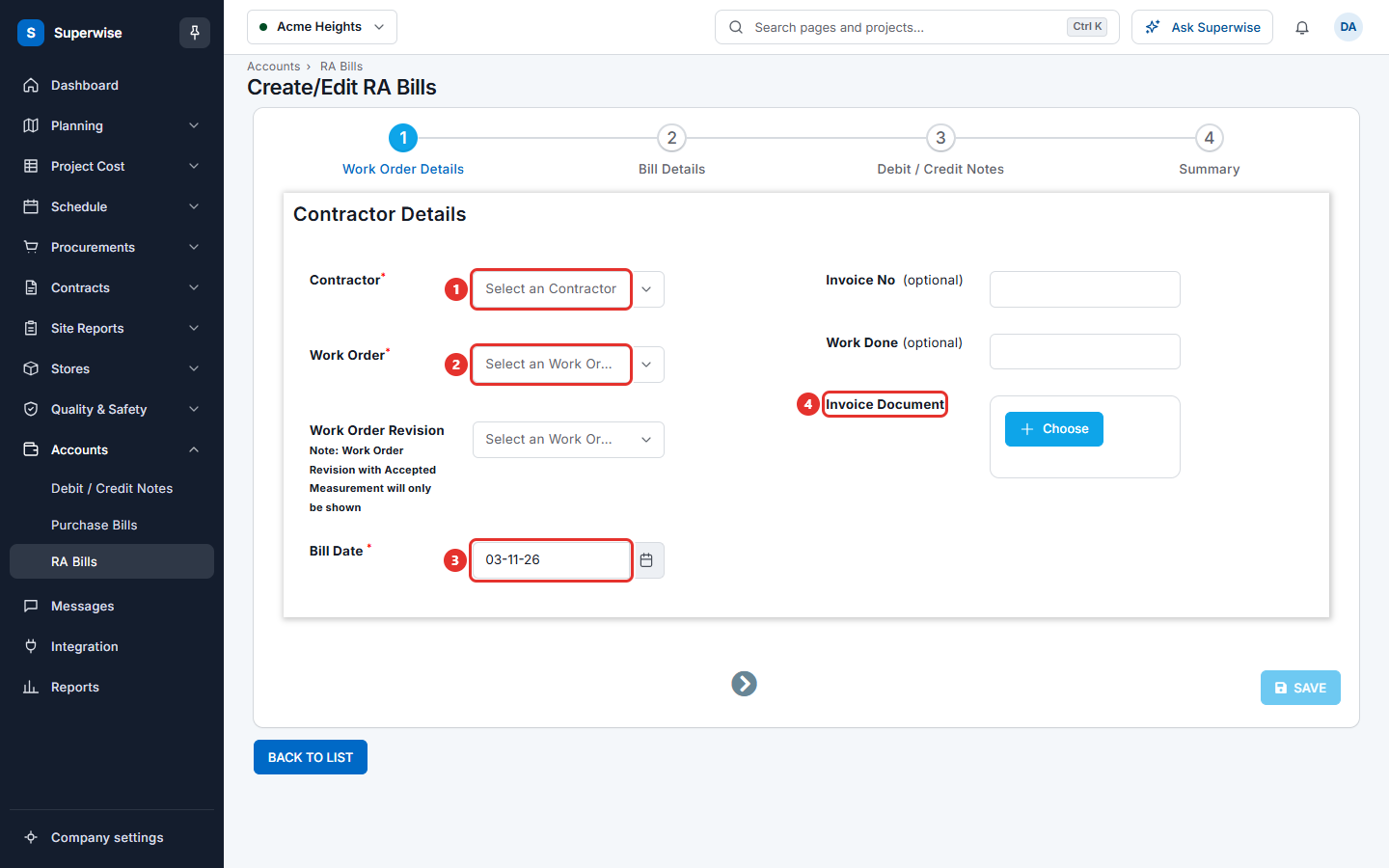
- In Contractor, choose the contractor (mark 1). This field is required.
- In Work Order, choose the work order (mark 2). This field is required. Under it, Billable Amount shows how much of the order you can still bill.
- If the order has revisions, choose a Work Order Revision. Only revisions that have accepted measurements are listed.
- Enter Bill Date (mark 3). It is required and cannot be in the future.
- Optional: type Invoice No and Work Done. Under Invoice Document, attach the contractor's invoice (mark 4).
- Click the second step, Bill Details, or the arrow at the bottom.
How to add the work and the deductions
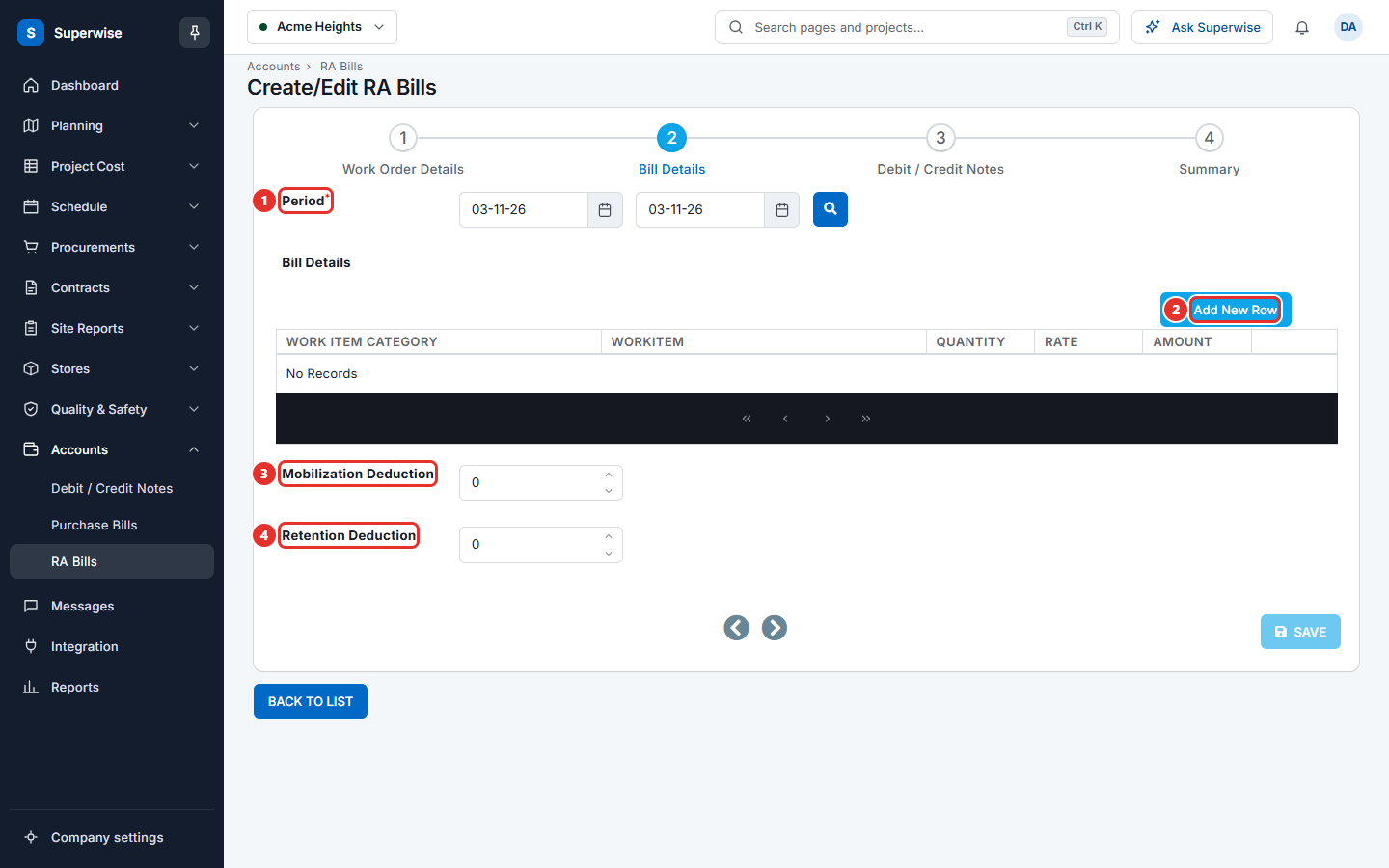
- Enter Period (mark 1): the first and the last day of the measured work. Both dates are required and cannot be in the future.
- Click the blue search button next to the two dates. Superwise loads the work items measured in that period, if there are any.
- To add a work item yourself, click Add New Row (mark 2).
- In the row, choose a Work Item Category and then a WorkItem. The Rate comes from the work order.
- Click the number with the ruler icon next to Quantity. A box titled Measurement Selection opens. It lists the approved measurement sheets of that work item in your period. The columns are Created On, MeasurementSheet Title, Created By, Approved On, Approved By, Quantity and Rate.
- Tick the sheets that this bill covers, then click Save in the box. Quantity and Amount are filled from the sheets.
- Repeat step 3 to step 6 for every work item.
- In Mobilization Deduction (mark 3), enter the part of the advance that you take back in this bill.
- In Retention Deduction (mark 4), enter the amount that you hold back in this bill.
- If you can view debit and credit notes, click the step Debit / Credit Notes and click Sync Pending Debit / Credit Notes. Superwise adds the approved notes of this contractor. See Debit and credit notes.
How to check and save
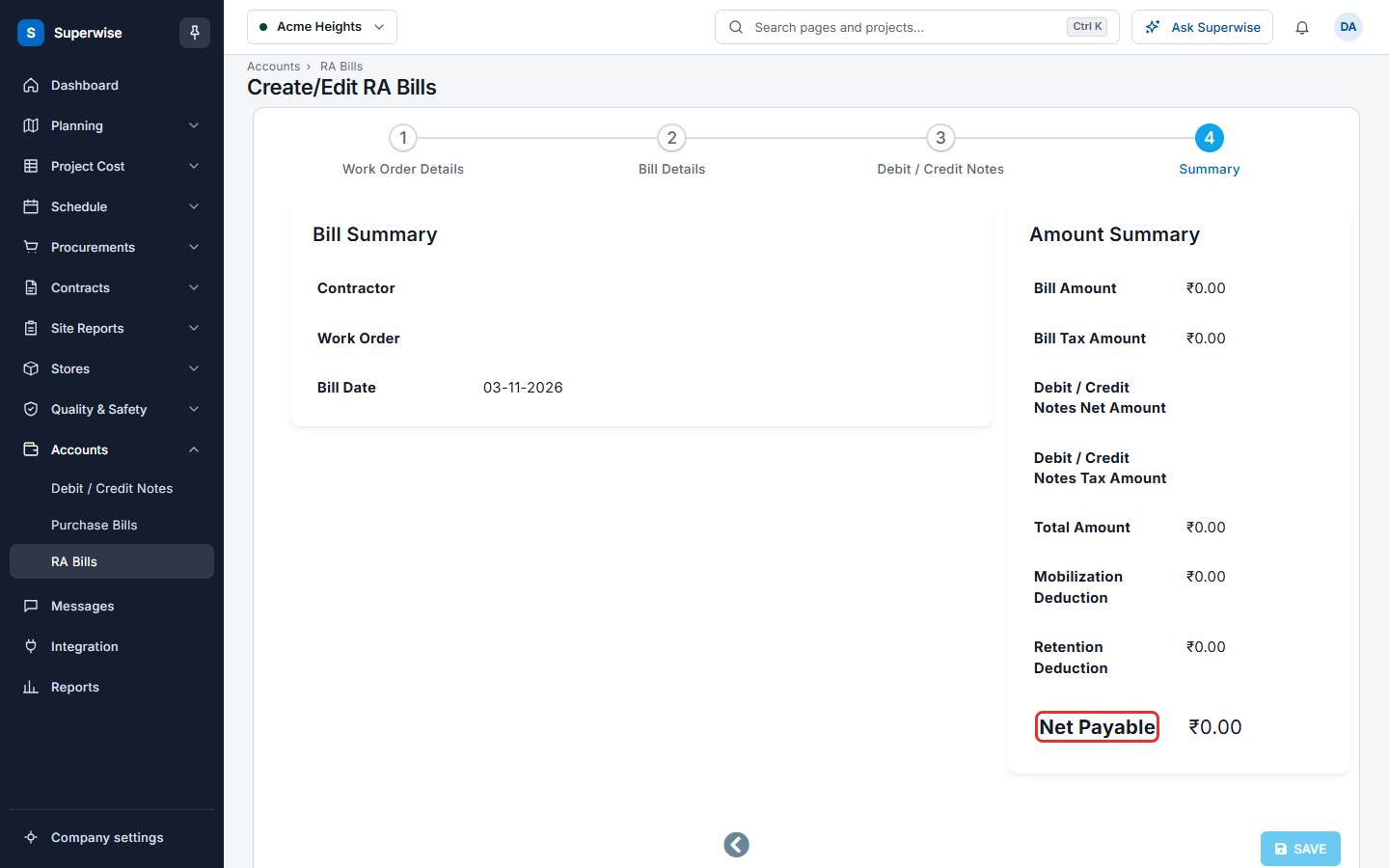
- Click the last step, Summary.
- Check Bill Summary, Bill Details Summary, Debit / Credit Notes Summary and Amount Summary.
- Total Amount is Bill Amount plus Bill Tax Amount, minus the notes. Net Payable (mark 1) is Total Amount minus Mobilization Deduction and Retention Deduction.
- Click SAVE. The bill is saved as Pending. Click BACK TO LIST to leave.
What the fields mean
| Name | What it means |
|---|---|
| Contractor | The company that sends the bill. |
| Work Order | The work order that the bill belongs to. |
| Work Order Revision | The revision of the order that you bill against. |
| Billable Amount | The part of the order that is not billed yet. |
| Bill Date | The date of the contractor's bill. |
| Invoice No | The number on the contractor's invoice. Optional. |
| Work Done | A short note of the work. Optional. |
| Period | The first and last day of the measured work. |
| Mobilization Deduction | The advance that you take back in this bill. |
| Retention Deduction | The amount that you hold back until the work is complete. |
| Net Payable | The amount you pay for this bill. |
Rules to know
- The bill must have at least one detail row, and each row needs at least one measurement sheet. Superwise shows RA Bill Details must have at least one Accepted Measurement Sheet otherwise.
- A measurement sheet must be accepted. A sheet cannot be used twice.
- The bill amount must be above 0. Each quantity and each rate must be above 0.
- All mobilization deductions of the work order cannot be more than the mobilization amount of the order.
- All retention deductions of the work order cannot be more than the retention of the order.
- When you edit a saved bill, it needs the Edit permission.
If something goes wrong
| What you see | What to do |
|---|---|
| Contractor is Required or Work Order is Required | Choose them in the first step. |
| Execution Period Start Date is Required | Enter Period in the second step. |
| One or more RA Bill Details have invalid/pending measurements. | A sheet is not approved, or it belongs to another work order. Approve it or remove it. |
| Milestones have not been achieved yet to process the billing. | The milestone of a measured task is not complete. Complete the milestone first. |
| RA Bill Mobilization deduction is greater than available for the work order. | Lower Mobilization Deduction. |
| RA Bill Retention deduction is greater than available for the work order. | Lower Retention Deduction. |
| Please enter a valid quantity or remove the line item | Fix the quantity or delete the row. |