


Packages
Create the list of work packages, such as Structural or Waterproofing, that you attach to template tasks.
- Where to find it
- Company settings > Planning > Packages
- Who can use it
- People who have the View Other Masters permission. Add, Edit and Delete need the matching permission on the same master.
A package is a named group of work, for example Structural, Block work or Waterproofing. You create the list once. Later you choose a package for each task in a template. Packages let you group tasks of the same trade across all templates and projects.
Before you start
Nothing is needed first. Create packages before you build templates, because the template task sheet only accepts a package that already exists in this list.
How to add a package
- Open Company settings > Planning > Packages.
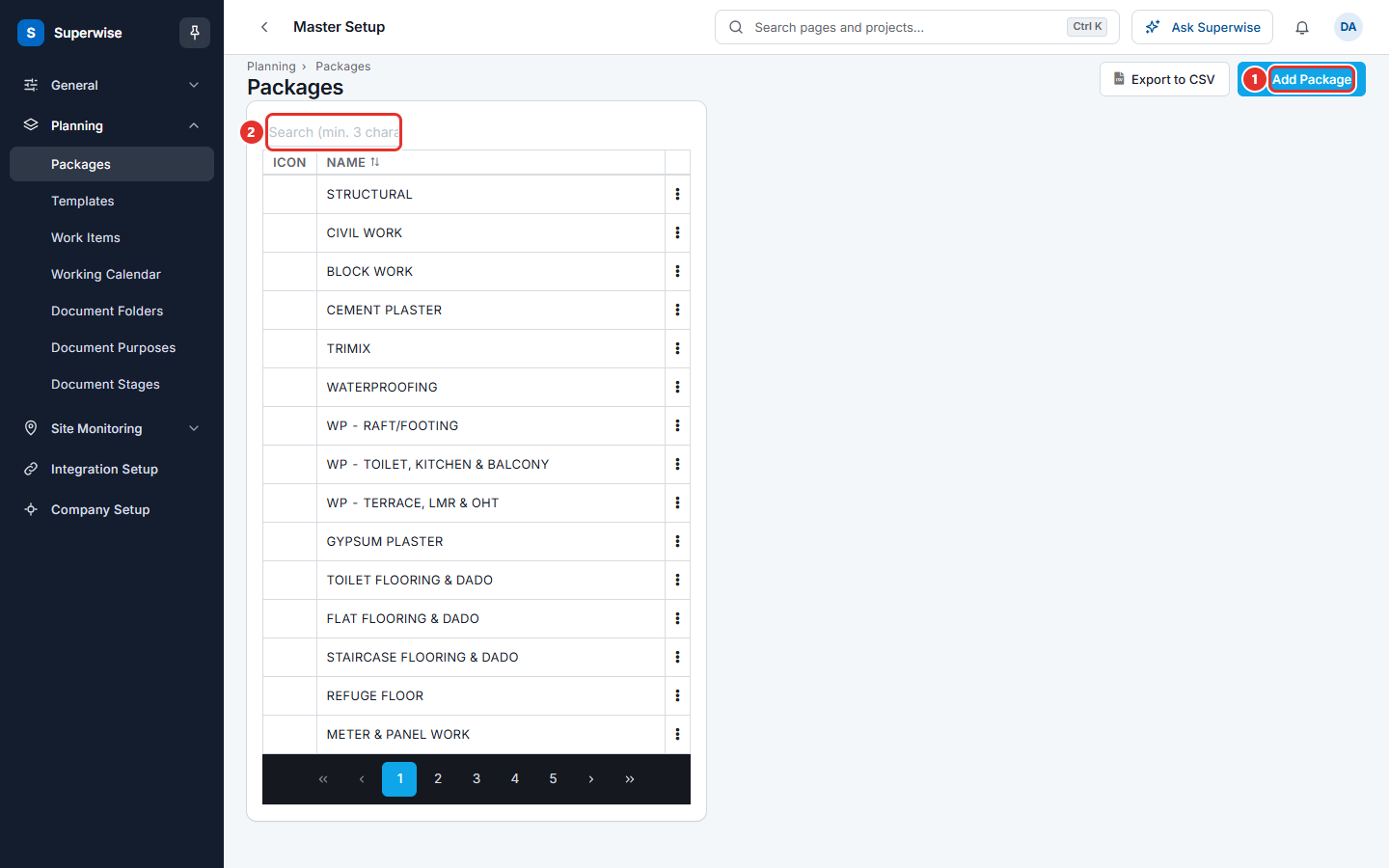
- Click Add Package (mark 1 in the first picture).
- Type the package name in Name (mark 1 in the second picture). Use a trade or a type of work, such as
Plaster. - If you want a picture, drop a PNG file in Icon (mark 2). The file must be a PNG and smaller than 100 KB. This step is optional.
- Click Save (mark 3). The button stays grey until you type a name.
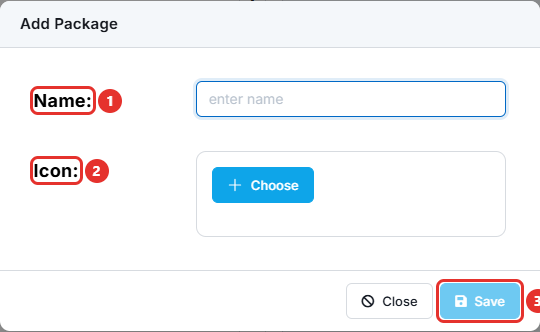
If you add no icon, the list shows a small picture made from the first letters of the name.
How to edit or delete a package
- Find the package in the list. Type at least 3 characters in Search (min. 3 characters) (mark 2 in the first picture) to narrow the list.
- Click the three dots at the end of the row. A small menu opens.
- Click Edit (mark 1 in the next picture) to change the name or the icon. Click Save when you finish.
- Click Delete (mark 2) to remove the package. Confirm the question that appears.
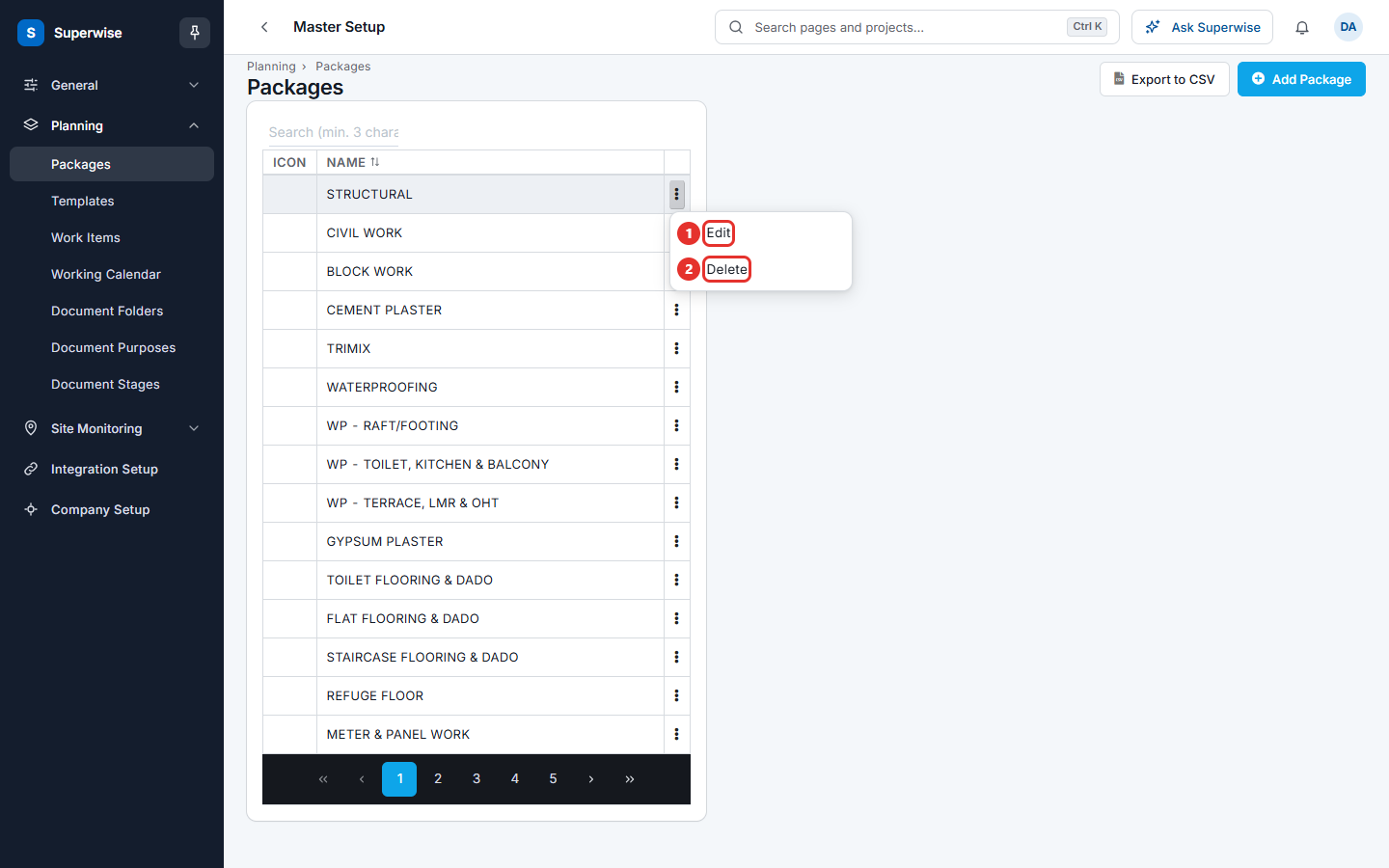
You see Edit only with the Edit permission. You see Delete only with the Delete permission. The three dots do not appear if you have neither.
Click Export to CSV to download the list.
What the columns mean
| Name | What it means |
|---|---|
| ICON | The picture of the package. |
| NAME | The package name. Click the heading to sort. |
Rules to know
- The name is required.
- A package name cannot repeat. The system shows Package cannot be repeated.
- You cannot delete a package that is still used. Delete stops when a template task, a project template task, a project template working copy or a project template revision uses the package. Change those tasks to another package first.
If something goes wrong
| What you see | What to do |
|---|---|
| Save is grey | Type a name. |
| Package cannot be repeated | A package with this name exists. Search the list and use it, or choose another name. |
| A message that starts with Templates have tasks with this package | Open the template, change the package on those tasks, then delete again. |
| The package is not in the list of a template task | Add it here first, then open the template again. |
Related pages
- Templates: choose a package for each task.
- Planning masters: the order to set up the planning lists.