


Edit the budget
Enter the amount and margin for each work head, or upload them from an Excel file, then save the budget of the project.
- Where to find it
- Planning > Budget
- Who can use it
- People who have the Add or Edit Budget permission.
Use this page to create the budget of a project or to change it. You type an Amount and a Margin for each Head. Superwise works out the Limit. You can also load the numbers from an Excel file.
Before you start
- Choose the project in the project list at the top of the screen.
- You need the Add or Edit permission for the budget.
- For an Excel upload, prepare an .xlsx file. See How to upload the budget from Excel.
How to enter the budget
- Open Planning > Budget.
- Click the menu icon in the table header, then click Edit. The editor opens in a new browser tab.
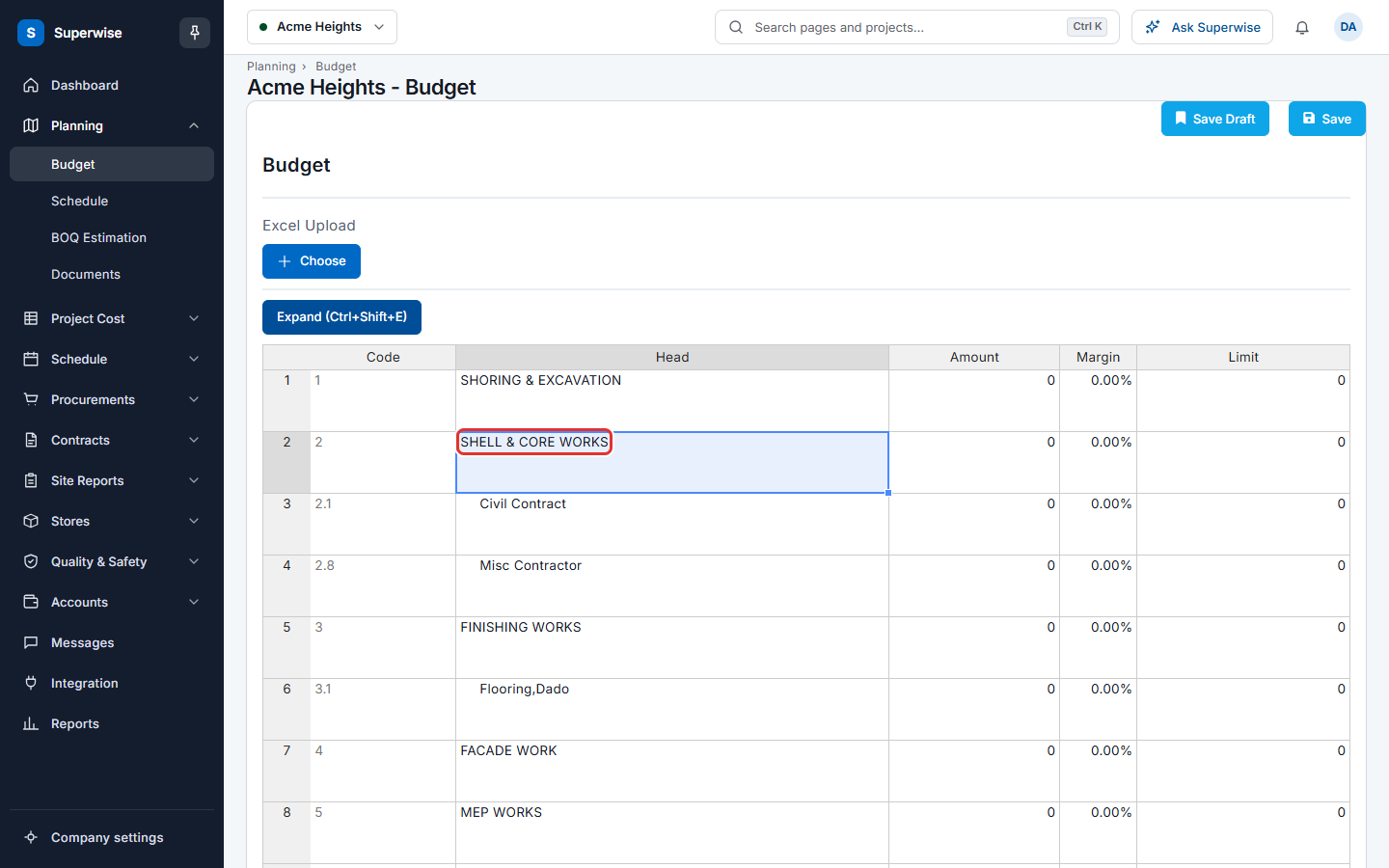
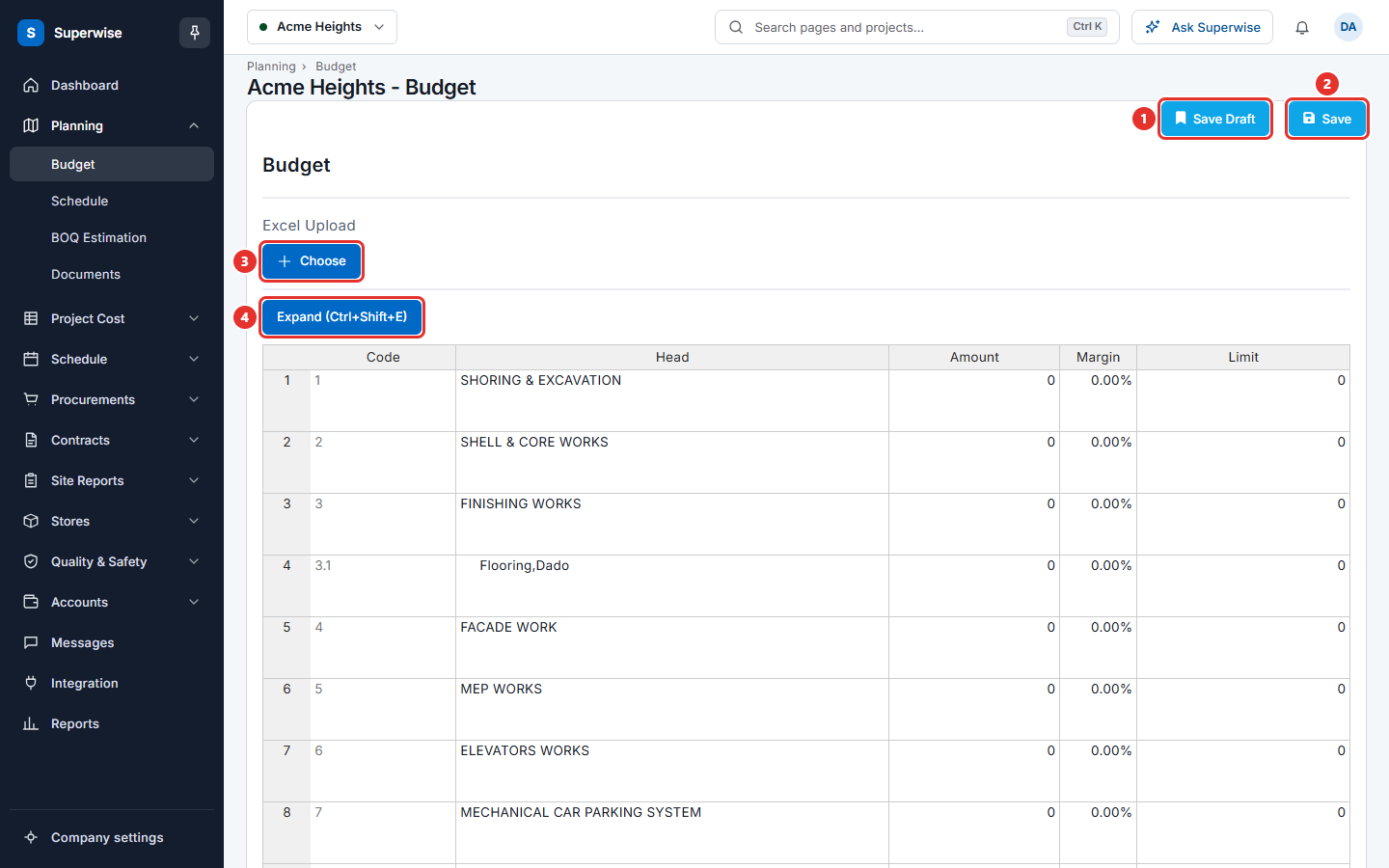
- The sheet starts with the main heads. To see the sub heads of a head, click its row and click Expand (Ctrl+Shift+E) (mark 4).
- In the row of a head, type the Amount. Type the Margin as a percentage. The Limit fills in.
- To set the limit yourself, type it in Limit. Superwise then changes the Margin.
- Click Save (mark 2) when the budget is final. Click Save Draft (mark 1) to keep your work and finish later.
After you save, the Budget page opens.
Tip: You can use the keys Ctrl+Shift+S to save, Ctrl+Shift+D to save a draft and Ctrl+Shift+E to expand the selected head.
How to upload the budget from Excel
- Make an .xlsx file. Put a title row first. From row 2, use column A for the Code of the head, column B for the amount and column C for the margin. Column D is not read.
- In the editor, click Choose (mark 3 in the picture above) under Excel Upload and select the file.
- The numbers appear in the sheet. Check them.
- Click Save.
The upload fills the sheet. It does not save the budget by itself.
What the fields mean
| Name | What it means |
|---|---|
| Code | The code of the head. You cannot change it. |
| Head | The name of the head. You cannot change it. |
| Amount | The money planned for the head. The amount of a main head is the sum of its sub heads. |
| Margin | The extra percentage above the amount. |
| Limit | The amount plus the margin. |
The sheet has three more columns for the system: Id, BOQ Id and BOQ Parent Id. They are hidden.
Rules to know
- Superwise saves only the heads that have an Amount above 0.
- When you change an Amount or a Margin, the Limit changes. When you change a Limit, the Margin changes.
- When you change a sub head, the main head above it changes as well.
- Expand works on one row. If you select more than one row, the page says Only 1 row at a time. If you select no row, it says Select a row.
- Saving an approved budget creates a new revision. See Budget.
If something goes wrong
| What you see | What to do |
|---|---|
| Import Unsuccessful with Incorrect Budget Code | A code in column A is not the code of a head. Copy the code from the Code column. |
| Import Unsuccessful with Incorrect Amount | The amount in column B is empty, not a number, or 0 or less. A row with an empty margin also gives this message. |
| Import Unsuccessful with Incorrect Margin | The margin in column C is not a number or is below 0. Type 0 for no margin. |
| Import Unsuccessful with Header row is missing or only headers present in file. | The file has no data row after the title row. |
| Could not update the project budget. Please ensure all errors on the page are corrected. | Correct the cells that are marked in red, then save again. |