


Bulk import
Load purchase orders, or earlier deliveries, rentals and labour reports, from an Excel file into one project.
- Who can use it
- Import Purchase Orders needs the Add permission for Purchase Orders, Organizations and Resources. Import Previous Transactions also needs Add for Material Deliveries, Equipment Rentals and Labour Records.
Bulk import lets you load many records at once from an Excel file. Use it when you start Superwise in the middle of a project and want to bring in the orders and site records that already exist. There are two import screens: Import Purchase Orders and Import Previous Transactions.
The two screens have no menu item. Ask your administrator or Superwise support to open them for you, or to give you the link.
Note: Many list screens also have a Bulk Add button. That is a different tool. It is described in the book of each screen.
What each screen loads
| Screen | Sheets in the workbook |
|---|---|
| Import Purchase Orders | Vendors and Purchase Orders |
| Import Previous Transactions | Vendors, Material Deliveries, Equipment Rentals and Labour Reports |
On Import Previous Transactions, the sheets Equipment Rentals and Labour Reports are optional. A supplier in the workbook is called a vendor in the sheet names.
Before you start
- Prepare an Excel file in the
.xlsxformat. Older.xlsfiles and CSV files are not accepted. - The file must be 75 MB or smaller.
- Put the sheets in the order shown in the tables below. The importer reads sheets by position and columns by letter, not by name.
- Leave the first row of every sheet as a header. The importer skips it.
- Type dates as real Excel dates.
- Fill every column that has a star in the tables below.
How to import
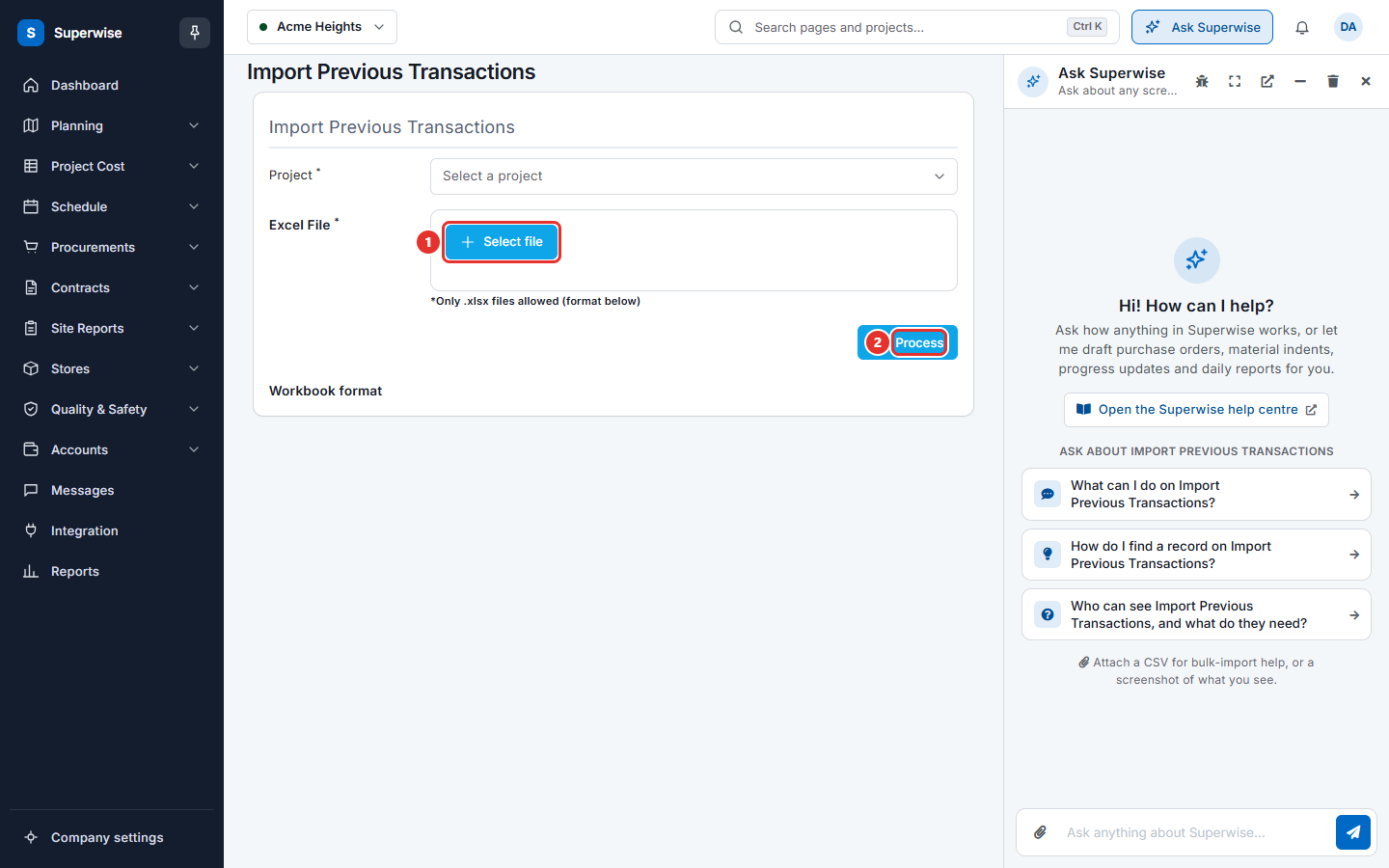
- Open the import screen.
- In Project, choose the project that receives the records. The field is required.
- Click Select file (mark 1) and choose your
.xlsxfile. Superwise uploads it at once and shows "Uploaded:" and the file name. - Click Process (mark 2). Superwise checks the file. Nothing is saved yet.
- If the file has errors, a message lists them. Fix the workbook, choose the file again and click Process.
- If the file is correct, the screen shows Processed Data. There is a tab for each sheet, for example Vendors (3). The number in brackets is the number of rows. Open each tab and check the rows.
- Click Start Import.
- The screen shows the state of the import, for example "The import is scheduled." It checks again every few seconds. It tells you when the job is finished.
- Click Import another file to load a second file.
The import runs as a background job. You can wait on the screen. The message shows whether it succeeded.
What the workbook looks like
Click Workbook format at the bottom of the screen to see the sheets and columns. A star after a column name means the column is required.
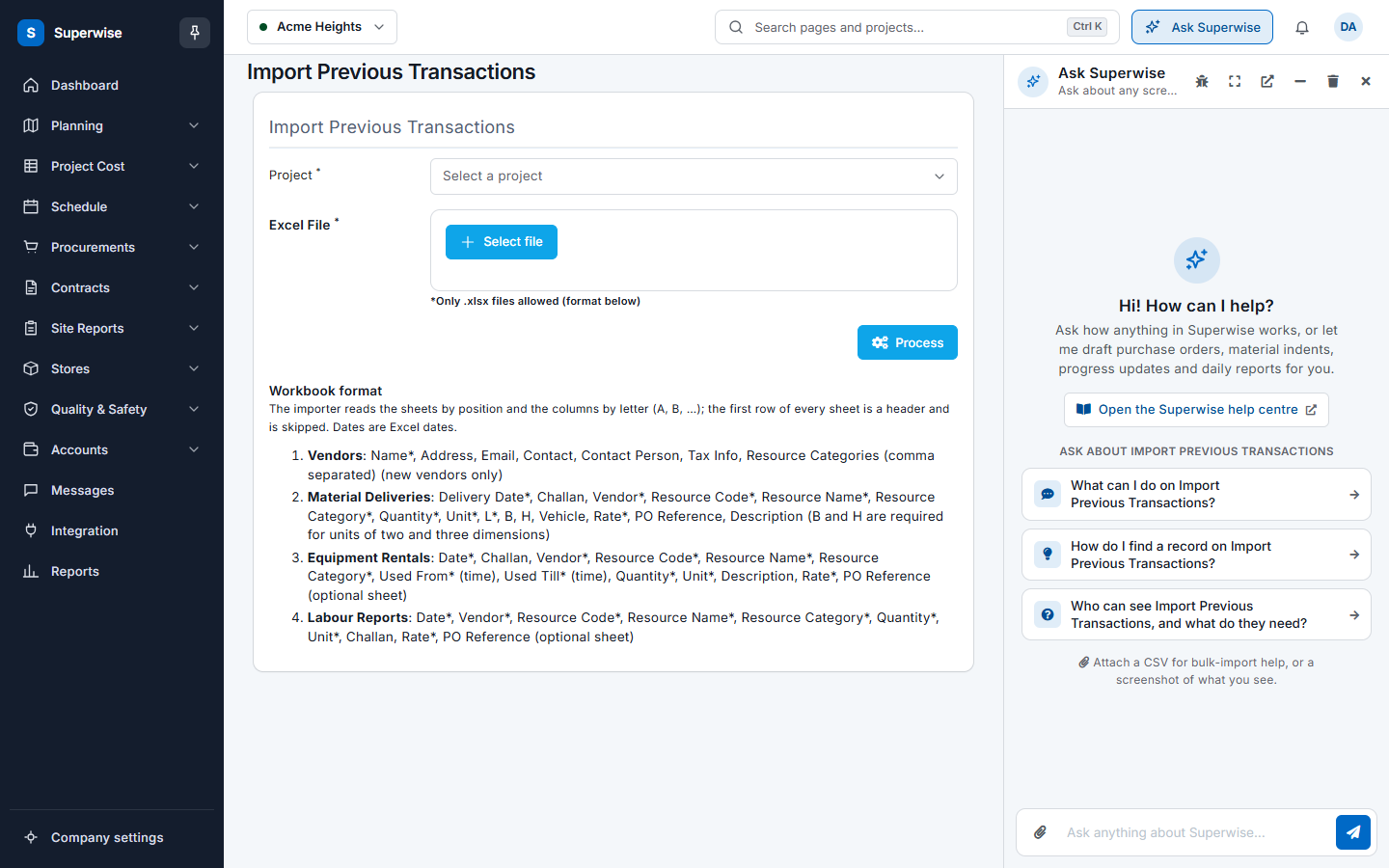
Sheet Vendors
Columns: Name*, Address, Email, Contact, Contact Person, Tax Info and Resource Categories (comma separated). Use this sheet for new vendors only.
Sheet Purchase Orders
Columns: Resource Code*, Resource Category*, Resource Name*, Quantity*, Unit*, Rate*, Vendor*, PO Reference and PO Date*.
Use one row for each purchase order line. Rows that have the same PO Reference make one purchase order. The vendor must already exist, or be on the Vendors sheet.
Sheet Material Deliveries
Columns: Delivery Date*, Challan, Vendor*, Resource Code*, Resource Name*, Resource Category*, Quantity*, Unit*, L*, B, H, Vehicle, Rate*, PO Reference and Description. B and H are required for units of two and three dimensions.
Sheet Equipment Rentals
Columns: Date*, Challan, Vendor*, Resource Code*, Resource Name*, Resource Category*, Used From* (time), Used Till* (time), Quantity*, Unit*, Description, Rate* and PO Reference.
Sheet Labour Reports
Columns: Date*, Vendor*, Resource Code*, Resource Name*, Resource Category*, Quantity*, Unit*, Challan, Rate* and PO Reference.
Rules to know
- Process only checks the file. Records are saved when you click Start Import.
- Only
.xlsxfiles are accepted. A wrong type shows "Please upload .xlsx files only". A file over 75 MB shows "Files larger than 75 MB can not be uploaded." - All rows go to the project you choose in Project.
- The project field is locked while the import job runs.
- The screens check your permissions for each kind of record in the file.
If something goes wrong
| What you see | What to do |
|---|---|
| The Project field is required. | Choose a project before you click Process. |
| The Excel File field is required. | Click Select file and choose a file. |
| Please upload .xlsx files only | Save the workbook as .xlsx and choose it again. |
| The file could not be uploaded. Please try again. | Check your connection and choose the file again. |
| The server could not process the request. Please try again. | Wait a moment and try again. If it keeps failing, contact support. |
| A list of row errors | Fix those rows in the workbook and click Process again. |