


Issue timeline and issue reports
See all issues of a project on a timeline, open the issue report view, and use the list of issues for one period that task summary reports link to.
- Where to find it
- Quality & Safety > Issues
- Who can use it
- People who have the View permission on Issues. The Issue Timeline button needs Approve.
Besides the list, the Issues screen has three more views. The timeline shows when each issue was open. The report view shows issue numbers in a pivot table. The period list opens from a link in a task summary report and shows the issues of one task or one period.
Before you start
- Select the project in the project selector at the top of the screen.
- The issues must exist. See Issues.
How to open the issue timeline
- Open Quality & Safety > Issues.
- Click Issue Timeline. The button shows only for people who have the Approve permission.
- Choose the scale with the Format buttons: Day, Week, Month or Quarter.
- Click a row to move the bars to that issue.
The table on the left has the columns Start Date, End Date and Days Open. The bars on the right show the same period. Group rows show the issue category and the issue type. The issues are below them.
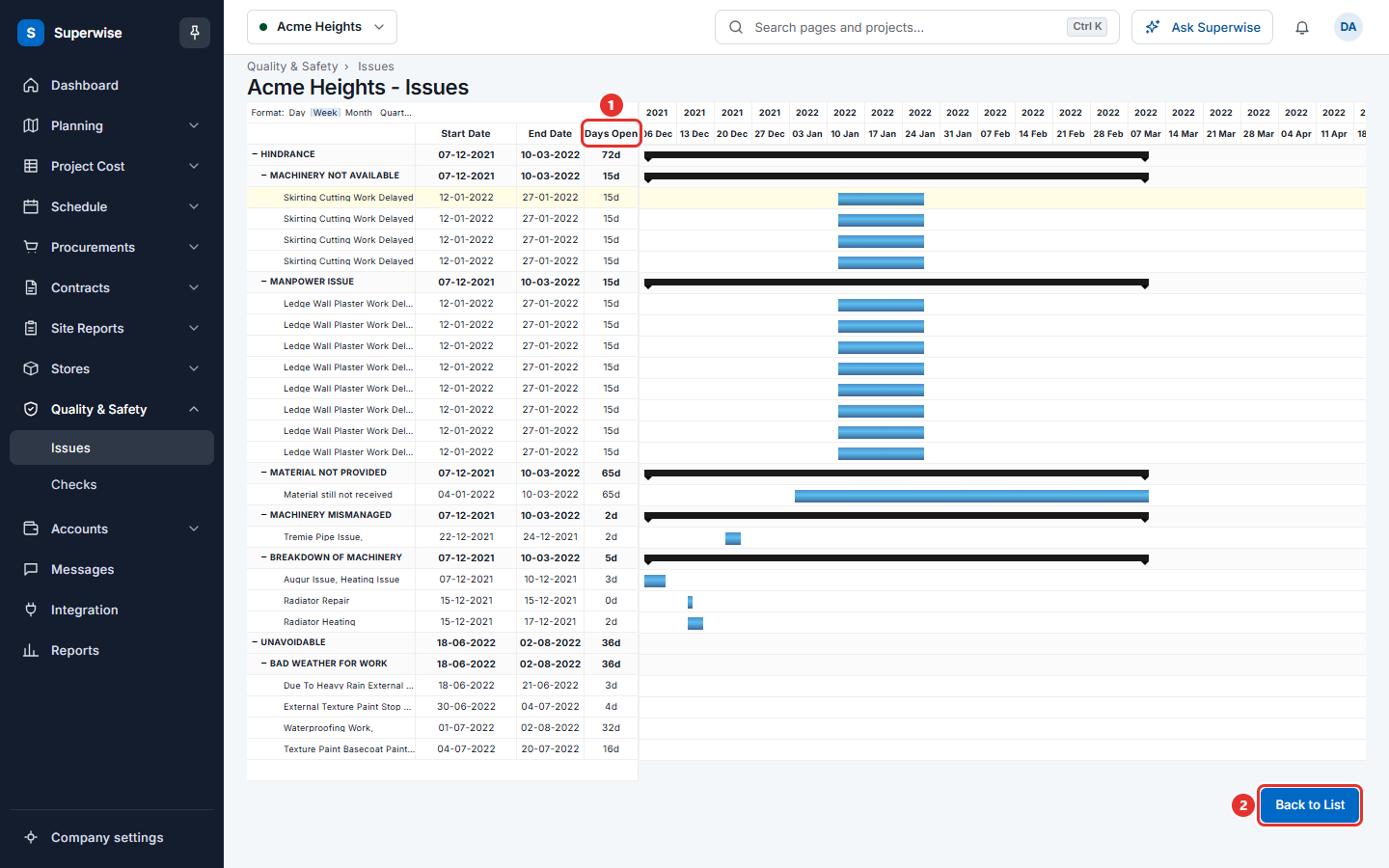
Click Back to List to return to the list.
How to open the issue report view
- Open Quality & Safety > Issues.
- Click the arrow next to Issue Report.
- Choose All Issue Report or Open Issue Report.
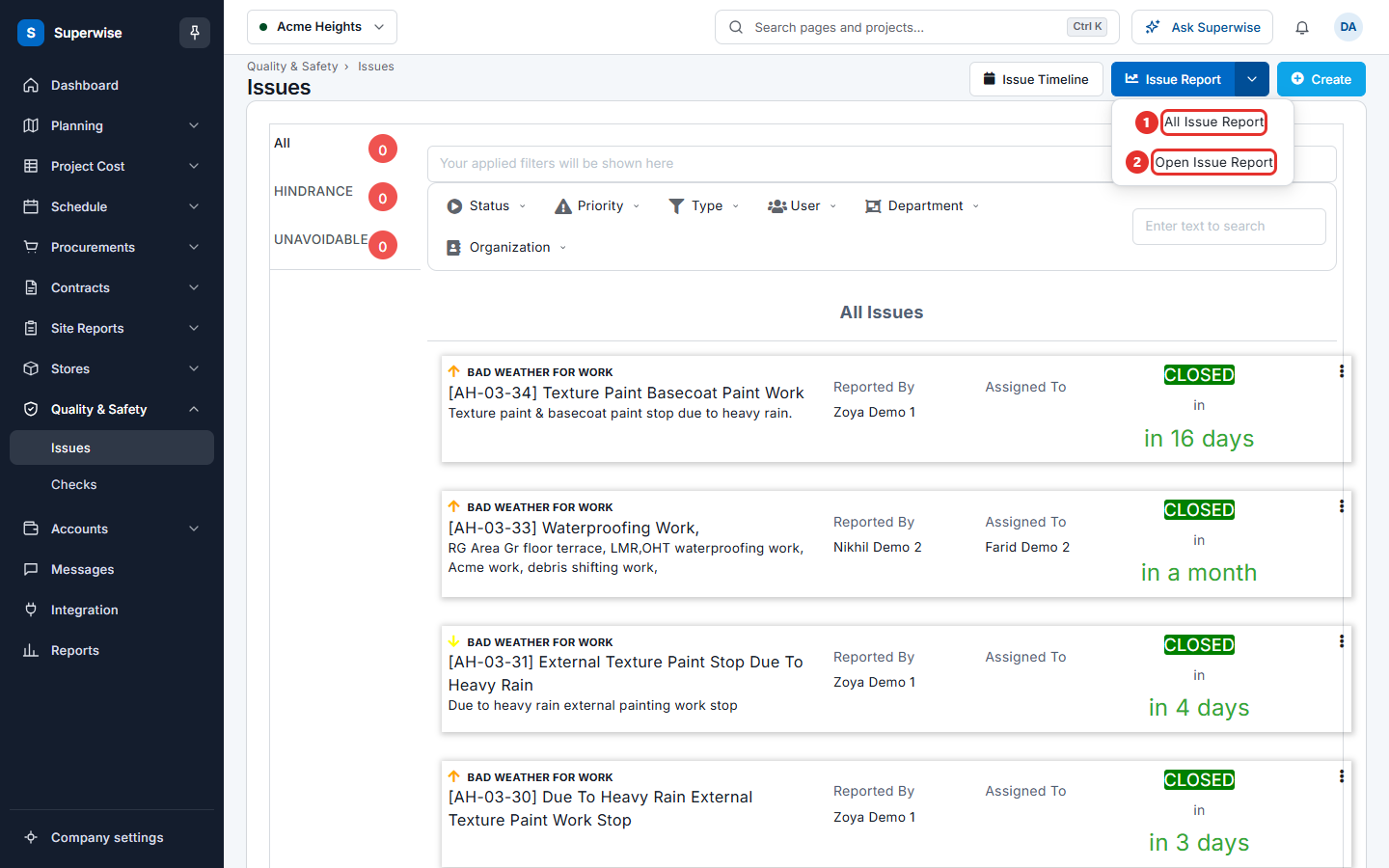
All Issue Report counts every issue. Open Issue Report counts the issues that are not closed. The report is a pivot table. You can drag the fields to change the rows and the columns. Click View Data to return to the list.
How to use the list of issues for a period
Task summary reports that Superwise e-mails contain links to this list. A link opens the issues of one project for one task or one period.
- Click the link in the report.
- Use the Search box and the search button to find an issue. The list shows 10 issues on a page. You can choose 10, 20 or 50.
- Click a column name to sort.
- In the last column, use the buttons: view, add remarks, edit or delete.
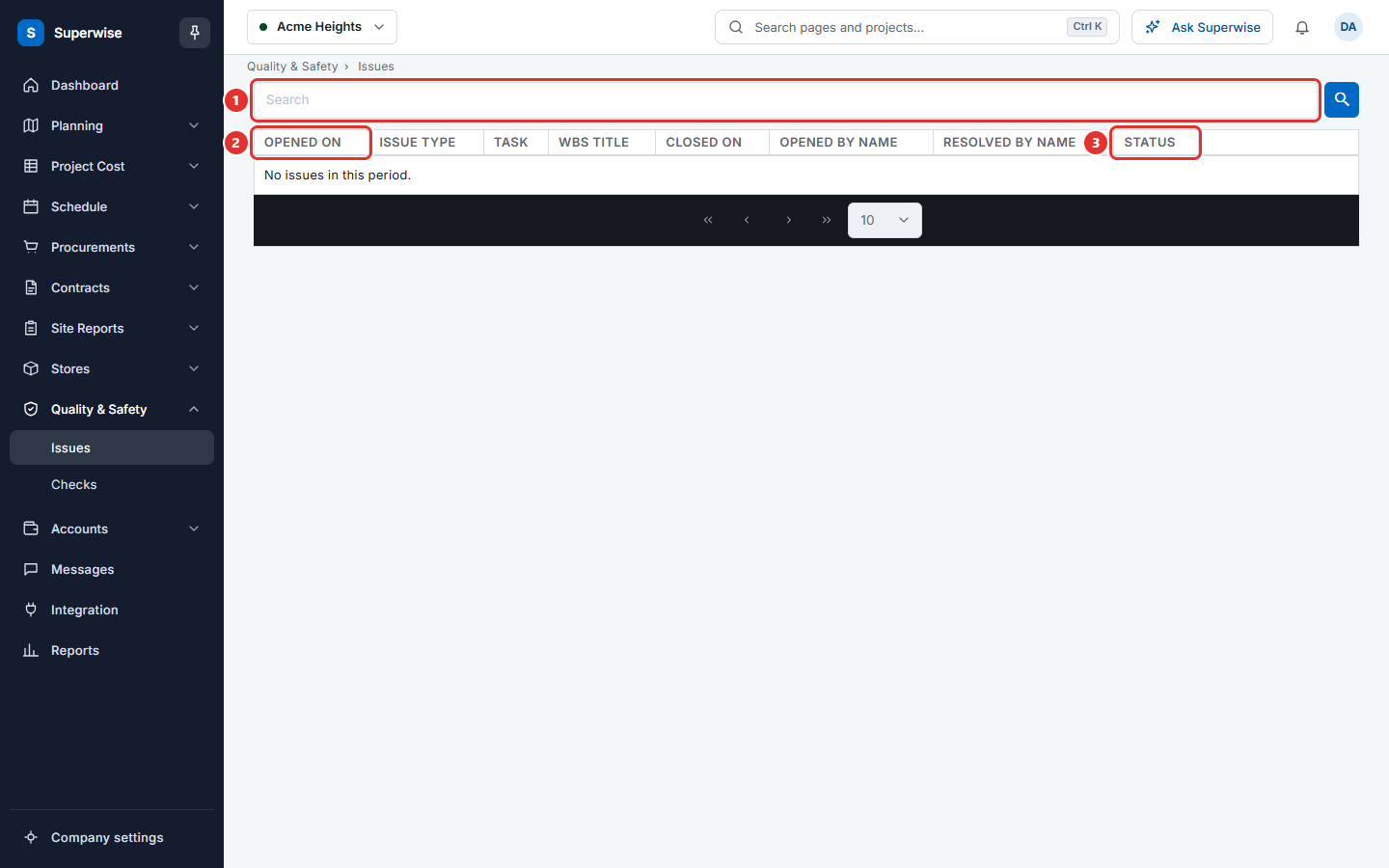
What the columns mean
| Name | What it means |
|---|---|
| Opened On | The date and time the issue was opened. |
| Issue Type | The kind of issue. |
| Task | The task linked to the issue. |
| WBS Title | The work breakdown structure item linked to the issue. |
| Closed On | The date and time the issue was closed. |
| Opened By Name | The person who reported the issue. |
| Resolved By Name | The person who resolved the issue. |
| Status | Open, Resolved or Closed. |
Rules to know
- The edit button shows when you have the Edit permission and the issue can be edited.
- The delete button shows when you have the Delete permission. It asks Delete Issue? before it removes the issue.
- The empty list says "No issues in this period."
If something goes wrong
| What you see | What to do |
|---|---|
| No Issue Timeline button | You need the Approve permission on Issues. |
| No issues in this period. | The link has no issues. Open the list in Quality & Safety > Issues and search there. |
| The timeline is empty | The project has no issues. |