


Schedule
Plan the work of a project as a schedule, follow every task on site, record daily progress, and keep a record of each approved change to the plan.
- Where to find it
- Schedule > Tasks
- Who can use it
- People who have the View Tasks permission. Building the schedule needs Tasks Add or Edit. Approving a new revision needs Tasks Approve.
The schedule is the plan of the whole project in time. It lists every task, the order in which tasks must happen, and the date each task starts and finishes. Site engineers use it to see what to do today. Project managers use it to see what is late.
Superwise works out the dates for you. You tell it which tasks exist, how long each one takes and which task must finish before another can start. It then finds the start and finish date of every task. The tasks that decide the finish date of the project are the critical path. If a critical task is late, the whole project is late.
Words used in this book
| Word | Meaning |
|---|---|
| Template | A ready list of tasks for one kind of work, for example "Slab". You make templates once for the company. See Templates. |
| Node | A template placed in the schedule of one project, for example "4th Floor Slab". |
| Area | A line in the work breakdown structure (WBS). It groups tasks, for example "Block A - 4th floor". The code in front of the name, such as 1.8.44, shows its place in the tree. |
| Task | One job with a duration, for example "Shuttering". Site teams record progress on tasks. |
| Draft | Changes you saved in the playground but did not yet approve. |
| Revision | One approved version of the schedule. Each approval makes a new revision. |
| Baseline | A saved copy of the schedule dates. You compare today's dates with it to see delay. |
The Schedule menu
Open Schedule in the left menu. You see three items.
- Tasks shows the live schedule as a list. See Tasks.
- Gantt shows the same plan as bars on a time line. See Gantt chart.
- Progress Log shows every progress entry. See Progress log.
The schedule is built under Planning > Schedule. See Playground.
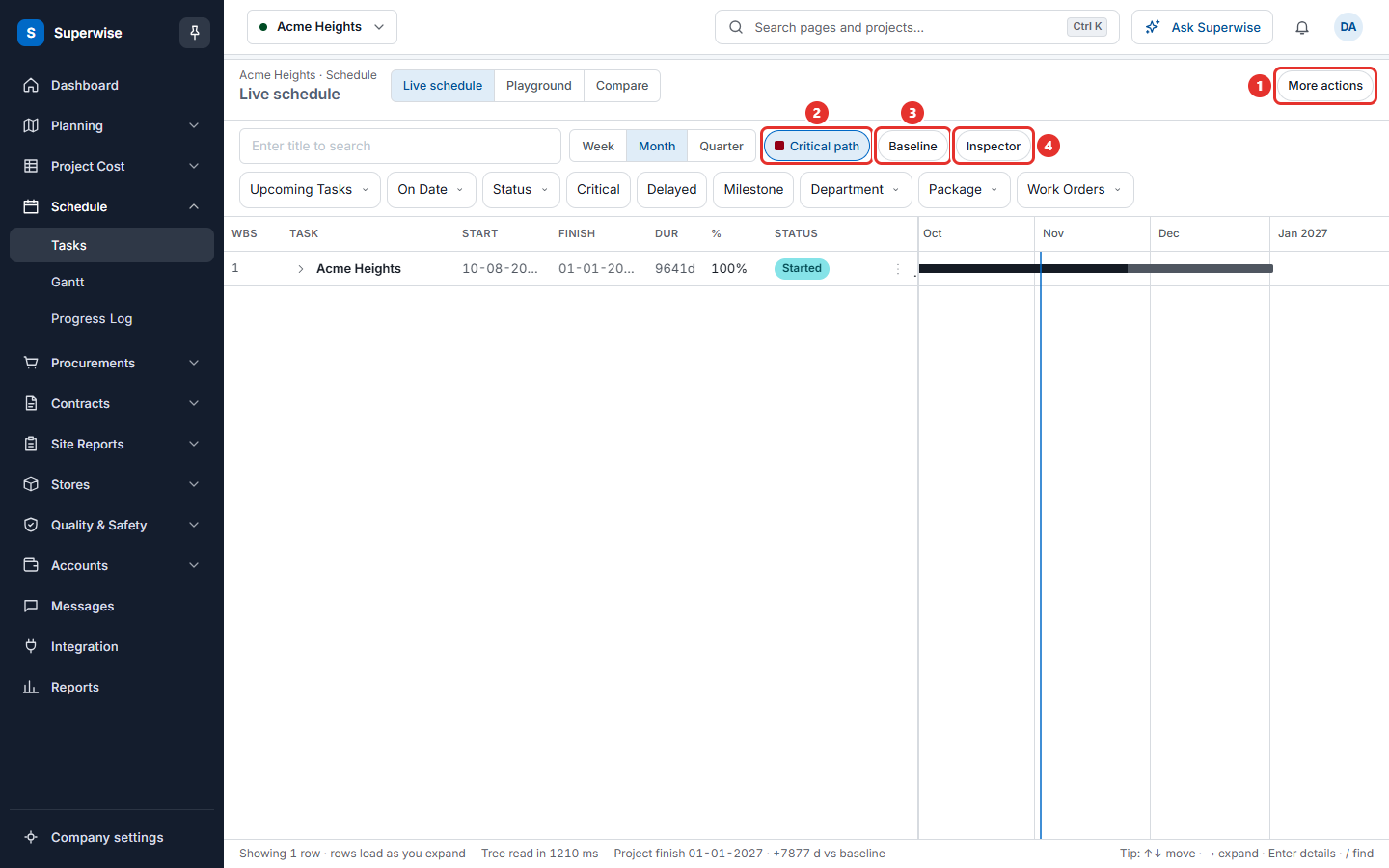
How a schedule moves from plan to site
- Build the plan. Open Planning > Schedule. Build the plan in the playground, or load a file from another program. See Create a schedule and Playground.
- Turn the plan into tasks. Save the draft, verify it, and save the tasks. Superwise then works out all dates.
- Compare and approve. Look at what changed, then ask for approval. When the approver agrees, the plan becomes a new revision. See Revisions.
- Work on site. Start tasks, add progress and report issues on the Tasks screen. Or add progress for many tasks at once. See Tasks and Progress log.
- Watch for delay. Use the baseline and the critical path. See Baselines.
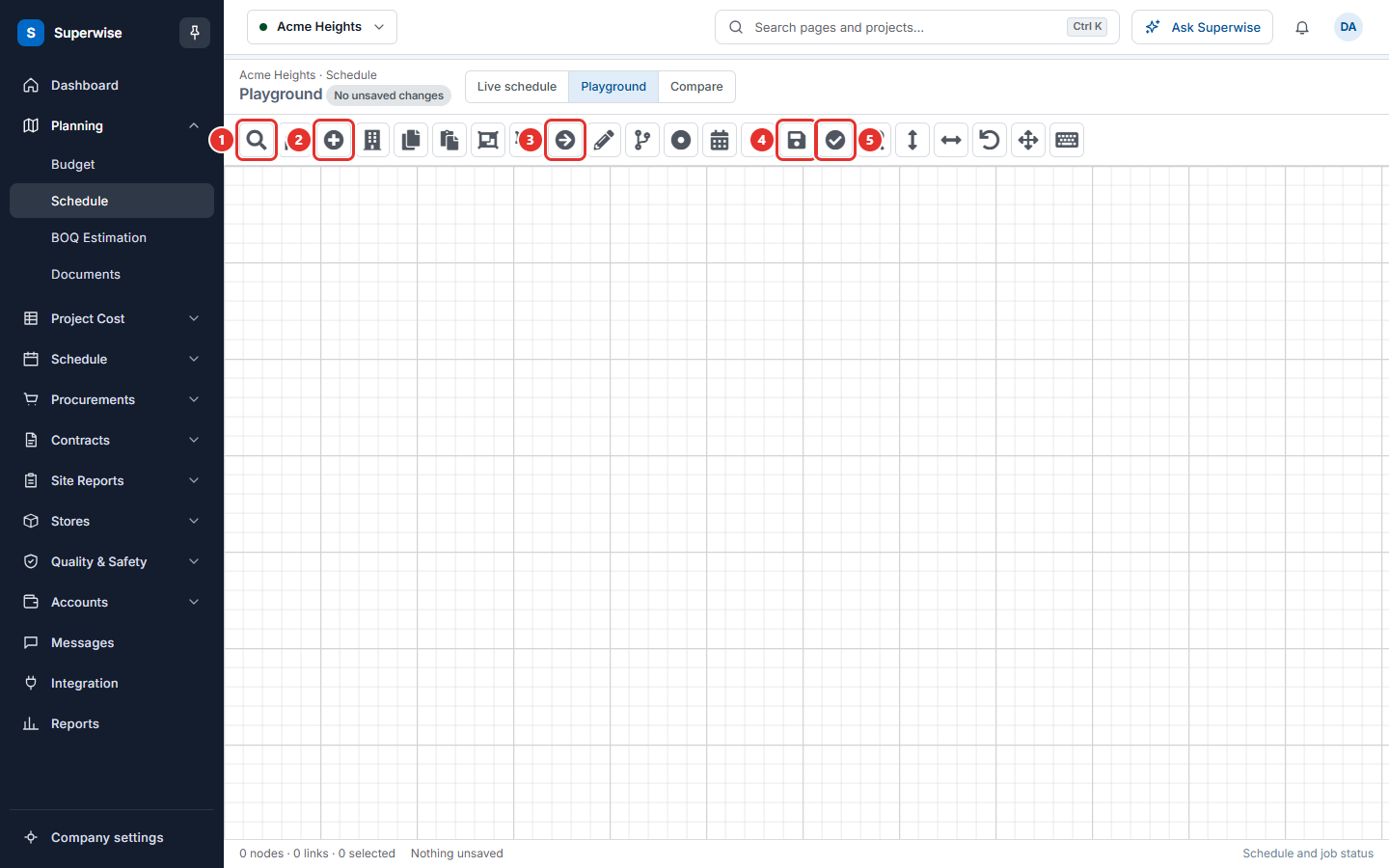
Related screens
- Project resources lists the machines and people planned for the project.
- Project BOQ holds the cost of the tasks.
- Working calendar sets the working days that the dates use.
Rules to know
- A project has one live schedule. Changes go through a draft and an approval before they become live.
- Dates are in days. A project set for hourly scheduling shows hours instead. The screens then show h where this book shows d.
- Only tasks that have nothing below them can be started, completed or given progress.
If something goes wrong
| What you see | What to do |
|---|---|
| The Tasks screen is empty | The project has no schedule yet. Build one. See Create a schedule. |
| You do not see Planning > Schedule | Your role does not have the Add Tasks permission. Ask your administrator. |
| A date looks wrong | Check the working calendar of the project and the links between tasks. |
In this section
- Create a scheduleBuild the schedule from a file or a task table, verify it, and save the tasks so Superwise works out the dates.
- PlaygroundDraw the plan of the project as boxes and links, save it as a draft, and verify it so that Superwise can work out the dates.
- TasksSee every task of the live schedule with its dates and progress. Find tasks with filters, start and complete them, add progress and read the details of each task.
- BaselinesSave a copy of the schedule dates, choose which copy to compare with, and see how far each task is from its baseline.
- Gantt chartSee the schedule as bars on a time line, choose which part of the project to show, and export the chart to Excel or PDF.
- RevisionsCompare a changed schedule with the live one, send it for approval, and approve or reject it. Each approval makes a new revision.
- Progress logRead every progress entry of the project, correct or delete an entry, and add the daily progress of many tasks in one table.
- Project resourcesList the machines, labour and materials planned for a project between two tasks. Prepare changes in working copies before they are approved.