


Staff attendance
See which site staff were present on each day of a month, with hours worked, and download the month as a file.
- Where to find it
- Site Reports > Staff Attendance
- Who can use it
- People who have the View Attendance Records permission.
The screen Staff Attendance shows a table for one month. Each row is a member of the site staff. Each column is a day. A mark in the cell tells you if the person was present. The two last columns add up the days and the hours of the month. The title of the screen has the project name, for example Acme Heights - Attendance.
The screen only shows attendance. It has no button to add or change a record. The staff punch in and out in the mobile app.
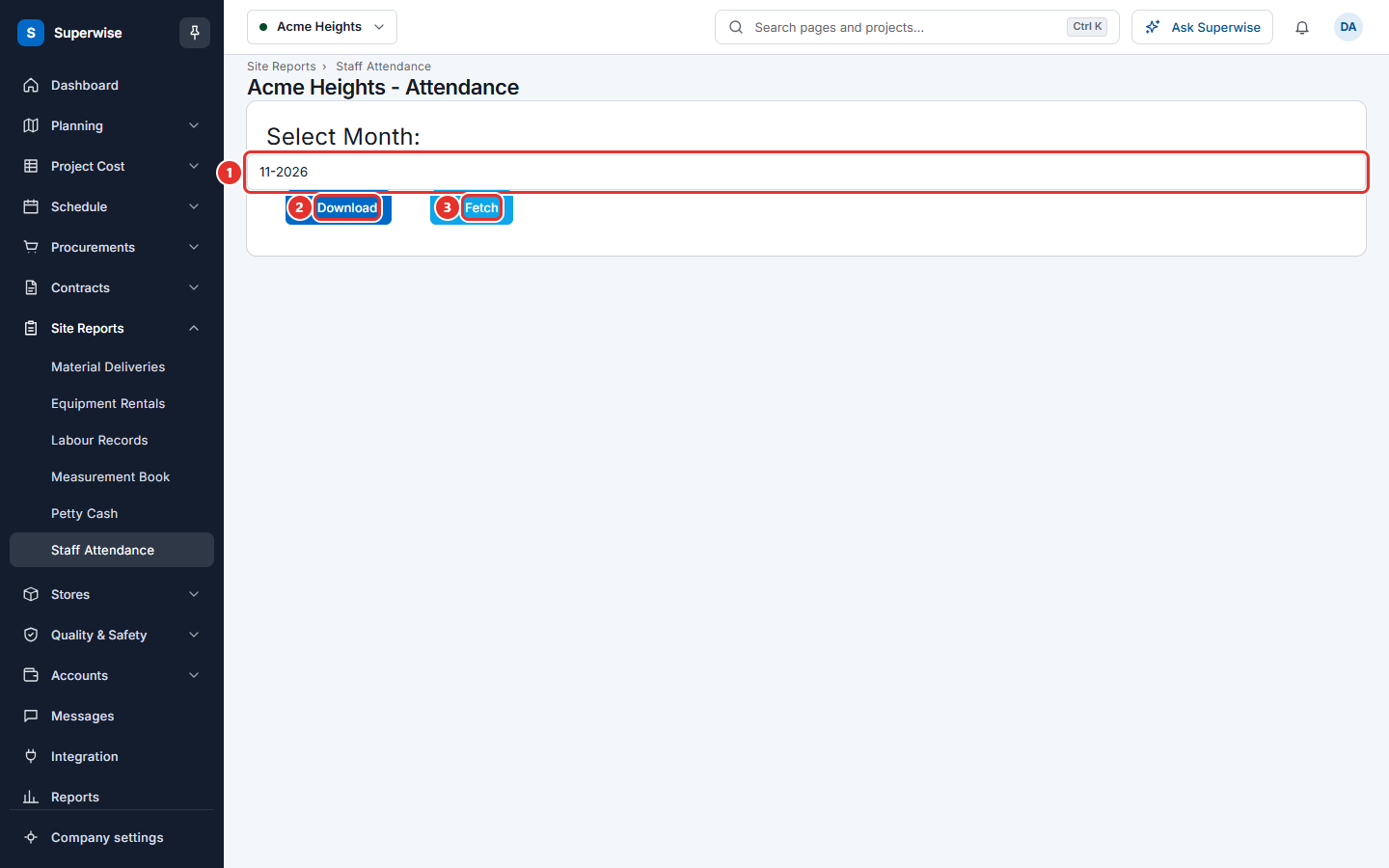
Before you start
- The staff must have punched in and out in the mobile app. A day without a punch shows as absent.
How to see the attendance of a month
- Open Site Reports > Staff Attendance.
- In Select Month: (mark 1), choose the month and the year.
- Click Fetch (mark 3). The table appears.
- Read each row. The first column Staff has the name. The columns 1, 2, 3 and so on are the days of the month. For the current month, the table stops at today.
- Move the mouse over a green or yellow check mark. A small box shows the in time and the out time of that day.
How to download the month
- Choose the month in Select Month:.
- Click Download (mark 2 in the first picture). A file opens in a new tab. If nothing opens, allow pop-ups for this site.
What the marks mean
| Mark | What it means |
|---|---|
| Green check mark | The person was present, and was not late and did not leave early. |
| Yellow check mark | The person was present, but came after the start time of the working calendar, or left before the end time. |
| Red cross | The person was not present. |
What the columns mean
| Name | What it means |
|---|---|
| Staff | The name of the staff member. |
| 1, 2, 3 and so on | The days of the month. |
| Total (Days) | The number of days the person was present. |
| Total (Hours) | The hours the person worked in the month. Superwise adds the time between each in punch and its out punch. |
Rules to know
- You must click Fetch to see the table. Changing the month does not load it.
- If a person punched in but did not punch out, Superwise counts the time until now, or until the end of that day.
- If a person has an out punch but no in punch, Superwise counts from the start of that day.