


Event log
See what Superwise sent to and received from integration clients for a project, check if each call worked, and send records that were never sent.
- Where to find it
- Integration
- Who can use it
- People who have the View Integrations permission.
The page Event Log shows the calls between Superwise and your integration clients for the project you have selected. Use it to check if a record reached the other system, and to find out why a call failed. The page has two tabs: Logs and Pending Integrations.
The Event Log is in the left menu of a project, under Integration. Choose the project first with the project selector at the top of the page.
Before you start
- Add an integration client and switch it on. See Integration clients.
- Select the project at the top of the page. The log shows only the calls of that project.
How to read the log
- Open the left menu of the project and click Integration.
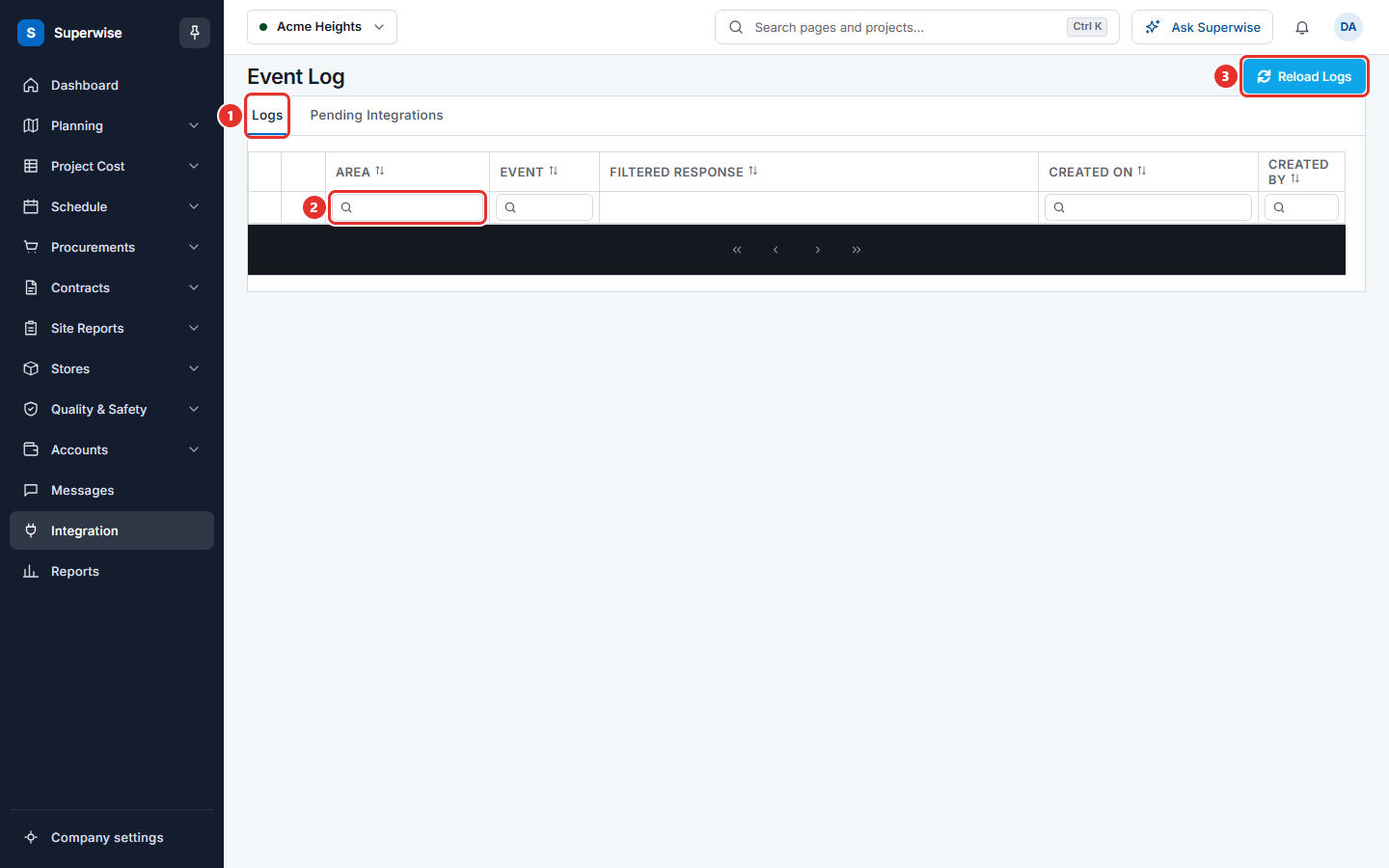
- Stay on the tab Logs (mark 1 in the first picture). Each row is one call.
- To find a call, type in the search box under a column name (mark 2). You can search Area, Event, Created On and Created By.
- To see the details of a call, click the arrow at the start of the row.
- To load the newest calls, click Reload Logs (mark 3).
The details of a call show a card for each step. Each card has the time (Created On), a Tag, a Log Message and, when there is one, a Status.
How to send records that were never sent
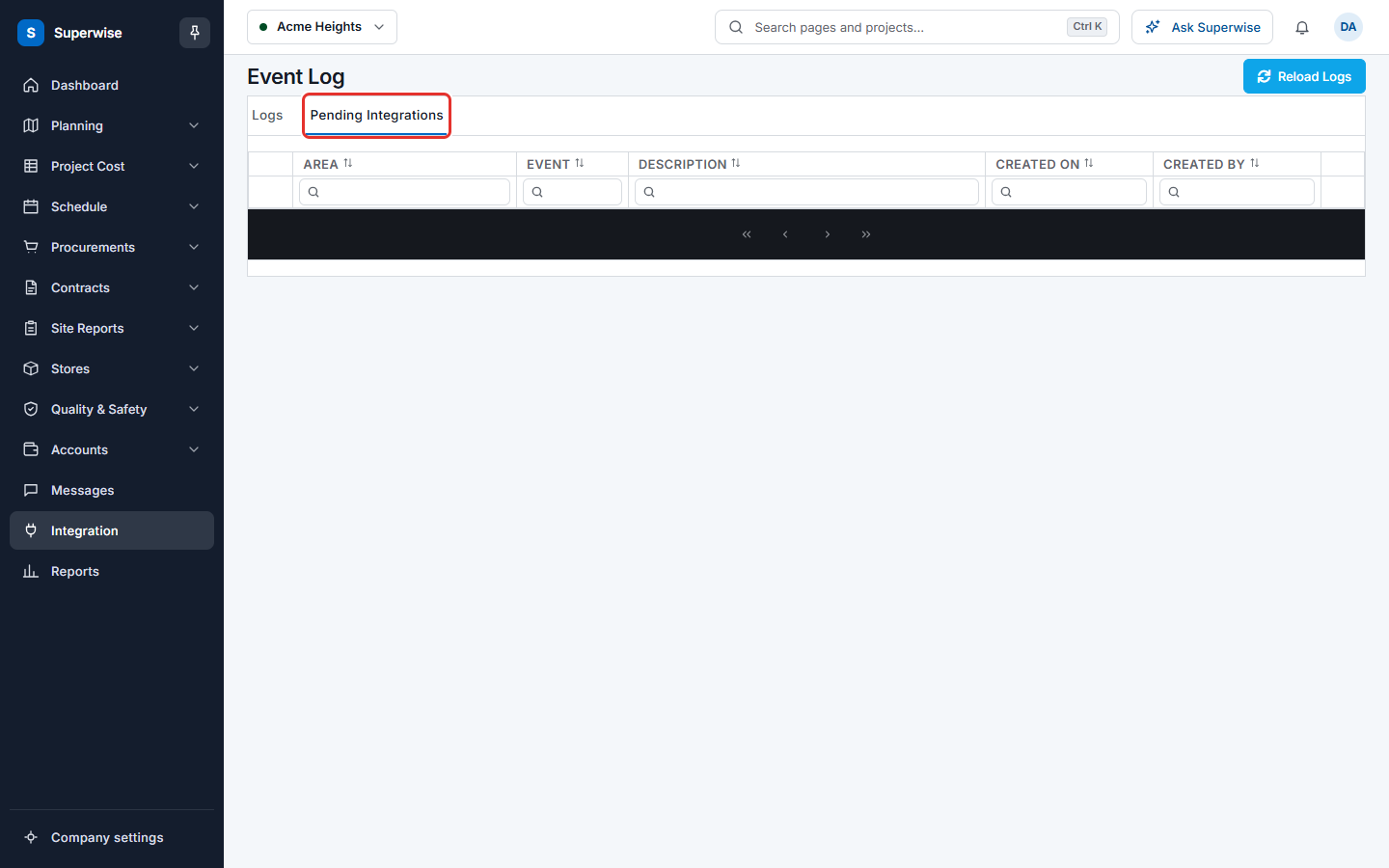
Records that were never sent to a client wait on the tab Pending Integrations.
- Click the tab Pending Integrations (mark 1 in the second picture).
- Find the record. The columns are Area, Event, Description, Created On and Created By.
- Click the button with the handshake icon at the end of the row. A message says Sent For Integration.
- Wait for the next message. Integrated means the record was sent. The message Check Logs asks you to open the tab Logs and look at the result. A warning means the integration did not happen.
What the columns mean
| Name | What it means |
|---|---|
| (logo) | The picture of the client. |
| Area | The part of Superwise, for example Purchase Orders. |
| Event | The operation, for example Add. |
| Filtered Response | The filtered answer of the call. |
| Created On | The date and time of the call. |
| Created By | The user who created the call. |
| Description | On the tab Pending Integrations: a short text that names the record. |
What the results mean
| Result | What it means |
|---|---|
| Success | The other system accepted the call. |
| Bad Request | The other system refused the data. Check the mapping of the event. See Integration events. |
| Failure | The call did not work. Open the row and read the Log Message. |
Rules to know
- The log shows the calls of the selected project only.
- A message Integration did not happen means the record was not sent. The button stays available so that you can try again.
If something goes wrong
| What you see | What to do |
|---|---|
| The log is empty. | Select the correct project. Check that the event is chosen for the client. |
| Failure in many rows. | Open the row and read the Log Message. Check the client details. See Integration clients. |
| Bad Request | Check the request mapping function of the event. See Integration events. |
| Integration did not happen | Open the tab Logs and read the newest rows. |