


Project resources
List the machines, labour and materials planned for a project between two tasks. Prepare changes in working copies before they are approved.
- Who can use it
- People who have the View Admin permission. Creating or editing resources needs Add. Deleting a working copy needs Delete.
A project resource says which resource the project needs, how much of it, and between which two tasks. For example: 2 tower cranes from the task "Foundation" to the task "Roof slab". The resource types are material, labour, machinery, tool and miscellaneous. Superwise uses the planned quantity and the rate to work out the amount.
There are two lists. Project Resources shows the approved resources. Working Copies holds the changes you prepare before approval. You edit only the working copy.
This screen has no item of its own in the left menu. Your administrator tells you how your company opens it.
Before you start
- Choose the project at the top of the page.
- The project needs a schedule, because each resource is tied to a start task and an end task. See Create a schedule.
- The resources must exist in the company. Ask your administrator to add them.
How to read the list
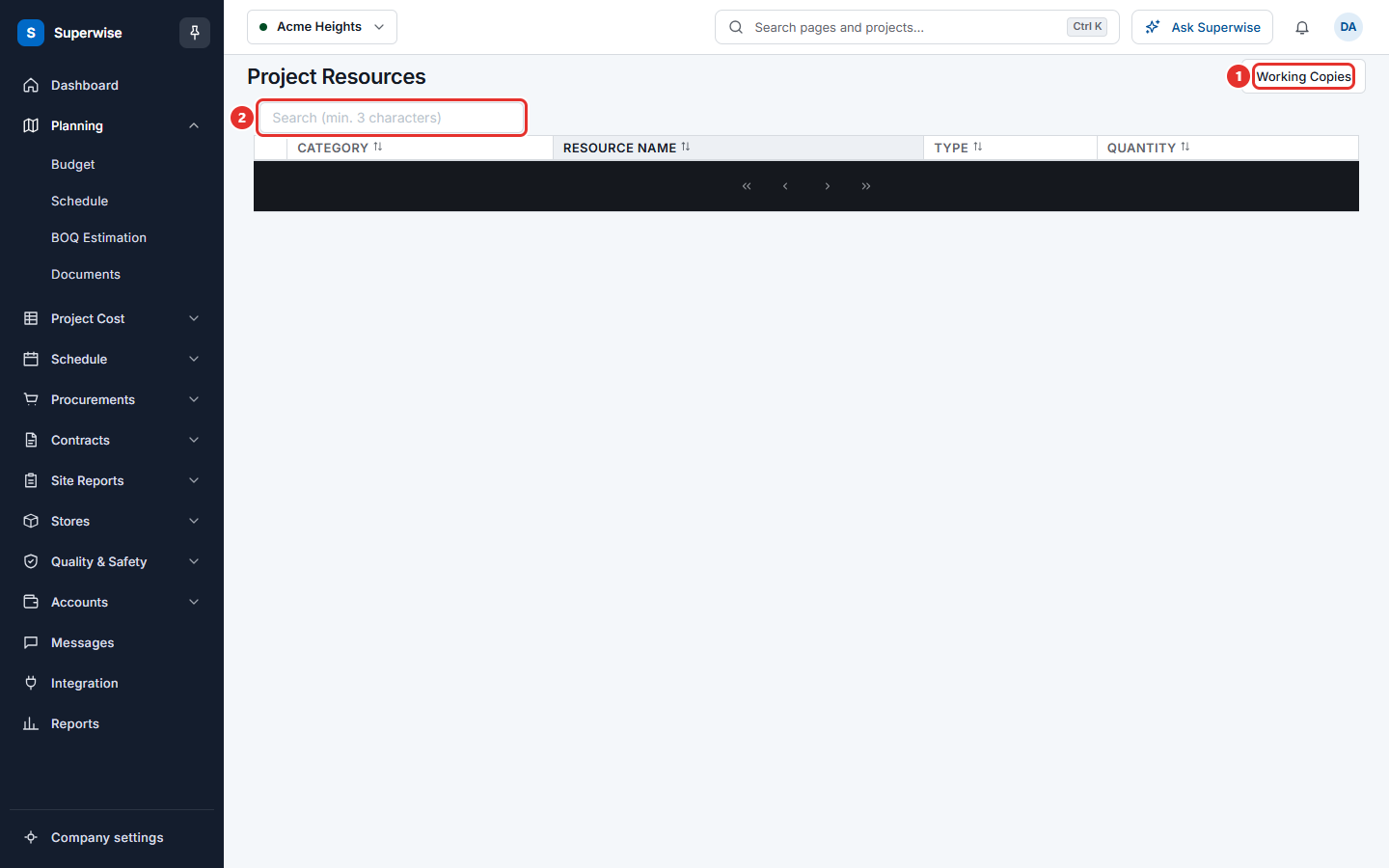
- Open the screen. It shows the approved resources. The columns are Category, Resource Name, Type and Quantity.
- To search, type at least 3 characters in the box.
- Click the arrow in front of a row. The tab Details shows Start Area, Start Task, End Area, End Task, SOR, Billing Frequency, Amount, Tax Amount, Total Amount and Lead Time.
How to work with the working copies
- Click Working Copies (mark 1 above). The list has the same columns.
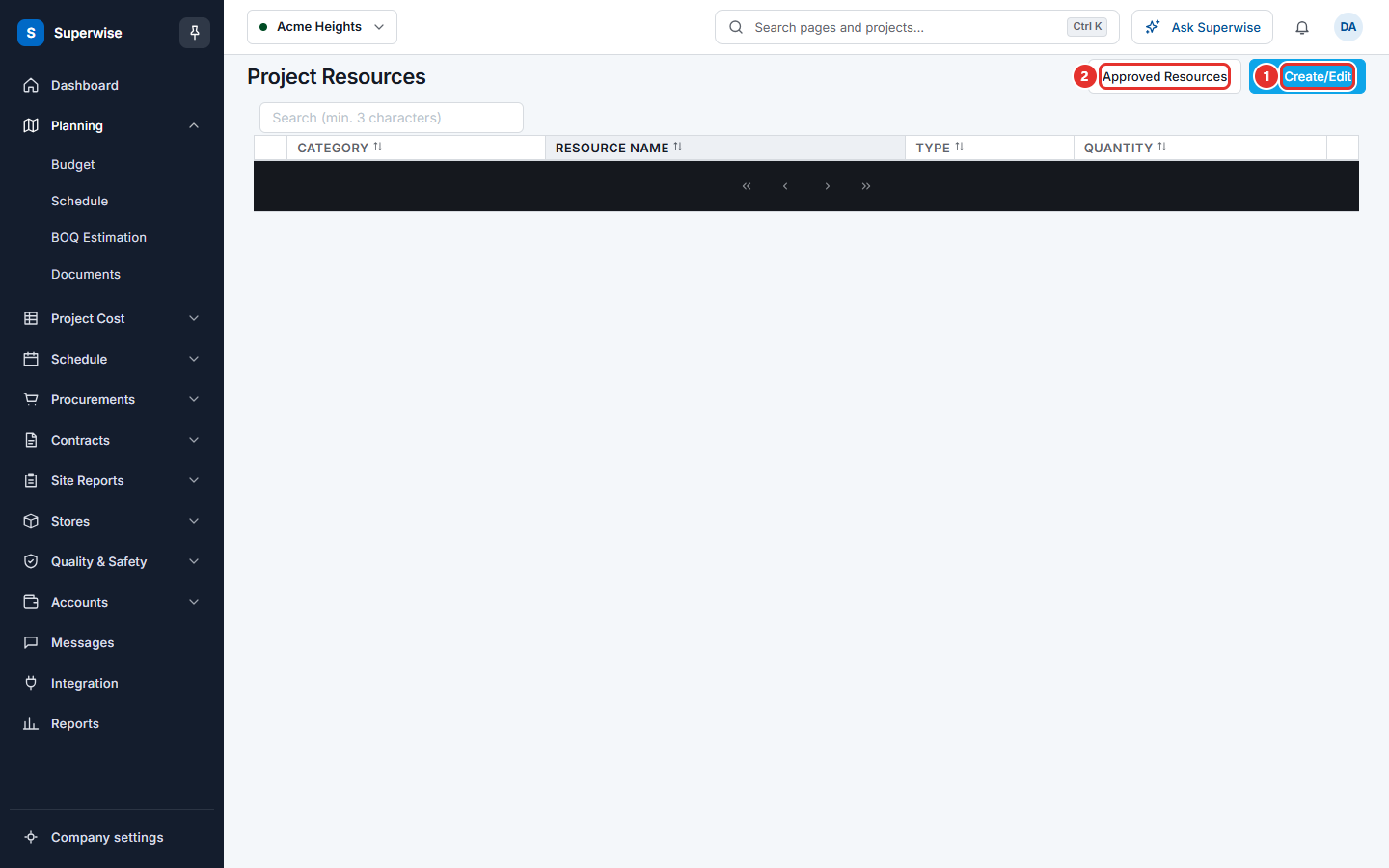
- Click Create/Edit (mark 1 below) to change the resources. See the next section.
- To remove a row, click the three dots at the end of the row, choose Delete, and click Confirm in the window Confirm Action.
- To go back, click Approved Resources (mark 2 below).
How to add or change resources
- On the Working Copies list, click Create/Edit.
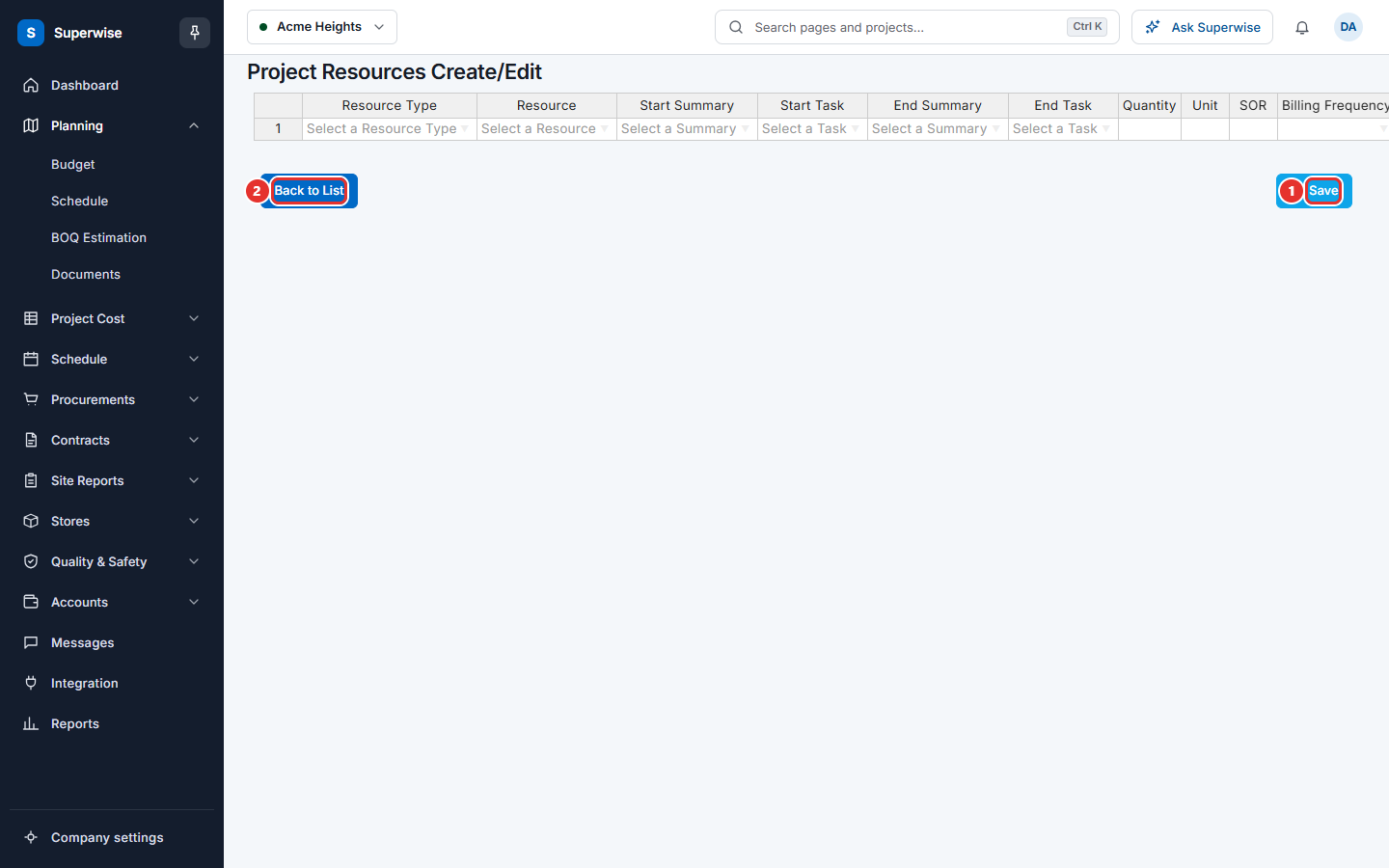
- The page shows a table with one row for each resource. Fill an empty row at the bottom to add a resource. Change a cell to edit a row.
- Choose the Resource Type, then the Resource.
- Choose the Start Summary and the Start Task. Then choose the End Summary and the End Task. A summary is an area of the schedule.
- Type the Quantity.
- Choose the Billing Frequency. Superwise fills the SOR for you. You can change it.
- Choose the Tax if the amount has tax. Type the Lead Time (in days) if the resource needs time to arrive.
- Click Save. Superwise says Project Resources Saved Successfully. and shows the working copies.
- To leave without saving, click Back to List.
What the columns mean
| Name | What it means |
|---|---|
| Resource Type | The kind of resource: Material, Labour, Machinery, Tool or Miscellaneous. |
| Resource | The resource itself. |
| Start Summary, Start Task | The area and the task where the resource starts to be needed. |
| End Summary, End Task | The area and the task where the resource is no longer needed. |
| Quantity | How much of the resource. Must be more than 0. |
| Unit | The unit of the resource. You cannot change it. |
| SOR | The schedule of rates (SOR): the price for one unit. |
| Billing Frequency | How often the resource is billed: Hourly, Daily, Weekly or Monthly. It helps to work out the SOR. |
| Amount | Quantity times SOR. You cannot change it. |
| Tax | The tax on the amount. |
| Amount w/ Tax | Amount plus the tax. You cannot change it. |
| Lead Time (in days) | Days needed to bring the resource to site. |
Rules to know
- Every row needs a start task and an end task. Otherwise Superwise says "Invalid Tasks selected".
- Quantity must be more than 0. Otherwise Superwise says "Invalid Quantity selected".
- The tasks must belong to the same project as the resources.
- You change the working copy only. The approved list does not change until the changes are approved.
If something goes wrong
| What you see | What to do |
|---|---|
| Invalid Resource selected | Choose the resource from the list again. |
| Invalid Tasks selected | Fill the start and end task of every row. |
| Invalid Quantity selected | Type a Quantity above 0. |
| An error occured while saving. Please check the integrity of the data and try again. | Check every row, then save again. |
| Save is grey | The table is empty. Add at least one row. |