


Approve BOQ changes
Check the changes in the draft BOQ, clear what blocks them, ask for approval, and approve or reject the draft.
- Where to find it
- Planning > BOQ Estimation
- Who can use it
- People who have the View Project BOQs permission. Requesting approval needs Add or Edit. Approving or rejecting needs Approve.
Changes to the bill of quantities (BOQ) wait in a draft. The BOQ is the list of work items with quantity and rate for a project. This page shows everything the draft changes, so an approver can decide. It is called Cost Playground Summary on the screen.
One person with Add or Edit rights asks for approval. A person with the Approve right accepts or rejects it. A person who has both rights sees the approve buttons only.
Before you start
- Make your changes first. See BOQ estimation.
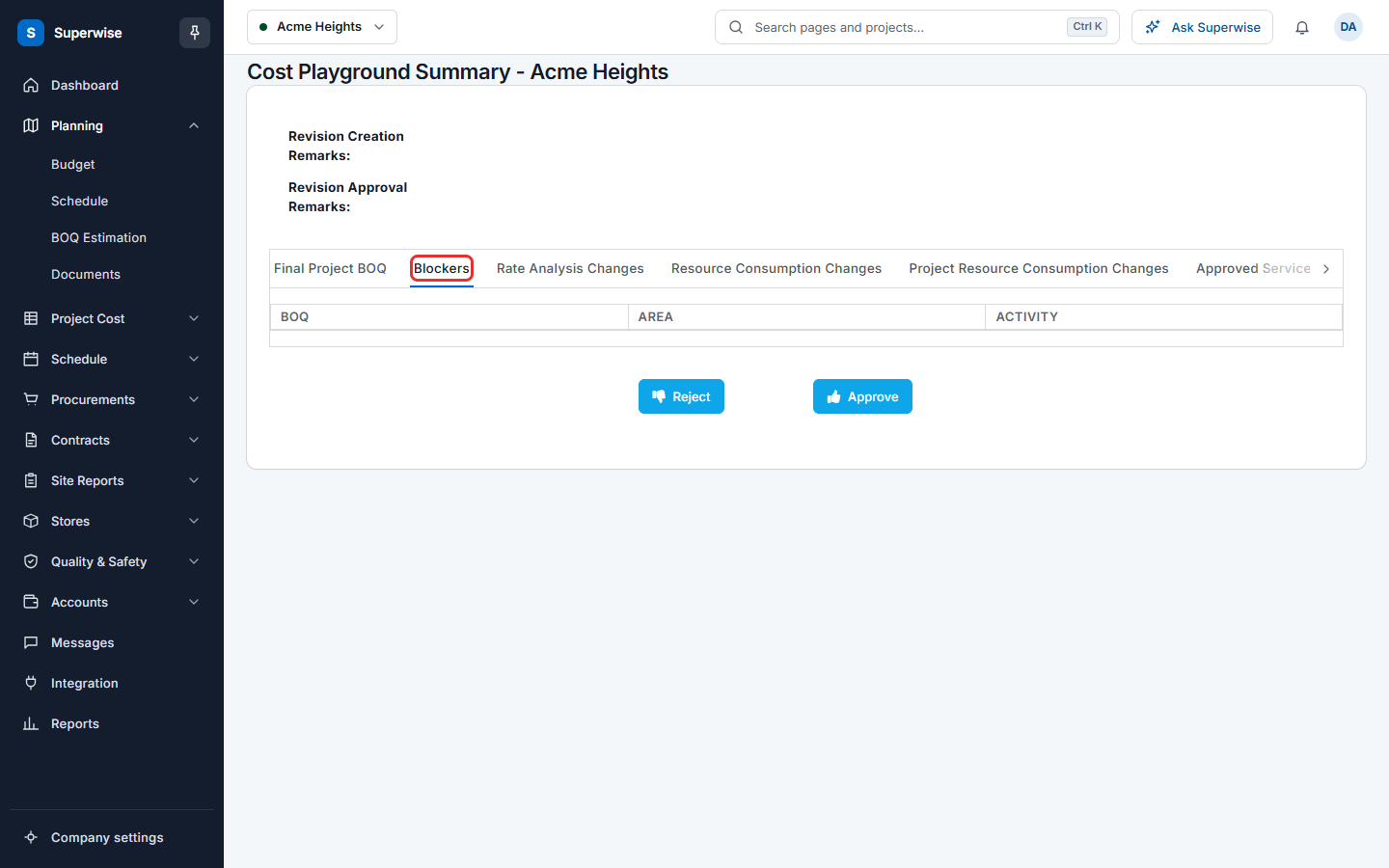
- Nothing may block the draft. Open the tab Blockers to check.
How to open the summary
- On Planning > BOQ Estimation, click Actions and choose Revision History. Click the menu icon of the Draft Version row and choose Summary or Approve/Reject. See BOQ revisions.
- In the BOQ playground, click Playground Summary. See BOQ playground.
- On Project Cost > Project BOQ, an approver sees a warning when a draft waits. Click here in the warning.
How to check the changes
- Read the top of the page. It shows Revision Creation Remarks, Revision Approval Remarks, the attachments and, for a request that waits, Last Request with the name and the date.
- Open each tab (mark 1 in the first picture is the first tab).
| Tab | What it shows |
|---|---|
| Final Project BOQ | The BOQ as it will be after approval. The columns are Name, Quantity, Avg Rate, Amount and Status. |
| Blockers | The documents that stop the approval. |
| Rate Analysis Changes | The changes in the rate analysis lines. |
| Resource Consumption Changes | The change in the quantity of each resource. |
| Project Resource Consumption Changes | The change of each project resource, with category, billing frequency, amounts, lead time and the start and end task. |
| Approved Service Request | The approved service requests that the BOQ includes. The tab shows to people who may view service requests. |
| BOQ Changes | The list of BOQ lines that are added, changed or deleted, with area, activity, category, quantity and rate. |
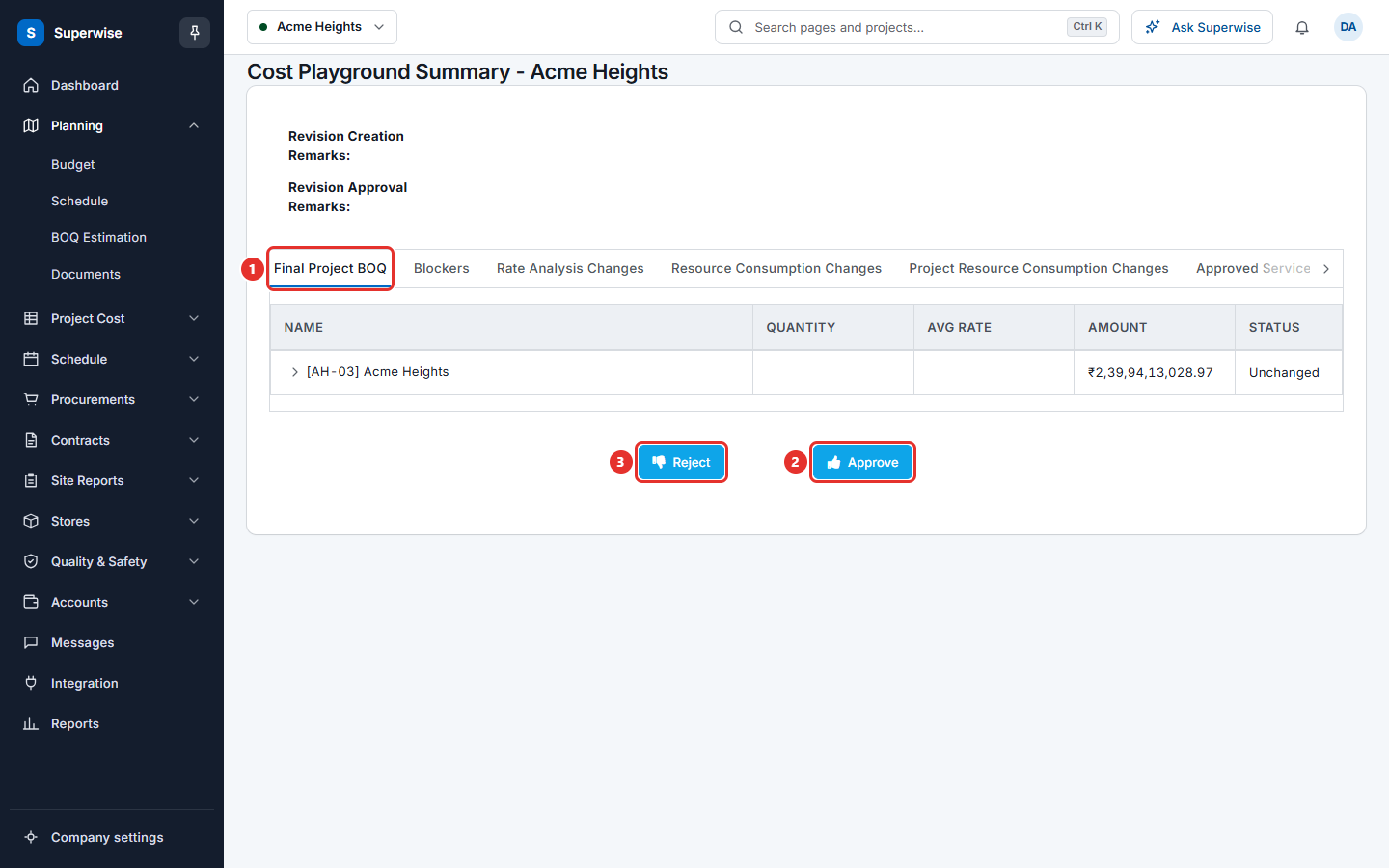
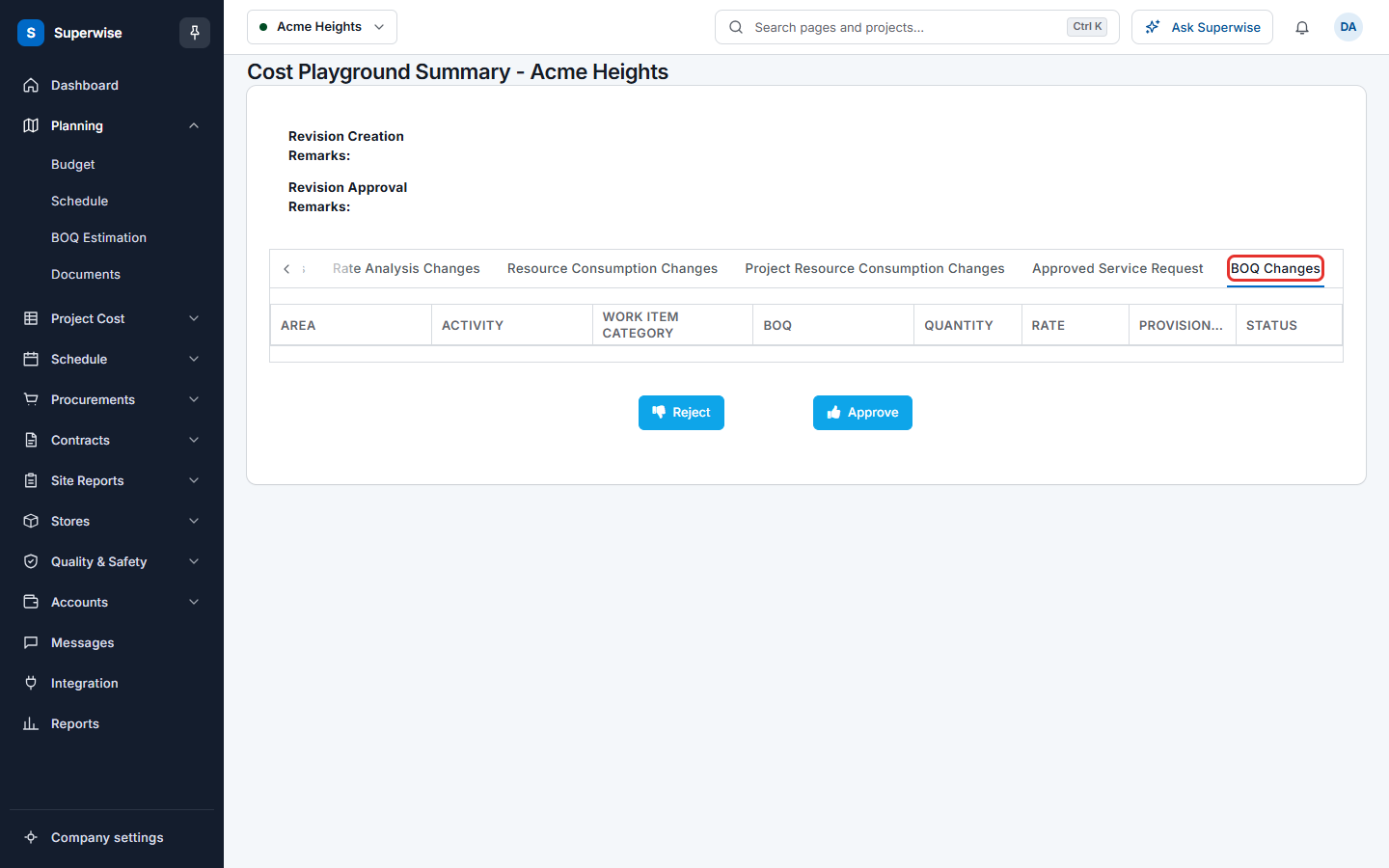
The column Status uses four words. Added is a new line, Deleted is a removed line, Modified is a changed line and Unchanged has no change. A small P next to a line means the quantity is provisional.
How to clear the blockers
- Open the tab Blockers.
- Click the arrow at the start of a group. The groups are the kinds of document, such as Work Order Links, RFP Links, RFQ Links, Proposal Links and Quotation Links. Two more groups are Work Order(s) with No BOQs after Approval and Work Order(s) exceed BOQ quantity.
- Click the pencil icon next to a BOQ to open the document in a new browser tab. Fix it there.
- The page shows a warning. You must delete the pending documents of these BOQs by hand before you ask for approval. These are measurement sheets, material supply receipts, work orders, purchase orders, RFPs, RFQs, proposals and quotations.
How to ask for approval
- Click Request Approval. The button shows when the draft can be approved and nothing blocks it.
- In the dialog Request Approval, type your reason in Remarks (compulsory).
- To add a file, use the file box. The file can be up to 1 MB.
- Tick Playgound Changes affect Schedule if the changes touch the schedule. The scheduling team is told after approval.
- Click Confirm.
The message Approval request has been sent. We will inform you once the approval is complete. shows.
How to approve or reject
- Open the summary of the draft. The buttons Reject and Approve show when the draft can be approved or waits for approval, and nothing blocks it.
- Click Approve (mark 2 in the first picture). The dialog Confirm Approval opens. Type a note in Remarks (optional) and click Confirm.
- Or click Reject (mark 3). The dialog Confirm Rejection opens. Type a reason in Remarks (compulsory) and click Confirm.
- Click Cancel in either dialog to stop.
After you approve, Superwise runs the approval. It takes 1 to 2 minutes. A message says The Approval process has started and will finish in 1-2 mins. You will be notified on completion of the approval process. When it finishes, the page opens the project BOQ. After you reject, the message BOQs has been rejected! shows.
Warning: An approval changes the approved BOQ for the whole project. Read the tab BOQ Changes before you click Approve.
What the status banners mean
| What you see | What it means |
|---|---|
| Force Approval | The schedule changed. Only the BOQ deletions that match can be approved now. The other BOQ changes can be approved after the schedule is approved. |
| Approval Unavailable | The new BOQs depend on a schedule that is not approved. Ask the planning team to start the schedule approval. |
If something goes wrong
| What you see | What to do |
|---|---|
| BOQ approval has not been initiated. Please initiate the request from the Summary Page before approving the BOQs. | Someone must click Request Approval first. |
| Invalid Playground status. Please update BOQs before approving them. | There is no draft. Change the BOQ first. |
| Playground cannot be requested for Approval in the currrent state. Please update BOQs before reqquestiing for Approval. | The draft is not ready to be requested. Update the BOQs, then try again. |
| An error occured while approving the BOQ(s). Please try again later. | Wait, then check the revision list. If the draft is still there, try again. |