


Quotations
See the prices that suppliers offer, add a quotation you received by phone or e-mail, negotiate, and choose the winner to start a purchase order.
- Where to find it
- Procurements > Quotations
- Who can use it
- People who have the View Quotations permission. Creating needs Add, editing needs Edit, deleting needs Delete. Negotiating, awarding and archiving need Approve.
A quotation is a supplier's price for materials. There are two sources. A supplier answers your request for quotation (RFQ) with a quotation. Or a supplier sends you a price by phone or e-mail, and you enter it here yourself. The second kind has no RFQ.
You compare quotations, choose the best one, and turn it into a purchase order (PO).
Before you start
- A project and a supplier must exist.
- To enter a quotation yourself, you need the Add permission on Quotations.
- For quotations that answer an RFQ, the RFQ must be approved first. See Request for quotation (RFQ).
How to negotiate or award a quotation
- Open Procurements > Quotations.
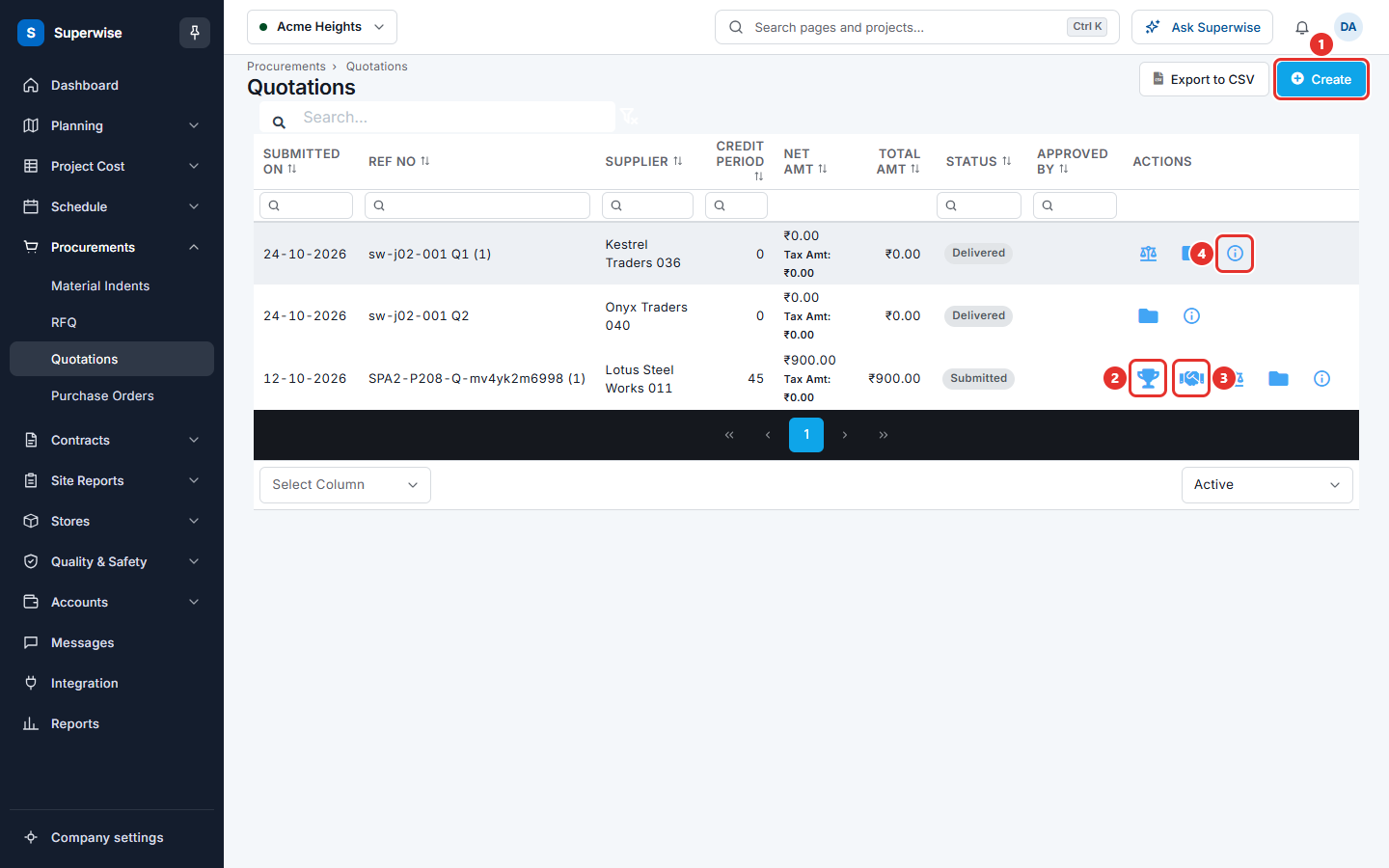
- Find the quotation. The Supplier, Net Amt and Total Amt columns help you compare.
- To ask the supplier for a better price, click the Negotiate icon (mark 3 in the picture of the list) and click Confirm. The status becomes Negotiating. The system sends an alert to the supplier.
-
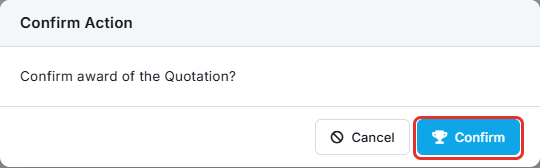
To choose this quotation, click the Mark Awarded icon (mark 2) and click Confirm (mark 1 in the picture below).
-
The new purchase order form opens. It holds the supplier, the lines, the rates, the discounts and the taxes of the quotation. Check it and save it. See Create a purchase order.
The icons are shown only when they apply:
| Icon | When it is shown |
|---|---|
| Mark Awarded | You have the Approve permission. The status is Submitted or Negotiating. The quotation has no RFQ, or its RFQ is Closed. |
| Negotiate | The status is Submitted. A quotation without an RFQ can also be negotiated while it is Pending. |
| Re-send Quotation | You have the Approve permission. The quotation has an RFQ and the status is Pending. |
| Compare Quotation | The quotation has revisions. See Compare revisions of a quotation. |
| Archive or Un-Archive | Always. Archiving needs the Approve permission. |
| More Detail | Always. |
Note: To compare the quotations of one RFQ side by side, use the Compare Quotation icon on the RFQ list. See Compare quotations of an RFQ.
How to send an invitation again
If a supplier did not get the e-mail, click the Re-send Quotation icon and click Confirm. The system makes a new access code and sends the invitation to this supplier only. The message "Quotation sent successfully" confirms it.
How to see the details of a quotation
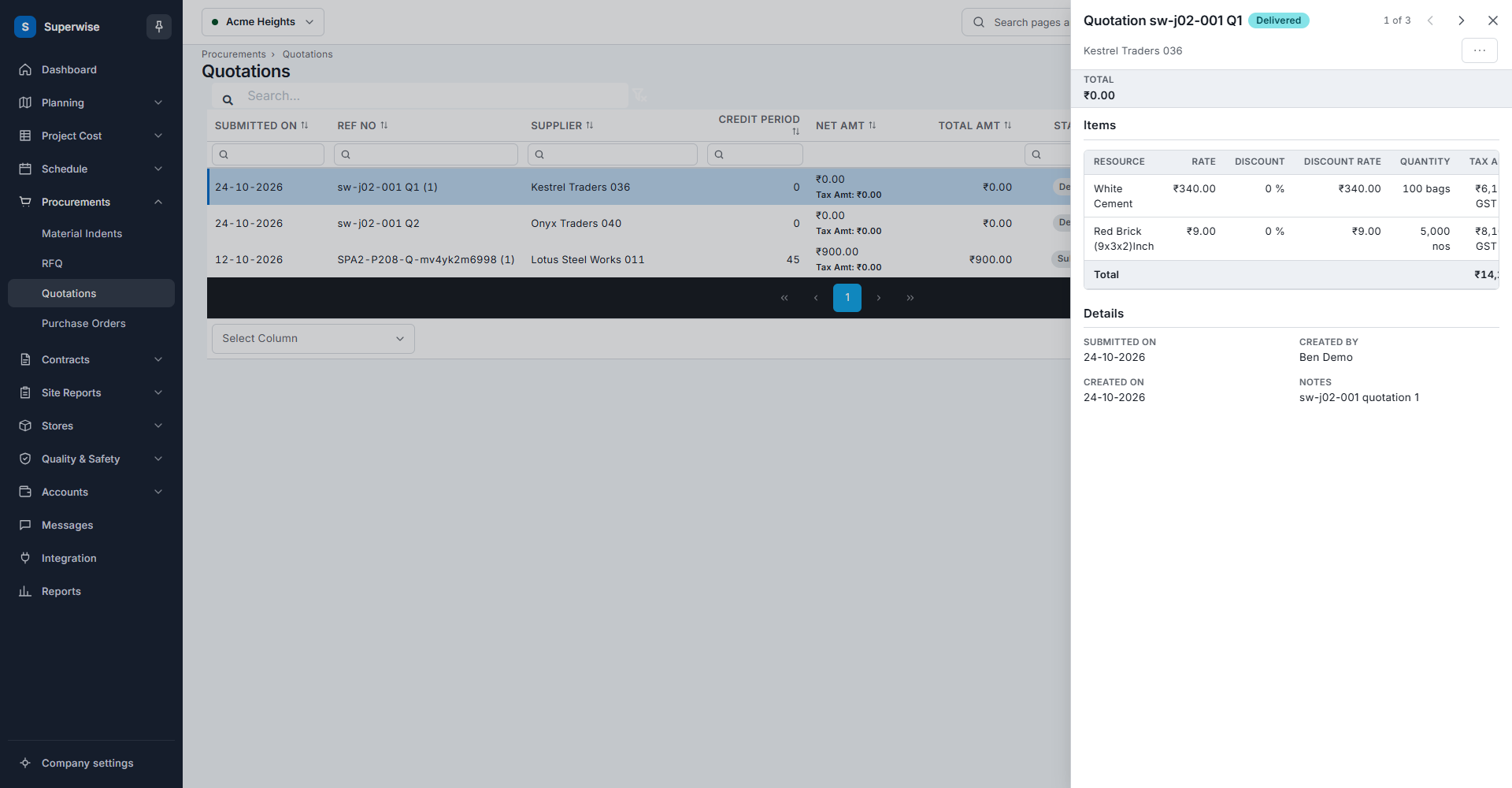
Click a row or the More Detail icon (mark 4 in the picture of the list). A panel opens:
- Items: for each material, Rate, Discount, Discount rate, Quantity, Tax amount and Net amount, with a total.
- Details: submitted on, delivery date, valid until, credit period, payment terms, who created it, and notes.
- Attachments and Remarks.
In the panel you can also use Edit, Duplicate and Delete. See Create a quotation.
How to archive a quotation
- Click the Archive icon and click Confirm.
- To see archived quotations, choose Archived in the filter below the table.
- Click Un-Archive to bring one back.
What the columns mean
| Name | What it means |
|---|---|
| Submitted On | The date the supplier gave the quotation. |
| Ref No | The supplier's reference. A number in brackets is the revision. |
| Project | The project. Hidden by default. |
| Supplier | The company that gave the price. |
| Credit Period | The days of credit the supplier offers. |
| Net Amt | The amount before tax. Tax Amt is shown under it. |
| Total Amt | The amount with tax. |
| Status | Where the quotation is. See the table below. |
| Approved By | The person who last changed the status. |
| Actions | The icons for this row. |
The list shows Active quotations by default. The filter below the table also has All and Archived. Export to CSV saves the list as a file.
Rules to know
| Status | What it means |
|---|---|
| Pending | The supplier has not answered yet. |
| Delivered | The invitation was sent to the supplier. |
| Opened | The supplier opened the request. |
| Viewed | The supplier looked at the details. |
| Draft | The supplier started the quotation and saved it. |
| Submitted | The quotation is final. A quotation you enter yourself starts here. |
| Negotiating | You asked the supplier for new terms. |
| Awarded | This supplier won. |
| Awarded to other | Another supplier won. |
| Not Submitted | The time ended and the supplier did not submit. |
- A quotation that answers an RFQ is sealed. Its amounts, validity and delivery date stay empty until the RFQ is Closed and the supplier has submitted.
- You can edit or delete a quotation only when it has no RFQ and its status is Submitted or Negotiating.
- When you edit a quotation that was already submitted, the system keeps the old version as a revision.
- Deleting a quotation does not delete the purchase orders made from it. They lose the link.
If something goes wrong
| What you see | What to do |
|---|---|
| No Mark Awarded icon | Check the status. The quotation must be Submitted or Negotiating. If it has an RFQ, wait until the RFQ is Closed. |
| The amounts show 0 | The quotation is sealed. Wait until the RFQ is closed. |
| No Edit in the panel | The quotation has an RFQ, or its status is not Submitted or Negotiating. |
| The supplier cannot open the e-mail link | Use Re-send Quotation. |
Related pages
In this section
- Create a quotationEnter a price you received from a supplier by phone or e-mail, copy an old quotation, or correct a quotation that is already saved.
- Compare revisions of a quotationSee how one quotation changed from revision to revision: validity, delivery date, credit period, net amount and the rate of each material.