


Reports
Find the right report for your project, from daily site reports to monthly management reports, and learn which screen produces it.
- Where to find it
- Reports
- Who can use it
- People who have the View Reports permission. Generating a report needs Add. Scheduling needs Edit.
Reports collect the data that people enter in Superwise into one document. You do not type anything into a report. You choose a project, a report type and a period, and Superwise builds a PDF or an Excel file.
For example, Acme Heights needs a report of what happened on site yesterday. The site engineer opens Reports, chooses Daily (Summary), chooses yesterday's date and downloads a PDF.
This book is about the Reports item in the left menu. Some companies see Report Generation when they click Reports. Other companies see Daily Report. The two screens are described in this book.
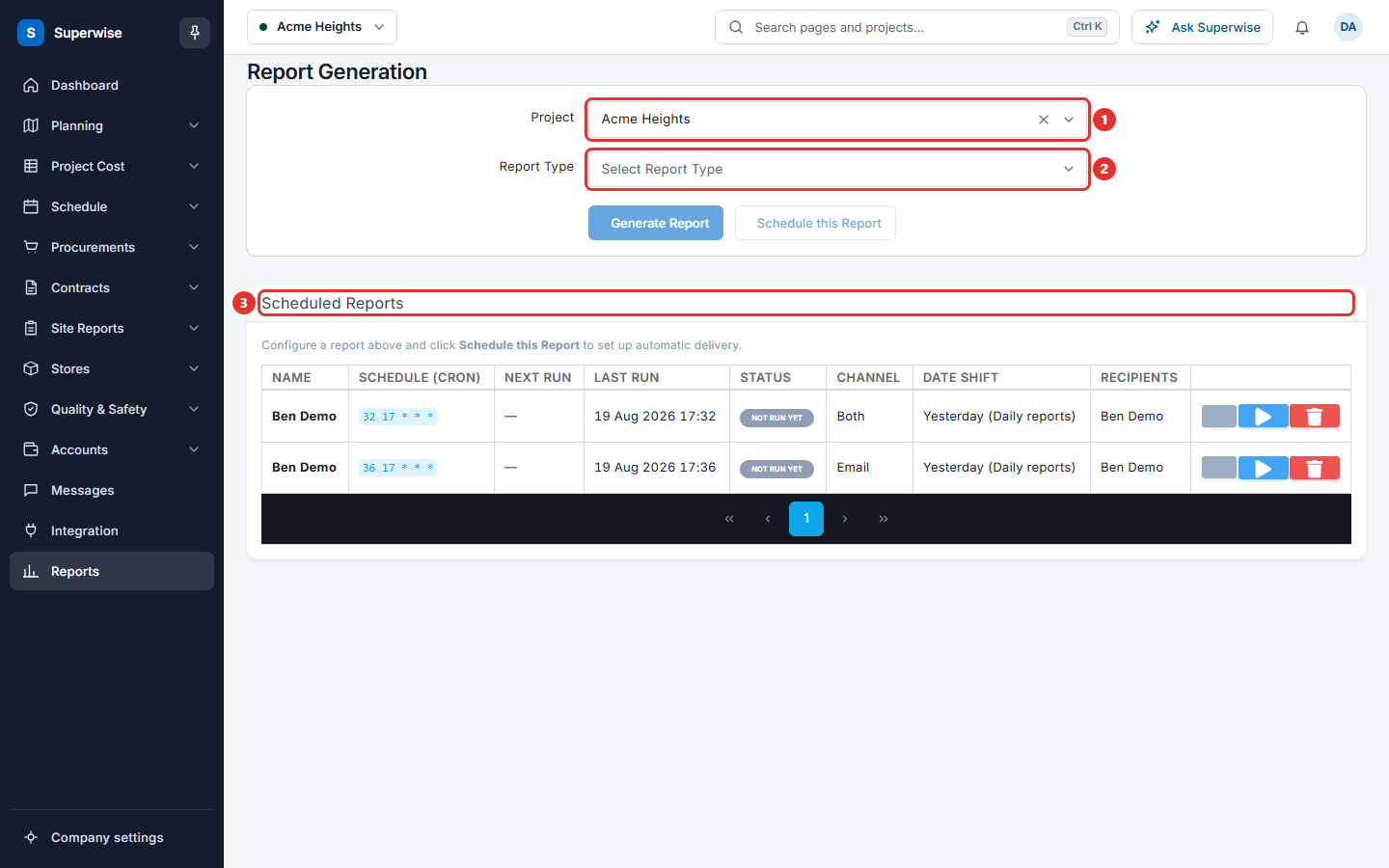
Which screen do I use
| I want | Use | Chapter |
|---|---|---|
| A report of one day, or of a few days, with a choice of sections | Report Generation, type Daily or Daily (Summary) | Generate a report |
| To see the daily report of a date range on the screen | Daily Report | Daily report |
| A management report for the client or the head office | Report Generation, type MIS or another summary type | Generate a report |
| The same report sent by e-mail or WhatsApp on a fixed day | Schedule this Report | Schedule a report |
| Totals of one list that I can click into, level by level | Report view on a list screen | Drilldown reports |
Two short books give the quick answers for the most asked reports: Daily summary and Schedule summary.
What the report types are
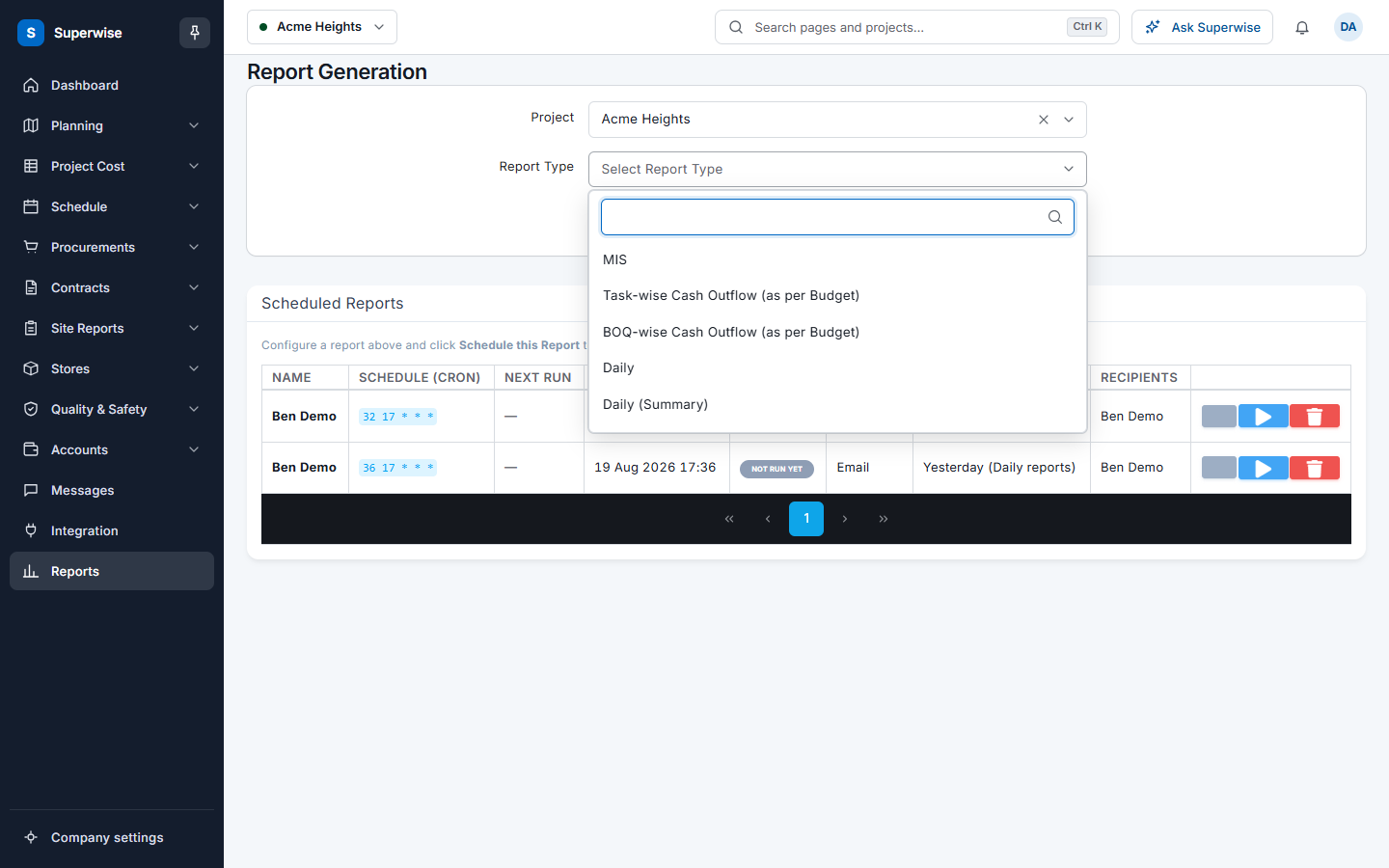
| Report Type | What it gives you |
|---|---|
| Daily | The daily progress report of one day or a date range. |
| Daily (Summary) | A short report of the areas that you choose, for one day or a date range. |
| MIS | A management report in A2 or A4 size, with sections that you choose. |
| Task-wise Cash Outflow (as per Budget) | The cash outflow of each task, as per the budget. |
| BOQ-wise Cash Outflow (as per Budget) | The cash outflow of each bill of quantities (BOQ) item, as per the budget. |
| Monthly Summary | A summary of one month. |
| Schedule Summary (Package-wise) | The schedule, one line for each package. |
| Cost Summary (Package-wise) | The cost, one line for each package. |
| Cost Summary (Template-wise) | The cost, one line for each template. |
| Portfolio Summary | A summary over projects. |
Before you start
- Select the project at the top of the screen, or choose it in Project on the form.
- The data must be entered first. A report of a day with no entries has no data. Superwise then shows The generated Report does not contain any data.
- To generate you need the Add permission on Reports. To schedule you need the Edit permission.
Rules to know
- The format is PDF or XLS (Excel). One report type, Task Forecast (% Completion), can only be Excel.
- Reports are read-only. They never change your data.
- You cannot choose a future date for a daily report.
If something goes wrong
| What you see | What to do |
|---|---|
| You cannot see Generate Report. | You do not have the Add permission on Reports. |
| The generated Report does not contain any data | The period has no entries. Choose another date or period. |
| An error occurred while generating the report. Please try again later | Try again. If it fails again, tell your administrator. |
Related pages
In this section
- Generate a reportChoose a project and a report type, set the period and the sections, and download the report as a PDF or Excel file.
- Schedule a reportSend a report by e-mail or WhatsApp to chosen people every day, week or month, and run, change or delete a schedule.
- Daily reportPreview the daily report of a project for a date range on the screen, open it in a new tab, or download it as PDF or Excel.
- Drilldown reportsOpen the report view of a list, read its totals in a table, click a value to go one level deeper, and export the table to CSV.