


Read a filled checklist
Open one filled checklist and read its header, its answers, its photos and the place where it was filled. You can also download it as a PDF.
- Where to find it
- Quality & Safety > Checks
- Who can use it
- People who have the View permission on Filled Checklists.
This page shows one filled checklist with all its answers. For example, it shows the concrete pour check that a site engineer filled in at Acme Heights on 12 March 2026. You open it from the list of submitted checklists.
Before you start
- The checklist must be filled. See Submitted checklists.
How to open a filled checklist
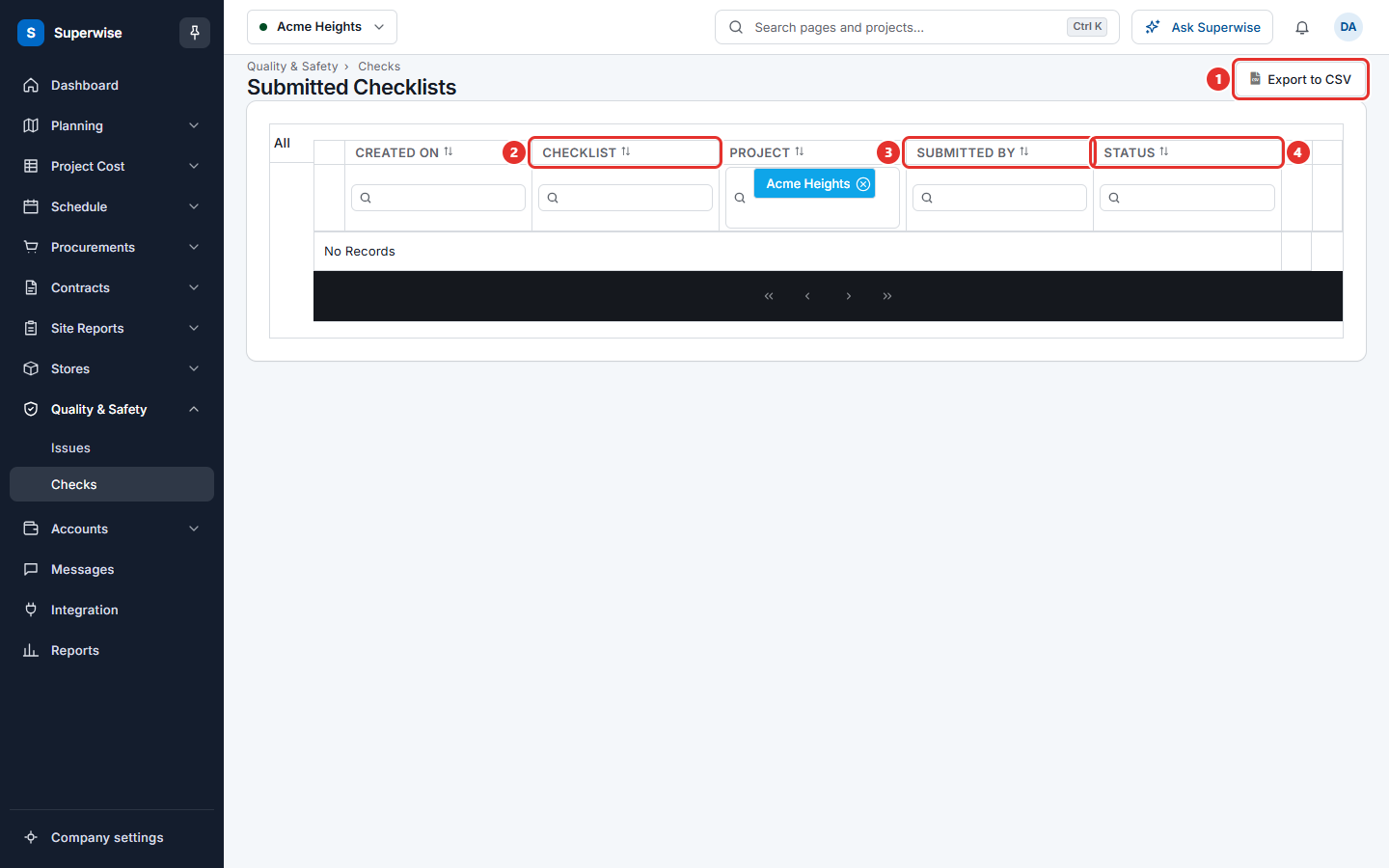
- Open Quality & Safety > Checks.
- Click the three dots at the end of the row.
- Choose Details. The checklist opens in a new browser tab.
How to read the page
- At the top, read the line Filled on with the date and the name of the person. If the checklist was filled for a task, the lines Area: and Task: show above it.
- Read the header fields. They are the title fields of the form, for example the name of the inspector. Each one shows a name and the answer.
- Read the table Checkpoint and Response. Each section of the form is one grey row. Click the row to open or close the section.
- At the bottom, read the map. It shows where the checklist was filled.
The map pin near the date is green when the place is valid and red when it is not.
How the answers look
| Type of question | How the answer shows |
|---|---|
| Text, number, choice | The text. |
| Yes or no | A green tick for yes. A red cross for no. |
| Date, date and time | The date, or the date and time. |
| Photos | Small pictures. Click one to enlarge it. |
| Video and audio | A player. |
| Rating | Up to 5 stars. |
| Several choices | A list. |
How to download a PDF
- Click the download icon next to the Filled on line.
- In Additional Options, tick Include Images to add the photos. Tick Include Extra Blank Page to add a blank page at the end.
- Click Download. Click Cancel to close the box.
Rules to know
- This page is for reading only. You cannot change the answers here.
- A checklist that is approved cannot be changed.
If something goes wrong
| What you see | What to do |
|---|---|
| Page not found | Open the checklist from the list again. Use Details in the row menu. |
| No photos in the PDF | Tick Include Images before you click Download. |