


Create a purchase bill
Enter a supplier's bill, choose the purchase orders and the period, check the delivery receipts and amounts, add debit and credit notes, and save.
- Where to find it
- Accounts > Purchase Bills
- Who can use it
- People who have the Add Purchase Bills permission. Editing a saved bill needs Edit.
You create a purchase bill to check a supplier's bill against what the site received. The form fills the lines from approved delivery receipts, so you do not type quantities or rates for goods that came against a purchase order.
For example, Alder Steel Works sends bill number 1042 for deliveries made from 1 October to 31 October 2026. You create a bill for that supplier, choose its purchase order and that period, and check that the lines match the supplier's paper bill.
Before you start
- Select the project at the top of the screen.
- The supplier's purchase order must be approved.
- The delivery receipts (material deliveries, labour records or equipment receipts) must be approved. See Material deliveries.
- Each delivery receipt must have a date inside the bill period.
- A delivery receipt that is already on another bill does not appear.
How to create a purchase bill
- Open Accounts in the left menu and click Purchase Bills.
- Click New purchase bill.
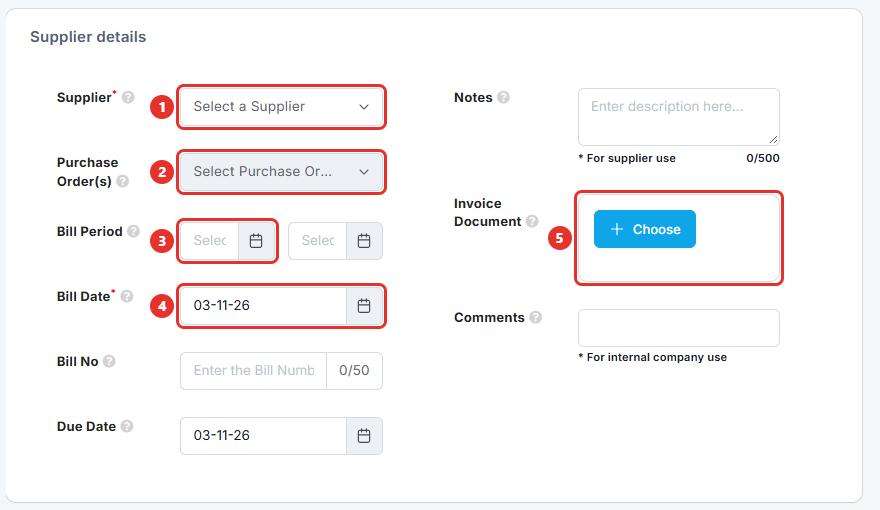
- In Supplier, choose the supplier (mark 1). This field is required.
- In Purchase Order(s), choose one or more purchase orders of that supplier (mark 2). The list shows only orders that the supplier can still bill.
- Check Bill Period (mark 3). Superwise fills the start date and the end date when you choose the orders. You can change them. Neither date can be in the future.
- In Bill Date, enter the date printed on the supplier's bill (mark 4). This field is required. It cannot be in the future.
- In Bill No, type the number printed on the supplier's bill. It takes up to 50 characters.
- In Due Date, choose the day the payment is due.
- In Notes, type a message for the supplier. In Comments, type a remark for your own company. Neither is required.
- Under Invoice Document, click Choose and attach a picture or a PDF of the supplier's bill (mark 5). The file can be up to 10 MB.
- Scroll to Bill details. The lines fill by themselves. See the next section.
- Check the Summary box on the right. Change Round off if the supplier's total has a few coins of difference.
- Click SAVE. The bill is saved as Pending.
If a message in a red box lists problems, such as Supplier is required, click the message to go to the field.
How to check the bill lines
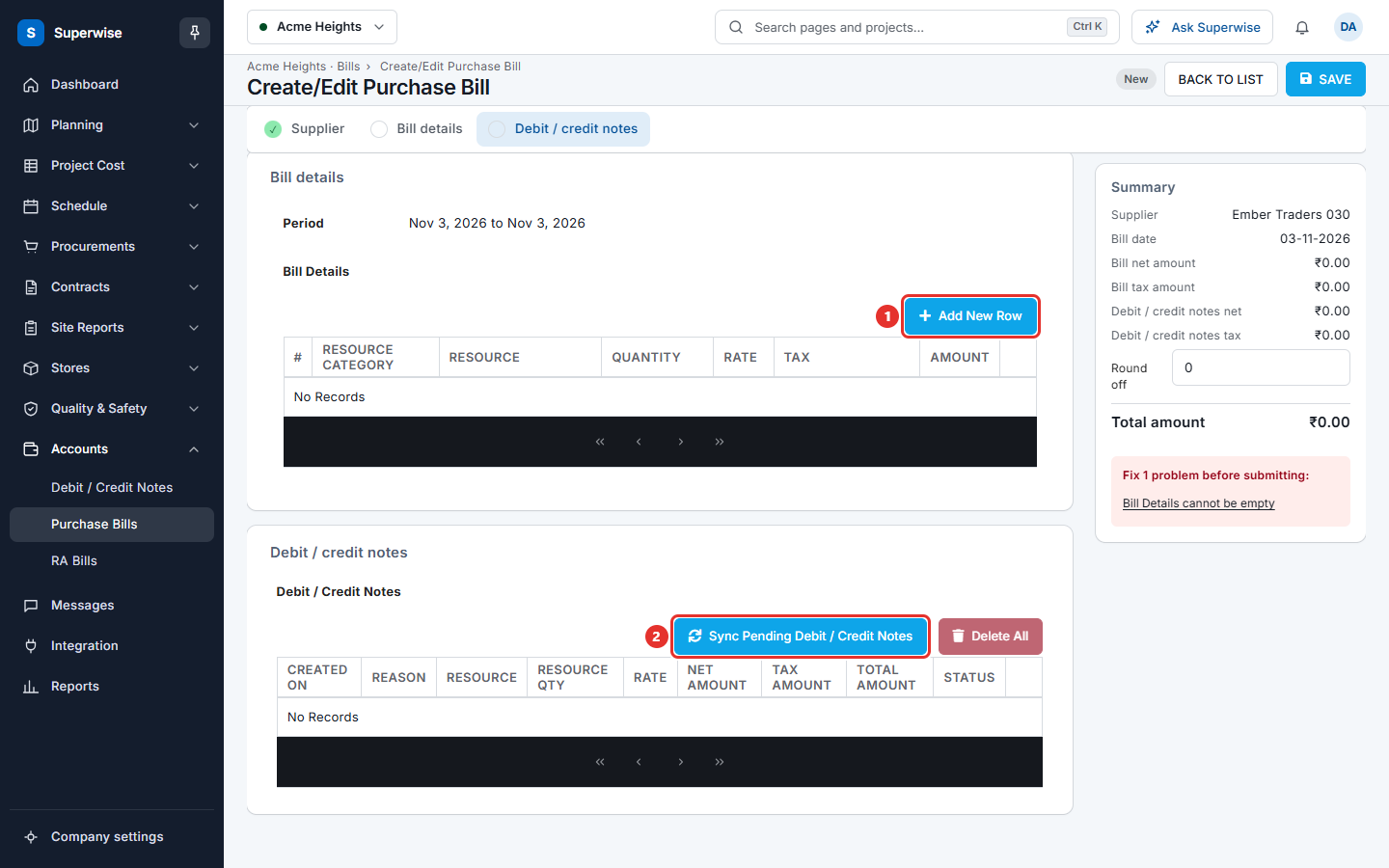
The Bill details section is locked until you choose a Supplier. Superwise loads the lines when you choose the supplier, the orders and the period. Each line is one resource, with its Quantity, Rate, Tax and Amount.
- Look at the Quantity of a line. Next to it is a small number with a ruler icon. It is the count of delivery receipts on that line.
- Click that number. A box titled Receipt Selection opens. It lists the delivery receipts for that resource, with Receipt Date, Receipt No., Created By, Approved By, Quantity, Vehicle No., Rate and Tax.
- Tick the receipts that this bill covers. Remove the tick from the receipts that belong to a later bill.
- Click Save in the box.
- If the supplier billed a different tax on a line, choose it in Tax. The Amount changes.
- To add a resource that has no purchase order, click Add New Row (mark 1). Choose a Resource Category and a Resource, then fill Quantity and Rate. A row you added yourself can be removed with the delete button at its end.
The Rate of a line that comes from a purchase order is the rate in that order. You cannot change it here.
How to add debit and credit notes
A debit note reduces what you pay the supplier, for example for damaged goods. A credit note increases it. See Debit and credit notes. You see this section only if you have the View permission on Debit / Credit Notes.
- Scroll to Debit / credit notes.
- Click Sync Pending Debit / Credit Notes (mark 2). Superwise lists the approved notes of this supplier and project that are not on another bill.
- To remove all of them from the bill, click Delete All.
The Summary box shows Debit / credit notes net and Debit / credit notes tax. The Total amount is the bill amount plus tax, minus the notes, plus Round off.
What the fields mean
| Name | What it means |
|---|---|
| Supplier | The company that sent the bill. Required. You cannot change it after the bill is saved. |
| Purchase Order(s) | The orders this bill covers. A bill can cover several orders of the same supplier. |
| Bill Period | The first and last day of the deliveries that you bill. |
| Bill Date | The date on the supplier's bill. Required. |
| Bill No | The number on the supplier's bill. |
| Due Date | The day the payment is due. |
| Notes | A message marked "For supplier use". |
| Invoice Document | The file of the supplier's bill. |
| Comments | A remark marked "For internal company use". |
| Round off | A small amount that you add or subtract so the total matches the supplier's bill. |
Rules to know
- A bill must have at least one line. A line must have a quantity and a rate above 0.
- The Total amount must be above 0.
- Two lines cannot be the same resource.
- All the receipts you tick on one line must have the same rate and the same tax. Otherwise the box shows All challans do not have same rate or All challans do not have same Tax.
- You must tick at least one receipt in the box. Otherwise it shows Challan selection is compulsory.
- You cannot add a debit or credit note that is Pending or Rejected.
- A saved bill is Pending. An edit sends it back to Pending.
If something goes wrong
| What you see | What to do |
|---|---|
| Supplier is required | Choose a supplier. |
| Bill Details cannot be empty | Choose a purchase order and a period, or click Add New Row. |
| The order is not in Purchase Order(s). | The order must be approved, and it must belong to the supplier and the project. |
| A delivery receipt is missing in Receipt Selection. | The receipt is not approved, its date is outside Bill Period, or it is on another bill. |
| Duplicate Bill Details found on Row No(s) | Two lines have the same resource. Remove one. |
| Bill Amount cannot be less than or equal to 0 (zero) | Check the quantities, the rates and the notes. |